
Files backed up? (4 Ways to be Sure)
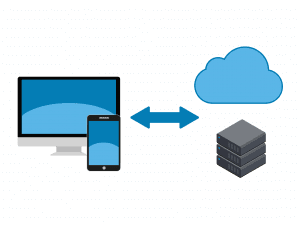
You work for a company either with a dedicated IT Department or a Managed Service Provider who supplies your IT Services / Support. Backups are done regularly. You feel pretty safe but do you really know what information is backed up?
It is a good idea to ask. It might not be as much as you think.
What is Potentially Backed up
Your company, at the very least, backs up the file server. Most file servers today are actually virtual servers running on a host configuration in a data center (you know, in the cloud). For all intent and purposes, you just need to be aware that this type of file backup is a bare minimum.
If your machine is a mobile device or a special purpose device, it might be regularly backed up through a backup agent installed on the machine. If your machine is that special you probably already know this. Everyday use machines will not be backed up locally.
If your email is accessed centrally (O365, Hosted Exchange, IMAP, etc.), a copy of your email resides on the mail server so if your computer dies, don’t worry. I don’t think anybody uses POP3 mail anymore so I won’t discuss it.
What Might Not be Backed up
Items that may not be backed up are the following:
- Local files on your computer
- Browser history, cache, bookmarks and settings
- Email not centrally stored
- Computer settings (printers , power settings, views, etc.)
If you are not sure please check with your IT support. You should know what is backed up and what is NOT backed up. It could be just a matter of tweaking some settings on their end, you are covered. If not, make a business case for the items that your feel are important for backup. When all else fails, follow the Tips below to help you out.
What can you do if your IT Department is not Backing up as Much as you Like
Local files
You can use any of the cloud services like OneDrive, Drop Box or Google Drive. They can be configured to backup areas on a Windows computer where you would regularly store files (Desktop, Documents and Pictures). If you computer were to die you would have those files in Cloud that could be easily accessed from another machine.
I will give an example from OneDrive to get you started:
- Download and Install One Drive
- You will see the OneDrive icon by the system clock (
 )
) - Right Click on it and choose “settings”.
- Click the Backup tab and then the “Manage Backup” button.
- Make sure Desktop, Documents and Pictures are checked:
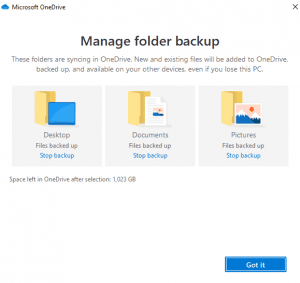
- Click “Got it”.
You’ve got some extra back up!
Browser Settings
This is fairly straight forward. Both Chrome and Edge allow you to login to your respective Google and Microsoft accounts and sync your browser data. I think it is great because not only does it back up your browser settings to the cloud, but it also allows you to access this data on multiple devices (smartphone, tablet, other computers). It makes for a seamless browser experience.
I will give a Google example this time:
- Open your Chrome Browser to https://www.google.com
- In the top right, click “Sign In”
- Use your Gmail account and password to sigh in. If you do not have one, it is easy to get one.
- One you are logged in all of your browser data will get synced.
Now you have more backed up! Also, the above two services can also be set up with MFA for added security!
System
This is really for a more advanced user. I have written an article about it so if you feel adventurous, go for it . The above tips will help most users get all of their data backed up in combination with what IT support backups up. It is really out of scope for this post but I will write a dedicated article in the future.
Long story short, you will definitely have some backup coverage through your IT Support. If you need more the above tips will help you!
If you want a good laugh, I have posted a Tik Tok video about it!
Before you call the Help Desk Try These Three Things

People’s natural instinct when facing a problem with a work computer or software system is to immediately contact the Help Desk. That’s what we are here for, right? I am not saying you shouldn’t contact the help desk. However, the problem you are experiencing might be very slight and can be easily resolved with some remedial steps before calling.
You see, by the time you contact the Help Desk and explain what the issue is and have us fix it; these steps could have already fixed it. If not, then at least you attempted some basic troubleshooting.
At this point, it is more than likely a larger problem that you will get assistance by reaching out. If it is a wide scale outage or problem, the IT staff probably already know about it.
So, before you call us…
Reboot your computer
Users don’t like restarting their computer. Waiting for the “endless seconds” for the machine to restart is too long! What you don’t realize is a PC left on for prolonged periods tends to slow down over time. The seconds you are saving by NOT rebooting is being lost due to slow performance.
Rebooting does wonders for a machine. Like, regularly clearing the RAM. If there are any memory leaks by programs that are not running, they will be gone with a reboot. Also, if there are any pending computer updates, they will get a chance to finish.
If your IT department or MSP automates the rebooting of your computer regularly through something like Group Policy or an automated script you don’t have to worry about this. If not, you can always set up a reminder in your email task list to reboot at a regular interval. If you really want to geek out about it, you could write a simple batch script and then call that script through a scheduled task. I will show you in another article how to do this.
Close and Reopen the Program that is Causing you Trouble
A lot of common programs (Office…I’m looking at you!) load some settings at startup. If things change in the Operating System, it might not be reflected in the program that is currently running. A good example is you load Word and THEN add a printer through Windows. Then you wonder why you can’t print to the new printer in Word. Close and reopen the program and voila! You can print to the new printer.
Computer Not Responding
I have got a great TikTok video that illustrates this. You are working on your machine and it locks up. It may appear that the whole machine is not responding but it may be only one program. Hit the Alt-Tab keys and cycle through your programs. Look at the title bar of each window. There might be only one program that says “Not responding” (I am now looking at you Chrome!). Note that program. Right click on the task bar and chose “task manager”. Highlight the offending program in the task list and click “end task”. Restart the program. If your machine doesn’t lock up again, great. If it does, it might be time to try Rebooting as mentioned in step 1. If all else fails, call us.
If you follow these three basic steps you should at least divert some calls away from the Help Desk and actually get on with your work day a bit quicker! It may not be as easy as this all the time but at least you tried and believe me, Help Desk with thank you!
Explaining Citrix to a 6-year-old

Citrix is complicated. There is a lot going on with all its moving parts. The title is a bit of a misnomer. You truly can’t explain it fully to a 6 year old, but you can give it a well-deserved introduction!
Citrix at 50,000 feet – For Adults
For those who can remember the days of the dumb terminal (is it even PC to use that terminology now?), your computer is a terminal to a remote desktop(s) that runs all the necessary software for you do your job. The good news is if your terminal dies or malfunctions, you can be up and running very quickly.
In most setups it is like this:
- You login to your computer and / or Citrix Session.
- One or more delivery controllers decide which is the best server in the pool of Citrix Application Servers you should connect to to load your apps.
- You connect to the prescribed server and start running your applications.
It looks quite seamless, like it is running locally on your machine, but it is not. There can be interoperability between your local machine and your Citrix session (sometimes it is required) To keep things simple, most administrators tell users to run everything in the session. It makes for more efficient trouble shooting and support.
One very attractive feature is you can login to another device and poof, all your programs are there! If you must run a meeting and all your prep work was done at your desk, it is quite helpful that all you must do is login to the boardroom computer and you are ready to go!
Citrix at 50,000 feet – For Kids
Imagine you would like to watch your favorite streaming show. To get to those shows, you would need to get permission from at least one of you parents (delivery controllers), who would then let you watch it on a TV in the living room (Application Server). You get bored watching it in the living room, so you go to your bedroom and start watching your favorite show on your tablet(Session Transition). You pick up right where you left off in from the living room.
Isn’t Citrix Fun!
That is in a nutshell what it takes to operate with Citrix. Apart from having a strong password as well using MFA to make your environment even more secure, using Citrix is an ideal solution for large enterprises. If a six year can understand how Citrix works, imagine what they will be like when they join the work force!
You can use whatever explanation that makes it easier for you to understand. So next time you are working with Citrix you can say “hey… I know how this stuff works! And all it took was a 6 year to explain it to me…. LOL
As always for Quick IT Tips, please reach out to me either through this site, or by one of my other channels.
Happy IT’ing
Dan
Your Email has Been Hacked! Do these 5 things

I have seen it all too often.
A user goes to work and either comes in to the office to check their email or looks at their phone beforehand and oh no….they see a bunch of emails from their contacts all asking the same thing. “Why are you sending this to me? Dude you have been hacked!”
It is more than likely your account has been compromised by a bad actor who is using your account to send out dozens if not hundreds of phishing emails out to all of your contacts hoping to get a bite (click) on a malicious attachment.
If you are part of a large organization, IT probably has been notified and are already taking steps to mitigate the damage. But what if you are a small company or an individual? If you use Office 365 as your email platform you can do these 5 things.
Disable the Account From Sending mail
If you are an individual you really can’t do this so quickly move to the next step. If you run your own O365 tenant please do this (https://docs.microsoft.com/en-us/microsoft-365/security/office-365-security/responding-to-a-compromised-email-account?view=o365-worldwide).
Change the Password Right Away to Something More Secure
To do this please follow one of my older blog articles (https://quickm365tips.com/how-to-create-a-strong-password-in-5-steps-especially-when-you-are-lazy/)
Enable MFA on the Account
Also, please visit one of my other blog articles (https://quickm365tips.com/using-mfa-why-should-you-care/)
Check If There are any odd Mail Rules for the Account
You need to make sure the hackers haven’t set up any forwarding rules that sends email to them (Instructions Here)
Disable Email forwarding for the whole Organization
This is a good security measure for many reasons. To add to the reason above it is good to disable it. That way, it can’t be used. You don’t want a disgruntled user to be forwarding email to another account that they could be using for malicious reasons against their soon to be ex-employer (https://docs.microsoft.com/en-us/microsoft-365/security/office-365-security/external-email-forwarding?view=o365-worldwide).
Following these steps will mitigate the damage and help you keep safe.
Using MFA…Why should you care?
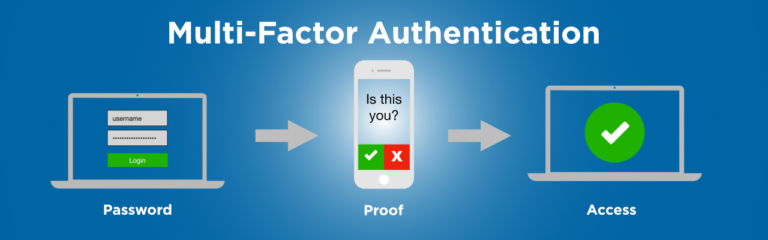
Multi Factor Authentication has been around for awhile. In fact all systems from a simple blogging service to a banking system have some form of MFA. In fact, a lot of systems do not even make it a choice anymore. This article is for the hold-outs that are trying NOT to use MFA on systems that allow them to opt out for as long as possible. It is a good compliment to a strong password.
A Quick Primer on MFA
MFA is a way to login to a computer system by using at least two sources of login information to gain access. In the security biz we call them security factors. For example, something you know (password), something you have (access token) and something you are (biometric scanner like a finger print scanner). In most cases, you will being using the first two factors. If you use the third one, you probably know MFA pretty well and this article is not for you.
Easy ways to setup MFA
Texting a code to your mobile phone
This is by far the easiest method to set up MFA. You just tell the service you are logging into that you would like a code texted to your mobile phone. It’s that easy. Every time you login a code will be texted to your phone and you will need to enter that code into the system you are logged into to complete authentication.
Using an Authenticator App
This is a little more detailed but it is my favorite way of authenticating. To me, it takes less time. You download and install of a authenticator app to your phone. A good example is is Microsoft Authenticator. There are other ones you can use and you might have to use more than one depending on the systems you login to but for for the sake of simplicity, we will use this one as an example.
You download the app from your mobiles online store (Apple iTunes Store or Google Play Store) and then set up your service account in the app. Once it is set up you will have an option to either enter in a code the app generates every 30 seconds or respond to a “push notification” after you log into to the online system. Either way you have the second factor to authenticate and that makes things very secure!
Since there are a lot of YouTube videos’ already created on how to set up MFA, I have looked at several and I will include the best ones here:
I have included one more here:
This should get you started on making your online accounts a lot more secure. Please share this quick IT tip (social sharing on page) with anyone who is reluctant to use MFA. It is so easy!!! As always, if you have any questions you can always drop me a line!
Secure Password in 5 Steps (Even if you are Lazy)

Let’s face it. You need a secure password.
You have to remember a lot of passwords in your online travels. There are many ways to create a secure password and manage it, but if you are like me you are LAZY! There is a way to create a very secure password that is very easy to remember and a breeze to change.
Why users create unsecure passwords
Users create unsecure passwords because it is easy to remember. That’s great until you get hacked and you need to deal with something as serious as identity theft. That is why most online services won’t let you create a password that is considered unsecure. They use the principle of password complexity and password history.
This system will help you with both. Now on to the steps!
1 – Make the Secure Password Long but not too Long
The longer your password is the harder it will be to crack. Don’t make this too long. I would make the password 8-12 characters
2 – Add a Capital Letter to Your Secure Password
Add a capital letter somewhere. Hey, your lazy right? How about right at the beginning!
3 – Put a Symbol Somewhere in the Secure Password
Symbols are great and can be used in place of letters. Symbols like @, $ and ! can be used. You get the gist.
4 – Put a Number Somewhere in the Secure Password
Numbers are great too. They can be used in place of similar looking letters or add it to the end to your password to make it longer and more complex.
5 – Make part of Your Secure Password a Nonsensical Word
Here is the Key to a secure but easy to remember password….a simple nonsensical word. Password crackers look for common words to perform attacks like brute force or dictionary attacks to try and gain access to your passwords. So why not make up a word that is easy to remember but is something that would never come up in these types of attacks?
Example
Here is an example of a simple but secure password:
Sh@bamm22!
Why? Let’s go through each of the five steps and see how easy it was to create it.
- Length – It is between 8-12 characters.
- Capital Letter – It has one.
- Symbol – It has one and it is in place of a letter and one at the end.
- It has Numbers in it.
- The password is based on a simple nonsensical word that the rest of the password elements were built around.
Conclusion
It took me literally 5 seconds to come up with that secure password. Since it is a combination of letters, numbers and symbols coupled with its length, it is virtually impossible to crack. The odds are in your favor. You can’t get much lazier than that.
The beauty is, when you are asked to change it (most systems will ask you to change it from time to time), all you have to do is change one or 2 characters and it is still impossible to crack. Yet you can remember it!
Make it even better by adding MFA.
Sometimes being smart gets misunderstood as being lazy…..