
Upgrade Breaks Logitech Tap Scheduler

I was going about my normal duties and decided to upgrade a Logitech Tap Scheduler (we have many) to firmware 1.8.557. Well it broke it. It was throwing a weird error too:
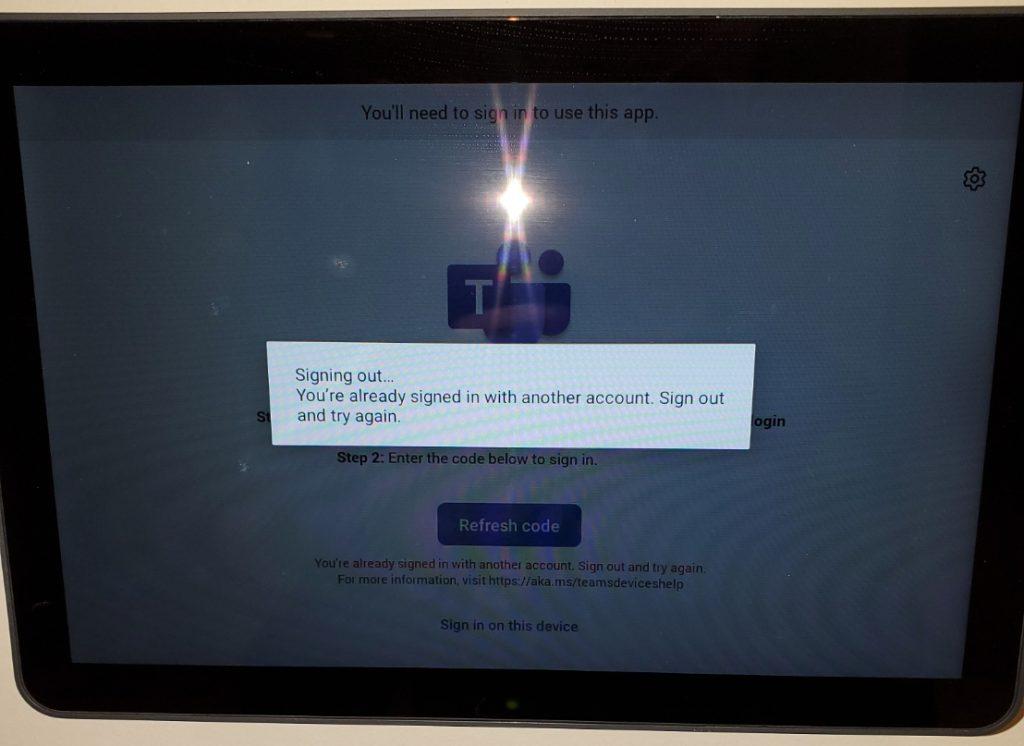
This particular account only signs in to this device. To be sure, I revoked all sign-ins for this account and tried again. No luck.
Contacting Logitech Tap Scheduler Support
Logitech support is always very helpful. I rarely have problems with these devices. I was told that this device is considered a “panel device” and needs a Microsoft Teams Pro license. It started running with a Teams Standard license and when Microsoft changed the licensing scheme we switched it to Microsoft Teams Basic.
I had been running for a few months like this without any issue. We switched to this license because it is free up to 25 devices. It suits us because all this device does is broadcast what is going on inside a meeting room or if it is free to use. The pro license is a lot of money per month. Very steep for what little the device does…
Fixing the Logitech Tap Scheduler
I contacted Microsoft support abut this and explained that it only happened since the firmware upgrade and that a Pro license is way to expensive for what it does. We have several of these devices and an expenditure like that is unnecessary.
The fix was quite easy:
- Sign in to endpoint.microsoft.com with your admin credentials.
- Go into Devices>Android>Android enrollment>
- Scroll to the bottom and in the section that says “Android Device Administrator”
- Click the “Personal and Corporate Owned Devices”
- Tick the box in here to “Use Device Administrator to manage Devices”.
After that, the device logged in normally, even with the updated firmware. Apparently other devices have had the same problem (Having issues signing into a yealink teams room panel – Microsoft Community Hub) I was a little worried. I have devices in various states of firmware and I did not want to upgrade any of them while they were still working.
I will take one broken tap scheduler over a dozen anytime!
Happy IT’ing
Dan
Disable Microsoft Teams Phone When User Leaves
Trying to Disable Microsoft Teams Phone for a user who has left the organization can be puzzling, especially if you haven’t done it before. It is quite integrated with M365 and there is a process to it. You are probably doing it this way….
Back in the day when a user left your organization, it used to be quite easy. It was done this way:
- You would disable the account in AD
- Forward their email to someone else in the organization
- Perform any modifications necessary in your VOIP phone system
- Change the VM greeting to let users know the user was no longer with the company
- Reroute their calls for awhile.
You can still do that in M365 but if you disable the account first, the user disappears in Teams Admin and you can’t do any further modifications!! If done right, it is as easy as adding a number in Teams. Here are the steps to the proper process.
How To Disable Microsoft Teams Phone
Note: Make sure you do this before you disable the account in AD. When it syncs to the Cloud the users Team’s account will disappear!!!
- Keep the users licensing active in the M365 portal.
- Start by forwarding all calls to voicemail:

- Then, establish a VM that notifies people – the user must have a default greeting set to “<user> is no longer with <Company Name> effective <Date>. Please contact <Manager> at <Teams Phone Number>.”.

- Hide the user from the GAL. You can do this in the portal but if you operate in a hybrid environment, go to the user account in AD and set the attribute MSExcHideFromAddressLists to TRUE
- Disable the account in AD or block sign-in in the portal.
- Have your IT Ticketing system remind you to remove the licensing after a certain period in O365 portal, so you don’t needless pay for a license you are not using.
The important thing to remember is NOT disable the user M365 account until after the Teams configuration is done. Wen done right, even tough the user has disappeared from teams, people will be properly notified when they call.
Happy IT’ing
Dan
Use Conditional Access When MFA Not Possible

You have a group of users that you want to only login into to certain devices in your organization. A good example is a general use account that you only use in one place (like a kiosk or a dedicated work area) but MFA is not feasible. You can use Conditional Access to help with this.
What is Conditional Access?
Conditional Access is a part of Azure AD that helps organizations improve security and compliance. By creating Conditional Access policies, you can tweak your authentication process.
Think about the old way of authentication: You require user to supply a username and password. Most of the time, it’s the legitimate account owner typing them in, the user can go on to access all the data, applications and other resources they’ve been granted permissions for. But consider this, an attacker has stolen or guessed a user’s credentials. Now they are accessing your network, and could have a breach on your hands
To mitigate these risks, organizations can put additional authentication in place. MFA is a good example.
The thing is, MFA is a broad approach. In the example I am about to show you what to do if the user is unable to use MFA.
You can use Azure AD Conditional to strengthen the authentication process. For example, you can create a policy to require users in a certain group to only login on devices that are recognized by the organization (At least Azure AD registered) and block all others. This will also help you pinpoint a breach a lot quicker. I will show you how in the next section.
Limit A Users Login With Conditional Access
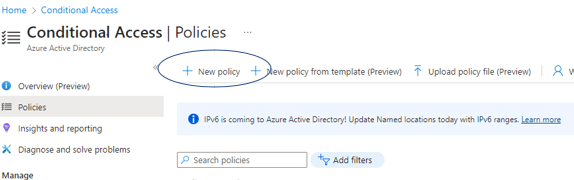
Login to your Azure Active Directory (AD) portal and go to Conditional Access and add a new policy:
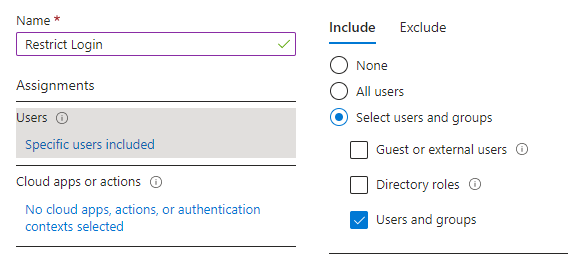
Give your Policy a name and then add users or groups that you want to include in this policy ( In my example I added a group):
Next, you can move to the next step, which is what applications you want to restrict login to. In this example, I have chosen Office 365:

This is the most important part the Conditional Access Policy:

In the Filter for Devices Section, you exclude devices from the policy by “Trust type”. If a user account from the group specified above is NOT one or more of the trust types you specify, they ARE included. I kept it simple and chose Azure AD registered. I am in a Hybrid environment and our devices are not joined to the cloud, only registered.
The last section is to block all access to the aforementioned apps:
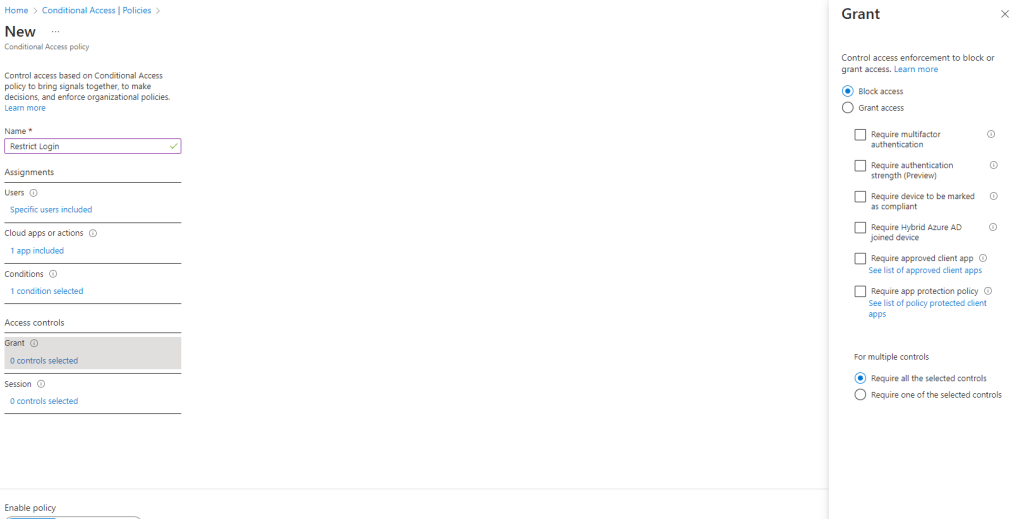
You could save the policy and start using it right away but that would not be a good idea. Save it as “Report-Only” and then check you Azure AD sign in logs to make sure it it working. Look at the logs by going to Azure AD / Users / Sign-in Logs. You will see a list of your users sign-ins. Filter for a time period where you have the Report-Only Conditional Access Policy in place.
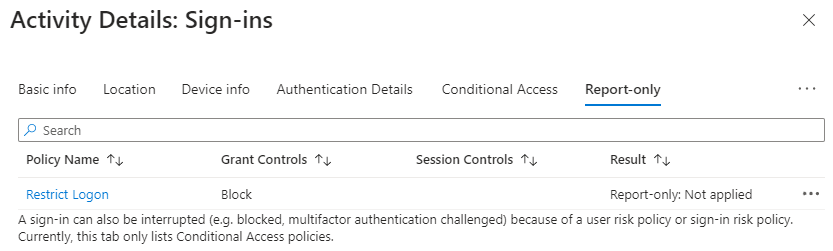
Pick a user account that you know in included in the policy, if you see this then the policy would not block them if it were on:
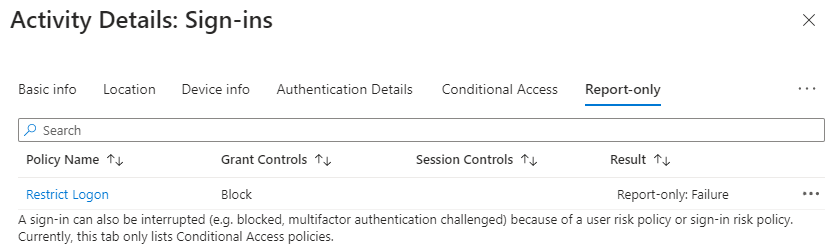
If you see the following you the device would be blocked from signing in if it were on:
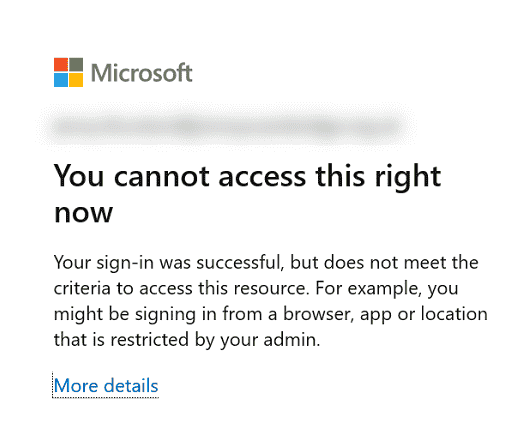
Users would expect to get this screen when they try to login:
You can investigate the sign-in to make sure it is not a false positive. Let the policy run in “Report-Only” Mode for awhile until you are sure it is running as it should and then turn it on. You have found a way to limit logging in for a certain group of users where MFA is not feasible.
Happy IT’ing
Dan
The Correct Way To Send Mail In PowerShell

Are you still using Send-MailMessage to Send Mail In PowerShell? You need to stop. The command needs SMTPAuth enabled for your organization. If you are looking for ways to security harden you M365 tenant, disabling this feature is a good way to go. But you still need to send email in PowerShell, right? I will show you in three steps.
Step One – Send Mail In PowerShell (Set up an App is Azure)
The first step involves setting up an App registration that will let you send mail. Create an App Registration in Azure Ad by going to Azure AD / Application / App Registrations and creating one:
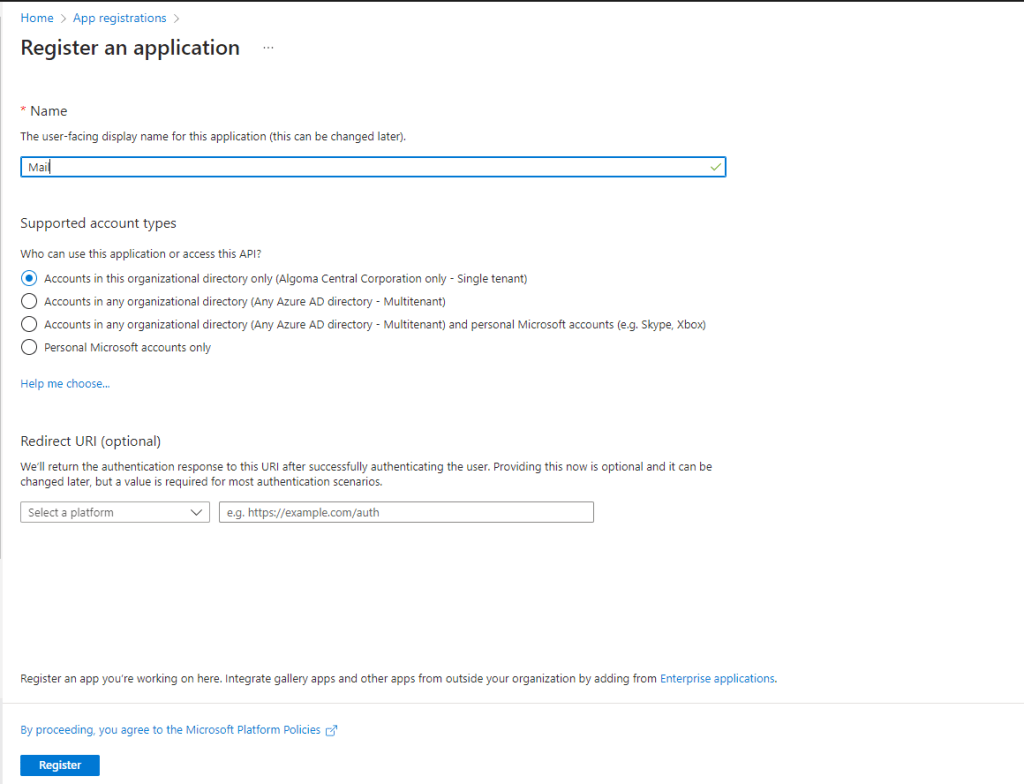
Click register. Now that you have you App for sending mail registered, go to API Permission and give the App permissions to Send mail as any user.
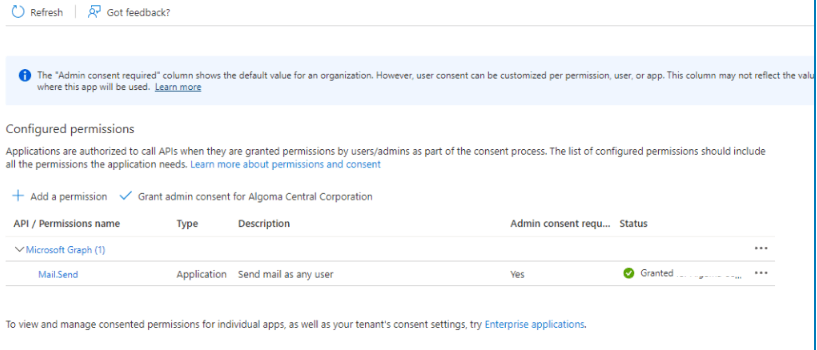
Please don’t forget to click on “Grant admin consent for” on the app.
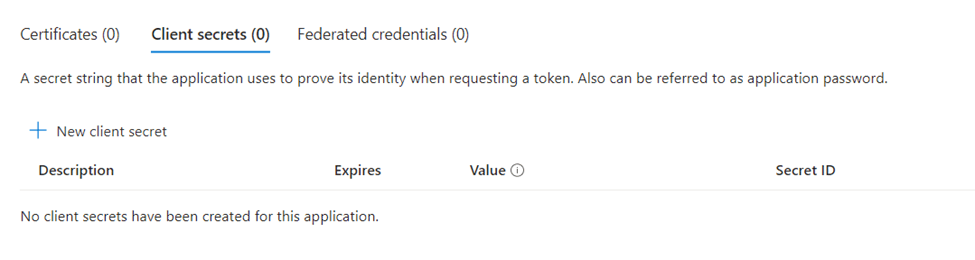
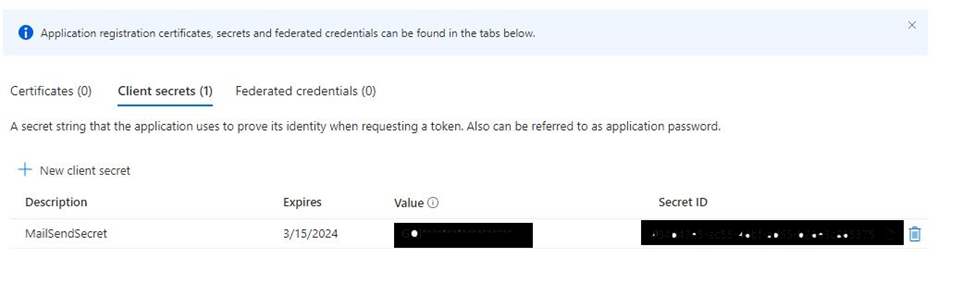
To finish our Azure App, we need to configure the Authentication Method to use as a Client Secret. Navigate to “Certificates & secrets” and select “New client secret.”
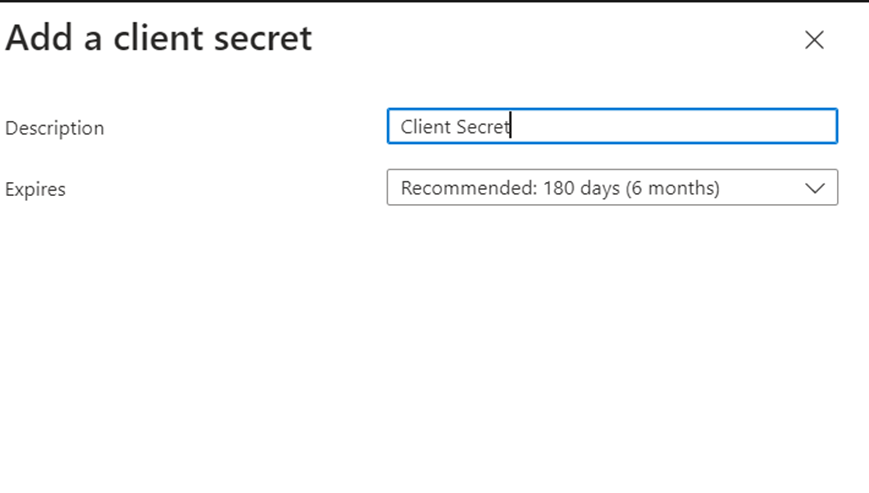
Enter a Name and Expire Date. Not this date because when it expires, your scripts that use this app will stop working and you will have to renew it.
NOTE:
When you click “Add”, the Secret is created and you have a unique chance to get the Client Secret. This is a one-time shot, so copy the Secret, before refreshing the Page or navigating to a different Section.
Now on to step two.
Step Two – Send Mail In PowerShell (Set Security Group in Exchange Online)
Once you are done creating an App, you need to set and application policy that will only let you use only the email address you specify in your organization to send mail as:
Connect to Exchange-Online and then run the following command in PowerShell:
- Connect to Exchange Online with the ExchangeOnlineManagement PowerShell module Connect-ExchangeOnline
- Create a mail enabled security group which contains all the accounts you want to send mails from $restrictedGroup = New-DistributionGroup -Name “Mail service accounts” -Type “Security” -Members @(“yourorgemail@company.com”)
- Optionally hide the group from the address list Set-DistributionGroup -Identity $restrictedGroup.Identity -HiddenFromAddressListsEnabled $true
- Create the application access policy to only allow sending the app mails for the specified distribution group
- Run this last set of commands:
$params = @{
AccessRight = “RestrictAccess”
AppId = “1f5ffbea-f13f-4f1a-af63-258ce4344daf”
PolicyScopeGroupId = $restrictedGroup.PrimarySmtpAddress
Description = “Restrict app permissions to only allow access to service account”
}
New-ApplicationAccessPolicy @params
Once this group is created you can go to into in admin.microsoft.com (Admin portal) and Navigating to Users / Teams & Groups / Mail Enabled Security Groups and making changes as necessary:
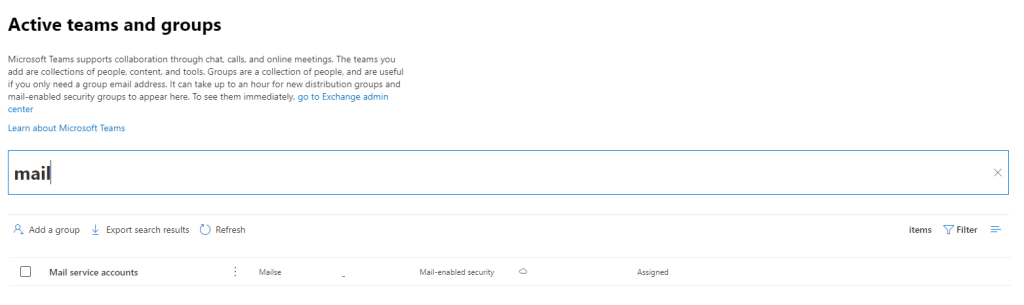
When you send mail using MS Graph, only the email address list above will be the only one able to send as.
Step Three – Send Mail In PowerShell (Use MS Graph in PowerShell)
In order to send mail in this new set up, you need to take note of three pieces of information from your app registration:
- Tenant ID – you can get it by looking here
- Client Secret (NOTE:) from above
- App (Client ID) – you need to got to the listing of your app registration and you App (Client ID will be listed here (See below)

Then, use this script to send your mail:
#Declare Parameters
$clientID = “your ID from App Registration”
$clientSecret = “your client secret from App Registration”
$tenantID = “your tenant ID”
#Run Script
$MailSender = “emailFromStep2@company.com”
#Connect to GRAPH API
$tokenBody = @{
Grant_Type = “client_credentials”
Scope = “https://graph.microsoft.com/.default”
Client_Id = $clientId
Client_Secret = $clientSecret
}
$tokenResponse = Invoke-RestMethod -Uri “https://login.microsoftonline.com/$tenantID/oauth2/v2.0/token” -Method POST -Body $tokenBody
$headers = @{
“Authorization” = “Bearer $($tokenResponse.access_token)”
“Content-type” = “application/json”
}
#Send Mail
$URLsend = “https://graph.microsoft.com/v1.0/users/$MailSender/sendMail”
$BodyJsonsend = @”
{
“message”: {
“subject”: “Hello World from Microsoft Graph API”,
“body”: {
“contentType”: “HTML”,
“content”: “This Mail is sent via Microsoft
GRAPH
API
                        "
                      },
                      "toRecipients": [
                        {
                          "emailAddress": {
                            "address": "yourToAddress@company.com"
                          }
                        }
                      ]
                    },
                    "saveToSentItems": "false"
                  }
“@
Invoke-RestMethod -Method POST -Uri $URLsend -Headers $headers -Body $BodyJsonsend
Conclusion
It seems like a lot of work but this is just to set it up. Now that you have a good base, whenever you need to send a mail for whatever reason in PowerShell all you have to do is make sure the required email sender address is in the Mail Enabled Security Group and in the variable in the script and you are good to go. A good example is notifying users that they are using external forwarding!
Happy IT’ing
Dan
Find Out Who is O365 External Forwarding With This One Trick

Now that you have disabled O365 External Forwarding for your organization, it’s time to find out who is using it….
List Users Who Are O365 External Forwarding
You may want to give your users a heads up that you will be disabling this feature. You can easily do this by connecting to the Exchange-Online PowerShell Module and using the Get-InboxRule commandlet. This example shows you how to get this list from a bunch of users:
#Connect to Exchange
Connect-ExchangeOnline
#Delcare Variables
$CSVPathUPN = “Path_To_UserList_CSV”
$StatusPath = “Path_To_User_Rules_Output_CSV”
#Run Script
#Try import UPN CSV file
try {
$UPNUsers = import-csv $CSVPathUPN -ErrorAction stop
}
catch {
throw “Error importing CSV: $($_.Exception.Message)”
break
}
#Go Through Each User
foreach ($UPNUser in $UPNUsers) {
#Go through each Rule and see if forwarding is set up
$x = 0
$user = $UPNUser.UPNUser
$items = @(Get-InboxRule -Mailbox $user)
$count = $items.count
while($x -lt $count) {

    $rule = $items[$x].RuleIdentity
    $ruleWithQuotes = "{0}" -f $rule
    $rulename = $items[$x].Name
    $rulenamelength = $rulename.length

    #"`r",$rulename
    #$("-" * $rulenamelength)

    $ForwardToObj = Get-InboxRule -Mailbox $user -Identity $ruleWithQuotes | Select ForwardTo
    $Contain = $ForwardToObj.ForwardTo

    if  ($Contain -like '*SMTP*') {
        $Contain

       } else {

        $Contain = "Not an External Forward or a Forward"
       }


    $ForwardAttachObj = Get-InboxRule -Mailbox $user -Identity $ruleWithQuotes | Select ForwardAsAttachment
    $Contain1 = $ForwardAttachObj.ForwardAsAttachment

    if  ($Contain1 -like '*SMTP*') {
        $Contain1

       } else {

        $Contain1 = "Not an External Forward or a Forward"

       }

$Rules = $user + "," + $rulename + "," + $Contain + "," + $Contain1

Write-Host $Rules
Write-Output $Rules | Out-File $StatusPath  -Append

    $x++
}
}
Write-Host All Rules Exported….
Disable External Forwarding for the Organization
When you are done writing and deploying the script, you need to make sure the default Anti-Spam Outbound Rule is enabled. As a Global Admin, go to admin.microsoft.com. Then go to Security / Policies and Rules / Threat Policies / Anti-Spam Policies:
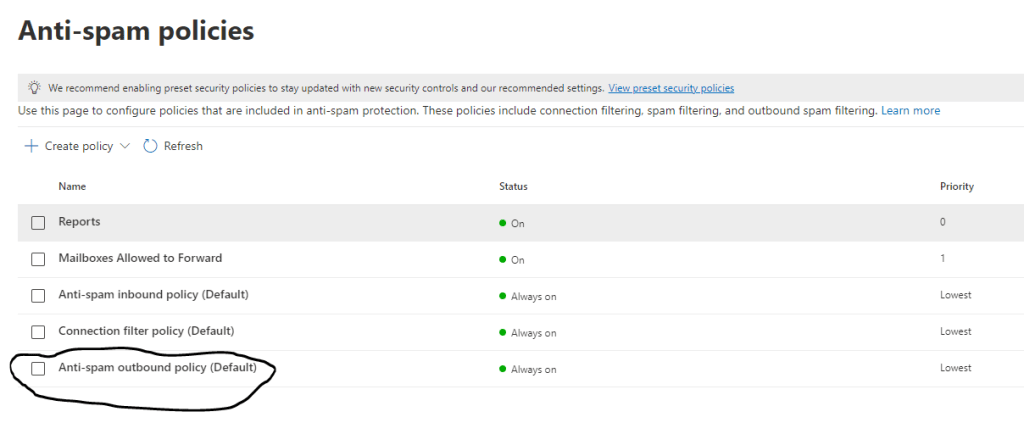
When you click on Anti-Spam Outbound Policy (Default), you will see a fly-out menu to your right. Click on “Edit Protection Settings” and make sure the Forwarding rules are set to off:
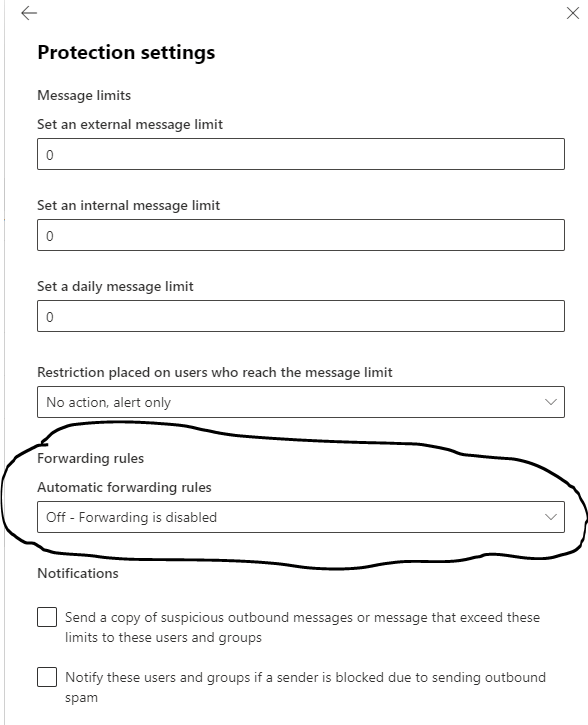
Save your settings and it is now turned off. Notify your list if users from step one and you are done. going forward, If you prefer sending an NDR to the user when they either setup a rule or try to use it you can set up a Transport Rule in Exchange admin instead.
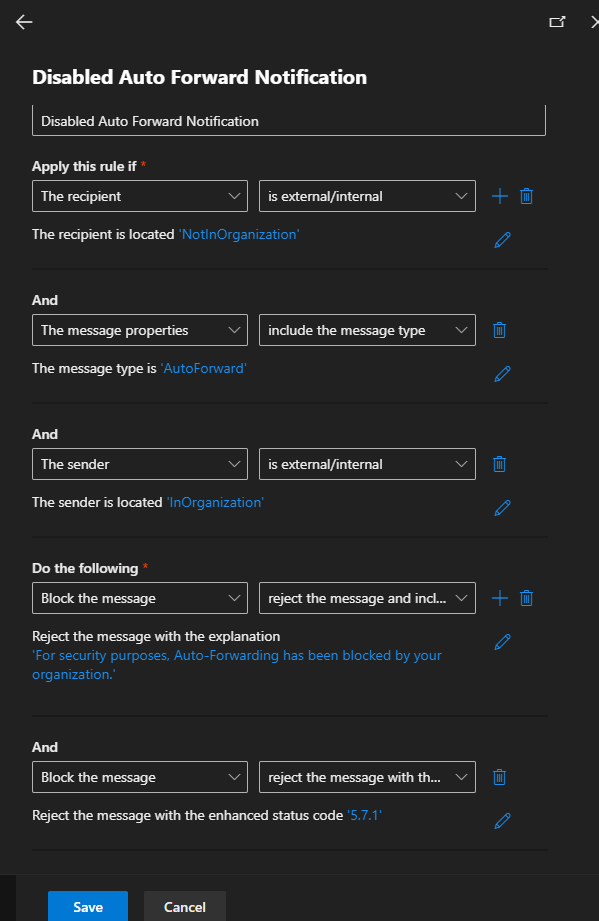
Go to admin.exchange.com and navigate to Mail Flow / Rules. Set up a rule to block Auto-Forward to recipients outside the organization with an explanation:
This article explains it very well.
Your Users may not like it but it protects the organization from comprised email through phishing attacks and rogue employees.
Happy IT’ing
Dan
Quickly React To M365 User Compromise

At some point you are going to deal with a M365 User Compromise. It could be a password leak of some kind. It could be through a phishing attempt or as simple as password sharing. Either way, it can be dealt with easily and quickly in 3 steps. I will show you how.
M365 User Compromise Account – Reset the password
Go to admin.microsoft.com and under Active Users search for the user of the compromised account. Click on the Username and then find:
This will help guard against any new logins with the account.
Revoke Sign In For Compromised Account
After a password reset, the next step is to sign the compromised account out of everything. While still in the user flyout, sign the user out from all sessions:
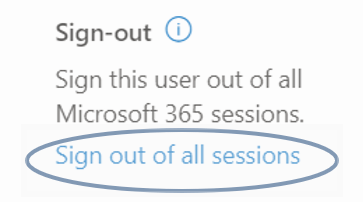
Similarly, you can do this in PowerShell. I wrote a great article about it here.
Block Unapproved Email Apps and Protocols
As a result, going forward, make sure you are not using any App or protocol you do not need. Click the Mail Tab if the User Fly out and click the Manage Email Apps Link:
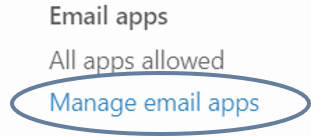
From here, uncheck any email app or protocol that could be used on a compromised account. It is a good idea to do this organization wide and not just for the user:
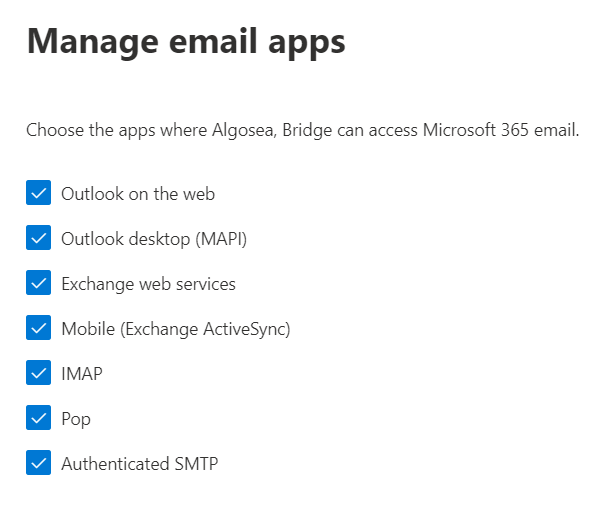
Voila. Not only has your user compromise been dealt with quickly, you have security hardened your M365 tenant. It gives bad actors a smaller attack surface and this could only be good for your organization!
Thankfully, I have written several articles on M365 Security. I encourage you to review them. They can help you quickly react to security compromises quickly when they happen or harden your system preventing it from happening in the first place. If you use these 3 steps to deal with an M365 User Compromise you will have it fixed in no time!!
Happy IT’ing
Dan
Disable External Forwarding With These 2 Steps

You, for many reasons (Security being a big one), that you need to Disable External Forwarding for your M365 Users. In this article I can show how to check which users are using forwarding and then how to turn it off for the entire organization so it won’t be a concern going forward.
List Users Who Use External Forwarding
You may want to give your users a heads up that you will be disabling this feature. You can easily do this by connecting to the Exchange-Online PowerShell Module and using the Get-InboxRule commandlet. If you only have a few users to look at you can run the following script manually:
#Connect to Exchange
Connect-ExchangeOnline
#Delcare Variables
$user = “username@domain.com”
$x = 0
$items = @(Get-InboxRule -Mailbox $user)
$count = $items.count
#Main
#Show all Rules on mailbox
$items
#Go through each Rule and see if forwarding is set up
while($x -lt $count) {
$rule = $items[$x].RuleIdentity
$ruleWithQuotes = "{0}" -f $rule
$rulename = $items[$x].Name
$rulenamelength = $rulename.length

"`r",$rulename
$("-" * $rulenamelength)

Get-InboxRule -Mailbox $user -Identity $ruleWithQuotes | Select -Property ForwardTo
Get-InboxRule -Mailbox $user -Identity $ruleWithQuotes | Select -Property ForwardAsAttachment


$x++
}
If you need to run this command for many users, I would suggest wrapping it in a For-Each Loop based on a CSV of your Organizations users and Export to a CSV if you need it as a list.
Disable External Forwarding for the Organization
For this, you need to make sure the default Anti-Spam Outbound Rule is enabled. As a Global Admin, go to admin.microsoft.com. Then go to Security / Policies and Rules / Threat Policies / Anti-Spam Policies:
When you click on Anti-Spam Outbound Policy (Default), you will see a fly-out menu to your right. Click on “Edit Protection Settings” and make sure the Forwarding rules are set to off:
Save your settings and it is now turned off. Notify your list if users from step one and you are done. They may not like it but it protects the organization from comprised email through phishing attacks and rogue employees.
Happy IT’ing
Dan