
Set up Working Hours in O365 Calendar (Two Ways)
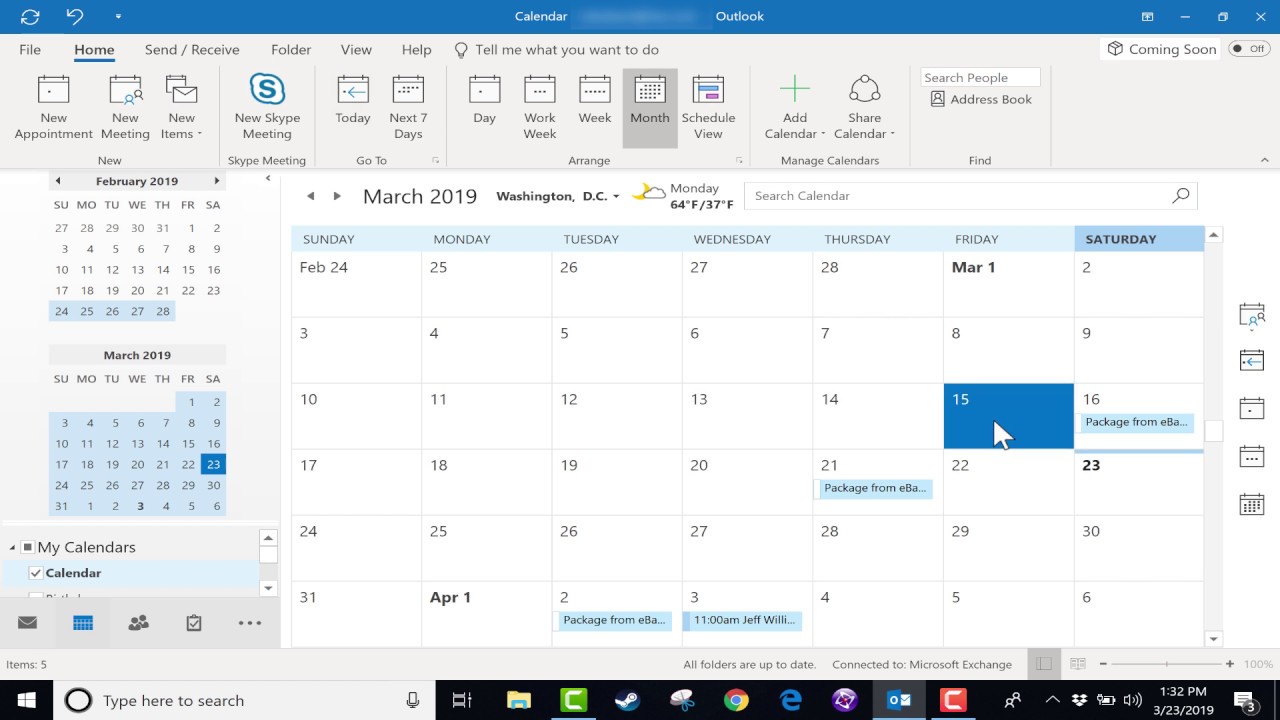
You might think you have working hours in O365 Calendar are set up properly, but something is not right. Users are noticing that when they book appointments in a shared calendar or their own, the working hours for the organization do not match what is in the calendar. There are two places to check for this depending on which type of calendar you are booking in. Let’s go through the ways.
Set Working Hours in Your Own Calendar
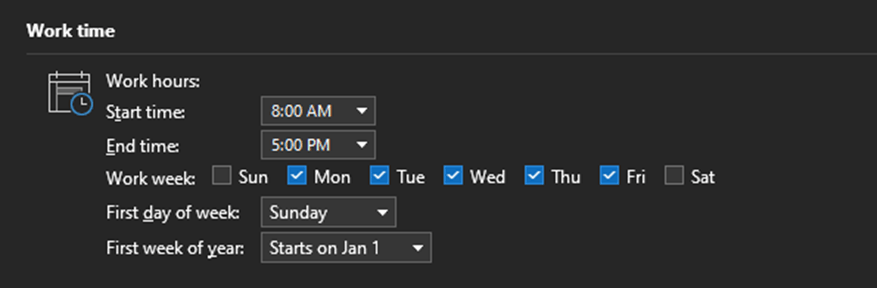
This is set locally in your Outlook client and can be accessed by going to File / Options / Calendar and changing the Working Hours to your Organizations start and end time:
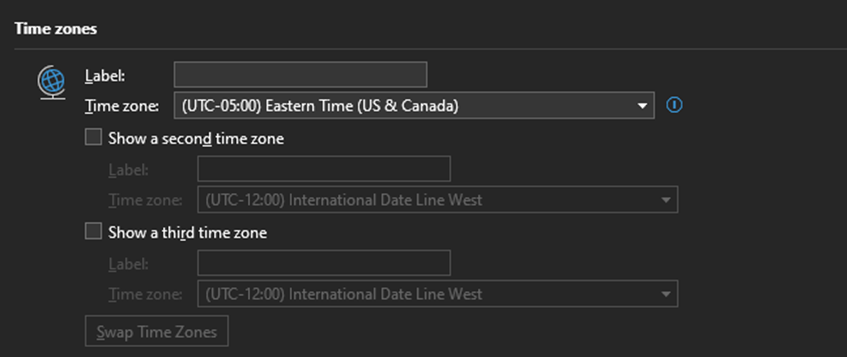
It is a good idea to make sure you have the proper time zone chosen as well:
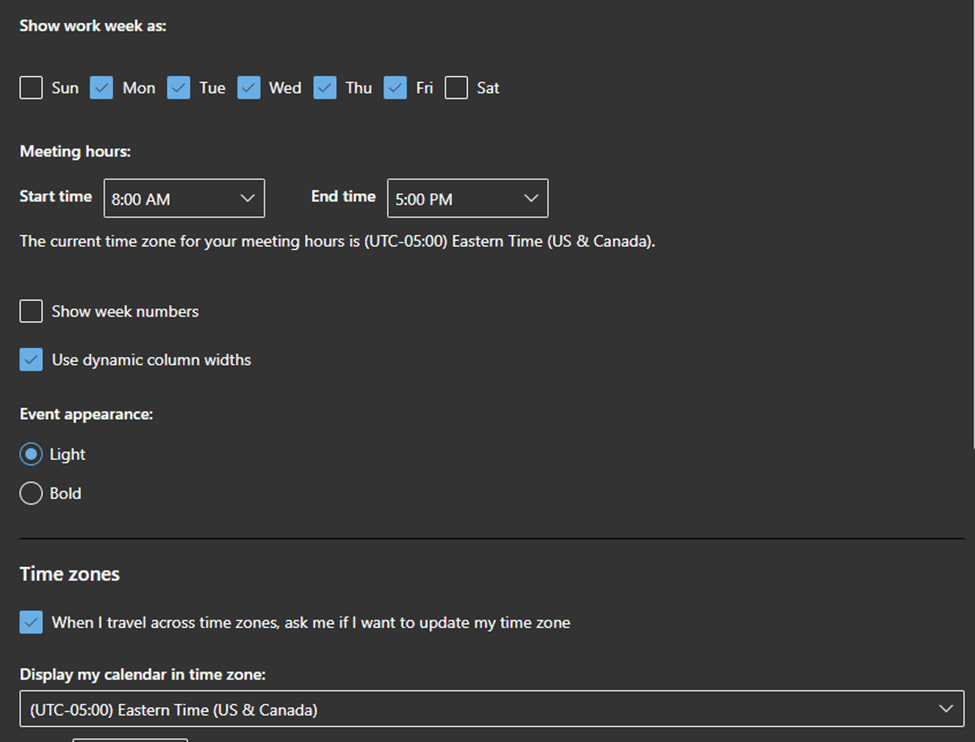
If you are using the webmail version of Outlook, go to Settings (Gear Icon) and then view all settings at the bottom and change the working hours and time zone here:
Set Working Hours in a Shared Calendar
To accomplish this, you need to be an admin in O365. It requires some PowerShell commands. If you have a lot of shared calendars you need to change, you will want to use a for each loop to cycle through them all.
Use this command to ensure your calendars have the right working hours and are operating in the correct time zone:
Example:
Set-MailboxCalendarConfiguration -Identity <UPN> -WorkingHoursTimeZone "Eastern Standard Time" -WorkingHoursStartTime 08:00:00 -WorkingHoursEndTime 17:00:00If you need configure many calendars, use a PowerShell Script:
## Declare Variables

$CSVPath = "FilePathHere\SharedCal.csv"

##Try import UPN CSV file

try {
    $SharedCals = import-csv $CSVPath -ErrorAction stop
}
catch {
    throw "Error importing CSV: $($_.Exception.Message)"
    break
}

foreach ($SharedCal in $SharedCals) {

Set-MailboxCalendarConfiguration -Identity $SharedCal.calname -WorkingHoursTimeZone "Eastern Standard Time" -WorkingHoursStartTime 08:00:00 -WorkingHoursEndTime 17:00:00

}
In this case, when a user wants to book into a shared calendar, they will only see the work hours as free (white space). They can book outside of the available working hours they just can’t see it until after they book.
If you follow these two ways to adjust Working Hours in O365 calendar, you will have absolutely no problem scheduling meetings!
Happy IT’ing
Dan
Allow Specific Users to Auto-Forward

You would like to allow auto-forwarding to specific domains. Great! What if you want to allow specific users to Auto-Forward? Back in the day you could probably only allow / disable domains from auto-forwarding. However, with the ever changing landscape that is M365 you now can get more granular with the process. Now you can specify exactly what users are allowed to do this.
It is a bit of a trick. If you know a bit about Exchange Online Admin and the Security Portal, you will have no problem, especially if your users aren’t using Microsoft Flow. I can show you in two steps.
Allow Specific Domains to Auto-Forward in Exchange Online Admin
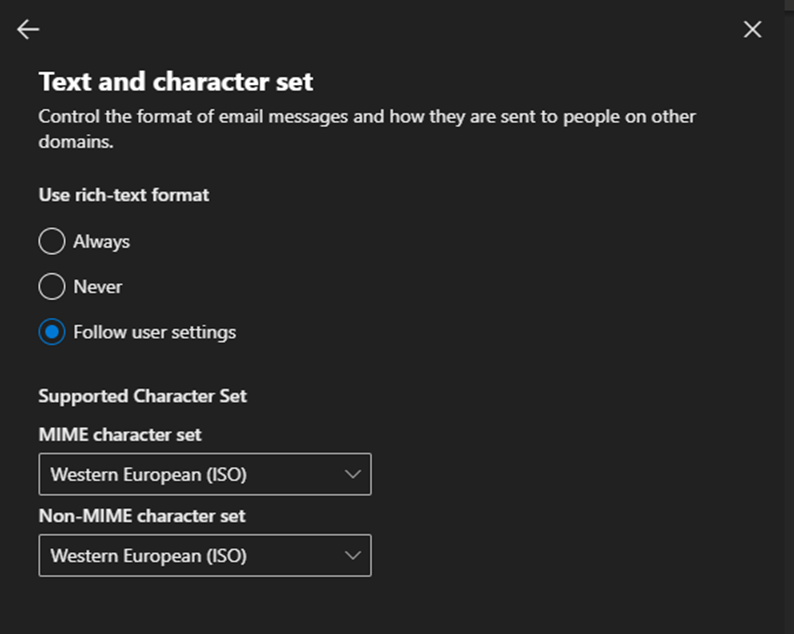
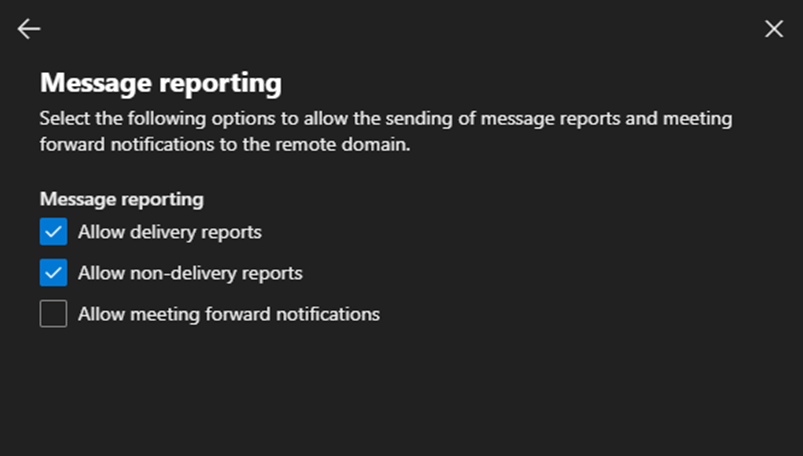
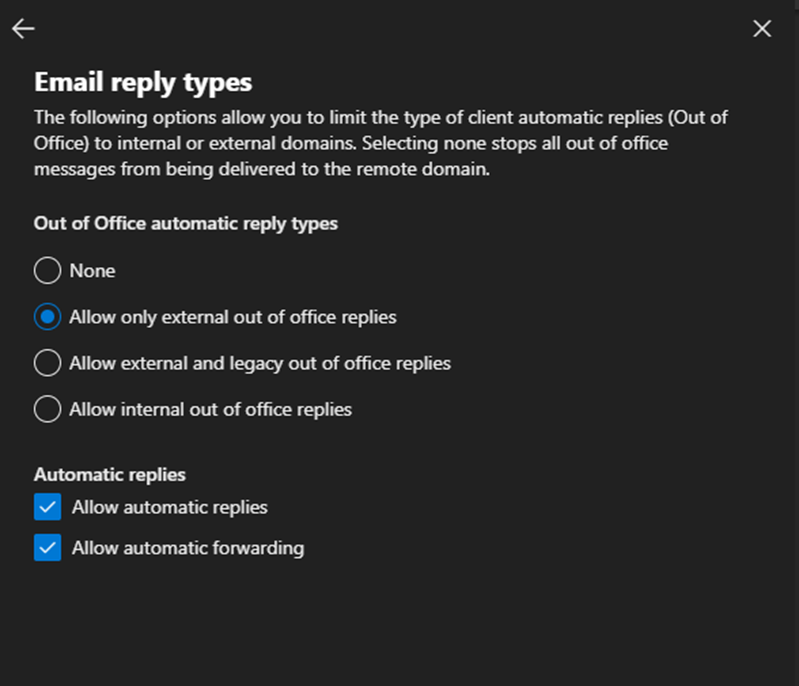
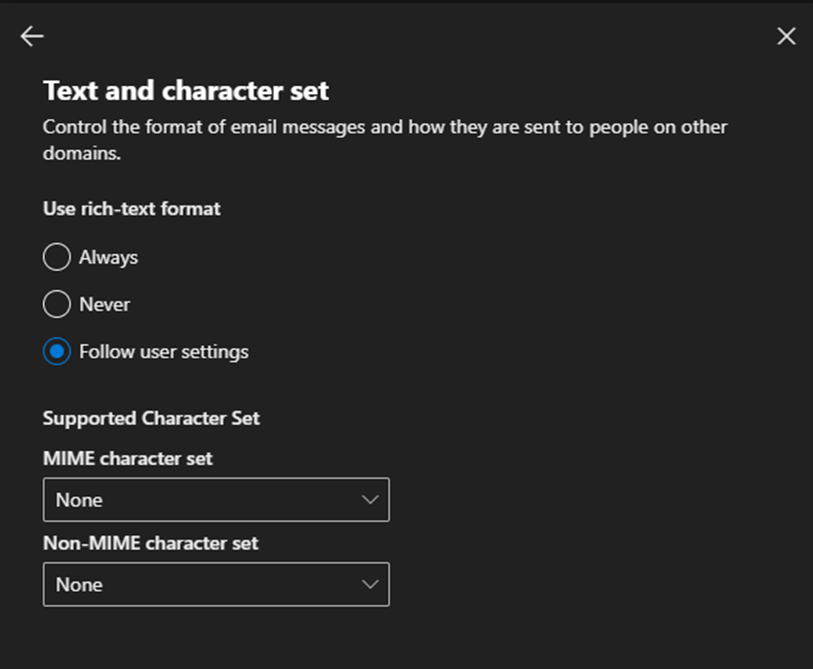
It is extremely important that you set this up correctly or the next step won’t work. Basically, you need to disable all domains (* – default domain) from auto-forwarding and then specify exceptions. When done like this, the exceptions are processed first. Go to Remote Domains in Exchange Admin:
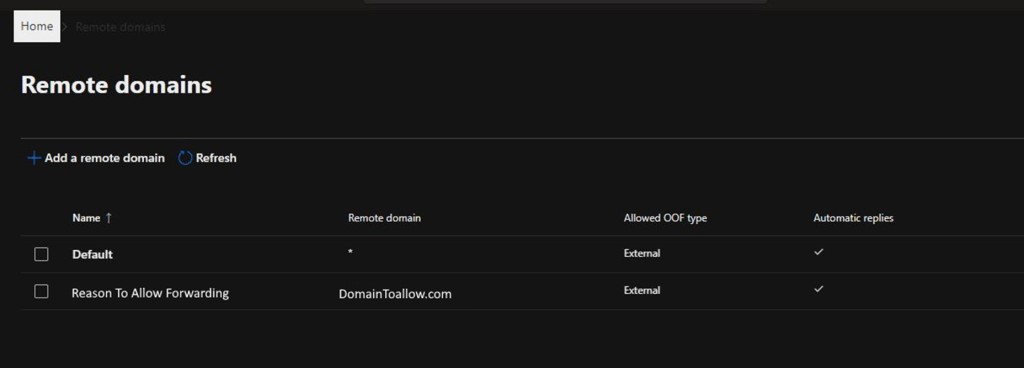
These are the settings you need to have for the default domain:
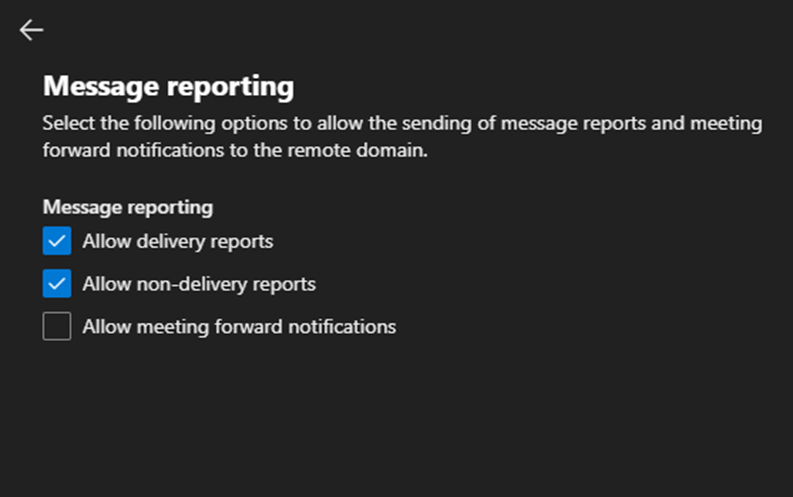
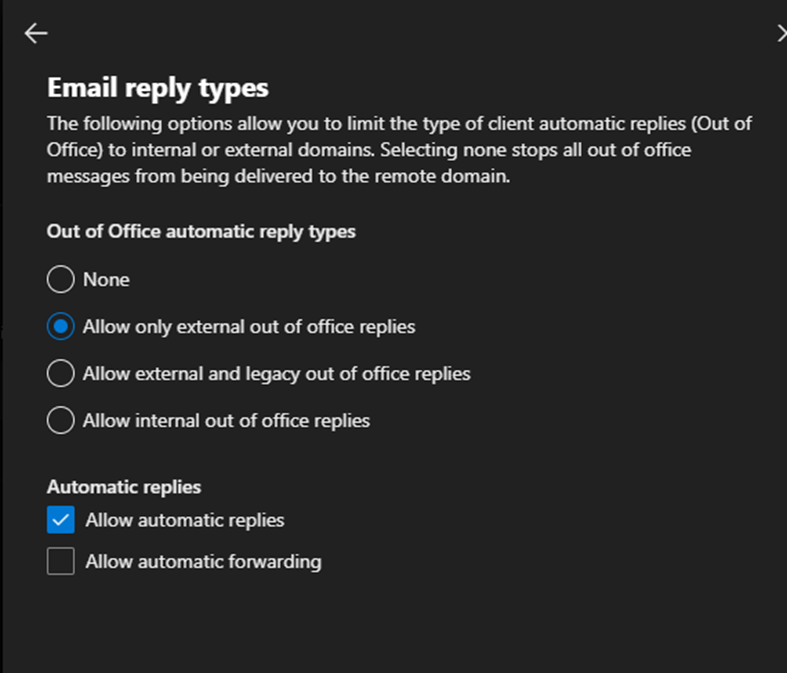
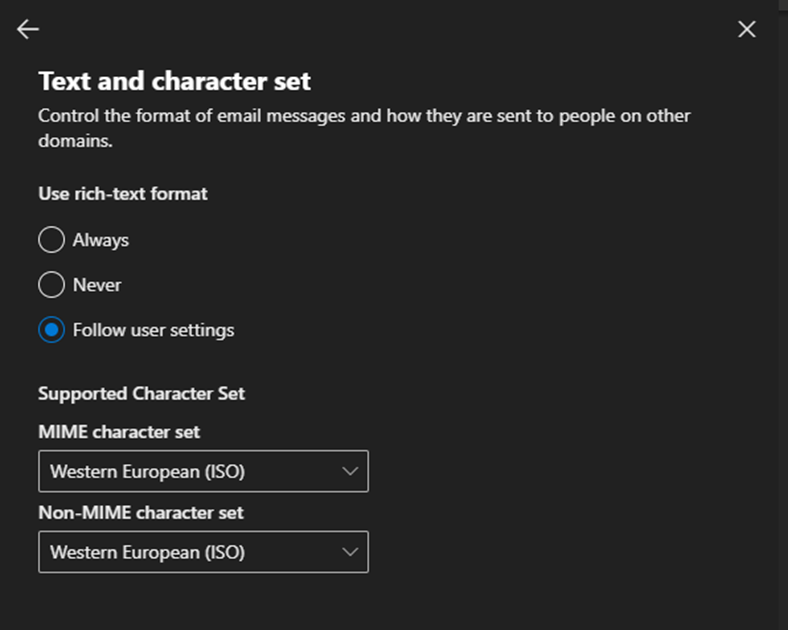
Next, in the list of remote domains you want to allow forwarding for are set up like this:
Allow Specific Users to Auto-Forward in Exchange Online Admin
Now that you are done step one, navigate to the Microsoft Security Portal Under Email and Collaboration / Policies and Rules / Anti-Spam. Here you will see your Anti-Spam Policies:
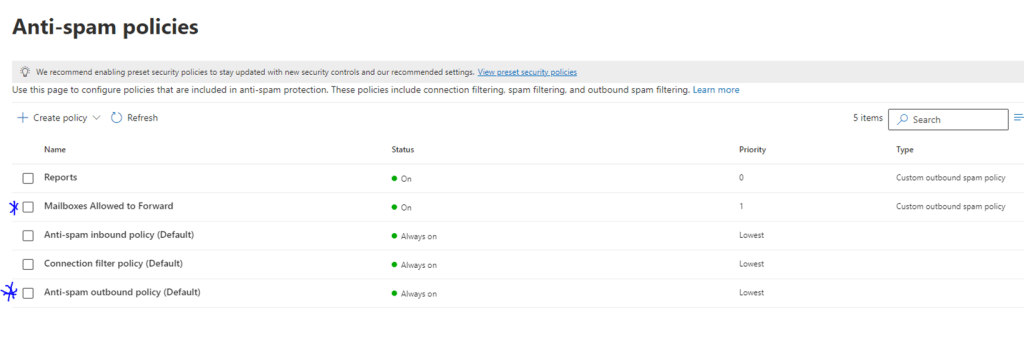
The Anti-Spam Outbound Policy (Default) should already be there. You just need to add your own Custom Outbound Anti-Spam Policy. Below is what the Default Anti-Spam policy should look like:
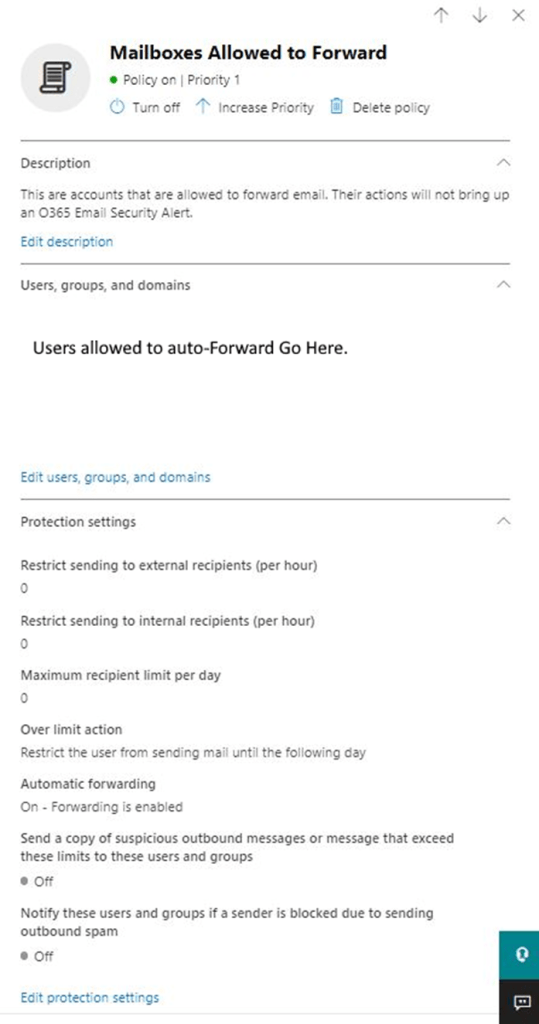
Unfortunately specifying groups does not work. I have tried several ways and even reached out to Microsoft about this. They tried their best to help but, in the end, I was told it is a limitation of the software. They encouraged me to go to Microsoft’s Feedback Portal and put a request in. If it gets enough votes, it might make it into a future release.
Happy IT’ing
Dan
Use Power Automate (Microsoft Flow) to Send Emails

Your organization has turned off Automatic forwards for security reasons. It helps protect emails from being forwarded to a hacker’s email address if your account became compromised. It also stops a disgruntled employee from sending information to the wrong place. If you use Power Automate (Microsoft Flow) it is more secure.
So, what if you have an email that you always like to send to a coworker(s) and you do not want to use a DL? You can use Power Automate (which is included in Office 365) to do this for you.
Power Automate is different than using Inbox rules to forward email. It executes actions as you do instead of completing the action without a record (like auto-forwarding did). You can see what you have done, and it satisfies basic security that blocks forwarding of messages to external recipients.
If you use MFA to login to Office 365, it is pretty much a bullet proof way of forwarding mail. If an Admin has disabled Auto-forwarding across the organization, it is practically impossible to be compromised.
Steps To Use Power Automate (Microsoft Flow)
To set up an email re-direct to an external user, follow the steps below.
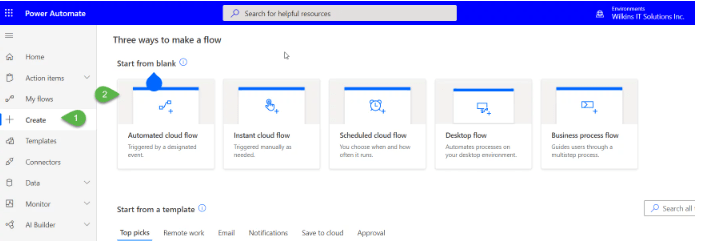
Step 1: Go to flow.microsoft.com and sign-in with your Office 365 account. Then click “Create”. We are going to create one from scratch.
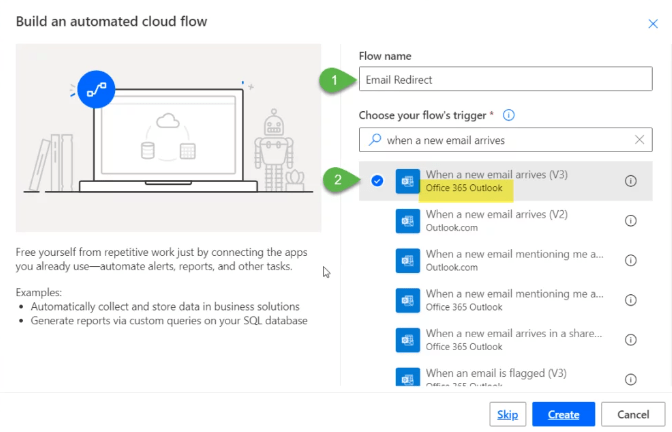
Step 2: Name your flow and choose the trigger. The trigger you want is “When an email arrives.” Power Automate maintains its own API-Level access, like Microsoft Graph, to connect to services so no password is needed.
Step 3: Edit in your email “rule” We want to use the subject filter, so we choose “Show advanced options” and then type what we want in the Subject Filter. You will see there are many options, and other advanced conditions to filter email.
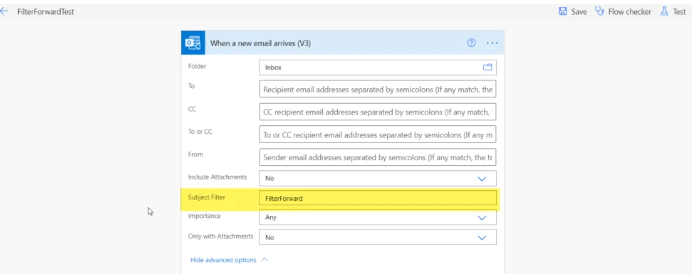
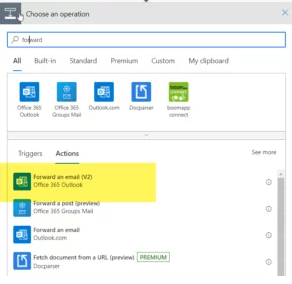
Step 4: Now tell Power Automate “What to do next”. In this example, Power Automate is looking for emails with what you are looking for in the subject line, but you need to tell it what to do next. You want to choose “New Step” and then choose “Forward an Email” for Office 365 Outlook
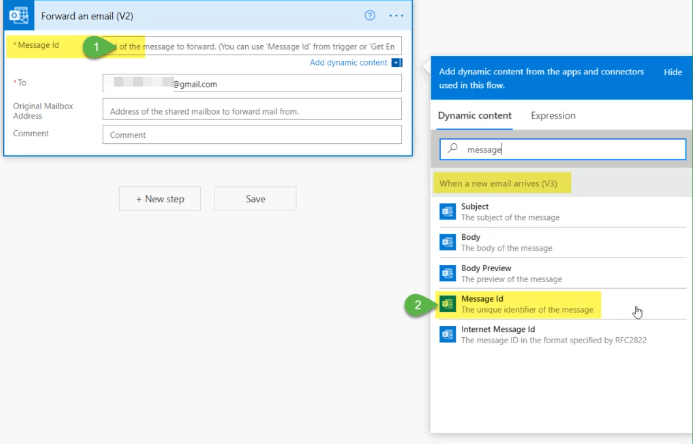
Step 5: Program your Forward Rule This is imperative. You must ensure that you choose the “Message ID” of your email from step 1. Use the search in the “Message ID” box you will get a list of options, choose Message ID.
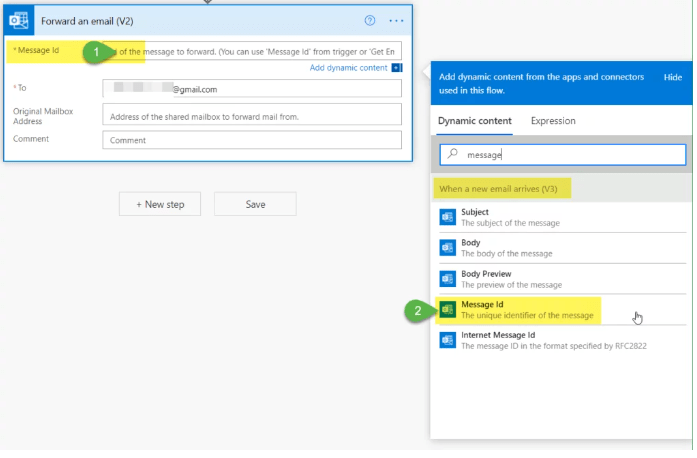
Step 6: Program your rule continued – Finally, enter the email you want to send the email to and then hit Save. If you followed all the steps above, you should get a “Saved Successfully” message. If you get an error, you can use the flow checker to see what is broken.
Step 7: Run the rule – You may need to modify the rule. In the example, any email that is received with the subject line you specify will be forwarded externally. You test the flow prior to running the rule. Give it a few minutes so the cloud can do its thing and sync but you should be good to go!
Happy IT’ing
Dan
How to Send HTML Mail In PowerShell

To Send HTML Mail email in PowerShell requires you to use Microsoft Graph. Send Mail is now depreciated and you shouldn’t be using it anyway. It is nice to add email automation to your scripts but wouldn’t it be better if you could send an nicely formatted email through HTML? Well you can.
It does require some set up. If you look at my previous article on the correct way to send email through PowerShell you can see how to get the App registration set up. Once you are done that, You can use the following script.
Send HTML Mail In PowerShell
Here is an example script that sends an HTML formatted message with a simple table. It also uses CSS formatting:
#Declare Parameters

$clientID = “your ID from App Registration”
$clientSecret = “your client secret from App Registration”
$tenantID = “your tenant ID”

##Run Script##

#Connect to GRAPH API

$MailSender = "who email will be from"

#Connect to GRAPH API
$tokenBody = @{
    Grant_Type    = "client_credentials"
    Scope         = "https://graph.microsoft.com/.default"
    Client_Id     = $clientId
    Client_Secret = $clientSecret
}
$tokenResponse = Invoke-RestMethod -Uri "https://login.microsoftonline.com/$tenantID/oauth2/v2.0/token" -Method POST -Body $tokenBody
$headers = @{
    "Authorization" = "Bearer $($tokenResponse.access_token)"
    "Content-type"  = "application/json"
}


$HTMLBody = @"
<!DOCTYPE html>
<html>
<head>
<style>
* {
'box-sizing: border-box;
}
.row {
margin-left:-5px;
margin-right:-5px;
}
.column {
'float: left;
'width: 20%;
padding: 5px;
}
/* Clearfix (clear floats) */
.row::after {
content: \"\";
clear: both;
display: table;
}
table {
font-family: verdana;
font-size: 10pt;
border-collapse: collapse;
border-spacing: 0;
height: 100px;
width: 315px;
border-right:1px solid black;
padding: 0px;
}
th, td {
text-align: left;
padding: 0px;
}
p {
 margin-top: 2;
 margin-bottom: 2;
}
</style>
<html>
<body>
<p>Here is the Contact Information that you require.</p>
<br>
<table style=\"width:100%\">
  <tr>
    <th>Company Name</th>
    <th>Contact Name</th>
    <th>Email Address</th>
  </tr>
  <tr>
    <td>John Doe</td>
    <td>Acme Co.</td>
    <td>jdoe@acme.com</td>
  </tr>
  <tr>
    <td>Eve Jackson</td>
    <td>Jackson Inc.</td>
    <td>ej@jakson.com</td>
  </tr>
  <tr>
    <td>Bruce Wayne</td>
    <td>Wayne Enterprises</td>
    <td>batman@wayne.com</td>
  </tr>
</table>
<br>
<p>Sincerely,</P>
<p>Sales</p>
</body>
</html>
"@

$msg = $HTMLBody

#Send Mail
$URLsend = "https://graph.microsoft.com/v1.0/users/$MailSender/sendMail"
$BodyJsonsend = @"
                    {
                        "message": {
                          "subject": "Customer Information",
                          "body": {
                            "contentType": "HTML",
                            "content": "$msg"

                          },
                          "toRecipients": [
                            {
                              "emailAddress": {
                                "address": "email address to"
                              }
                            }
                          ]
                        },
                        "saveToSentItems": "false"
                      }
"@

Invoke-RestMethod -Method POST -Uri $URLsend -Headers $headers -Body $BodyJsonsend
Escape the Quote Character When You Need To Send HTML Mail
It is very important to note that the script needs to escape an quote (“) symbol it sees. That character is the back slash (\). You will need it before every quotation mark in the script.
You will get a 400 Error (Bad Request) if you don’t. I was working on a heavily formatted email to send in PowerShell and I had to go through a lot of lines of code to ensure all of the quotation marks were escaped.
Now that you have a good base, whenever you need to send a mail for whatever reason in PowerShell you have an excellent “go to” HTML template for whatever reason you need.
If you find this post useful please consider buying me a coffee. It will keep me caffeinated so I can provide more Quick IT Tips!
Happy IT’ing
Dan