August 28, 2023 | Dan
Check M365 Health Status Using 3 Ways
Why would you want to check M365 Health status? A good example of when your users are experiencing issues with the M365 ecosystem, and you want to check to see if it is a system wide issue before you engage in a bunch of troubleshooting your specific tenant. This is one of the many ways to enhance your M365 tenant.
In the article I will show you three different ways to check M365 Health status. The good news is it can be automated or done manually. It is your choice. So, let’s get to it!
Check M365 Health Status Dashboard
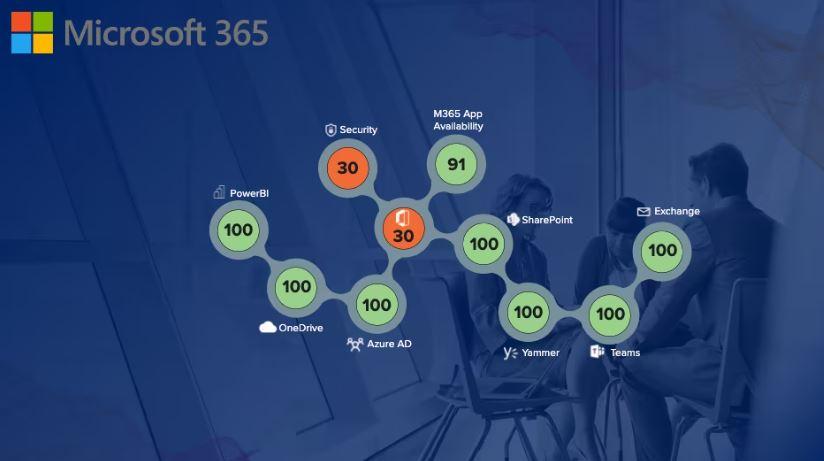
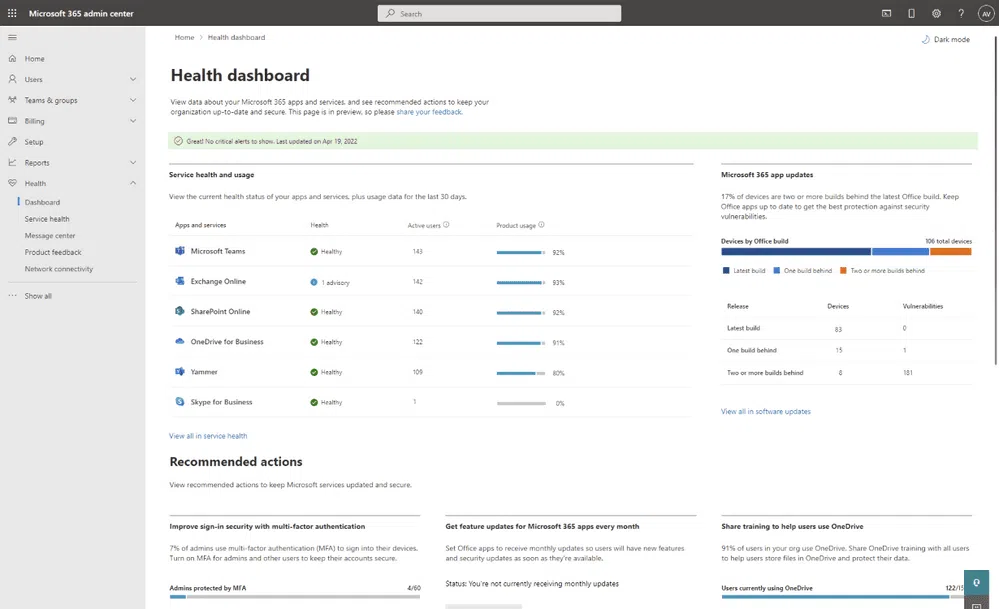
The Microsoft 365 Health dashboard lets customers view insights about the service status, software update status, as well as security compliance. It also shows critical alerts about general service incidents and billing issues.
It is designed to show the health status of the M365 services you use including the health of your environment, software and device updates, security as well potential billing issues.
Sign Up for Health Status Alerts
This is a great automated way to receive updates when you Check M365 Health Status of your environment, Do the following to sign up for alerts:
- Login to admin.microsoft.com.
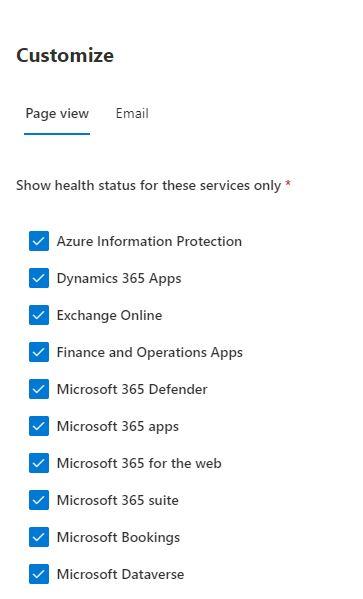
- Click on Health/Services Health and then customize in the top middle pane.
- Choose which services you want to view:
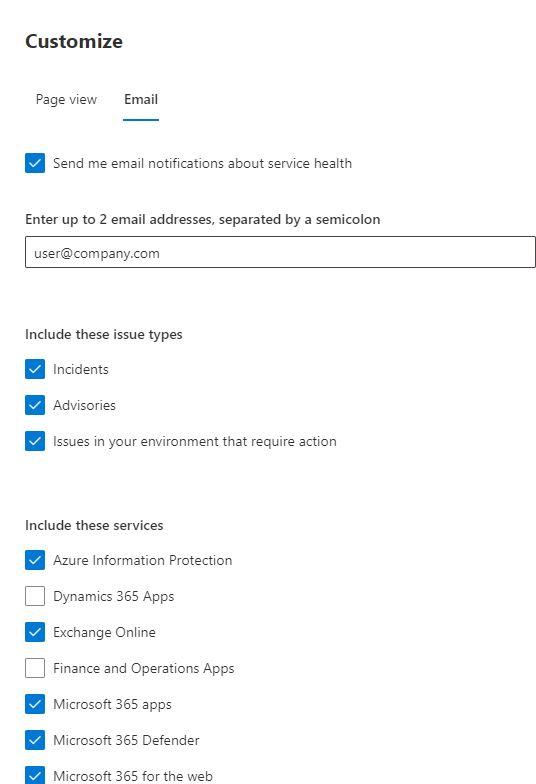
4. Choose what service you want health status emails on:
Whenever there is an issue with one of those services that affect your tenant or region, you will get notified via email.
Check Tenant Release Status
The is a great way to check M365 Health Status too. Sometimes is not a question of a service failing or degrading performance. It could be that your region hasn’t had a service update that takes care of the issue you are having. Consider it like a firmware upgrade for your tenant.
Before checking the service version of your Intune tenant, it is important to know that Microsoft releases monthly service updates to Intune. These updates are rolled out to tenants in an order.
• Day 1: Asia Pacific (APAC) gets the Intune updates.
• Day 2: Europe, Middle East, Africa (EMEA) gets the Intune updates.
• Day 3: North America gets the Intune updates.
• Day 4+: Intune for Government gets the updates.
It might not have got to your region yet. To check for your release version:
- Sign into the Microsoft Intune Portal.
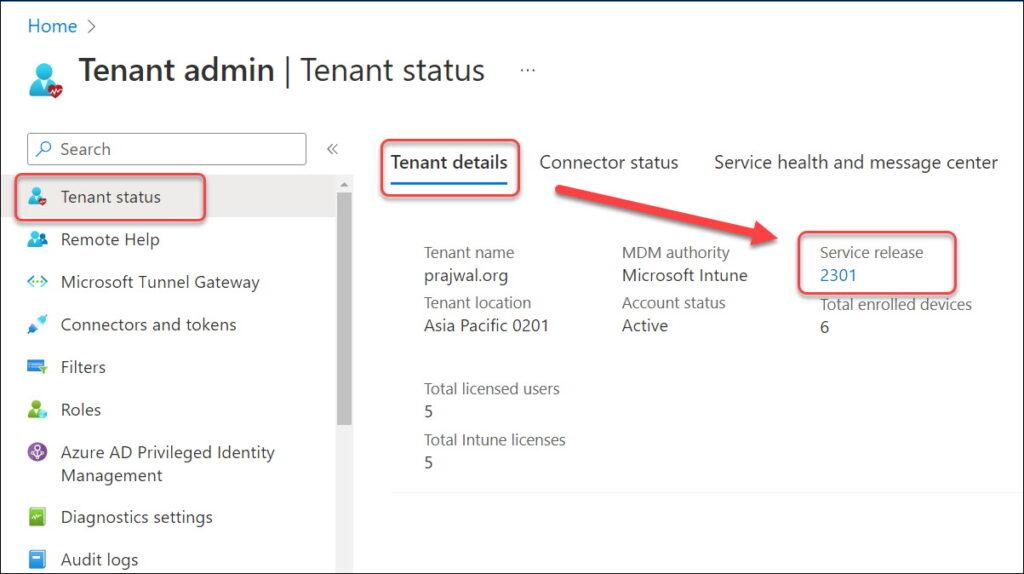
- Navigate to Tenant Administration and now select Tenant Status.
- Select the Tenant Details tab, and here you can find the Service release version of your Intune tenant.
Using these 3 ways to check M365 Health Status, you will be able to differentiate between any potential issue being caused by your specific tenant or if it is an issue that affects the M365 eco-system in your region!
August 18, 2023 | Dan
Create Teams Chat Autoreply with Power Automate
Create Teams Chat Autoreply with Power Automate
Here is a great example of why you would want to Create Teams Chat Autoreply with PowerAutomate. Your organization has an email address that forwards to several people. If you work in any form of a support group, this is common. The only thing is that it renders MS Teams on that account useless. You need Teams though because you are probably using the phone functionality on that account.
Nobody logins directly into the forwarded account so if anyone sends a chat message withing the organization you will only hear about it later in an email. By that time the person is probably wondering why they haven’t received support yet. If you use Power Automate (Microsoft Flow) it is more secure.
Why You Can’t set an Out of Office Message
It is an account that is not directly accessed so why not just send an out of office reply to incoming message. It works for Teams, right. Well, the problem here is that Outlook and Teams go hand in hand. With an OOO set up whatever goes to Outlook will also go to Teams and vice versa.
It would be hilarious if your support email sent out a reply that this this channel is not monitored! Here’s how you set up an autoreply in MS Teams.
Steps To Use Power Automate (Microsoft Flow) to Create Teams Chat Autoreply
- Go to https://make.powerautomate.com/ and sign in as the email account that is forwarded to your group if you are not already.
- On the left-hand side click “+Create”
- Choose Automated Cloud flow.
- Give your flow a name and search and choose the trigger “When a new chat message is added”.
- Click Create.
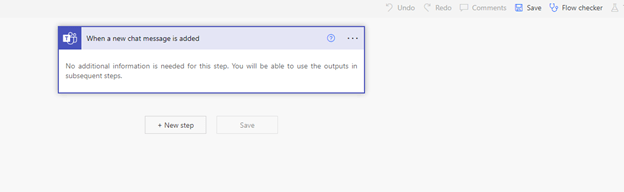
- You will be presented with a screen like this:
From Here you will add a step at a time by clicking on New Step. I will explain the flow in the next screenshots.
How the Flow Works
Power Automate can take almost anything you can do manually in M365 and automates it. A good example is when you Create Teams Chat Autoreply. The problem is that there is so much information you can automate is it hard to find documentation. Essentially the Output of a flow is an input to the next flow.
If the output from a flow has several values (like a search), it applies a “apply to each” step and will perform an iteration for you. My example only has one value. Creating the initial is ok, if you must go back and edit it, the “apply to each” becomes nested and it is a real pain. The flow I created is short, so I just recreate it every time in need to edit it. There is a way to remedy this but can show you in a future blog post.
Remember Each Output of one step is the input of the next.
Parse The Users Email Address (ObjectID)
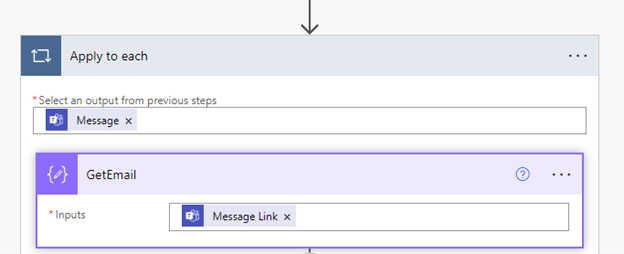
The step in the screenshot below takes its input from the initial step of the flow (When a chat message is added). There are several possible items (Dynamic Content) you can pick from the message. The item you need to pick for this step is “Message Link”.
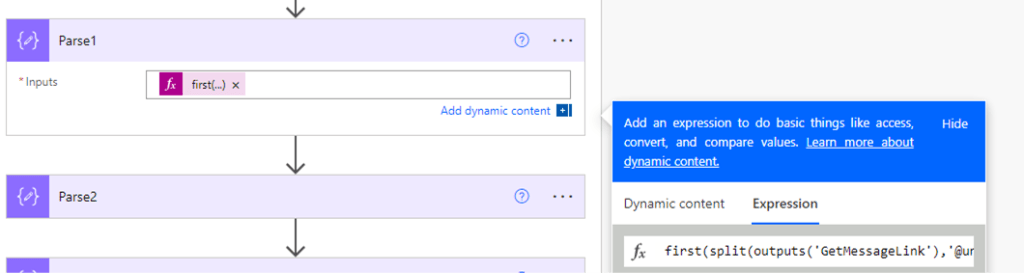
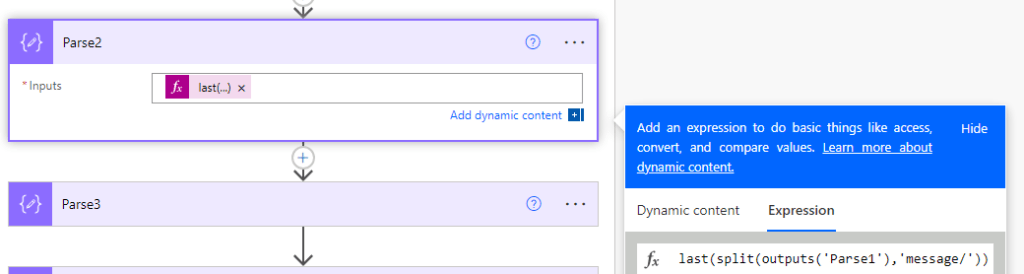
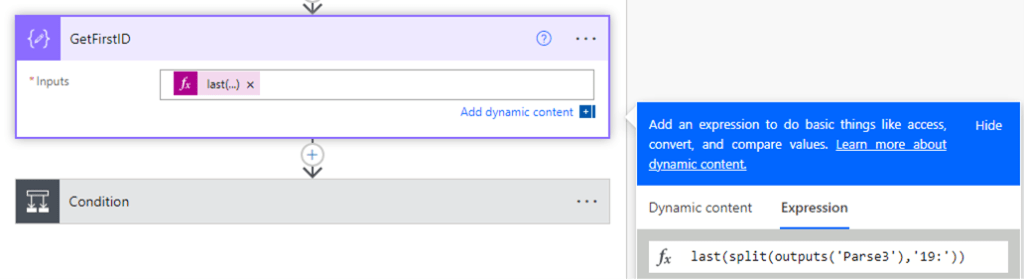
The next screenshots show how to parse the ObjectID’s from the Message Link Dynamic Content:
first(split(outputs(‘GetMessageLink’),’@unq’))
first(split(outputs(‘Parse2′),’_’))
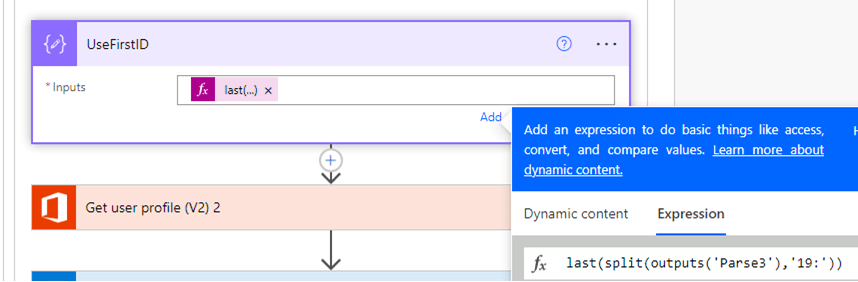
last(split(outputs(‘Parse3′),’19:’))
Now we have the 2 possible Object ID’s to parse out of the message link content:
Here is an example of data is trying to get at:
It is grabbing the info between “19:” and “_”. That is the ObjectID you will need in the following steps.
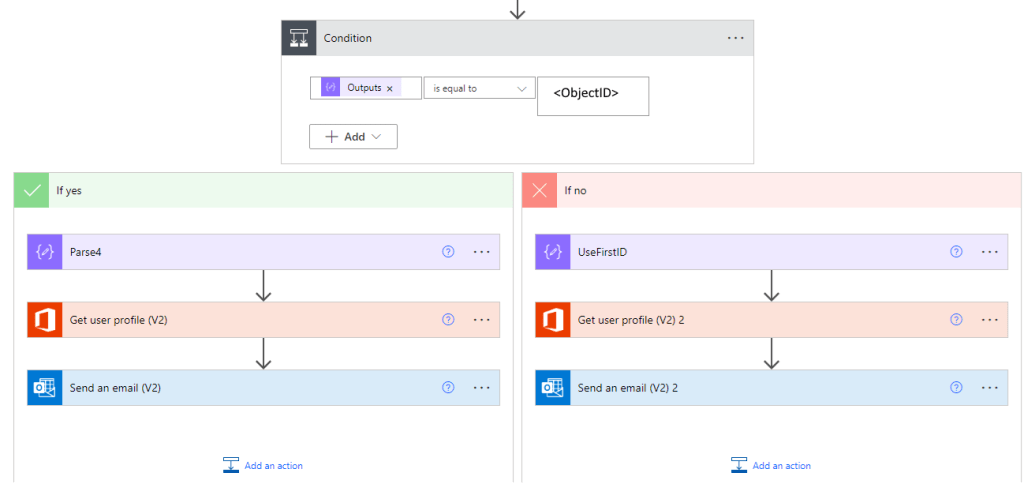
The thing is depending on how teams register the chat in the message link it will either be what you parsed or not. The good news is the chat is only between two users (The MS Teams account set up as and autoreply through flow and the user). So, you will have to set up a condition but first we need to determine what the account set up for autoreply’s Object ID is….
Getting Object ID to Create Teams Chat Autoreply Account
This can be easily accomplished by going to admin.microsoft.com and search for the user you want to use for the autoreply and then export the information to a CSV file:
Using Condition in Teams Chat Autoreply Account
Then look at the ObjectID field. You need to use that in your condition:
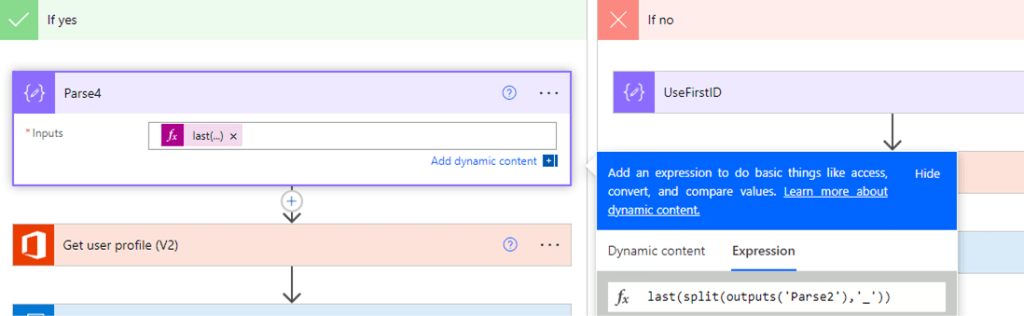
If the ObjectID you parsed is the Autoreply account ID you will need to go back a reparse to get the other ID:
last(split(outputs(‘Parse2′),’_’))
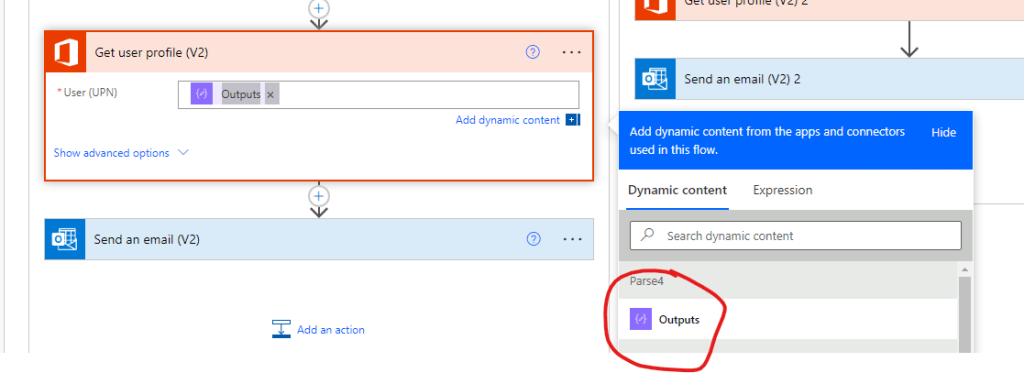
Then you can get the user profile. “Get User Profile” takes it input from the results of all the Parse4.
Now that you have this information, you can send an email to the user who tried to chat the Autoreply’s Teams Account. It grabs all the information based on the lookup from the Object ID and all you must do is select the Mail field dynamic content from the lookup, add your subject and autoreply message you would like to send. You can use the WYSIWYG editor or if you know HTML code you can add the message formatted that way.
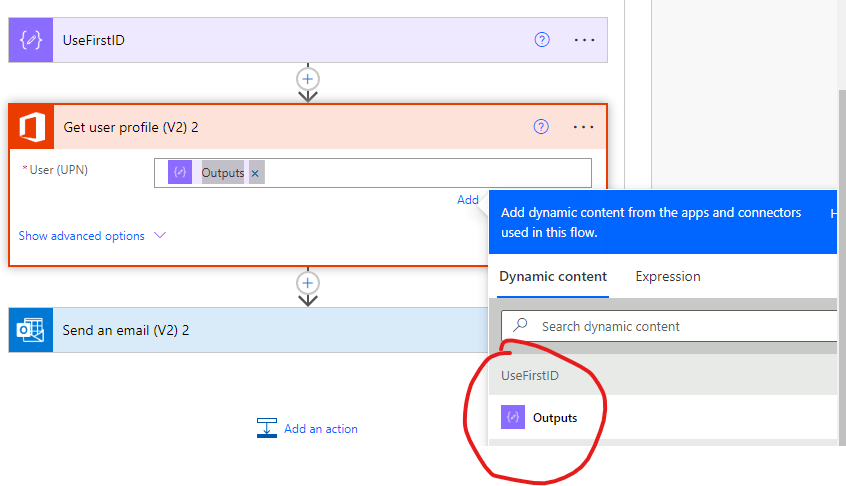
If the Object ID does not match what you parsed from GetFirstID, then you have the correct Object ID and the flow will follow the “No” branch of the condition:
last(split(outputs(‘Parse3′),’19:’))
Now that you have this information, you can send an email to the user who tried to chat the Autoreply’s Teams Account. It grabs all the information based on the lookup from the Object ID and all you must do is select the Mail field dynamic content from the lookup, add your subject and autoreply message you would like to send. You can use the WYSIWYG editor or if you know HTML code you can add the message formatted that way.
Test The Flow
Once the flow is created, save it. Then, use the flow checker to make sure there are no errors:
Lastly you can test it by clicking the test button. You have the choice to manually test or automatic. The flow is triggered by a chat event in production so just choose “manual” and it will then sit and wait for an event that you will send immediately!
Use another Teams account to send a chat to the account where you set up the flow and the test account will get an email with the subject and the message you specified in the previous steps.
Result of Create Team’s chat autoreply.
- You have an email address that is not directly accessed but sent to several other email addresses.
- MS Teams chat is not monitored but needed for another reason (phone functionality).
- You can’t set an OOO on the outlook account because it defeats the purpose of having the email address in the first place!
- Someone sends a chat to this account.
- Using Power Automate, a flow has been set up that replies to the message in an email that the account is not in use and probably suggests other ways to get in contact with the group.
Easy peesie, right? With a little help from Power Automate you can Create Teams Chat Autoreply!
August 4, 2023 | Dan
Scanning With Microsoft Lens The Right Way
Scanning With Microsoft Lens
Scanning With Microsoft Lens is a great way to get documents that are not on your phone scanned and sent to various outlets. Good examples are PDF, OneNote, PowerPoint, Word or Saved to OneDrive. You can later take the scans and share there using your normal methods on your phone (Email, Text, Teams, etc…). It definately can be used as part of the apps you deploy when you enroll devices like smartphones.
How To Scan With Microsoft Lens
This assumes you have already downloaded and installed the app from your normal app stores (Google Play, Apple. Samsung Galaxy, etc.).
Once installed do the follow:
- Tap the Lens Icon on Your Phone:
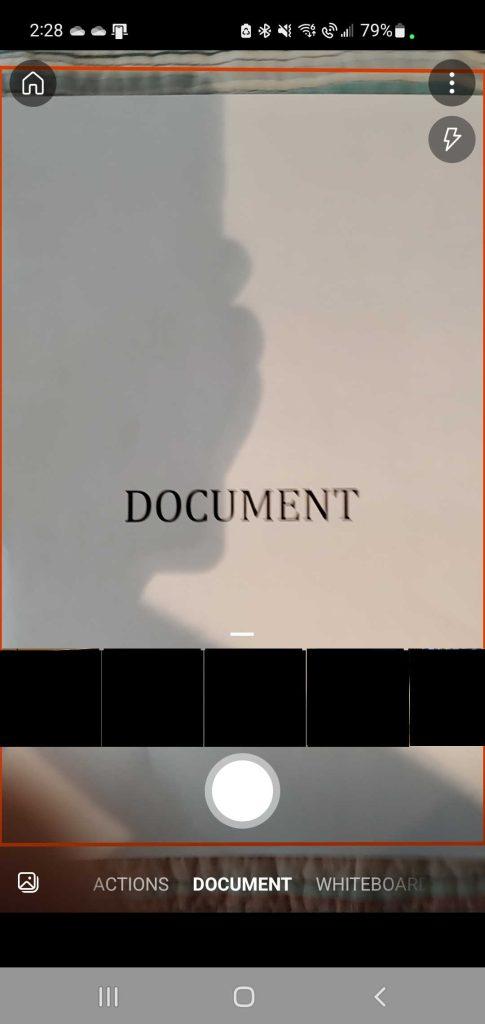
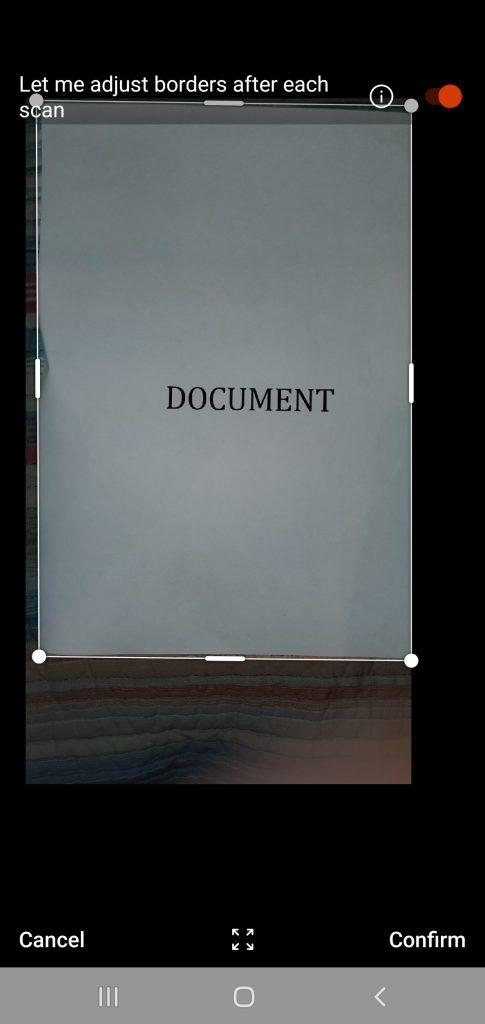
- It will open to a scan window with the Setting Document:
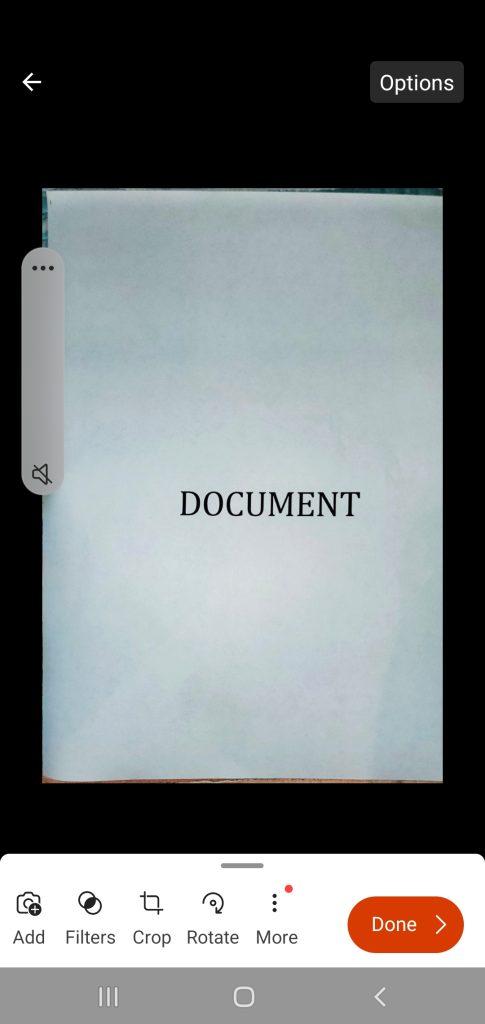
- Tap the shutter button and then tap confirm on the focused document:
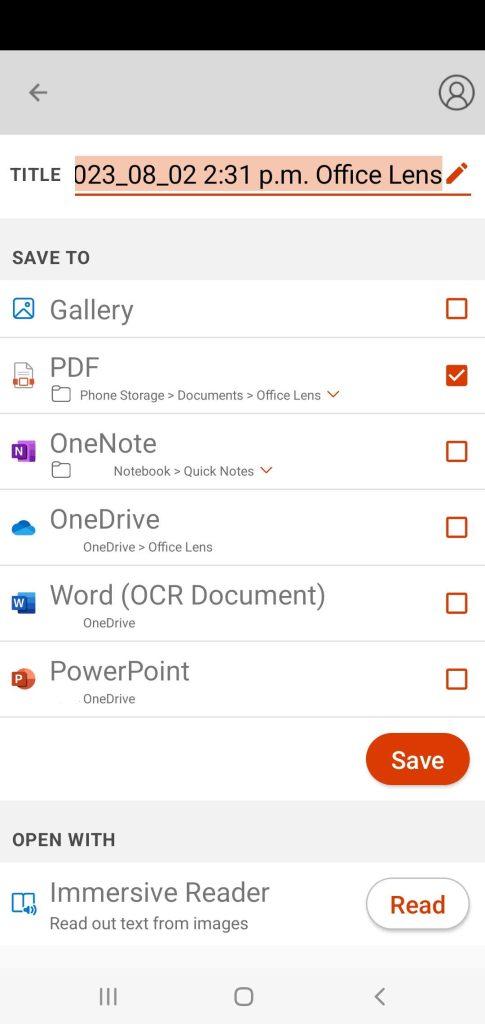
- Here you will have the options to save as. Once you choose your method, tap Save:
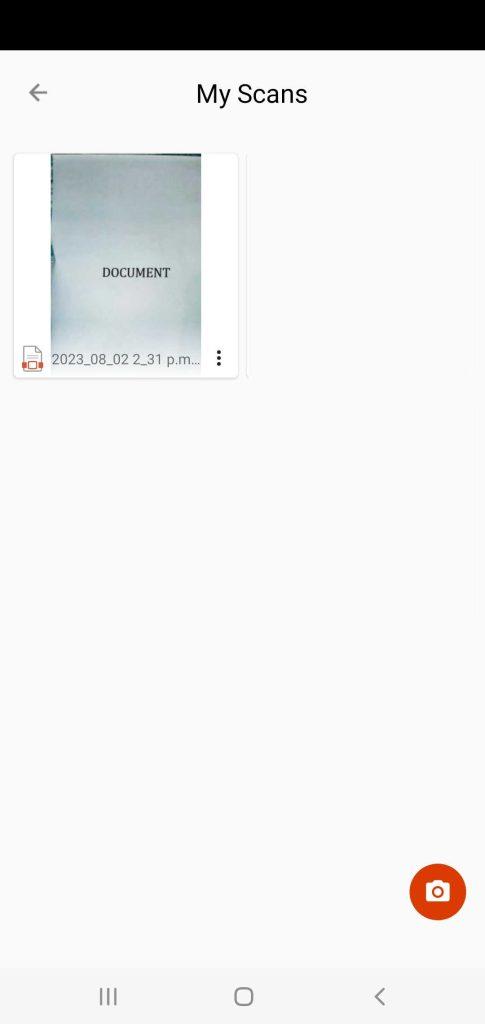
- The scan is saved to My Scans:
- Tap on the scan you just created and tap the share button :
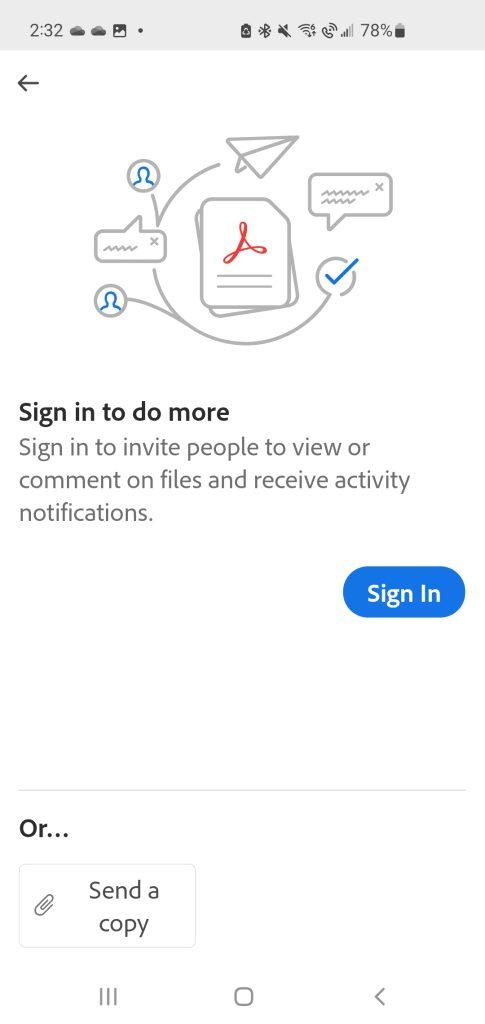
- Your default PDF reader will open the document. In this example I am using Adobe. I do not have a cloud account to Adobe, so I tap “SEND A COPY”:
- Your default email app will open you will be able to send the document as an attachment.
As an aside, above I mentioned that there are several options you can choose to put your scan (PDF, Word, PowerPoint, OneDrive). If the device you are using is for personal reasons it really does matter what you choose. However, if it a business device, your O365 Administrator may disable some of those options even though they show as available.
I will give you an example. You have Microsoft Lens on a company enrolled device but the device is a general purpose used by many users. I explained in an earlier post how to deal with devices when MFA s not possible. You will want to disable option like OneDrive if you do not want items saved in the cloud.
This is just the start of what Microsoft Lens can do. If you want more info, go here.
{"id":null,"mode":"form","open_style":"in_place","currency_code":"USD","currency_symbol":"$","currency_type":"decimal","blank_flag_url":"https:\/\/www.quickm365tips.com\/wp-content\/plugins\/tip-jar-wp\/\/assets\/images\/flags\/blank.gif","flag_sprite_url":"https:\/\/www.quickm365tips.com\/wp-content\/plugins\/tip-jar-wp\/\/assets\/images\/flags\/flags.png","default_amount":500,"top_media_type":"none","featured_image_url":false,"featured_embed":"","header_media":null,"file_download_attachment_data":null,"recurring_options_enabled":true,"recurring_options":{"never":{"selected":true,"after_output":"One time only"},"weekly":{"selected":false,"after_output":"Every week"},"monthly":{"selected":false,"after_output":"Every month"},"yearly":{"selected":false,"after_output":"Every year"}},"strings":{"current_user_email":"","current_user_name":"","link_text":"Leave a tip","complete_payment_button_error_text":"Check info and try again","payment_verb":"Tip","payment_request_label":"Quick M365 Tips","form_has_an_error":"Please check and fix the errors above","general_server_error":"Something isn't working right at the moment. Please try again.","form_title":"Quick M365 Tips....Tips!","form_subtitle":"If you find my M365 tips helpful show your appreciation!! Thank you!!","currency_search_text":"Country or Currency here","other_payment_option":"Other payment option","manage_payments_button_text":"Manage your payments","thank_you_message":"Thank you for being a supporter!","payment_confirmation_title":"Quick M365 Tips","receipt_title":"Your Receipt","print_receipt":"Print Receipt","email_receipt":"Email Receipt","email_receipt_sending":"Sending receipt...","email_receipt_success":"Email receipt successfully sent","email_receipt_failed":"Email receipt failed to send. Please try again.","receipt_payee":"Paid to","receipt_statement_descriptor":"This will show up on your statement as","receipt_date":"Date","receipt_transaction_id":"Transaction ID","receipt_transaction_amount":"Amount","refund_payer":"Refund from","login":"Log in to manage your payments","manage_payments":"Manage Payments","transactions_title":"Your Transactions","transaction_title":"Transaction Receipt","transaction_period":"Plan Period","arrangements_title":"Your Plans","arrangement_title":"Manage Plan","arrangement_details":"Plan Details","arrangement_id_title":"Plan ID","arrangement_payment_method_title":"Payment Method","arrangement_amount_title":"Plan Amount","arrangement_renewal_title":"Next renewal date","arrangement_action_cancel":"Cancel Plan","arrangement_action_cant_cancel":"Cancelling is currently not available.","arrangement_action_cancel_double":"Are you sure you'd like to cancel?","arrangement_cancelling":"Cancelling Plan...","arrangement_cancelled":"Plan Cancelled","arrangement_failed_to_cancel":"Failed to cancel plan","back_to_plans":"\u2190 Back to Plans","update_payment_method_verb":"Update","sca_auth_description":"Your have a pending renewal payment which requires authorization.","sca_auth_verb":"Authorize renewal payment","sca_authing_verb":"Authorizing payment","sca_authed_verb":"Payment successfully authorized!","sca_auth_failed":"Unable to authorize! Please try again.","login_button_text":"Log in","login_form_has_an_error":"Please check and fix the errors above","uppercase_search":"Search","lowercase_search":"search","uppercase_page":"Page","lowercase_page":"page","uppercase_items":"Items","lowercase_items":"items","uppercase_per":"Per","lowercase_per":"per","uppercase_of":"Of","lowercase_of":"of","back":"Back to plans","zip_code_placeholder":"Zip\/Postal Code","download_file_button_text":"Download File","input_field_instructions":{"tip_amount":{"placeholder_text":"How much would you like to tip?","initial":{"instruction_type":"normal","instruction_message":"How much would you like to tip? Choose any currency."},"empty":{"instruction_type":"error","instruction_message":"How much would you like to tip? Choose any currency."},"invalid_curency":{"instruction_type":"error","instruction_message":"Please choose a valid currency."}},"recurring":{"placeholder_text":"Recurring","initial":{"instruction_type":"normal","instruction_message":"How often would you like to give this?"},"success":{"instruction_type":"success","instruction_message":"How often would you like to give this?"},"empty":{"instruction_type":"error","instruction_message":"How often would you like to give this?"}},"name":{"placeholder_text":"Name on Credit Card","initial":{"instruction_type":"normal","instruction_message":"Enter the name on your card."},"success":{"instruction_type":"success","instruction_message":"Enter the name on your card."},"empty":{"instruction_type":"error","instruction_message":"Please enter the name on your card."}},"privacy_policy":{"terms_title":"Terms and conditions","terms_body":null,"terms_show_text":"View Terms","terms_hide_text":"Hide Terms","initial":{"instruction_type":"normal","instruction_message":"I agree to the terms."},"unchecked":{"instruction_type":"error","instruction_message":"Please agree to the terms."},"checked":{"instruction_type":"success","instruction_message":"I agree to the terms."}},"email":{"placeholder_text":"Your email address","initial":{"instruction_type":"normal","instruction_message":"Enter your email address"},"success":{"instruction_type":"success","instruction_message":"Enter your email address"},"blank":{"instruction_type":"error","instruction_message":"Enter your email address"},"not_an_email_address":{"instruction_type":"error","instruction_message":"Make sure you have entered a valid email address"}},"note_with_tip":{"placeholder_text":"Your note here...","initial":{"instruction_type":"normal","instruction_message":"Attach a note to your tip (optional)"},"empty":{"instruction_type":"normal","instruction_message":"Attach a note to your tip (optional)"},"not_empty_initial":{"instruction_type":"normal","instruction_message":"Attach a note to your tip (optional)"},"saving":{"instruction_type":"normal","instruction_message":"Saving note..."},"success":{"instruction_type":"success","instruction_message":"Note successfully saved!"},"error":{"instruction_type":"error","instruction_message":"Unable to save note note at this time. Please try again."}},"email_for_login_code":{"placeholder_text":"Your email address","initial":{"instruction_type":"normal","instruction_message":"Enter your email to log in."},"success":{"instruction_type":"success","instruction_message":"Enter your email to log in."},"blank":{"instruction_type":"error","instruction_message":"Enter your email to log in."},"empty":{"instruction_type":"error","instruction_message":"Enter your email to log in."}},"login_code":{"initial":{"instruction_type":"normal","instruction_message":"Check your email and enter the login code."},"success":{"instruction_type":"success","instruction_message":"Check your email and enter the login code."},"blank":{"instruction_type":"error","instruction_message":"Check your email and enter the login code."},"empty":{"instruction_type":"error","instruction_message":"Check your email and enter the login code."}},"stripe_all_in_one":{"initial":{"instruction_type":"normal","instruction_message":"Enter your credit card details here."},"empty":{"instruction_type":"error","instruction_message":"Enter your credit card details here."},"success":{"instruction_type":"normal","instruction_message":"Enter your credit card details here."},"invalid_number":{"instruction_type":"error","instruction_message":"The card number is not a valid credit card number."},"invalid_expiry_month":{"instruction_type":"error","instruction_message":"The card's expiration month is invalid."},"invalid_expiry_year":{"instruction_type":"error","instruction_message":"The card's expiration year is invalid."},"invalid_cvc":{"instruction_type":"error","instruction_message":"The card's security code is invalid."},"incorrect_number":{"instruction_type":"error","instruction_message":"The card number is incorrect."},"incomplete_number":{"instruction_type":"error","instruction_message":"The card number is incomplete."},"incomplete_cvc":{"instruction_type":"error","instruction_message":"The card's security code is incomplete."},"incomplete_expiry":{"instruction_type":"error","instruction_message":"The card's expiration date is incomplete."},"incomplete_zip":{"instruction_type":"error","instruction_message":"The card's zip code is incomplete."},"expired_card":{"instruction_type":"error","instruction_message":"The card has expired."},"incorrect_cvc":{"instruction_type":"error","instruction_message":"The card's security code is incorrect."},"incorrect_zip":{"instruction_type":"error","instruction_message":"The card's zip code failed validation."},"invalid_expiry_year_past":{"instruction_type":"error","instruction_message":"The card's expiration year is in the past"},"card_declined":{"instruction_type":"error","instruction_message":"The card was declined."},"missing":{"instruction_type":"error","instruction_message":"There is no card on a customer that is being charged."},"processing_error":{"instruction_type":"error","instruction_message":"An error occurred while processing the card."},"invalid_request_error":{"instruction_type":"error","instruction_message":"Unable to process this payment, please try again or use alternative method."},"invalid_sofort_country":{"instruction_type":"error","instruction_message":"The billing country is not accepted by SOFORT. Please try another country."}}}},"fetched_oembed_html":false}
{"date_format":"F j, Y","time_format":"g:i a","wordpress_permalink_only":"https:\/\/www.quickm365tips.com\/2023\/08\/","all_default_visual_states":"inherit","modal_visual_state":false,"user_is_logged_in":false,"stripe_api_key":"pk_live_51MZDGHKXTMESwqV1NmHnm7k9TPMIH6hun4Ziofy4YZKxqBl1nWnT9N2P0lY4Bna6WLM1VzvRAcV13uwm7xOWsGjg00bVkPlZZG","stripe_account_country_code":"CA","setup_link":"https:\/\/www.quickm365tips.com\/wp-admin\/admin.php?page=tip-jar-wp&mpwpadmin1=welcome&mpwpadmin_lightbox=do_wizard_health_check","close_button_url":"https:\/\/www.quickm365tips.com\/wp-content\/plugins\/tip-jar-wp\/\/assets\/images\/closebtn.png"}
{"id":null,"mode":"form","open_style":"in_place","currency_code":"USD","currency_symbol":"$","currency_type":"decimal","blank_flag_url":"https:\/\/www.quickm365tips.com\/wp-content\/plugins\/tip-jar-wp\/\/assets\/images\/flags\/blank.gif","flag_sprite_url":"https:\/\/www.quickm365tips.com\/wp-content\/plugins\/tip-jar-wp\/\/assets\/images\/flags\/flags.png","default_amount":500,"top_media_type":"none","featured_image_url":false,"featured_embed":"","header_media":null,"file_download_attachment_data":null,"recurring_options_enabled":true,"recurring_options":{"never":{"selected":true,"after_output":"One time only"},"weekly":{"selected":false,"after_output":"Every week"},"monthly":{"selected":false,"after_output":"Every month"},"yearly":{"selected":false,"after_output":"Every year"}},"strings":{"current_user_email":"","current_user_name":"","link_text":"Leave a tip","complete_payment_button_error_text":"Check info and try again","payment_verb":"Tip","payment_request_label":"Quick M365 Tips","form_has_an_error":"Please check and fix the errors above","general_server_error":"Something isn't working right at the moment. Please try again.","form_title":"Quick M365 Tips....Tips!","form_subtitle":"If you find my M365 tips helpful show your appreciation!! Thank you!!","currency_search_text":"Country or Currency here","other_payment_option":"Other payment option","manage_payments_button_text":"Manage your payments","thank_you_message":"Thank you for being a supporter!","payment_confirmation_title":"Quick M365 Tips","receipt_title":"Your Receipt","print_receipt":"Print Receipt","email_receipt":"Email Receipt","email_receipt_sending":"Sending receipt...","email_receipt_success":"Email receipt successfully sent","email_receipt_failed":"Email receipt failed to send. Please try again.","receipt_payee":"Paid to","receipt_statement_descriptor":"This will show up on your statement as","receipt_date":"Date","receipt_transaction_id":"Transaction ID","receipt_transaction_amount":"Amount","refund_payer":"Refund from","login":"Log in to manage your payments","manage_payments":"Manage Payments","transactions_title":"Your Transactions","transaction_title":"Transaction Receipt","transaction_period":"Plan Period","arrangements_title":"Your Plans","arrangement_title":"Manage Plan","arrangement_details":"Plan Details","arrangement_id_title":"Plan ID","arrangement_payment_method_title":"Payment Method","arrangement_amount_title":"Plan Amount","arrangement_renewal_title":"Next renewal date","arrangement_action_cancel":"Cancel Plan","arrangement_action_cant_cancel":"Cancelling is currently not available.","arrangement_action_cancel_double":"Are you sure you'd like to cancel?","arrangement_cancelling":"Cancelling Plan...","arrangement_cancelled":"Plan Cancelled","arrangement_failed_to_cancel":"Failed to cancel plan","back_to_plans":"\u2190 Back to Plans","update_payment_method_verb":"Update","sca_auth_description":"Your have a pending renewal payment which requires authorization.","sca_auth_verb":"Authorize renewal payment","sca_authing_verb":"Authorizing payment","sca_authed_verb":"Payment successfully authorized!","sca_auth_failed":"Unable to authorize! Please try again.","login_button_text":"Log in","login_form_has_an_error":"Please check and fix the errors above","uppercase_search":"Search","lowercase_search":"search","uppercase_page":"Page","lowercase_page":"page","uppercase_items":"Items","lowercase_items":"items","uppercase_per":"Per","lowercase_per":"per","uppercase_of":"Of","lowercase_of":"of","back":"Back to plans","zip_code_placeholder":"Zip\/Postal Code","download_file_button_text":"Download File","input_field_instructions":{"tip_amount":{"placeholder_text":"How much would you like to tip?","initial":{"instruction_type":"normal","instruction_message":"How much would you like to tip? Choose any currency."},"empty":{"instruction_type":"error","instruction_message":"How much would you like to tip? Choose any currency."},"invalid_curency":{"instruction_type":"error","instruction_message":"Please choose a valid currency."}},"recurring":{"placeholder_text":"Recurring","initial":{"instruction_type":"normal","instruction_message":"How often would you like to give this?"},"success":{"instruction_type":"success","instruction_message":"How often would you like to give this?"},"empty":{"instruction_type":"error","instruction_message":"How often would you like to give this?"}},"name":{"placeholder_text":"Name on Credit Card","initial":{"instruction_type":"normal","instruction_message":"Enter the name on your card."},"success":{"instruction_type":"success","instruction_message":"Enter the name on your card."},"empty":{"instruction_type":"error","instruction_message":"Please enter the name on your card."}},"privacy_policy":{"terms_title":"Terms and conditions","terms_body":null,"terms_show_text":"View Terms","terms_hide_text":"Hide Terms","initial":{"instruction_type":"normal","instruction_message":"I agree to the terms."},"unchecked":{"instruction_type":"error","instruction_message":"Please agree to the terms."},"checked":{"instruction_type":"success","instruction_message":"I agree to the terms."}},"email":{"placeholder_text":"Your email address","initial":{"instruction_type":"normal","instruction_message":"Enter your email address"},"success":{"instruction_type":"success","instruction_message":"Enter your email address"},"blank":{"instruction_type":"error","instruction_message":"Enter your email address"},"not_an_email_address":{"instruction_type":"error","instruction_message":"Make sure you have entered a valid email address"}},"note_with_tip":{"placeholder_text":"Your note here...","initial":{"instruction_type":"normal","instruction_message":"Attach a note to your tip (optional)"},"empty":{"instruction_type":"normal","instruction_message":"Attach a note to your tip (optional)"},"not_empty_initial":{"instruction_type":"normal","instruction_message":"Attach a note to your tip (optional)"},"saving":{"instruction_type":"normal","instruction_message":"Saving note..."},"success":{"instruction_type":"success","instruction_message":"Note successfully saved!"},"error":{"instruction_type":"error","instruction_message":"Unable to save note note at this time. Please try again."}},"email_for_login_code":{"placeholder_text":"Your email address","initial":{"instruction_type":"normal","instruction_message":"Enter your email to log in."},"success":{"instruction_type":"success","instruction_message":"Enter your email to log in."},"blank":{"instruction_type":"error","instruction_message":"Enter your email to log in."},"empty":{"instruction_type":"error","instruction_message":"Enter your email to log in."}},"login_code":{"initial":{"instruction_type":"normal","instruction_message":"Check your email and enter the login code."},"success":{"instruction_type":"success","instruction_message":"Check your email and enter the login code."},"blank":{"instruction_type":"error","instruction_message":"Check your email and enter the login code."},"empty":{"instruction_type":"error","instruction_message":"Check your email and enter the login code."}},"stripe_all_in_one":{"initial":{"instruction_type":"normal","instruction_message":"Enter your credit card details here."},"empty":{"instruction_type":"error","instruction_message":"Enter your credit card details here."},"success":{"instruction_type":"normal","instruction_message":"Enter your credit card details here."},"invalid_number":{"instruction_type":"error","instruction_message":"The card number is not a valid credit card number."},"invalid_expiry_month":{"instruction_type":"error","instruction_message":"The card's expiration month is invalid."},"invalid_expiry_year":{"instruction_type":"error","instruction_message":"The card's expiration year is invalid."},"invalid_cvc":{"instruction_type":"error","instruction_message":"The card's security code is invalid."},"incorrect_number":{"instruction_type":"error","instruction_message":"The card number is incorrect."},"incomplete_number":{"instruction_type":"error","instruction_message":"The card number is incomplete."},"incomplete_cvc":{"instruction_type":"error","instruction_message":"The card's security code is incomplete."},"incomplete_expiry":{"instruction_type":"error","instruction_message":"The card's expiration date is incomplete."},"incomplete_zip":{"instruction_type":"error","instruction_message":"The card's zip code is incomplete."},"expired_card":{"instruction_type":"error","instruction_message":"The card has expired."},"incorrect_cvc":{"instruction_type":"error","instruction_message":"The card's security code is incorrect."},"incorrect_zip":{"instruction_type":"error","instruction_message":"The card's zip code failed validation."},"invalid_expiry_year_past":{"instruction_type":"error","instruction_message":"The card's expiration year is in the past"},"card_declined":{"instruction_type":"error","instruction_message":"The card was declined."},"missing":{"instruction_type":"error","instruction_message":"There is no card on a customer that is being charged."},"processing_error":{"instruction_type":"error","instruction_message":"An error occurred while processing the card."},"invalid_request_error":{"instruction_type":"error","instruction_message":"Unable to process this payment, please try again or use alternative method."},"invalid_sofort_country":{"instruction_type":"error","instruction_message":"The billing country is not accepted by SOFORT. Please try another country."}}}},"fetched_oembed_html":false}
{"date_format":"F j, Y","time_format":"g:i a","wordpress_permalink_only":"https:\/\/www.quickm365tips.com\/2023\/08\/","all_default_visual_states":"inherit","modal_visual_state":false,"user_is_logged_in":false,"stripe_api_key":"pk_live_51MZDGHKXTMESwqV1NmHnm7k9TPMIH6hun4Ziofy4YZKxqBl1nWnT9N2P0lY4Bna6WLM1VzvRAcV13uwm7xOWsGjg00bVkPlZZG","stripe_account_country_code":"CA","setup_link":"https:\/\/www.quickm365tips.com\/wp-admin\/admin.php?page=tip-jar-wp&mpwpadmin1=welcome&mpwpadmin_lightbox=do_wizard_health_check","close_button_url":"https:\/\/www.quickm365tips.com\/wp-content\/plugins\/tip-jar-wp\/\/assets\/images\/closebtn.png"}