
Allow Attachments With Safe Attachments Policy
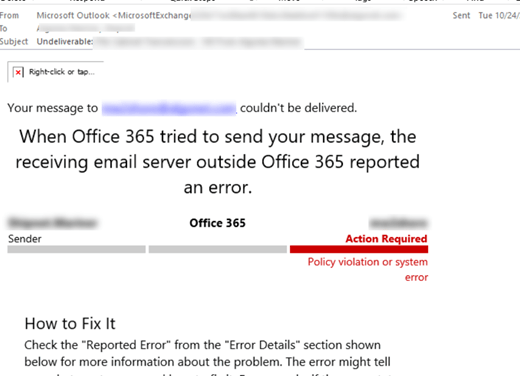
Ok, you have enabled the common attachment filter for your organization to NOT Allow Attachments of a certain type. Great. Here’s the rub….some of those attachment extensions, while most of the time should be blocked occasionally need to be allowed.
In most cases you don’t worry because you use Quarantine settings in MS Security and either you are an admin or the user (Depending on the policy you choose) can release the message. But what if it is an automated system and the blocked extension needs to get through?
Mitigating Blocked Attachments
You can minimize any of the delays a blocked attachment may cause by creating a policy that will let it though. Go to https://security.microsoft.com/safeattachmentv2 in the security portal and click on “+Create” to add a policy:

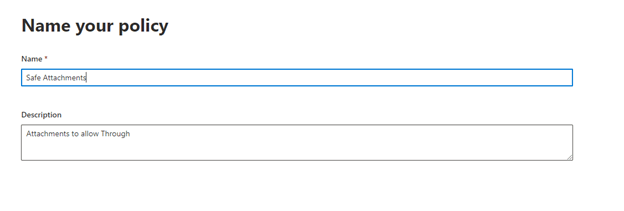
Give your policy a name and a description:
Pick who this policy applies to:
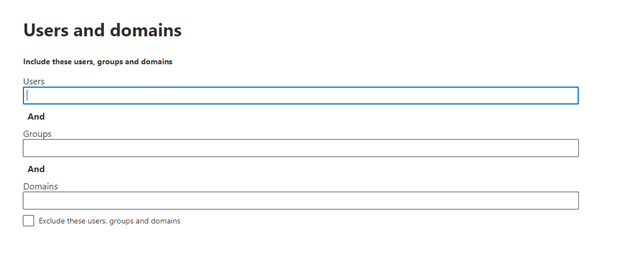
A note about the above screen. In most cases, it is only a sub-group of users who need to be exempt from attachment blocking. You wouldn’t want to enable this for everyone. Remember, we are mitigating not giving the organization a “carte blanche” with regard to attachments! You also can create this rule as an exclude rule instead.
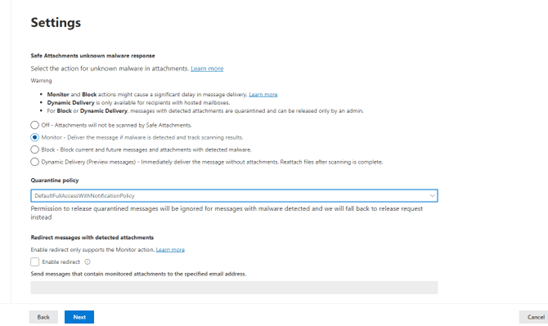
Once the policy is created, click “Submit”.
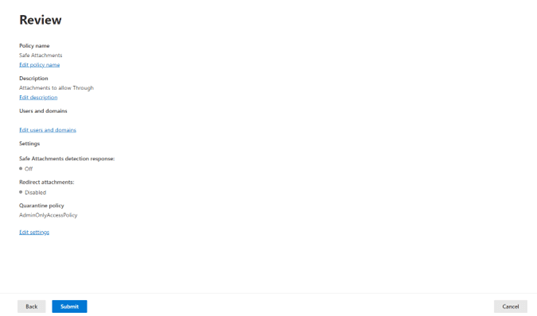
What Allow attachments Does in this Example?
The Account(s) that have this policy assigned to them will allow attachments through but if malware is detected, it will track the scanning results. As a failsafe, the policy DefaultFullAccessWithNotificationPolicy has also been assigned. The account that sent the blocked message will get a notification in their inbox that the message was blocked. It can quickly be released with a mouse click to not disrupt the email flow.
It is not a “silver bullet” solution but it can make sure the email keeps flowing. Especially with automated systems that have minimal intervention.
Now you have a way to Allow Attachments safely!
A Better Exchange Quarantine Notification Process
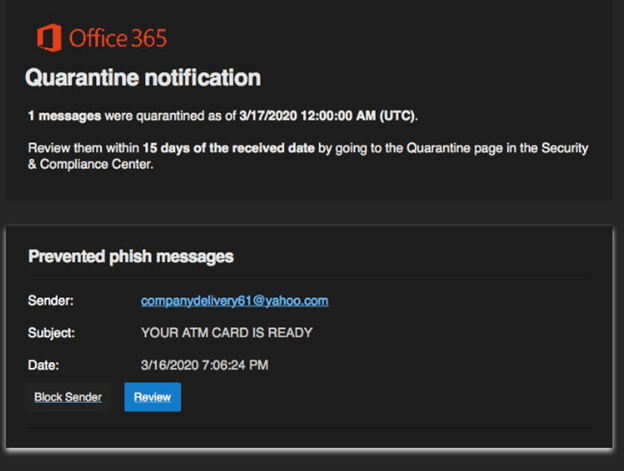
MS has told you that you cannot disable Exchange Quarantine Notification to users. Sorry, but that sucks. What you can do is disable the user’s ability to do anything with them. You can create a policy to do this. This is how it is configured:
Configuring an Exchange Quarantine Notification
First go to https://security.microsoft.com/quarantine and click “+ Add Custom Policy.
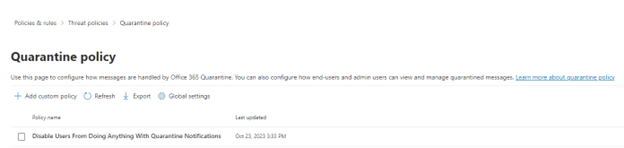
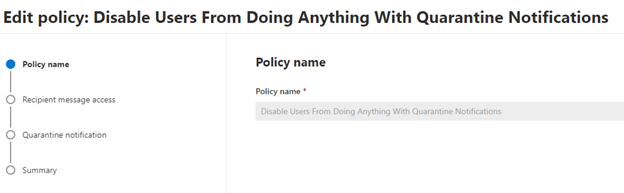
Give the Policy a name nd click “Next”.
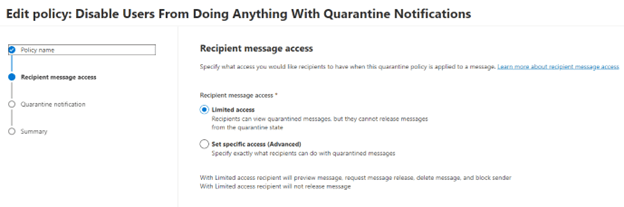
Choose “Limited Access”. This allows the user to receive the notifications but they are unable to act upon them. Click Next.

Leave “Enable” unchecked and click Next.
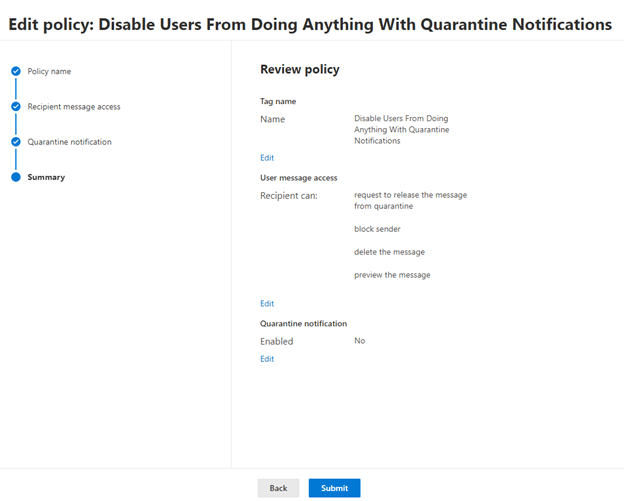
The policy is done. Click Submit!
In this scenario, users will receive a notification in their inbox that a message has been quarantined but they are not able to do anything with it. This is good for a larger organization. Users receive a lot of phishing emails that look very similar to this. They do it on purpose. We are inundated with email and all it takes is one click, and you could be on your way to getting your credentials compromised by some bad actors. It is a good practice to continually mitigate security breaches through email.
What a User Sees with an Exchange Quarantine Notification
It is better to have a process where you take the quarantine message you received and forward it to your helpdesk. They will know right away if the notification is legit or not and then vet the message for its legitimacy.
The user will receive an email like what you see below:
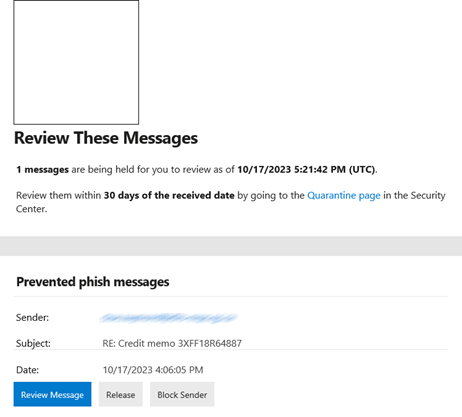
This is what your users should forward to your helpdesk. That brings us to what the admin sees…
What an Admin Sees with In Quarantine
This is an example from quarantine in the security portal (https://security.microsoft.com/quarantine):
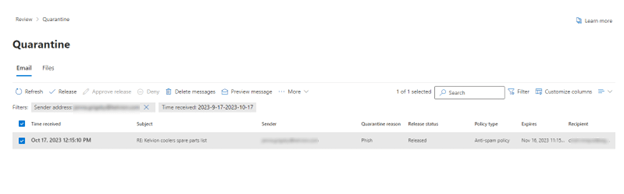
This is a suspected message that could be phishing or malware. Click on the message and a flyout appears:
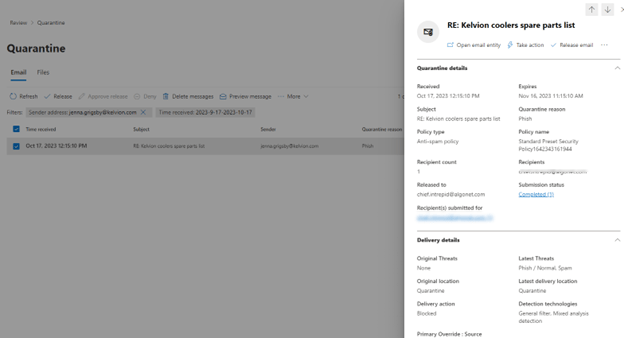
Clicking on “Take Action” on the top right gives you several choices:
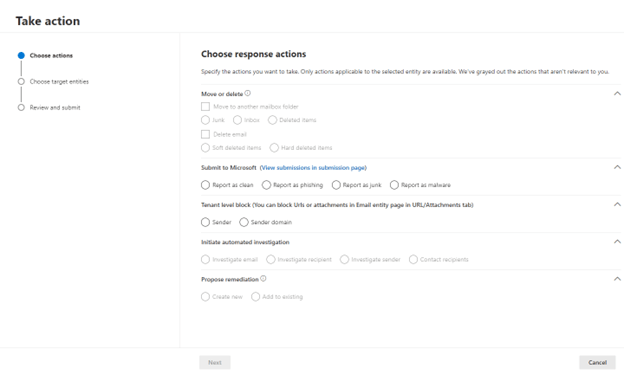
You can choose several options:
Move / Delete – You can move the email to Inbox, Junk or Deleted items. You can also do a hard of soft delete.
Submit to Microsoft – This one is most important. It sharpened the Quarantine filter resulting in fewer false positives which will hope to decrease the number of quarantine notification your users see.
Initiate Automated Investigation – it will launch an investigation with Microsoft.
Propose Remediation – This is the same as releasing the message from Quarantine.
Click Next a couple of more times and you will have submitted either a moved the email somewhere on the users’ profile, submitted the email to Microsoft or released it as safe.
There is one other screen. It asks if you would like to report similar email the same way. I would say yes since it streamlines this process going forward also help users to receive fewer Quarantine notifications.
Setting up an Exchange Quarantine Notification Policy this way will help you reduce any phishing attempts that would look very similar to the notifications that Microsoft sends out.
Bypass MFA With Conditional Access With One Step

You have probably researched tons of articles on how to Bypass MFA With Conditional Access for a single user, group of users or users coming from named or trusted location. All these articles, including Microsoft support, have completely forgotten about one thing that is incredibly important to consider….
What if security defaults are turned off in the tenant?
If they are, then it doesn’t matter how you configure your conditional access rules to bypass MFA for a user, group, named location, trusted location, etc. It is not going to work. You may have security defaults in your tenant turned off for a variety of reasons and believe me they are all valid! Microsoft likes to make things difficult and keep us guessing constantly. It is very frustrating.
In this article I will show you how to prepare your tenant to start using condition access to bypass MFA and set the Conditional Access Policy. Remember, a good MFA Strategy is key. Without further ado, here we go.
Leave Security Defaults Off For Now
As I mentioned before earlier in the post, your tenant may have security defaults turned off for a good reason. Turning it on without knowing the full extent of what it could do could be quite disastrous for the organization (not to mention your Help Desk might get overwhelmed). Turning it on disables using per-User MFA but turns MFA on for the entire organization. You may have a service account(s) or user accounts who for some reason cannot use MFA. Those users will no longer be able to login. Leave it off until you know for sure!!!
Why Would You Want to Bypass MFA
For example, you have an organization that has a corporate office network but lets people work outside of it wherever they want. This will apply to any company who has a work from home policy or employees who travel outside the office a lot.
Configure a Named Location
Being in the office you should always be logging in from the same group of Ip addresses. If not, you are getting your IP dynamically from your ISP. Pay a little extra and you can get a static one. Unfortunately, if you use the cloud only for M365 this is the only way you can Bypass MFA with conditional access.
If you want to use internal IP address of your company to do this, you will need an on prem MFA server and use trusted IP’s from multi-factor authentication service settings
You can create a named location by going to it in Microsoft Entra Admin.
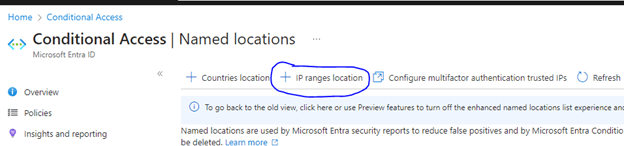
Click “+ New IP ranges”. A new section will pop up on the right. This is where you will add your IP Range. Click the “+” button:

This will pop up:
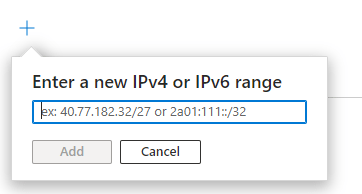
This is where you will get to add your IP range. You will have to know a little bit about CIDR notation. You cannot specify a single IP address. It has to be a block. If it is only one IP people will be logging in from the office then you can specify the IP address with /27 (i.e. 40.77.182.32/27) but if you are not sure, find out from your network admin or ISP what block to use.
Create The Policy to Bypass MFA with Conditional Access
You will need to go into The Microsoft Entra Admin center / Conditional Access / Policies to begin:
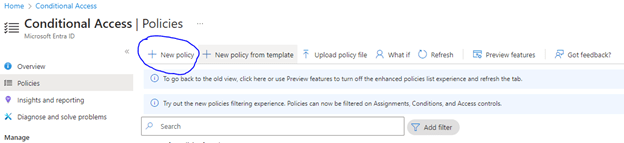
Click on “+ New Policy”.

Give your policy a name like the example above. Click on the user’s assignment and on the right, you will see which users to add or exclude from this policy. For this example, we are going to only use the include tab. You can select all users but if you want to test first, choose “select Users and Groups” and only add a few users or a test group you have previously created.
Next, go to the target resources assignment, go to the include tab and choose all cloud apps:
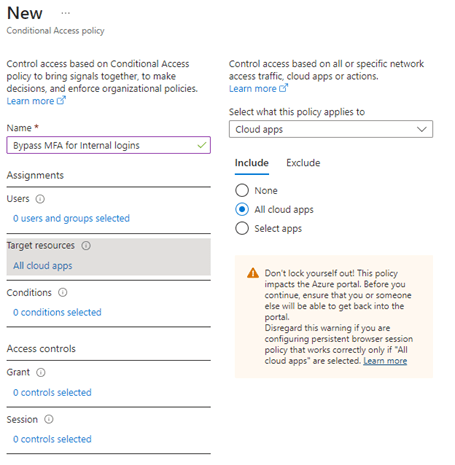
You might not be sure of exactly all the apps you use in your organization, but it is safe to include them all. Next, go to the Conditions Assignment:

Click on Locations (Not Configured). The right pane will open giving you options to add “include” and “exclude” locations. Toggle configure, to yes and include all locations:
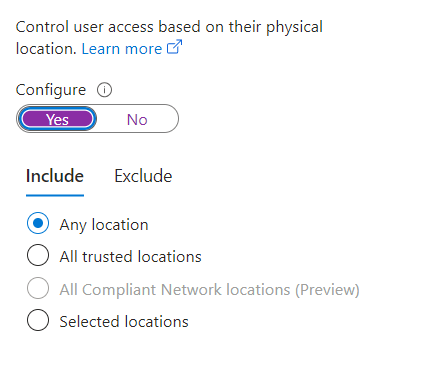
Click the Exclude Tab and click on Select locations:
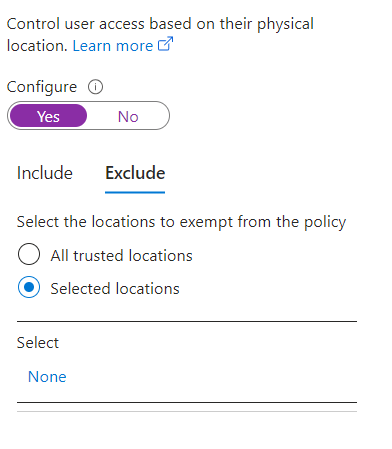
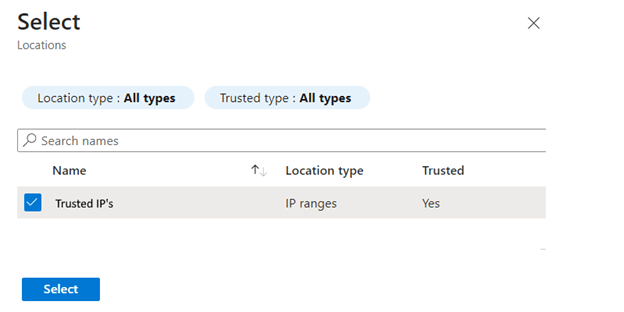
Click “None” and choose the named located you specified earlier in the post:
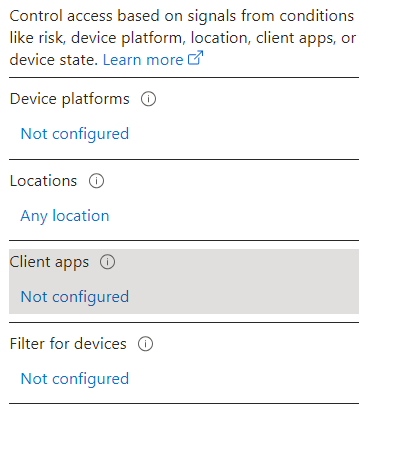
Click on “Not configured” in the Client Apps assignment:
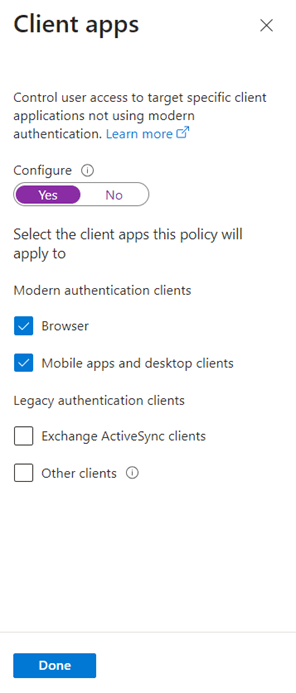
In the Flyout on the right, toggle configure to “Yes” and choose Browser and Mobile apps and Desktop Clients:
NOTE: You shouldn’t be using Legacy clients at this point.
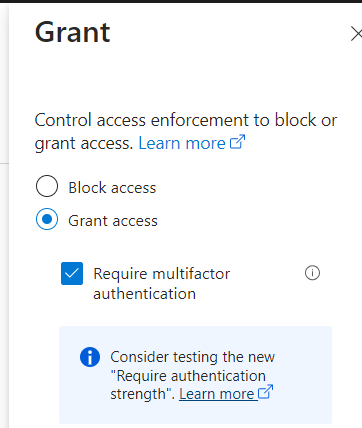
Click on the Grant Assignment and make sure “Grant Access” and require multifactor authentication is checked:
To test this policy, you would move the toggle under the Save button to “report only” to make sure it is functioning correctly. When you are satisfied, as with all conditional access policies, you would toggle it to “On.
The Result of Bypass MFA With Conditional Access
When a user signs in form an IP other than the trusted IP’s you specified in the conditional access policy, the user will be prompted for MFA. This is a good policy because it works for users who also travel locally and abroad. Just remember the one tip I mentioned at the beginning of the post! This is the best way to Bypass MFA With Conditional Access.
Sharing with OneDrive Online in 4 Steps
Sharing with OneDrive online is very easy and versatile. It is very similar to other file sharing services like Dropbox and Google Drive. Since you already use M365 it is only natural that you use OneDrive.
Accessing OneDrive Online
The easiest way to share with OneDrive is online. For access this way, go to Office.com with your favorite browser and login. Once you get to your portal screen, click the menu icon in the top left and choose OneDrive:
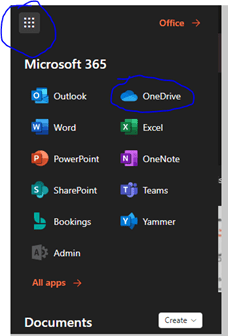
You will be brought to your “My Files” page:
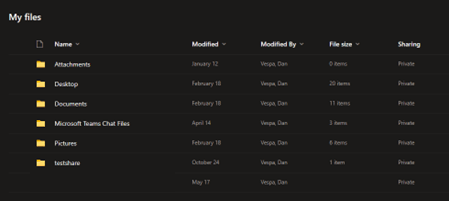
From here, you can create files and folders for use and sharing. Files will need to be uploaded from your local computer to a folder you share in OneDrive.
Uploading to OneDrive
Click “Add New”
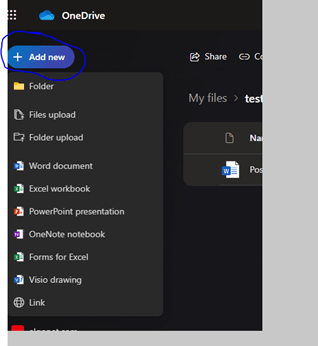
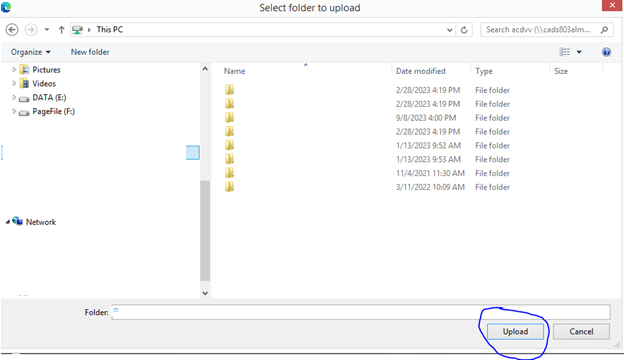
And choose which file or folder you wish to upload to OneDrive:
Setting File Access in OneDrive
If you are collaborating with others, Use “Can Edit” permissions on the share. Use “View-Only “permissions if you would like users to only view and not edit the contents of the documents are sharing. Alternatively, you can prohibit downloading and print of the document or folder content when in “View-Only” by blocking downloads.
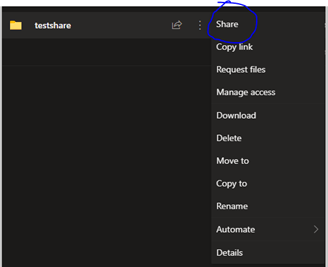
Highlight the File / Folder you wish to share as read-only and click the dots (…) beside it. Chose “Share”:
Next, we will set up who will have access, what kind of access (read-only in this case) and whether to block downloading or printing. Clicking on “Anyone with link can edit” will expand the sharing menu to show all options:
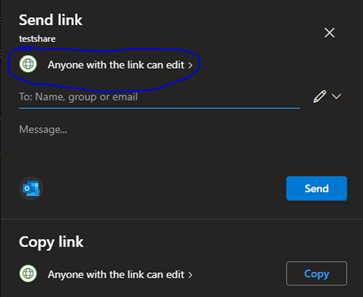
Becomes:
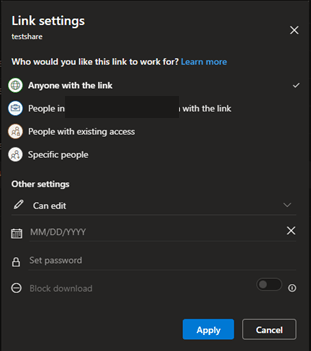
If you choose “Anyone with the link” as an option, the Other Settings you can pick are the following:
- Read-only or Edit
- The date the link expires
- Setting a password for the link
- Block Download – This prevents downloading or printing. It is ONLY available when access is set to READ-ONLY
Sharing with OneDrive Online
For sharing with People within Algoma or Specific People (Outside the organization), People with existing access or Specific people, it is almost identical except you will not be able to set an expiry date on the link or set a password. In Other Settings, you can do the following:
- Read-only or Edit
- Block Download – This prevents downloading or printing. It is ONLY available when access is set to READ-ONLY
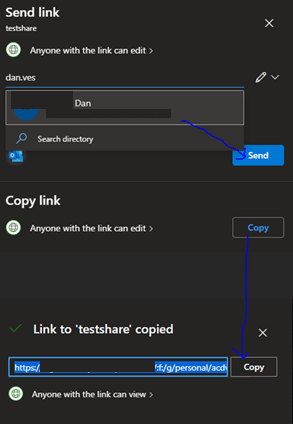
Click “Apply” and then you are presented with the next Window that allows you to send the link. You can do these one of two ways. You can provide email addresses in the address field and then click send. The email address is searched from the directory and your contacts. Email addresses that are not in those sources must be fully typed in (i.e. user@domain.com). Or you can copy the link by clicking copy and pasting it into an email that have already been created and send it that way.
i.e.
Migrate MFA and SSPR Methods to Authentication Policies
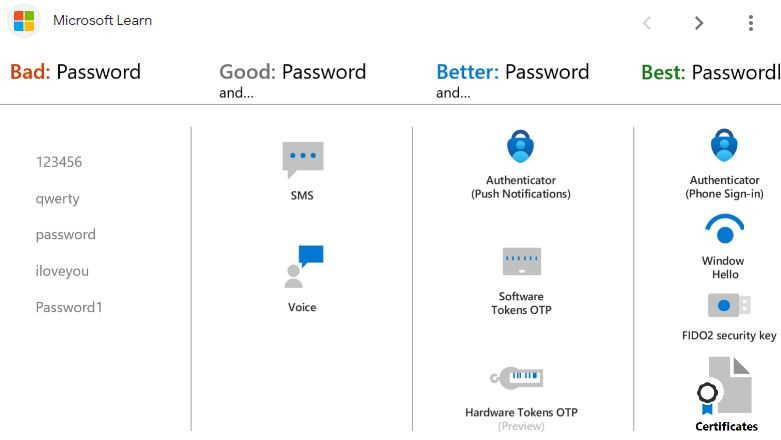
If you want to Migrate MFA and SSPR Methods to Authentication Policies, you have a pretty log runway. You have until September 2024 until they do it for you. I would migrate sooner than later. You can fix any problems that Arise.
As with any security MFA is a good step to ensuring that you M365 tenant will be secure as possible.
Migrate MFA and SSPR Methods to Authentication Policies in 3 Easy Steps
Review Current MFA Verifications Options
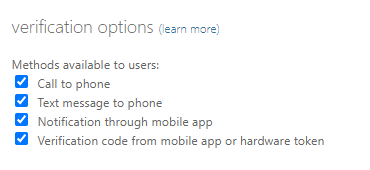
Got to https://account.activedirectory.windowsazure.com/UserManagement/MfaSettings.aspx and write down you MFA Settings, you will need this for the last step.
Review Current MFA Verifications Options
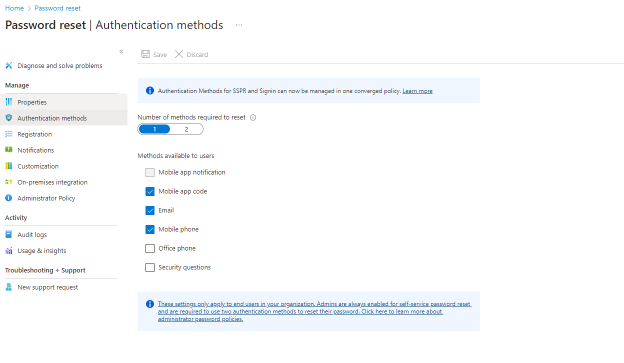
Go to https://entra.microsoft.com/#view/Microsoft_AAD_IAM/PasswordResetMenuBlade/~/AuthenticationMethods and write down you MFA Settings, you will need this for the last step.
Go to Authentication Methods and start the Migration
Go to https://entra.microsoft.com/#view/Microsoft_AAD_IAM/AuthenticationMethodsMenuBlade/~/AdminAuthMethods/fromNav/Identity . Look through every Authentication method and match the old methods from the previous two steps with what is on this screen:
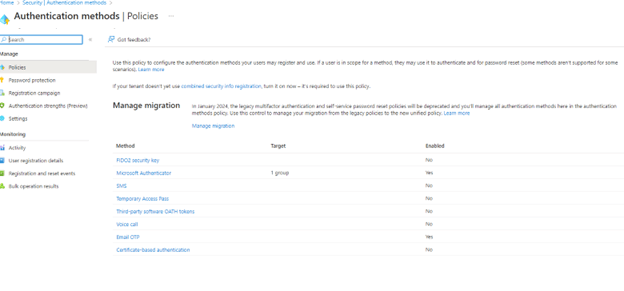
This table will help you with most settings:
MFA and SSPR Settings
| Old Method | New Method (MFA/SSPR) |
| Call To Phone | Voice Call |
| Text Message To Phone | SMS |
| Notification through Mobile App | Notification Through Mobile App / Mobile App Notification / Code |
| Verification code from mobile app or hardware token | Hardware OATH/Third Party OATH Tokens |
| Email (SSPR only) | Email OTP |
For Each method you wish to bring over click on it in the new screen choose the appropriate setting and toggle enable. Here is an example:
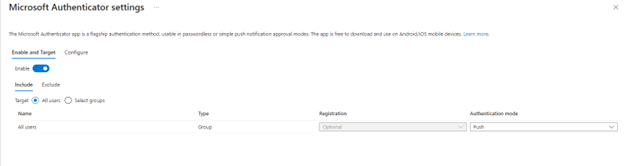
Once you are done bring over the settings, go to the old MFA and SSPR setting screens in the previous steps and uncheck all methods and save.
Finally go to the new Authentication Methods Policies Screen and click “Manage Migration”. You will see this screen:
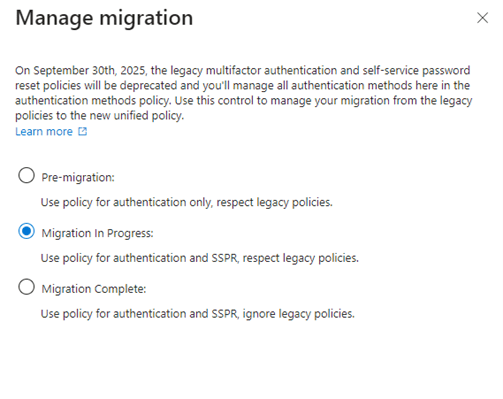
Choose “Manage Migration” and click Save. Let your tenant run like this for a while until you are confident that there are no issues with the migration. If there are no issues and you are confident that things are running smoothly, go back to this section and click “Manage Migration”.
Change the Setting to “Migration Complete” and click save. There you go. The old MFA and SSPR Authentication methods have been migrated to the new Authentication Methods Policies.
Add Microsoft Authenticator to MFA
You may have decided to stick to SMS texts for MFA. Unfortunately, it is currently the weakest form of MFA. Microsoft has decided enough is enough! Time to get more secure. They have enforced a registration campaign. The new MFA using this app is a push with number matching. So should you Add Microsoft Authenticator to MFA? It isn’t an answer to a question….you have no choice. They started rolling this out on September 15th 2023.
Here is how you Add Microsoft Authenticator to MFA in a few simple steps.
Microsoft has made using the Microsoft Authenticator App Mandatory. It is just another way to bump up security with your tenant. You will get three passes and then the inevitable. When they want you to switch you will see this prompt after you logon on your computer screen:
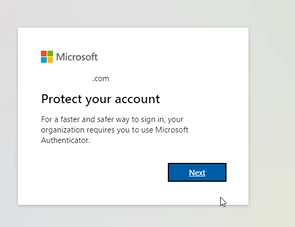
Note: Before you click next, check to see if you have the authenticator App
See if the Authenticator App is already installed.
- Please check your phone and see if you already have the Microsoft Authenticator App installed already. If you do go to the section Adding an Account to The Authenticator App.
- To check, do a search on the main screen of your phone and search for “Microsoft Authenticator”. If it is on the phone it will show up in your search.
Installing the Authenticator App
- Go to the Google Play Store (Android) or Apple Store (iPhone) on your Phone
- Search for “Microsoft Authenticator App:”.
- Install the App on your phone.
- Open the App and go to the next section.
Adding Account to Microsoft Authenticator to MFA
Click next to this prompt:
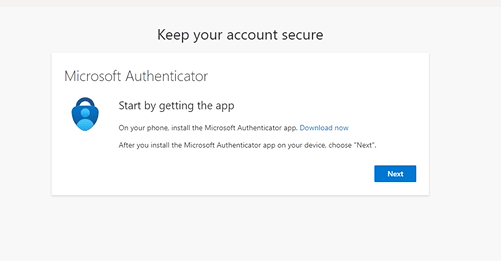
If You Have the QR Code on Your Computer Screen
You will more than likely see this:
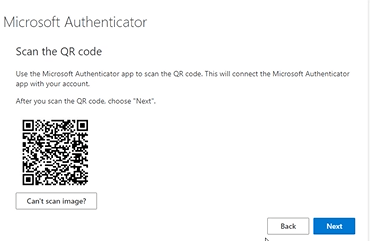
Go to the open Authenticator App and click the plus sign and choose “Work or school account”:
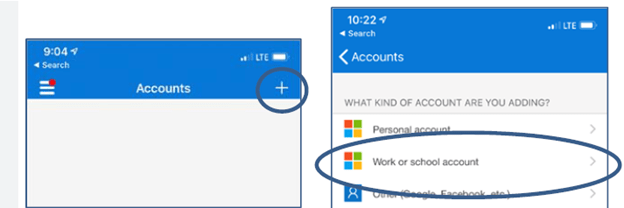
When given the choice to scan a QR Code tap it and then scan the code on your computer screen with your phone. It will add your account to the phone. Once the QR code is scanned, click next.
Microsoft Authenticator to MFA Manually
The steps are the same as adding your account with a QR code, but you choose “sign in” instead. You will be prompted for your windows username and password. Remember your windows username.
Testing Authenticator App
Before you can use the app, Microsoft would like to test it. It will show a number on your computer screen. You will need to enter it in the Authenticator app. It will show a successful test on your computer screen. Click Next.
You now have successfully set up the Microsoft Authenticator App on your Phone (Microsoft Authenticator to MFA). Going forward when you sign into a Microsoft App, when you are prompted for MFA, your login will give you a code:
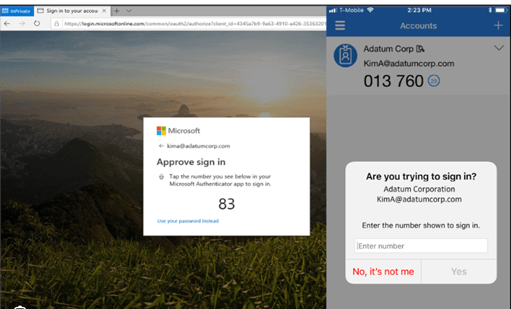
You will have to type that number into your authenticator App and the logon will proceed!