Teams We’ve Run into an Issue Error
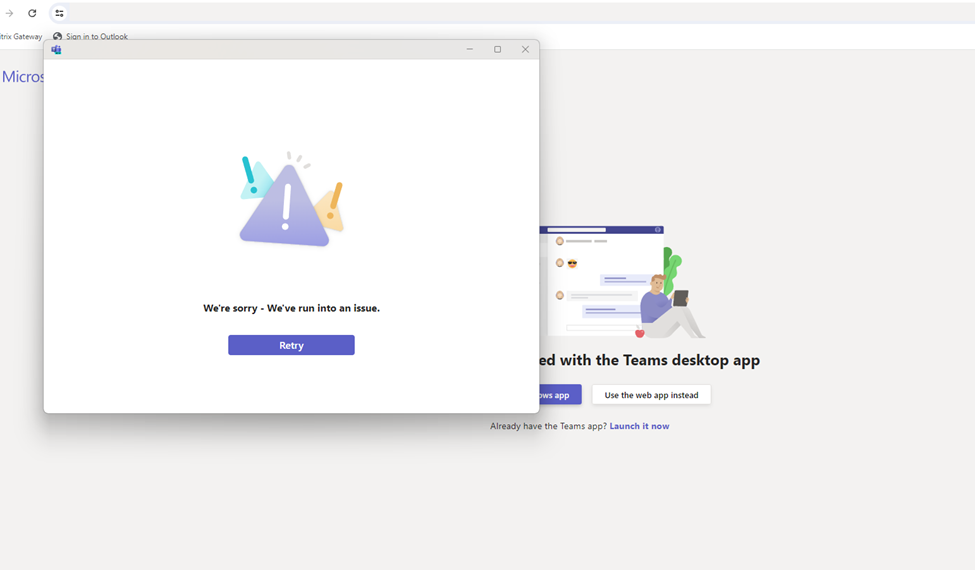
We have all had the Teams We’ve Run into an Issue Error. Something worked one day and then the next…it doesn’t. How frustrating! Most times, it happens with something as simple as logging in but there are other cases where you might get this error.
I will give you an example…
Accessing an External Team You Have Been Invited To
You may get the Teams We’ve Run into an Issue. In this case, the user was receiving errors trying to get into an external team he had been part of for a while. It showed the error message from the picture above. At first only the Teams web app worked, then nothing worked.
What Teams We’ve Run into an Issue Might have been…
First, I thought it was a mismatch between Teams policy settings between the user’s company and the external company. The policy to allow only Teams 2.0 clients was enabled on the user’s side in the Teams admin portal. We had moved to the new team’s client permanently as MS stopped supporting Teams Classic on July 1st.
If the external companies MS Teams policy was set to “Microsoft-controlled”, which allows the use of Teams Classic until next year, it could cause a conflict.
It was verified that the external organization was using the New Teams Policy, so it wasn’t that…
What it was and What fixed It
It turns out it was 2 things. One, the user had recently got a new mobile device and the external organization needed to reset his MFA. And two, his Teams Cache needed to be reset.
I have written a great post on how to delete Teams Cache (Classic and New) Here.
Android System Apps and Intune Enrolled Mobiles

You have just enrolled an Android mobile phone in Intune (Corporate Owned With Work Profile or Dedicated Work Profile) and Android System Apps and Intune behave differently. Like, they don’t work. They seemed to have disappeared or are asking for administrative permission to operate.
I will show you a simple trick that in two steps, you will have your user(s) up and running in no time.
Android System Apps and Intune use Package Manager
First you need to get a similar phone and install Package Manager on it. Whats really cool about this app is it gives the exact name of every single package that resides on your Android phone, even the system apps.
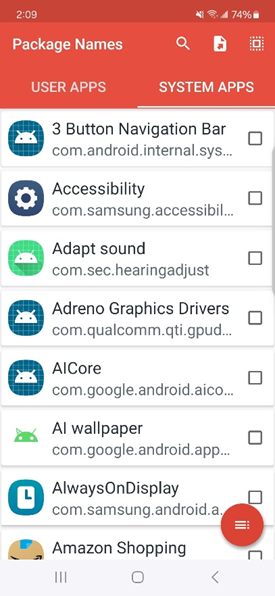
If you see from the illustration above all the applications start with a “com.” You can also use the search at the top to search by the package friendly name (i.e. Android Audio). You will need to take note of the “com.” Package name and the friendly name. You will need it for the next step.
Publish System App in Company Play Store
I have written some great articles on enrolling Android Devices here (Part1 and Part2).
If you are not familiar with a company Google Store and linking it to Intune, please check this video out . It shows you how to set one up.
One you have that done, you can go into Intune and the Android Apps section here.
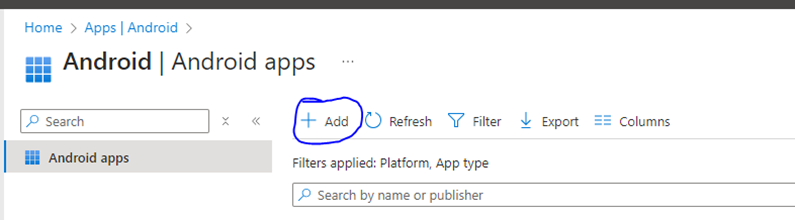
Click On “+ Add” to begin adding an android App.
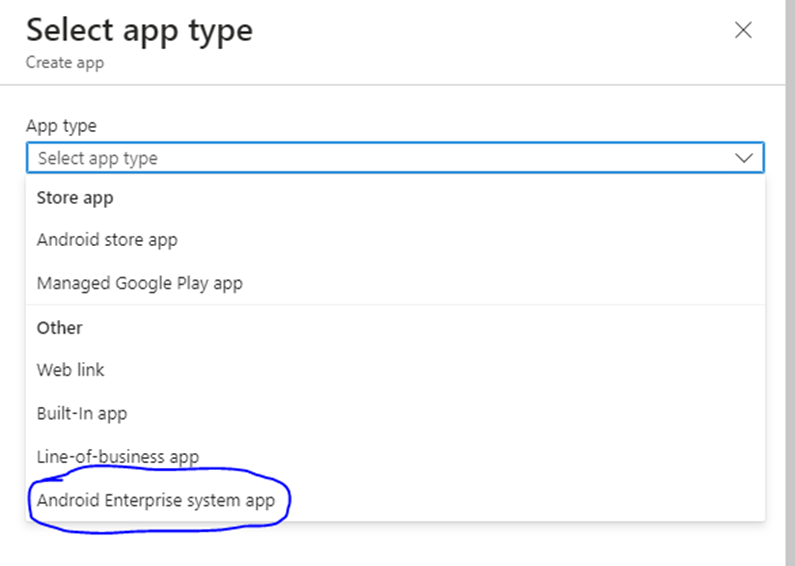

From the dropdown box, select “Android Enterprise System App” and click Select.
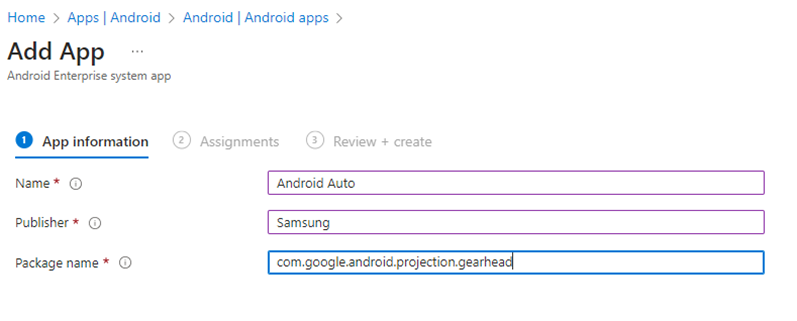
On the next screen I have given an example of what you should put. You can get this information from the previous step from the app Package Manager. Then Click Next
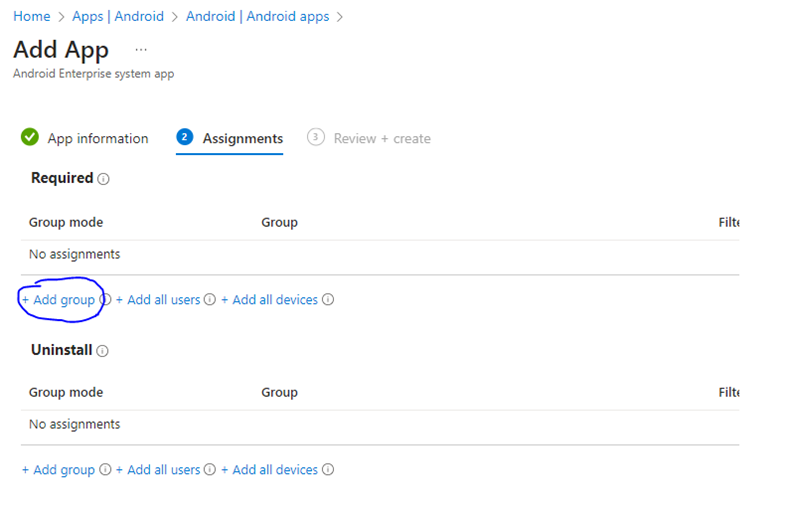

In this section, click on add group and pick which user group you would like to assign to this application too. You probably already have one set up for your mobile users. It can be assigend, dynamic user or dynamic device. The choice is up to you.
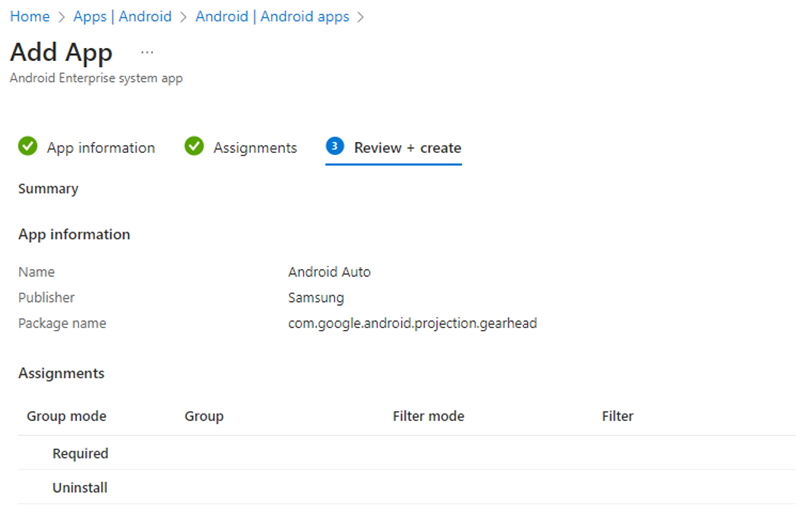

The last screen shows you the options you created in the previous screen. Click create to finish.
It won’t show up as an app available to download in your corporate Google Play Store but it will allow the system app to run now. The device just has to synchronize its Intune policies next time it checks in.
There you have it. A way to make sure Android System Apps and Intune work properly, especially if you use Corporate Owned With Work Profile or Dedicated Work Profile. If your users complains of an app not visible of requiring admin permission, this is probably why.
Put New Teams Icon on the Desktop in 3 Steps

If you have used older versions of Windows, you are used to the Program file folder. It was so easy to create shortcuts from there. It was even easy to put the MS Teams Icon on the Desktop. How about the new teams icon on the Desktop?
The problem is that MS Teams is always changing and the ability to add a shortcut to Windows has changed too. Fortunately, it can be done in just 3 steps. If you read further in the article you will see how you can add the new shortcut to a computer that is used by several users.
The Steps to put New Teams Icon on the Desktop
- Hit Win+r
- Type shell:appsfolder in the text box and hit enter.
- You will see all your aps in the apps folder.
- Right click on it and choose Create Shortcut. It will ask you if you want it to be placed on the desktop, say yes.
Search for Teams:
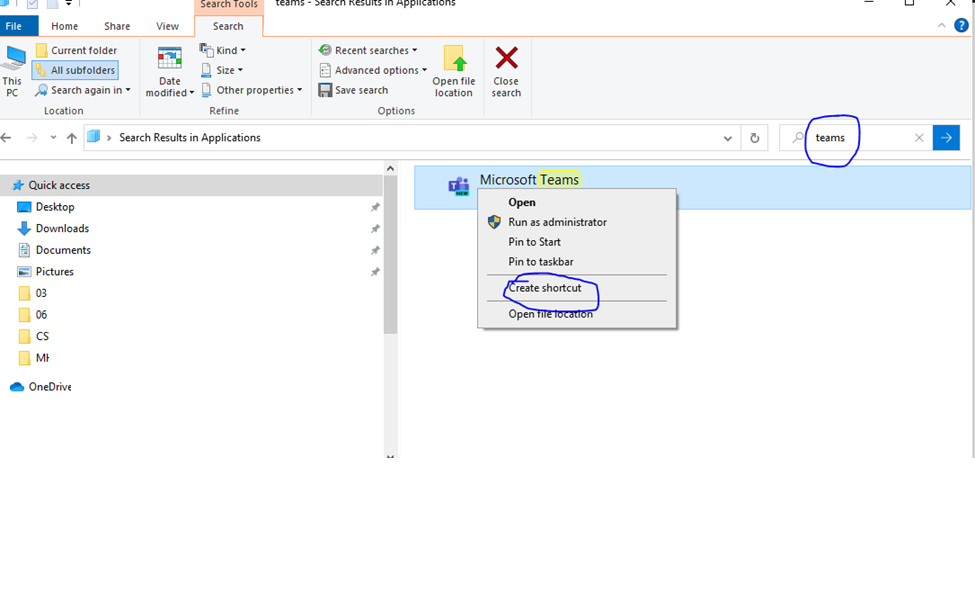
Voila, you now have the teams shortcut on your desktop.
Using the Shortcut on a Multiuse Computer
Sometimes you need to deal with a computer that is in use by a lot of users. Like a common room or presentation room computer. It is quite easy to accomplish.
- Copy the shortcut you created above.
- Navigate to the multi-use computer and go to it’s C:\Users\Public\Public Desktop folder.
- Paste the shortcut.
Now the users on that PC will have access to the New Teams Shortcut. Technically once the new teams are set up on their profile on the computer it runs at start up each time they login but it isn’t necessarily apparent.
Double-Clicking the icon will either bring the application to the front if they are already logged in or prompt for login credentials if it hasn’t already done so.
Either way, you will get MS Teams running and it will be the new teams form the shortcut!!!
How OneDrive Works – A Primer

Here is a good primer on How OneDrive Works. I have researched a few posts on how to install it. Still, since Microsoft has made a few significant improvements over the last few years, I would like to start from scratch and explain what OneDrive sync is and how to get the most out of it.
What is OneDrive Sync?
OneDrive sync is an application that you install on your computer that takes care of a two-way synchronization of files and folders between OneDrive and your computer (i.e., C: Drive).
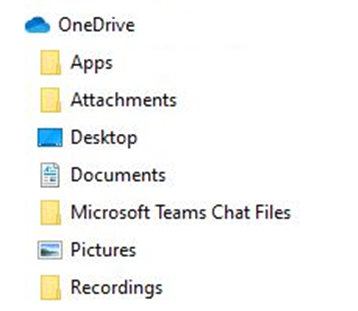
Why do we need OneDrive Sync?
By making the files available on your computer, the idea is that you can access them without logging in to SharePoint Online. Moreover, you can access them without an internet connection (offline). OneDrive sync “remembers” the changes and synchronizes them automatically when the Internet connection is present, so you always get the latest and greatest copy of the files in either SharePoint Online or your computer.
How is OneDrive Sync related to OneDrive for Business?
OneDrive for Business is your personal storage place in Office 365, I show you how easy is to share here. OneDrive sync client is a separate application you install to synchronize the files and folders. They just happen to share the name “OneDrive”. And what adds to the confusion is that, as I described above, OneDrive sync client syncs files and folders from your private OneDrive for Business (within the company’s Office 365) .
How to install OneDrive sync client
Let’s describe to you how to install and configure OneDrive Sync client. Navigate to either your OneDrive for Business
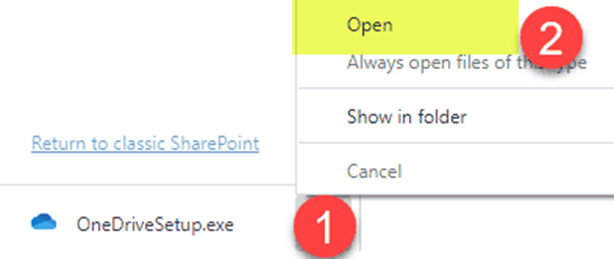
- You will get a pop-up that looks like this and OneDriveSetup.exe file downloaded to your computer automatically.
- In case if OneDriveSetup.exe does not start automatically, you might need to click get the latest version of OneDrive.
- Go ahead and run/open the executable file.
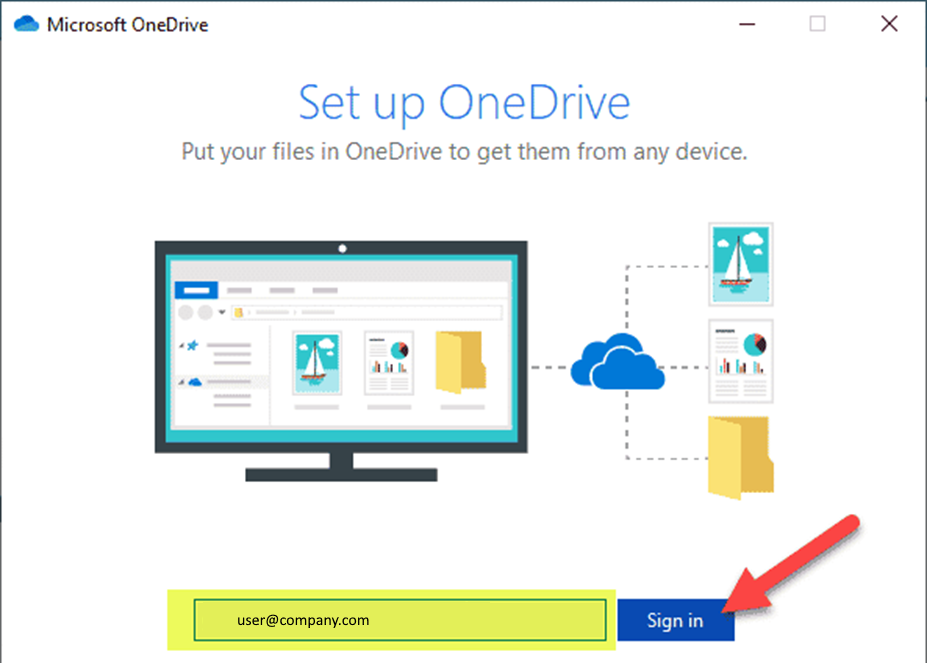
4. Next, it will prompt you to enter your email address. Please make sure to enter your Office 365 User D (email address) and click Sign In
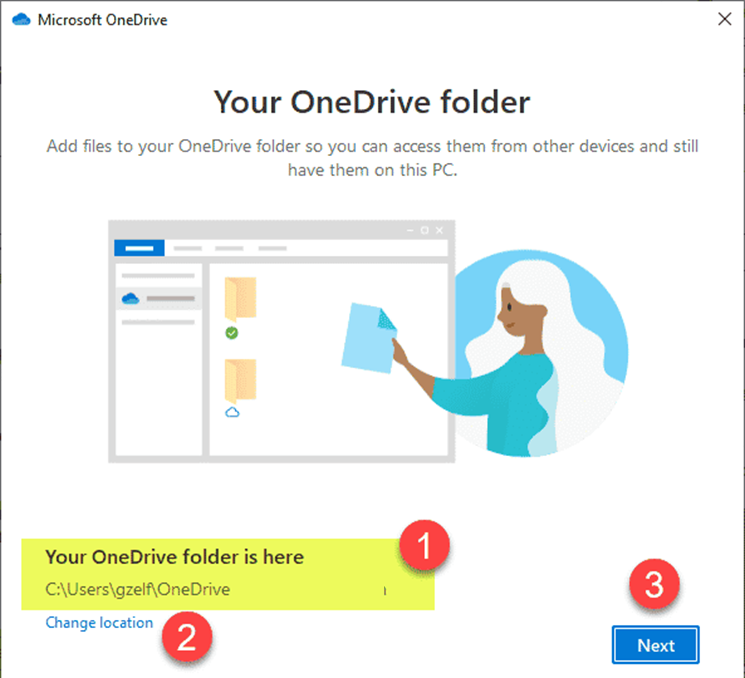
5. It will ask you the location where you want to store the synchronized files and folders. I suggest you leave as-is, but you can optionally change the location. Hit Next
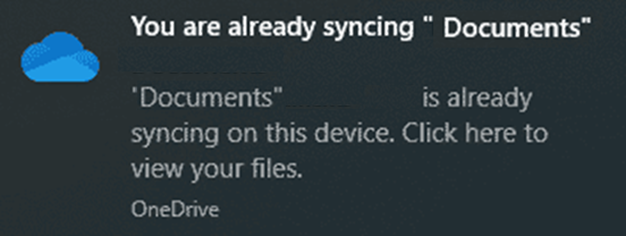
6. And that is it! You will now get a notification that the files and folders synchronized to your computer.
What does it look like in Windows Explorer?
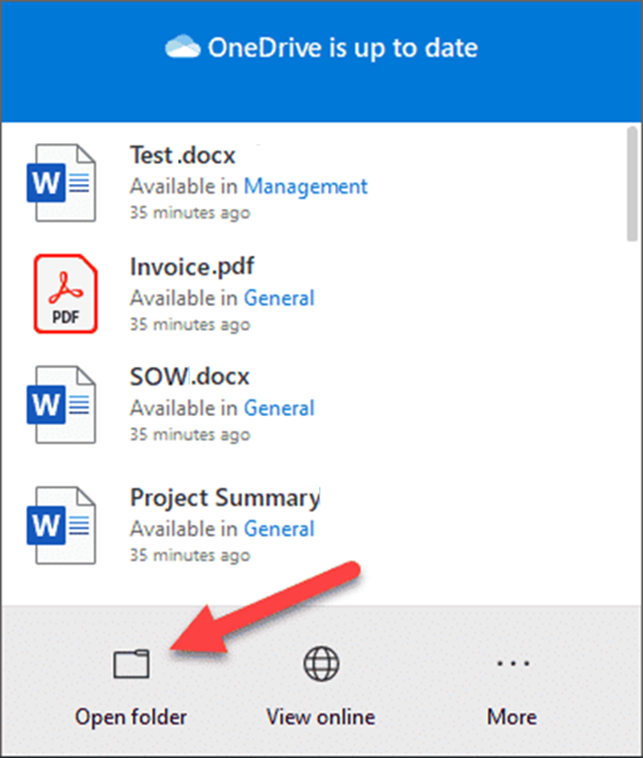
You can navigate to your synchronized files and folders by clicking on a blue cloud icon in the taskbar.

And then click Open folder.
You will now notice all the synchronized files and folders. Your personal files from OneDrive will reside under OneDrive section, while all the document libraries will reside under the [Company Name] section, next to a building icon
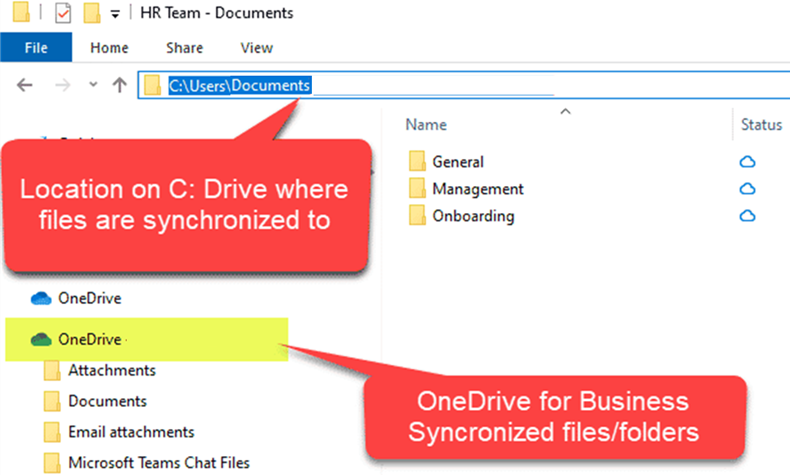
It is imperative to note the naming convention for the synchronized SharePoint Document libraries. The naming convention is as such: [Site Name] – [Document library name].
How to configure OneDrive Sync
Now that we installed OneDrive sync, it is time to configure it. You have a few options, depending on how you work.
Files On-Demand
Remember when I told you earlier that all the files are copied over to your C:Drive? Well, that is not 100% accurate. If you were to stop right here and not configure this any further, you would use what’s called the Files On-Demand feature. This is a new feature that was rolled out relatively recently. Its purpose is to save space on your hard-drive.
The idea is that it does not download the physical files and folders to your computer. Instead, it just downloads the names of files and folders as well as the hierarchy of folders. So it looks like you have them on your computer, but you don’t. It only downloads files and folders when you click on them.
In the image below, you can see the cloud icons next to all the files, except for one (green checkbox). This indicates that I opened the file on my computer, and it was physically downloaded to my computer at that time.
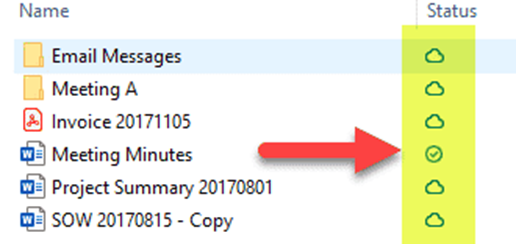
Files on your computer
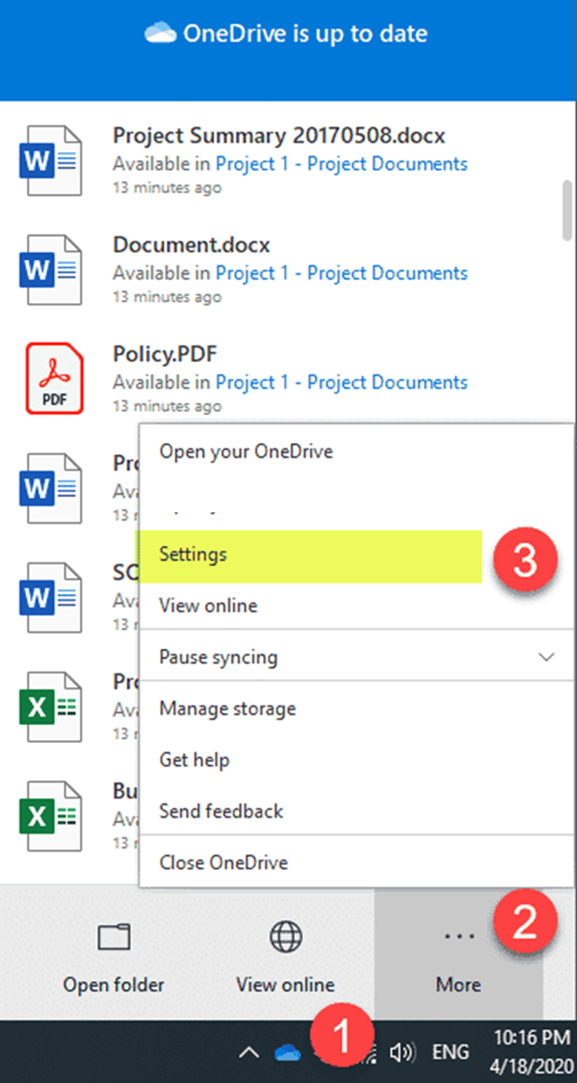
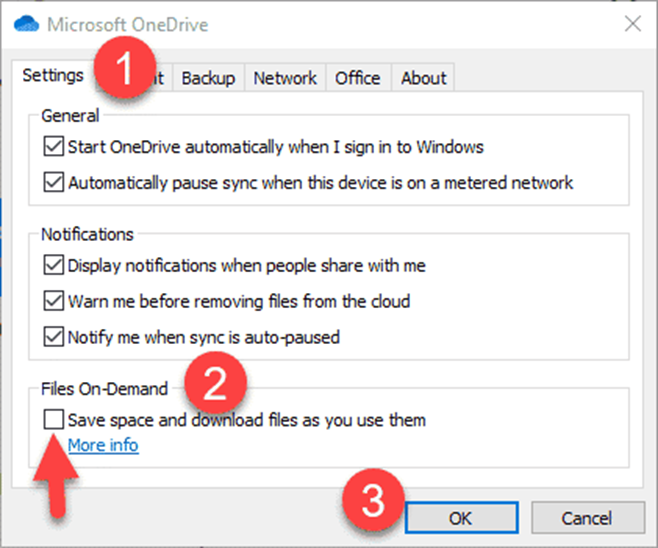
The above setup works well when you want to save storage on your laptop, but if you do not have WiFi and need to access the files, it won’t work. In this case, you need to disable Files On-Demand. To do this:
Click the Blue Cloud Icon > More > Settings
Under the Settings Tab, uncheck the box next to Save space and download files as you use them.
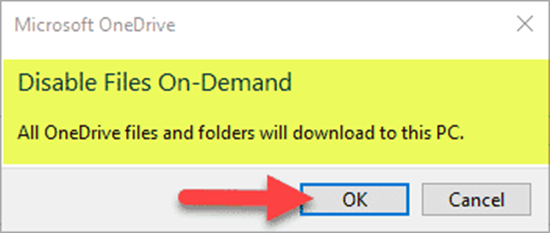
You will get a confirmation message, just hit OK.
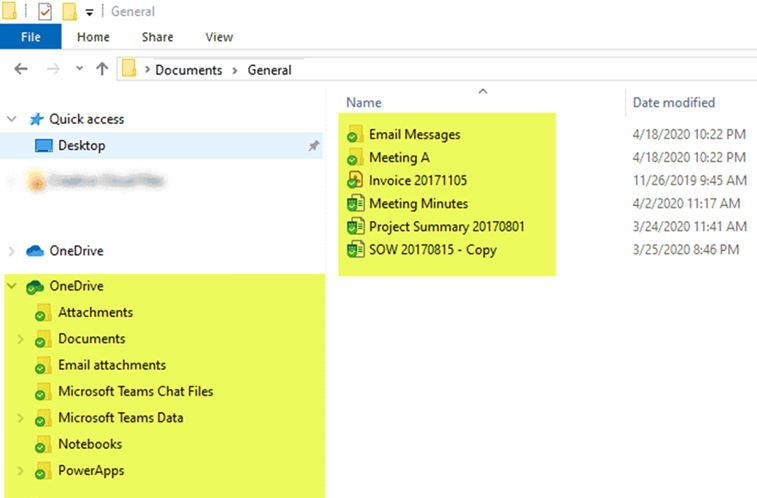
When you go back to Windows Explorer, you will now notice a bunch of green checkboxes, meaning that the files have physically been downloaded and synchronized to your computer.
How to stop sync of files and folders
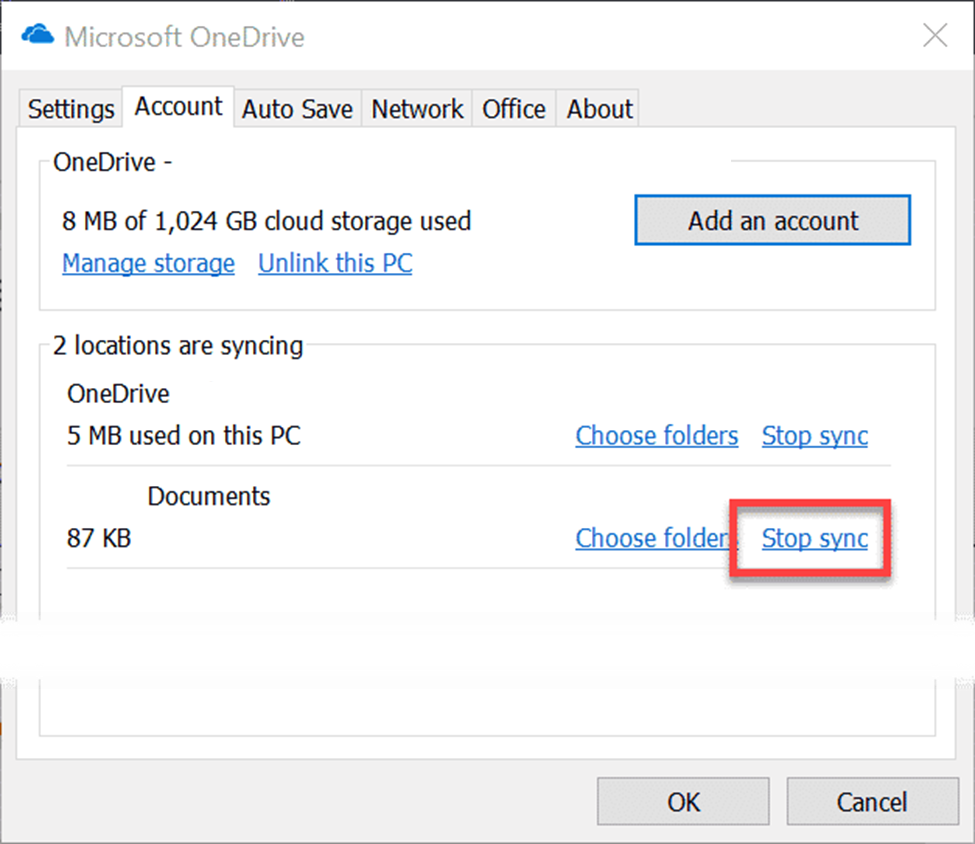
It is crucial to note that once you synchronize your OneDrive or SharePoint document libraries, it establishes a constant 2-way connection between OneDrive/SharePoint and your computer. So any change you make in one place (i.e., deletion) will immediately happen in the other location. If you need to break that link – you need to stop the synchronization.