
Match an M365 Cloud Account with Local AD
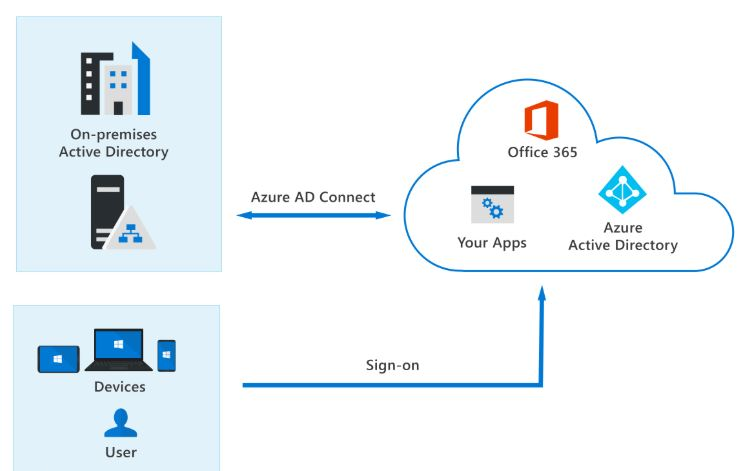
OK, so you need to Match an M365 Cloud Account with Local AD? You just realized you created a cloud only account for a bunch of users in your M365 tenant, but you need them to access local AD resources because you run a Hybrid environment.
You are just not ready yet to pull the trigger and go “Cloud Only”. Don’t worry, you are not alone. I am here to help.
Reasons to Match an M365 Cloud Account with Local AD
There are many reasons to do this. I can think of two. One, you are still running on on-premises Exchange Server and there are some email groups that the account(s) you created in the cloud need access that are only available locally.
The same goes for AD security groups and other attributes that can only be accessed through local AD.
The Easiest Way to Achieve This
The easiest way to Match an M365 Cloud Account with Local AD is to basically create an account in your local AD with the minimum attributes to make what is called a “soft match”. Local AD and the cloud will see them as the same record and synchronize them. Voila, they are both in the cloud and in local AD. Now you don’t have to rack your brain on how to do this anymore!!
One Way to Share Data from VB.Net to PowerShell

Sometimes you need to Share Data from VB.Net to PowerShell. It is not enough to use one to help the other. They need to go back and forth between each other, kind of like a good hockey pass! Sorry I couldn’t resist I was just watching the World Juniors. I won’t be any more though….
The good news is with the right coding and scripting you can easily pass data back and forth between PowerShell and VB.net. I am going to show you an example but by any means, this is not exhausting about what you can do. With a little research and practice I am sure you will find many ways!
High Level View on How Data is Shared
The example I am going to show you builds on an earlier post I had about using PowerShell and MS Teams. Here we will use VB.Net to generate a PowerShell Script based on inputs you put into the program. It then runs the script. The PowerShell script will send its output to a text file. The VB.Net program will read the content of the file and determine if the script ran successfully or not and inform the user through the VB.Net program.
Example on Sharing Data from VB.Net to PowerShell
For the purpose of this post, I am sampling the program and script. Be mindful of error checking and security when Sharing Data from PowerShell to VB.Net.
The VB.Net Code:
        Dim FILE_NAME As String = "setforwarder.ps1"
        Dim i As Integer
        Dim aryText(24) As String
        Dim creds As String
        Dim dlgr As DialogResult
        Dim objShell = CreateObject("WScript.Shell")
        Dim sps1 As String
        Dim myPrimary As String
        Dim mySecondary As String
        Dim firstChar As String
        Dim firstCharSec As String

        myPrimary = txtPrimary.Text
        mySecondary = txtSecondary.Text

        If myPrimary = "" Or mySecondary = "" Then
            dlgr = MsgBox("You did not specify a number as Primary and Secondary.", vbOKOnly)
        Else

            firstChar = myPrimary.First()

            firstCharSec = mySecondary.First()

            If Not IsNumeric(myPrimary) Then
                dlgr = MsgBox("Primary - Only Numbers are allowed.", vbOKOnly)
            ElseIf firstChar <> 1 Then
                dlgr = MsgBox("Primary - The first digit must be the number 1. Please follow the format 1XXXXXXXXXX.", vbOKOnly)
            ElseIf Len(myPrimary) <> 11 Then
                dlgr = MsgBox("Primary - The phone number must be exactly 11 digits. Please follow the format 1XXXXXXXXXX.", vbOKOnly)
            ElseIf Not IsNumeric(mySecondary) Then
                dlgr = MsgBox("Secondary - Only Numbers are allowed.", vbOKOnly)
            ElseIf firstCharSec <> 1 Then
                dlgr = MsgBox("Secondary - The first digit must be the number 1. Please follow the format 1XXXXXXXXXX.", vbOKOnly)
            ElseIf Len(mySecondary) <> 11 Then
                dlgr = MsgBox("Secondary - The phone number must be exactly 11 digits. Please follow the format 1XXXXXXXXXX.", vbOKOnly)

            Else
                creds = ".\creds.txt"
                aryText(0) = "try"
                aryText(1) = "{"
                aryText(2) = "# Define Credentials"
                aryText(3) = "[string]$Username = 'username@company.com'"
                aryText(4) = "[String]$Password = Get-Content " & """" & creds & """"
                aryText(5) = ""
                aryText(6) = "# Convert To secure String"
                aryText(7) = "[SecureString]$pass = ConvertTo-SecureString -AsPlainText $Password -Force"
                aryText(8) = "$SecureString = $pass"
                aryText(9) = "# Create credential Object"
                aryText(10) = "$MySecureCreds = New-Object -TypeName System.Management.Automation.PSCredential -ArgumentList $Username,$SecureString"
                aryText(11) = "Connect-MicrosoftTeams -Credential $MySecureCreds"
                aryText(12) = ""
                aryText(13) = "Set-CsUserCallingSettings -Identity username@company.com -IsForwardingEnabled $True -ForwardingType Simultaneous -ForwardingTargetType SingleTarget -ForwardingTarget " & Strings.Chr(34) & myPrimary & Strings.Chr(34)
                aryText(14) = "Set-CsUserCallingSettings -Identity username@company.com -IsUnansweredEnabled $True -UnansweredDelay 00:00:30 -UnansweredTargetType singleTarget -UnansweredTarget  " & mySecondary
                aryText(15) = ""
                aryText(16) = "Disconnect-MicrosoftTeams"
                aryText(17) = "Set-Content .\Exit.txt -Value '1'"
                aryText(18) = "}"
                aryText(19) = "catch"
                aryText(20) = "{"
                aryText(21) = ""
                aryText(22) = "Write-Output $_ | Set-Content .\Error.txt"
                aryText(23) = "Set-Content .\Exit.txt -Value '99'"
                aryText(24) = "}"

                Dim objWriter As New System.IO.StreamWriter(FILE_NAME)

                For i = 0 To 24

                    objWriter.WriteLine(aryText(i))

                Next

                objWriter.Close()

                'Clear Error file before writing And running PS Script
                Dim stream As New IO.StreamWriter(".\Error.txt", False)
                'stream.WriteLine("")
                stream.Close()

                'Clear Exit file before writing And running PS Script
                Dim stream2 As New IO.StreamWriter(".\Exit.txt", False)
                'stream.WriteLine("")
                stream2.Close()

                Dim ErrCode As String
                Dim ErrLen As Integer

                ErrCode = ""

                sps1 = ".\setforwarder.ps1"
                objShell.Run("powershell.exe -executionpolicy unrestricted -WindowStyle Hidden -noprofile -noexit -ExecutionPolicy Bypass " + sps1)

                Do Until ErrLen > 2

                    Threading.Thread.Sleep(1000)
                    ErrCode = System.IO.File.ReadAllText(".\Error.txt")
                    ErrLen = System.IO.File.ReadAllText(".\Exit.txt").Length
                    'MsgBox(ErrLen)

                Loop


                If ErrLen = 3 Then
                    MsgBox("Forwarding Has Been Confgured.")
                Else
                    MsgBox("The PowerShell command failed with Error: " + ErrCode + Chr(13) + ".")
                End If

            End If

        End If
The PowerShell Script
It was generated by VB.Net and Looks like this:
try
{
# Define Credentials
[string]$Username = 'username@company.com'
[String]$Password = Get-Content ".\creds.txt"

# Convert To secure String
[SecureString]$pass = ConvertTo-SecureString -AsPlainText $Password -Force
$SecureString = $pass
# Create credential Object
$MySecureCreds = New-Object -TypeName System.Management.Automation.PSCredential -ArgumentList $Username,$SecureString
Connect-MicrosoftTeams -Credential $MySecureCreds

Set-CsUserCallingSettings -Identity username@company.com -IsForwardingEnabled $True -ForwardingType Simultaneous -ForwardingTargetType SingleTarget -ForwardingTarget "<Phone Number set in VB.Net>”
Set-CsUserCallingSettings -Identity username@company.com -IsUnansweredEnabled $True -UnansweredDelay 00:00:30 -UnansweredTargetType singleTarget -UnansweredTarget  <Phone Number set in VB.Net>

Disconnect-MicrosoftTeams
Set-Content .\Exit.txt -Value '1'
}
catch
{

Write-Output $_ | Set-Content .\Error.txt
Set-Content .\Exit.txt -Value '99'
}
What holds this all together is Exit.txt and Error.txt that PowerShell writes to and VB.Net reads from. This gives VB.Net the info it needs to inform the user if an error occurred when running the PowerShell Script. This is one way to Share Data between VB.Net to PowerShell
The Bottom Line on Sharing Data from VB.Net to PowerShell
You may have to think a bit outside the box, but if you research enough accompanied by your programming and scripting skills, you will be able to share data from VB.Net to PowerShell. I know it has helped me with my day-to-day M365 administration tasks. It will help you!