
New Outlook vs Classic Outlook (4 differences)

If you are a larger organization, you are probably still running Classic Outlook or just Outlook as we like to call it. Now you need to evaluate New Outlook vs Classic Outlook because Microsoft is mandating that you do….
It is better to go eyes wide open into this. Changing the toggle to evaluate New Outlook is one thing but if you don’t know the changes (translation: features they have changed or taken away) you are in for a big surprise. When it comes default on all M365 installations. At least they left the toggle visible and business customers have support until 2029.
I have compared both versions and here are 4 features I have found that might leave you scrambling after the switch if you are not careful….
New Outlook vs Classic Outlook – Public Folders
I will start with what night be the most detrimental change for some organizations. No, public folders are not dead but they are on life support. In true Microsoft fashion, instead of just saying “This feature will be retired by X Date” they transition functionality from Good to Bad to Worse to Non-existent and that’s precisely what they are doing now.
I would say it is the worse stage now. The only way I could get access to Public folders in New Outlook was to not use it. I had to go to Outlook on the web and then jump through hurdles to configure viewing it. Try getting a normal user to do this. They will tell you to “go pound salt”.
Signatures
I have already posted about this one. This change is also using Microsoft’s “slight of hand”. To get users to transition in newer versions of Classic outlook, they added a dropdown box allowing you to still store signatures locally in the app but also choose to put a signature in the cloud (available to all devices that login to Outlook). I suggested manually copying and pasting you signature from local to cloud. Once you switch to New Outlook the ability to do this will be gone.
PST Files
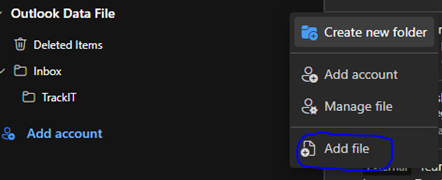
To discourage users from continuing to use PST files they make it difficult to mount them. What happens is after the switch your PST file get disconnected and you will have to re-mount them. Maybe Microsoft was hoping you would forget about them LOL. You will have to jump through some hoops to get them mounted after you switch.
Shared Tasks
It can be done but is now done through “To-Do”. The behavior is different than the old, shared tasks. I am not sure if old shared tasks are transferred without issue during the switch. My testing so far shows that shared tasks will need to be recreated. This will be a problem for uses who live and die with this feature.
Verdict of New Outlook vs Classic Outlook
It will be like any switch to any newer version of software when comparing New Outlook vs Classic Outlook. There will be a core group of users who will bemoan the change. To them, it is a major disruption of their work flow. But to most it will primarily go unnoticed. They will just notice the shiny new look of the screens and buttons. Ignorance might be bliss for most users but not for IT support!
Set-MgUserLicense Not Working
You have used this command many times before but Set-MgUserLicense Not Working? Why? There could be many reasons why but I am here to tell you of one particular reason in my travels with PowerShell.
Why Use Set-MgUserLicense Not Working
Set-MgUserLicense is very helpful when assigning or un-assigning licenses to several users. The portal does not make it very easy to do this. Sure, if you have a handful of licenses to deal with it is not a problem. But what if you have to work with hundreds or thousands of users at once? PowerShell is the way to go but what if it is not working?
Don’t Use Connect-MsolService to do this
It is now depreciated and you will either get an error message saying so or even worse, it will look like it ran but nothing has happened. If you are trying to re-assign a bunch of licenses from a new provider and you thought it worked but then on Monday your helpdesk lights up like a Christmas Tree, you know it didn’t work and you have a huge problem on your hands.
One big Tip to Prevent Set-MgUserLicense Not Working
Check the version of the Microsoft.Graph Module you are running:
Get-InstalledModule

Version              Name                                Repository           Description
-------              ----                                ----------           -----------
 Authentication Module.
2.24.0               Microsoft.Graph.BackupRestore       PSGallery            Microsoft Graph PowerShell Cmdlets
2.24.0               Microsoft.Graph.Bookings            PSGallery            Microsoft Graph PowerShell Cmdlets
2.24.0               Microsoft.Graph.Calendar            PSGallery            Microsoft Graph PowerShell Cmdlets
2.24.0               Microsoft.Graph.ChangeNotifications PSGallery            Microsoft Graph PowerShell Cmdlets
2.24.0               Microsoft.Graph.CloudCommunications PSGallery            Microsoft Graph PowerShell Cmdlets
2.24.0               Microsoft.Graph.Compliance          PSGallery            Microsoft Graph PowerShell Cmdlets
2.24.0               Microsoft.Graph.CrossDeviceExper... PSGallery            Microsoft Graph PowerShell Cmdlets
2.24.0               Microsoft.Graph.DeviceManagement    PSGallery            Microsoft Graph PowerShell
This is just a snapshot of the many Graph modules but as you can see here, I have version 2.24.0 of the Microsoft.Graph Module installed. The problem occurred when I was at a higher version (name 2.26.0). Downgrading did the trick.
Uninstall-Module -Name Microsoft.Graph -AllVersions

Install-Module Microsoft.Graph -Scope CurrentUser -Repository PSGallery -Force -RequiredVersion 2.24.0
Do this and you will solve Set-MgUserLicense Not Working
To Schedule a Teams Meeting Make Sure You’re Signed in to Teams
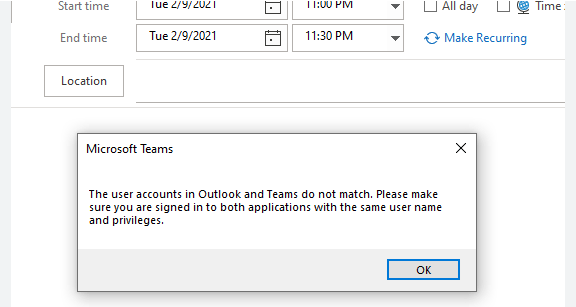
Teams Meeting Make Sure You’re Signed in (two ways to Fix)
You see the dreaded “To schedule a Teams meeting, make sure you’re signed in to Teams”, But you are you say!! If you are still using classic teams this is an issue. It shouldn’t be after July 2025 so you better upgrade.
There are a myriad of ways to fix it but ultimately it is an issue with the add-in needing to be re-loaded. If you must resort to the link above, there is a lot more going on with not just Teams but Outlook too.
The Good news is the new Outlook does not need the Teams Add-in so eventually it won’t be problem. There are two ways we can tackle this. One if you are a regular user or an admin with only a few users or two or an admin who has a lot of users!
Fix Teams Meeting Make Sure You’re Signed in for Only a Few Users
It is very simple, you need to:
- Close Outlook.
- Sign out of Teams
- Sign back into Teams.
- Open Outlook
If that doesn’t work, then:
- Close Outlook
- To resolve the add-in issue, you can uninstall the Teams add-in completely. Then reinstall it. Go to Add or remove programs in System settings.

- Uninstall Microsoft Teams Add-in for Outlook.
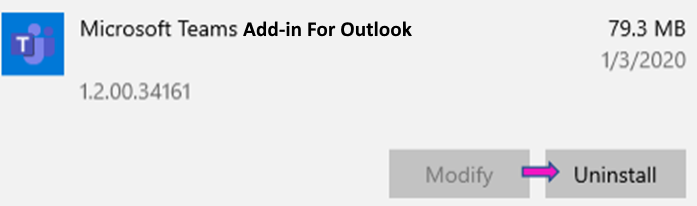
- When you start Outlook, it will reinstall the Add-in
Admin Fix Teams Meeting Make Sure You’re Signed in for A lot of Users
I hope you like batch files! If you have never used them before, here is a good tutorial. They are good for a lot of things, even Teams. You can create a batch file that performs the first sub step above and you can put it somewhere on your on-prem file server and get them to run it when they get the error message.
First create a folder to hold the batch files. Name it something like “ReinstallTeamsAddin” or something. The folder will hold three files. A main file that runs the commands necessary to execute the batch and two sub batch files that are called from the main batch file.
Main Batch File
REM ***BATCH FILE BEGINS...***

taskkill /im OUTLOOK.exe

start /min CallTeams.bat

timeout /t 35 /nobreak

taskkill /im TEAMS.exe

start /min CallOutlook.bat

Exit
Call Teams Batch File
cd "C:\Program Files (x86)\Microsoft\Teams\current\" – You need to make sure this is the right path

teams.exe

Exit
Call Outlook File
cd "C:\Program Files (x86)\Microsoft Office\root\Office16" – You need to make sure this is the right path

start OUTLOOK.EXE

Exit
What Teams Meeting Make Sure You’re Signed in Batch Does
If Outlook is Open, it closes it (since it needs to be closed to reload the add-in). Teams will open. One of three things will happen (one, it will load the main window, two, it will ask you to log in or three, it will tell you there was an error. Click “sign out and sign back in. Do not restart Teams, it does work).
The batch file gives you 35 seconds to do this. You can set whatever time you want but it must be enough for the user to reload teams.
Teams will close after the time expires and Outlook will reopen allowing the add-in to reload.
Easy Peasy….
Samsung S25 and Intune Enrollment Fails

Have you just tried to do this? Samsung S25 and Intune Enrollment Fails. It fails and for the stupidest reason. Read Below.
What is Supposed to Happen
With Intune enrollment, once you have created an enrollment profile all you need to do is take an Android phone, tap the screen five time and then scan the QR code to begin the process. Easy, right?
Why Samsung S25 and Intune Enrollment Fails
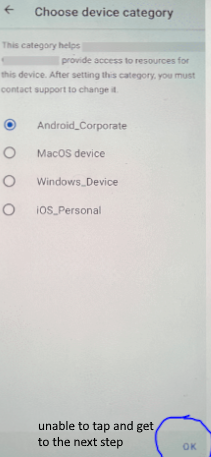
Well, all is fine and dandy in the process until you get to the screen where you must pick a Category for your devices. This is something you have set up beforehand to separate your devices (i.e. Office Mobiles, Office Computers, etc.…).
Samsung has done something with their UI where you can’t tap OK to get to the next screen. There is a grey bar or something that covers the OK button preventing you from tapping it.
How To Fix Samsung S25 and Intune Enrollment Fails
It is not a fix but a workaround. This is something Samsung needs to fix quickly. There is going to be a lot of fuss over this. In the meantime, you can work around it by doing the following.
Once you get to the screen above, you can go no further, Shut the phone off. It is already registered in Intune. You can finish the set up there.
And search for the device you were settings up. It starts with the username of whom your were enrolling in Intune.

Then click on the device, which brings it to its screen. Click Properties and give it a device category:
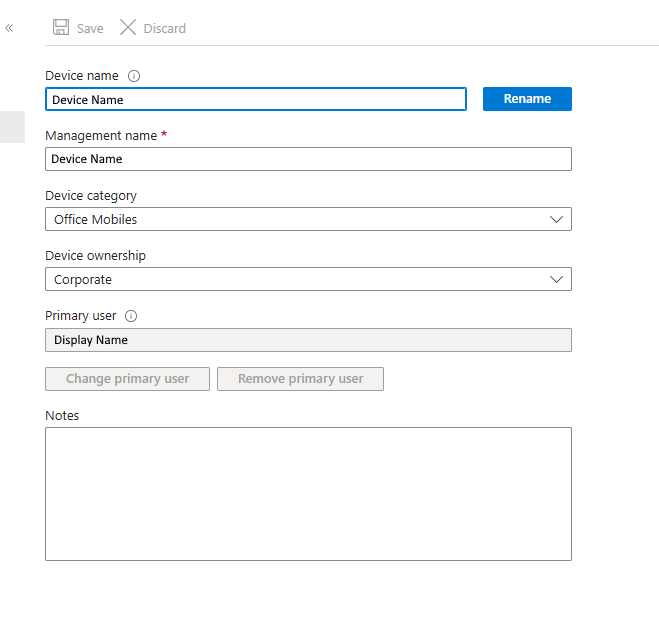
Save the entry and restart the Android Phone. You will then continue with the enrollment process as if nothing was wrong (But there was a lot wrong LOL).
Hopefully you haven’t got a huge batch of S25’s to enroll in your organization. Until Samsung fixes this (or Microsoft), it’s gonna be a long night!