
Why Microsoft Support Frustrates So Many Users (And What Needs to Change)

Microsoft is a tech giant with decades of experience and products that touch nearly every corner of the digital world—Windows, Office, Azure, Xbox, and more. So Why Microsoft Support Frustrates so many people? Even, despite its reach and resources, one recurring pain point continues to frustrate customers and IT professionals alike: Microsoft Support.
What has inspired me to write an article about this is the several experiences I have had with Microsoft over the years and how it has gotten progressively worse. The straw that broke the camel’s back was here.
It will go down in my support experience as the worst I have ever encountered!
So, let’s talk about why Microsoft Support often leaves users feeling stranded—and what could be done to fix it.
Automated Support – Why Microsoft Support Frustrates
One of the most common complaints is the heavy reliance on automation and chatbots. While AI-driven support can be helpful for basic questions, many users report going in circles with bots that don’t understand their issue, or that simply redirect them to irrelevant knowledge base articles.
I do not mind the email support option, but the bigger issue is that a lot of problems I experience are on the server side and MS support treats EVERYTHING like it is client-side. This is where the “Labyrinth” complaint comes to mind. This is one of the reasons why I don’t pick the phone option. The technician always wants to start a remote session and that is the last thing I need.
Most of the time, it is a user of mine that needs support and a remote session just isn’t feasible. I am not a user; I am a technician myself!
Support for Critical Services Isn’t Always… Supportive
Another reason why Why Microsoft Support Frustrates so much in terms of support is that Azure, Microsoft 365, and Dynamics 365 are mission-critical for many businesses. Yet, even for enterprise users, support responses can be delayed, vague, or incomplete. Time-sensitive issues sometimes take days to resolve, often bouncing between tiers or departments.
You can go to the service health page to see what’s going on. But it doesn’t tell you much. You really have to go to third-party sources like this one. This isn’t just frustrating, it’s a business risk.
Disjointed Experience Across Products
Need help with an Office 365 license, a OneDrive sync issue, and a problem with a Windows update? From the portal It looks like the company that sells tightly integrated solution, but it’s not. You’ll likely be shuffled across different support teams, each with limited knowledge of the others. The result is a fragmented experience that lacks the cohesion you need.
The Community Does More Than the Company
Ironically, some of the best “Microsoft support” doesn’t come from Microsoft. It comes from independent MVPs, IT forums, YouTube tutorials, and bloggers. While this speaks to the strength of the Microsoft community, it also underscores a weakness in official support infrastructure. I almost exclusively use these support channels to solve my M365 issues. Over the years I have become increasingly disillusioned with Microsoft Support.
Premium Support Comes at a Premium Price
Microsoft does offer higher tiers of support for enterprise users (e.g., Premier or Unified Support), but they’re costly and still not always timely. Small and mid-sized businesses often feel left behind, with limited access to real experts unless they pay more.
So, What Should Microsoft Do?
To be fair, supporting an ecosystem as vast as Microsoft’s is a herculean task. But if they’re serious about user satisfaction, here are a few ideas:
- Invest in human-first support, especially for issues automation can’t solve.
- Create centralized, cross-product teams that can tackle integrated problems holistically.
- Make diagnostics transparent and user-friendly, with clearer error messages and guided troubleshooting.
- Empower community contributors with better tools, faster bug escalations, and more collaboration.
Final Thoughts – Why Microsoft Support Frustrates
Microsoft’s products are powerful—but support is their biggest weakness. For a company so deeply embedded in the digital infrastructure of the world, improving the support experience isn’t optional, it’s essential.
Let’s hope they start listening to the people who depend on them most: their users. Nah….that would never work……
Resources in Exchange Don’t Respond to Meeting Requests
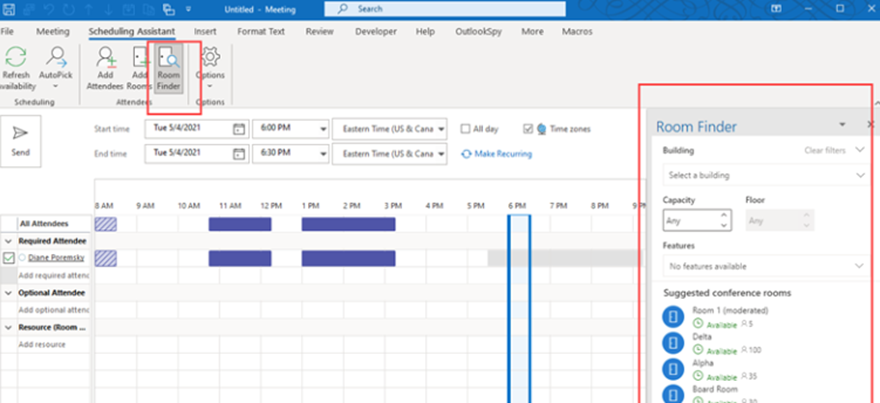
Your resource rooms have been working for as long as you remember. Why then, suddenly, do Resources in Exchange Don’t Respond to Meeting Requests? You set up these rooms ages ago and they just worked. It is supposed to be easy.
You didn’t change anything. And the wild goose chase begins……Of the things it could be I will go through two fixes that didn’t work and one that did for me.
Corrupt Free/Busy Data on Resource or Client Email Box
This could be a reason Resources in Exchange Don’t Respond to Meeting Requests and was suggested to me by Microsoft. It is a program called MFCMapi. It is like a registry editor for your Outlook profile. From here you can open the resource room profile (You will probably need to create one) and locate two free / busy files. They are called localFreeBusy and Sniffer. You need to delete them. The screenshots are below:


Basic Configuration Settings on Resource Not Correct
Once again, nothing has changed so why would I check this (I am looking at you Microsoft)? They suggested the following:
1. Check Room Mailbox Auto-Processing Settings
Run this in Exchange Online PowerShell:
powershell
Get-CalendarProcessing -Identity “RoomName” | fl AutomateProcessing,BookingWindowInDays,AllowConflicts,AllBookInPolicy,AllRequestInPolicy,AllRequestOutOfPolicy,BookInPolicy,RequestInPolicy,RequestOutOfPolicy
You want to see:
– AutomateProcessing : AutoAccept
– AllBookInPolicy : True (or the user should be listed in BookInPolicy)
If not, set it like this:
powershell
Set-CalendarProcessing -Identity “RoomName” -AutomateProcessing AutoAccept -AllBookInPolicy $true
2. Check Delegate Permissions
Ensure the delegate has Editor or Full Access to the user’s calendar, and that the room is being added as a required attendee.
Also, verify that the delegate is not using “Send As” or “Send on Behalf” in a way that bypasses room booking policies.
3. Test Direct Booking
Try having the delegate book the room directly (not on behalf of someone else). If it works, the issue is likely with how delegate bookings are processed.
4. Use Message Tracking Logs
If you’re an admin, run a message trace in the Exchange Admin Center to see if the room received the booking request at all. The messages were getting to the resource but the resource was not responding. It was stuck….
Advanced Configuration Settings on Resource Not Correct
Here is how it finally got Resources in Exchange Don’t Respond to Meeting Requests fixed.
At this point, it looked like a client-side issue. But Resources in Exchange Don’t Respond to Meeting Requests still! However, it was working on some users and not others. I was one of the affected users. Something changed and not by me or my colleagues….
Finally, I found this Article. It is an obscure article from about 4 years ago. The affected admin was having problems booking resource rooms and they were not auto accepting. It was different in that instead of allowing anyone to book a room, they were using delegates. However, the base issue was the same.
If you run “Get-CalendarProcessing <resource room name> | fl” you get all configuration settings. There are 46 of them in total. Near the bottom, there is a setting called “ProcessExternalMeetingMessages”. It was set to false. It needs to be set to True:
Set-CalendarProcessing <resource room name> -ProcessExternalMeetingMessages $True
Low and behold the message loop between the person / delegate booking a resource and the resource accepting were finally closed. Things started flowing again.
How do you know you have Resources in Exchange Don’t Respond to Meeting Requests
When this issue is evident users might complain of meeting reservations not showing up in room calendars, or worse, if it is an intermittent problem (in my case), users complain of double bookings. Basically, a user booked a room, and it was not marked off in the resource, therefore technically still available. A user who wasn’t exhibiting the issue would book the same time and it would reserve the room, hence the double booking! Frustrating the say the least.
Why am I Telling You This
It is important to know that what it takes to solve a seemingly simple problem can take a long time. For me it was reaching out to Microsoft several times. They were no help, but I didn’t give up on my relentless google search, trying to find the right phrase that would yield a result. You know how when you search for something on Google and a million search results come up? I only had about 2 dozen and the article that finally fixed my issue WAS THE LAST ONE.
I wrote an article about my experience with Microsoft Support. I have had a lot of them.
I am also going to open this post up to comments. Please let me know what your experiences have been. I would love to hear!