

If you have used older versions of Windows, you are used to the Program file folder. It was so easy to create shortcuts from there. It was even easy to put the MS Teams Icon on the Desktop. How about the new teams icon on the Desktop?
The problem is that MS Teams is always changing and the ability to add a shortcut to Windows has changed too. Fortunately, it can be done in just 3 steps. If you read further in the article you will see how you can add the new shortcut to a computer that is used by several users.
The Steps to put New Teams Icon on the Desktop
- Hit Win+r
- Type shell:appsfolder in the text box and hit enter.
- You will see all your aps in the apps folder.
- Right click on it and choose Create Shortcut. It will ask you if you want it to be placed on the desktop, say yes.
Search for Teams:
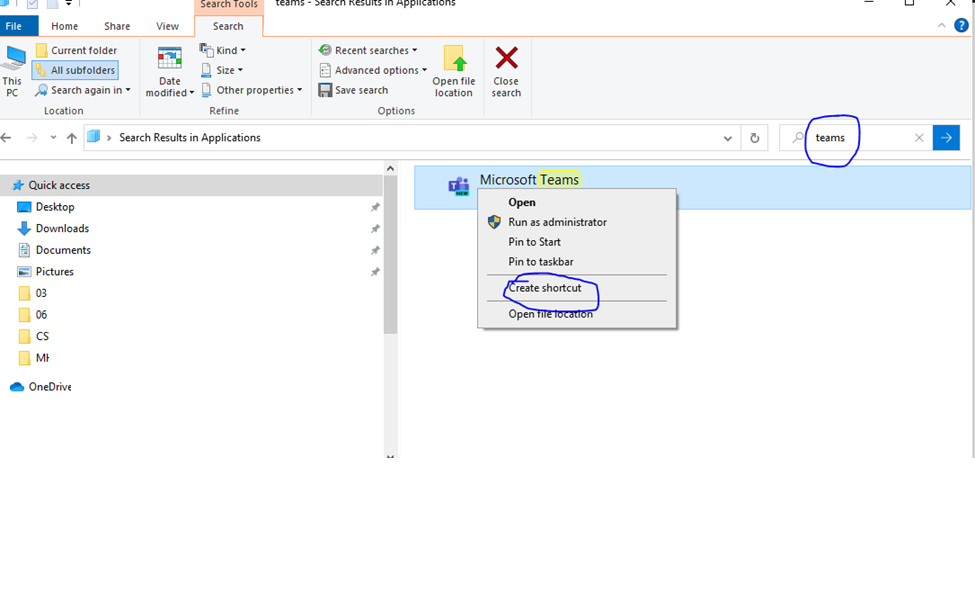
Voila, you now have the teams shortcut on your desktop.
Using the Shortcut on a Multiuse Computer
Sometimes you need to deal with a computer that is in use by a lot of users. Like a common room or presentation room computer. It is quite easy to accomplish.
- Copy the shortcut you created above.
- Navigate to the multi-use computer and go to it’s C:\Users\Public\Public Desktop folder.
- Paste the shortcut.
Now the users on that PC will have access to the New Teams Shortcut. Technically once the new teams are set up on their profile on the computer it runs at start up each time they login but it isn’t necessarily apparent.
Double-Clicking the icon will either bring the application to the front if they are already logged in or prompt for login credentials if it hasn’t already done so.
Either way, you will get MS Teams running and it will be the new teams form the shortcut!!!
Dan

I am an Senior IT professional with several years experience in the field. I have supported thousands of users over the years. The organizations I have worked for range in size from one person to thousands of people. I have performed support from Help Desk, Network / Cloud Administration, Network Support, Application Support, Implementation and Security.