

As an M365 administrator you have your security set up. You have your devices enrolled and you have even made sure MFA has been set up for the much-needed security required in today’s IT Landscape. But how do you Temporarily Sign in as a User?
Why Temporarily Sign in as a User
You may need to set up a device for them that may require you to log in as them. Some say this is not good practice and I agree if you can do it another way, it is great, but sometimes you do not really have a choice.
Besides, you must be an administrator to set this up and you are the only one who knows the temporary passcode. Let’s begin:
How to Do it
I already mentioned that you must be an administrator. Simply go into Entra and look up the user you need to log in as.
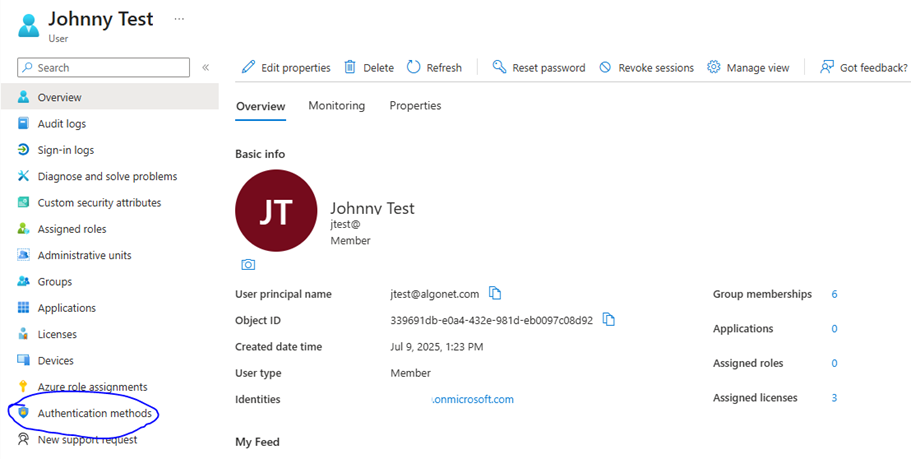
Go to the users Overview and Authentication Methods and Click Add Authentication Method.
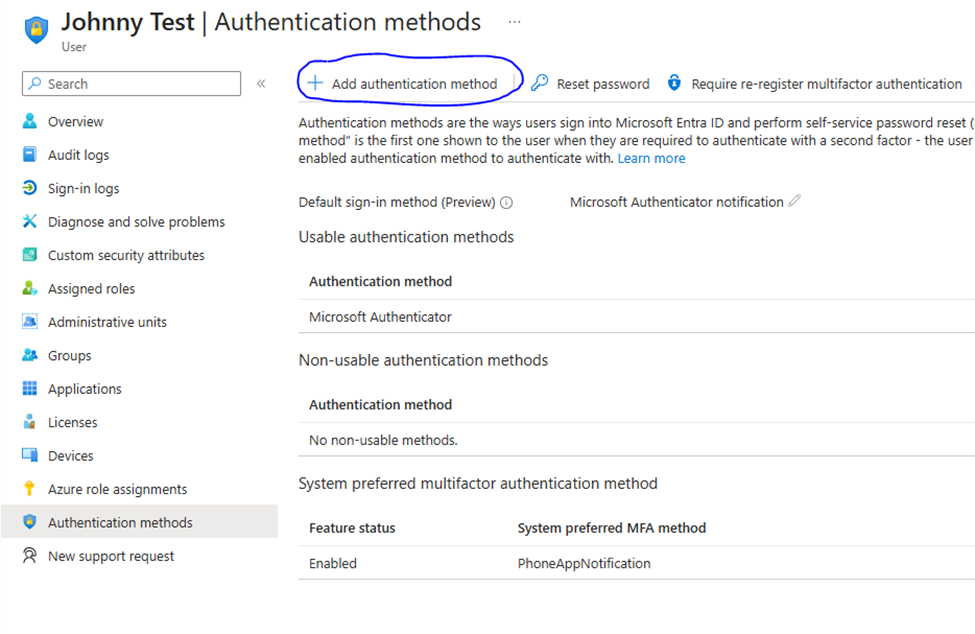
Choose Temporary Access Pass from the dropdown list:

Options When You Temporarily Sign in as a User
From here you can configure a few things. Namely, you can specify how long the TAP is good for (Activation Duration), If you can use the TAP multiple times (One-Time Use) and if you would like a time delay before you start using it (Delayed Start Time).
When you are done configuring the settings, click Add.
When you are done, you are taken to this screen:
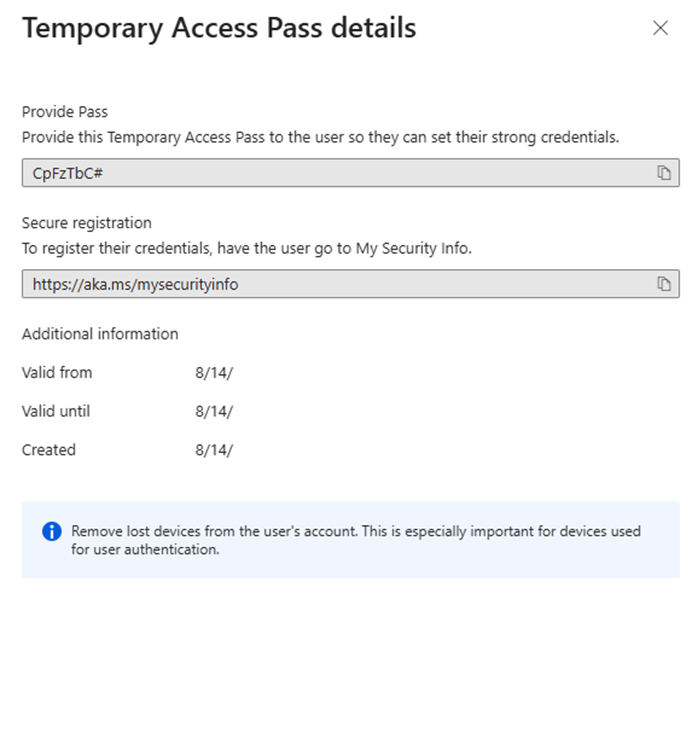
The temporary password is provided above. Copy it to a notepad document or like so you will have it ready to use. When you log on as the use you will be presented with a password screen like this:
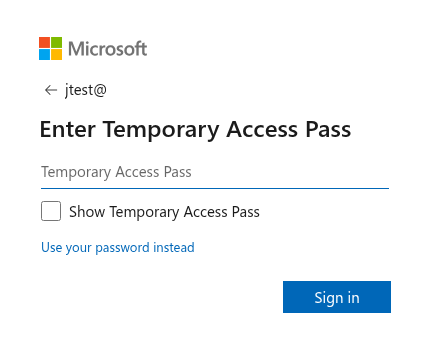
Enter the TAP that you copied from above and voila, you have access to the user account for set up purposes. It even bypasses MFA. So, you don’t have to constantly bug your users for MFA push numbers!
Why Use this to You Temporarily Sign in as a User
This is a very good question. Sometimes you can’t avoid it. Enrolling a device in Intune comes to mind. Whatever, the case, it will save you a lot of time in setting up the device and you will be non-intrusive to the user in doing so.
Dan

I am an Senior IT professional with several years experience in the field. I have supported thousands of users over the years. The organizations I have worked for range in size from one person to thousands of people. I have performed support from Help Desk, Network / Cloud Administration, Network Support, Application Support, Implementation and Security.