

Why Revoke a Sign-in?
Need to revoke a M365 Users Sign-in? Maybe it is for one one user or many users. A good example is for a security breach. Another example is when a user leaves the company and you want to make sure their are no cached logins for any device they might be signed into as you disable their account. Maybe you are changing something on the network and maybe you want to get a baseline of the change. There could be a lot of reasons.
Another good reason is to re-enforce MFA on your users when they sign-in. Either way, I can show you two very good ways how to make sure your users can have their M365 sign in revoked. It will log them out every single service they have a connection to.
It can be a lot more than you think. For example, when I tested it on myself, it took a good two days for me to get through all the devices I was signed into to get re-signed in! There was Outlook, Teams, the admin portal, and a reMarkable tablet I was testing, to name a few.
I will show you two ways on how to do this. The first way will be through the admin portal and the second way will be using PowerShell. Using PowerShell is a great way to revoke a M365 Users Sign-in for many users through the use of a script.
Revoke a M365 Users Sign-in Using the M365 Admin Portal
In this case all you have to do is login to you Microsoft admin portal and go to active Users in the left hand pane of the page. Click on the user you want to revoke all sign-ins for other right side and click on “Sign-Out of all sessions”.
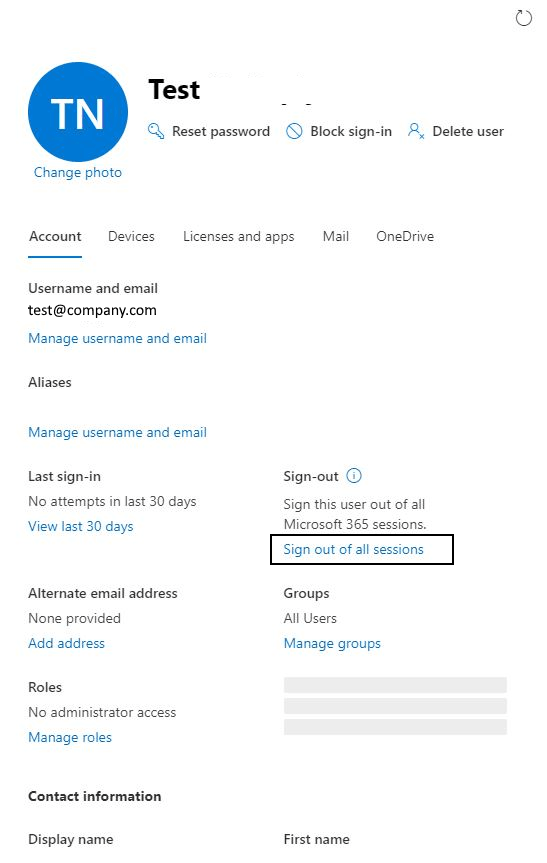
If you need to do this for only a few users, this is a good way to go. If you have many more to sign out, this is not a very efficient way. Thank goodness there is PowerShell…..
Revoke a M365 Users Sign-in Using PowerShell
The best feature of using PowerShell is its ability to automate pretty much any task you need to accomplish in M365. I have written several articles about it. In this case, you would need to run the Get-AzureADUser command with the revoke-azureaduserallrefreshtoken. As mentioned in the previous section if you need to do this for a few users you can also use this PowerShell command. However, if you need to run it for many users or your whole organization, you would need a CSV list of your users and a script that can loop through the list running the Get-AzureADUser command.
An example of the command is as follows:
Make sure you are connected to the Azure AD module the run the command
Get-AzureADUser -SearchString <M365username or email> | revoke-azureaduserallrefreshtoken
If you need to run this command for many users, this example script will help:
#Declare Variables
$CSVPathUPN = “C:\Files\Users.csv”
Connect-AzureAD
#Run Script
Write-Host Signing out all users….
#Try import UPN CSV file
try {
$UPNUsers = import-csv $CSVPathUPN -ErrorAction stop
}
catch {
throw “Error importing CSV: $($_.Exception.Message)”
break
}
foreach ($UPNUser in $UPNUsers) {
$Uname = $UPNUser.UPName
$Dname = $UPNUser.displayName
Get-AzureADUser -SearchString $Uname | revoke-azureaduserallrefreshtoken
Write-Host Signing Out $Dname ….
}
Write-Host Done Signing Out All Users…
The above script takes a CSV file with field headings UPName and displayName, loads them into variables $Uname and $Dname and runs the the “for each” loop and runs the revoke command for each user in the list.
Easy Peesie.
So now you have 2 ways to revoke a M365 users sign-in depending on your situation.
Happy IT’ing
Dan
Dan

I am an Senior IT professional with over twenty five years experience in the field. I have supported thousands of users over the years. The organizations I have worked for range in size from one person to thousands of people. I have performed support from Help Desk, Network / Cloud Administration, Network Support, Application Support, Implementation and Security.