
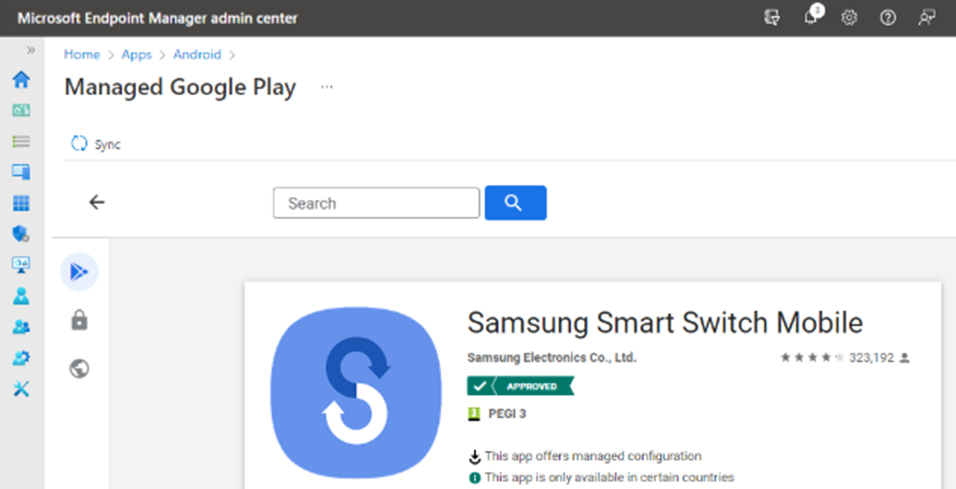
A challenge with Android Enterprise managed devices is the lack of ability to restore data from an old device to a new device. You want to use Android fully managed devices and Samsung Smart Sync. Other than that, there really isn’t anything else for back in the Android Enterprise. The Samsung Smart Switch is a great solution for personal devices so why not Intune enrolled devices?
It can be, but this only works out of the box for the Personally Owned Devices with Work and Corporate Owned Devices With Work Profile (the Samsung Smart Switch app is only supported in the personal profile) enrollments.
The Samsung Smart Switch app is not designed for enterprise environments and will be restricted by default.
It can be done with the more restrictive Corporate-owned Fully Managed User Devices but there are 2 steps involved. Thats what this post is about.
Android Fully Managed Devices and Samsung Smart Sync App Distribution
When looking at using the Samsung Smart Switch app on Android Enterprise fully managed devices, the app should be distributed by using Microsoft Intune. That will make sure that the backup and restore functionality will be available. The distribution of the Samsung Smart Switch app can be achieved by going through the seven steps below.
- Open the Microsoft Endpoint Manager admin center portal navigate to Apps > All apps > Android
- On the Android | Android apps blade, click Add to open the Select app type page
- On the Select “app type” page, select Managed Google Play app as App type and click Select
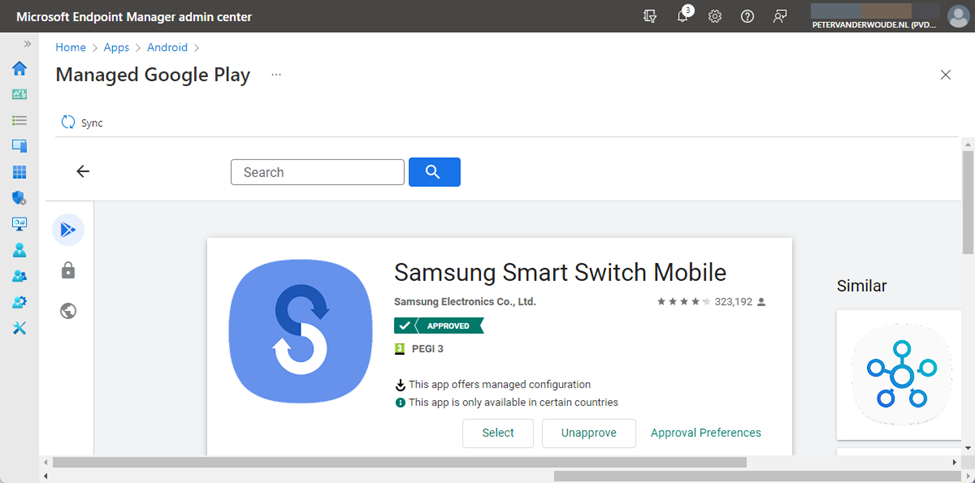
- On the Managed Google Play page, search for the Samsung Smart Switch Mobile app, select the app and click Approve
- On the Permissions dialog, click Approve
- On the Approval settings dialog, select Keep approved when app requests new permissions click Done
- Click Sync (as shown below in Figure 1) to synchronize the “approved app” to Microsoft Intune:
Configuration of the Samsung Smart Switch app
After distributing the Samsung Smart Switch app to Android Enterprise fully managed devices, the app must be configured by using Microsoft Intune. That configuration is the Allow SmartSwitch Run (allow_run) configuration key that can be enabled to make sure that the app can be used on Android Enterprise fully managed devices. The configuration of the Samsung Smart Switch app can be achieved by going through the seven steps below.
- Open the Microsoft Endpoint Manager admin center portal navigate to Apps > App configuration profiles
- On the Apps | App configuration policies blade, click Add > Managed devices
- On the Basics page, provide the following information and click Next
- Name: Provide a valid name for the app configuration policy
- Description: (Optional) Provide a valid name for the app configuration policy
- Device enrollment type: (Grayed out) Managed devices
- Platform: Select Android Enterprise
- Profile Type: Select All Profile Types, Fully Managed, Dedicated, and Corporate-Owned Work Profile Only or Personally Owned Work Profile Only depending on the devices that should get this policy assigned
- Targeted app: Select Samsung Smart Switch Mobile
- On the Settings page, provide at least the following information (as shown below in Figure 2) and click Next:
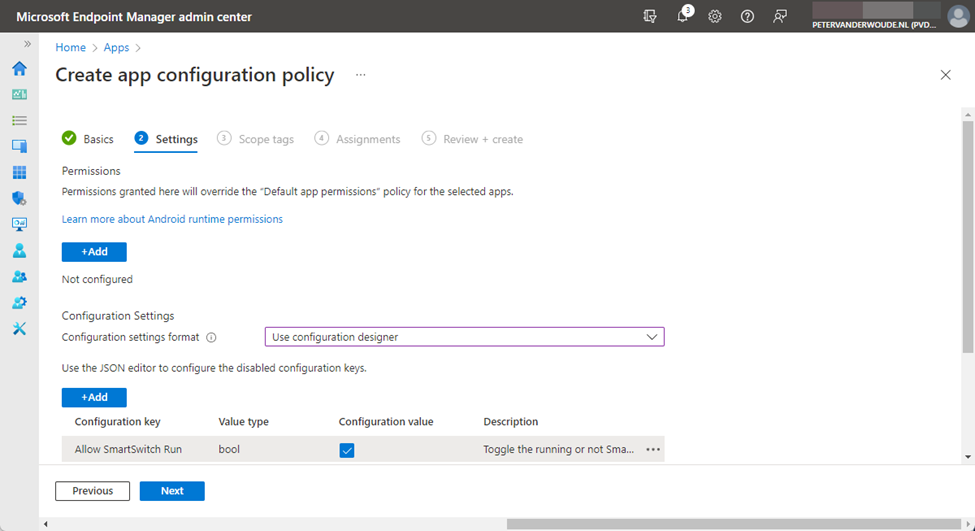

- Configuration Settings format: Select Use configuration designer
- Click Add to add the Allow SmartSwitch Run configuration key and check the box with the configuration value
- On the Scope tags page, configure the applicable scope tags and click Next
- On the Assignments page, configure the assignment by selecting the applicable group and click Next
- On the Review + create page, review the configuration and click Create
User experience with the Samsung Smart Switch app
When Android fully managed devices and Samsung Smart Sync are used together, the user experience can be simply verified by opening the app. When the configuration was not successfully applied, the message Security policy restricts use of Smart Switch will show as shown below in Figure 3, and when the configuration was successfully applied, the app will open as shown below in Figure 4. Before the user gets to that screen, many permissions must be approved to make sure that the data can be restored. After that the user can choose how to transfer data to the device. Simply walk through the app and select the device that is sending the data, or connect the device to PC
More information on Android fully managed devices and Samsung Smart Sync
For more information about Samsung Smart Switch and the configuration, refer to the following docs.
- Smart Switch compatibility on different Android Enterprise activations (samsungknox.com)
- How to enable Smart Switch on Fully Managed (DO) devices (samsungknox.com)
- Samsung Smart Switch
Dan

I am an Senior IT professional with over twenty five years experience in the field. I have supported thousands of users over the years. The organizations I have worked for range in size from one person to hundreds of people. I have performed support from Help Desk, Network / Cloud Administration, Network Support, Application Support, Implementation and Security.