
So you are running a version of Outlook that does not store signatures in the cloud. Your company also does not use a cloud signature service like Code Two. You are moving to the New Outlook. How do you get your signature in the New Outlook. There are basically two ways to do this and I will show you both.
What has Microsoft Done?
Microsoft has decided that they want a more uniform experience across devices. So a better way to do this than by storing everything in the cloud (They are not there 100% but I guess they are trying). So, a lot of features that you had stored locally on the machine you were using will now be available to all devices that you have configured. Basically if you AD is Hybrid and you like to pull user info from your Domain controllers and store them locally and automatically, you won’t be able to do this anymore.
You Are Using a Really Old Version of Outlook – Signature in the New Outlook
In this case to get your signature in the New Outlook, when you go to File / Options / Mail / Signature you see only one option for for storing your signature. That is locally. There is no cloud option (You will see later in this article that there is an option where to store your signature). Your signature settings probably look like this:
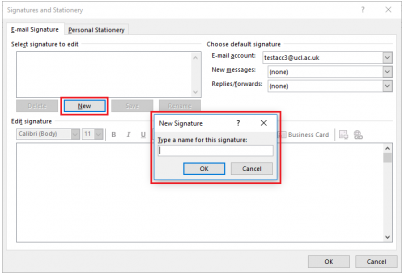
The pretty signature that you so painfully created is stored here:
C:\Users\<your user name>\AppData\Roaming\Microsoft\SignaturesSimply put, if you Hit Win-R, then in the search box type %AppData%, it will take you to your profile. Navigate to Microsoft\Signatures and you will see your signature as an HTML file. read the following steps to get it into the cloud.
Getting Signature in the New Outlook
Note: You can use these steps on Outlook on the web too.
- Please take the HTML file that has opened in your default browser and select all (Ctrl-A) .
- Then copy it to your clipboard (Ctrl-C). Open Outlook and while in your inbox, go to “View”.
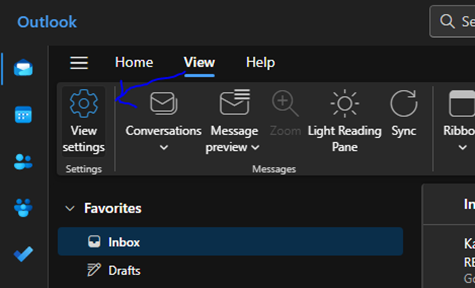
- At the top of the window and select “View Settings”.
- Type “email signature” into the search box you see at the top left and then click “+ New signature”.
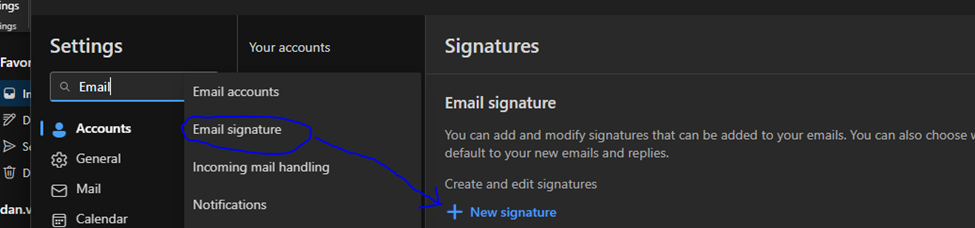
- Give the signature a name in the “Email Signature” text box.
- Click in the text box below and press Ctrl-v to paste the signature you copied from step #2
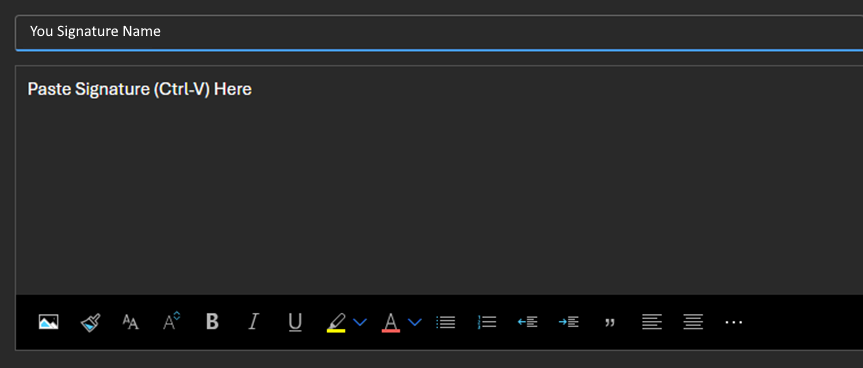
- Click Save and you are all done!
Your Version of Outlook is Newer – Signature in the New Outlook
In this case your version of Outlook is at least 2019. you will see a Signature Settings Windows similar to this:
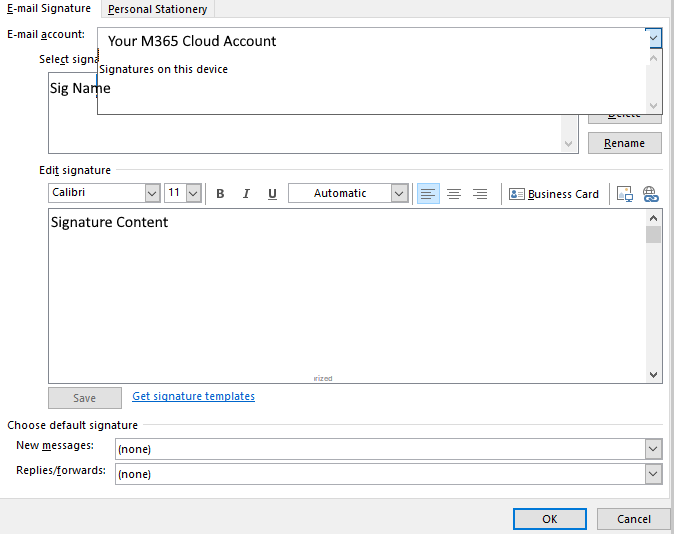
In this case you have a drop-down box for local and cloud signatures. This is Microsoft’s way to get you to move from local signatures to cloud ones. It is a hybrid way of storing signatures. But the new Outlook closes this loop hole and there is no option to do this. But I digress…..
In this case you take the content from “Signatures on this device” and copy it to the cloud signature (as noted by your Microsoft account in the drop down box). Paste it into the content text box and click save.
The New Outlook Way
Unfortunately there is no direct way. If you are lucky enough to be using an older version of Outlook before you switch, you can use one of the two methods above to get you signature into the cloud. If not you have to create it from scratch.
Dan

I am an Senior IT professional with over twenty five years experience in the field. I have supported thousands of users over the years. The organizations I have worked for range in size from one person to hundreds of people. I have performed support from Help Desk, Network / Cloud Administration, Network Support, Application Support, Implementation and Security.