
Users are complaining about Sync to Samsung Cloud missing on their Samsung Notes App. You have set up either an Android Enterprise corporate owned fully managed (COBO) or an Android Enterprise corporate owned work profile (COPE) and deployed the Samsung Notes App to the devices….
Why are they not syncing?
What Sync to Samsung Cloud Missing Looks Like
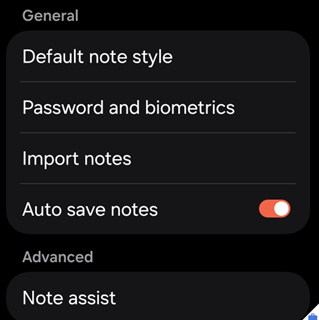
When you deploy this app through your Google Managed Play store as an approved app, for security purposes, the app does not allow syncing to a cloud (Who wants Microsoft info in the Samsung Cloud, right?). Ultimately, sync to Samsung Cloud is missing.
So, when you go into the settings of the Samsung Note this is what you see:
When your users want to see this:
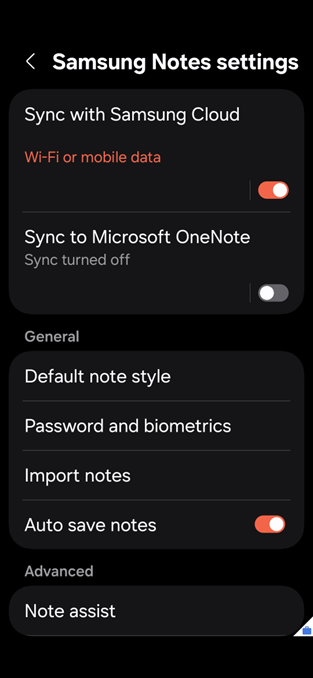
Read below to see how you can fix sync to Samsung Cloud missing.
How to Enable Sync to Samsung Cloud on an Intune Enrolled Device
I have written an article on how to do this with Samsung Smart Switch and it essentially the same process, however, you need to enable the settings specific to Samsung Notes.
First you will need to create an app configuration. Go to Manage Apps / Configuration in the Intune portal and Select Create / Managed Devices. You will go through the wizard of creating an App Configuration.
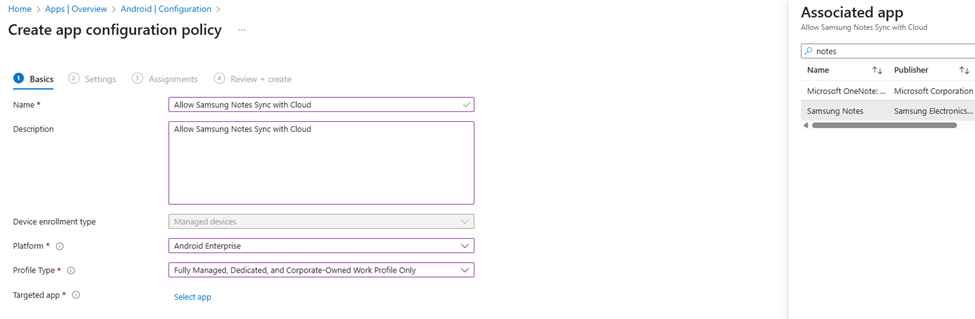
Give it a name and Description. In this case it could be “Allow Samsung Notes Sync with Cloud”, etc. Choose the platform as Android Enterprise and the profile types you want to apply it to are Fully Managed and Corporate Work Profile Only. You can Apply to all profile types if you want but this should take care of the profile types that matter. Select the target app as Samsung Notes from the Associated App fly-out on the right and then click next:
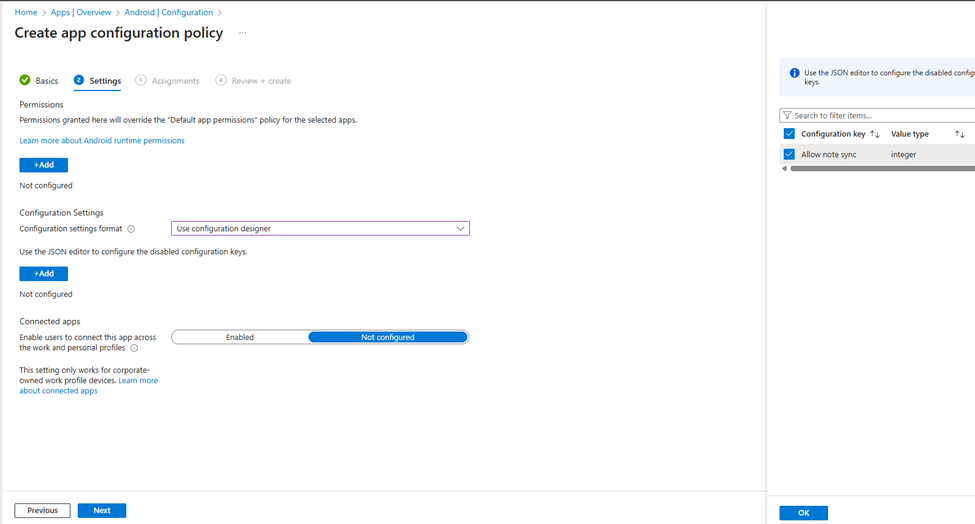
Next, you will be able to configure the setting so sync to Samsung cloud is missing goes away! In the next screen Choose “Use Configuration Designer “from the drop-down field and then click add. There is only one setting you can pick anyway. It is “Allow Note Sync” and you can check it from the configuration Fly out on the right. Click OK and then Next:
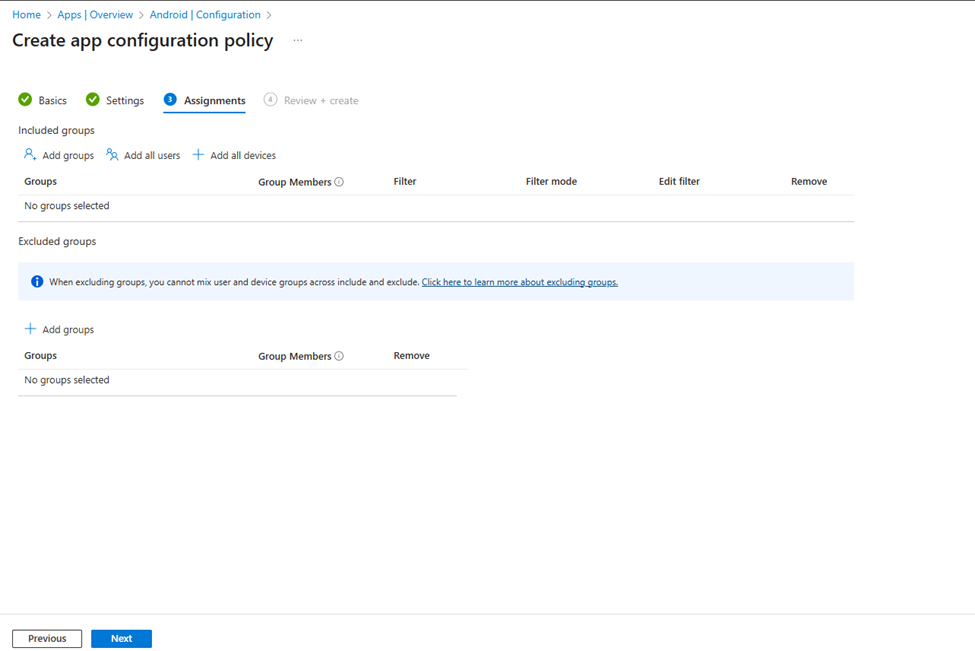
From Here you can add which Entra Device Group to include or exclude from this App Configuration:
All you have to do is click “Create” on the last screen and your App Configuration for Samsung Notes is created. The Device group you chose in the previous steps in the configuration setup will have the new configuration pushed out to their device as soon as they check in!
The Sync to Samsung cloud missing mystery is solved!
Dan

I am an IT professional with over twenty five years experience in the field. I have supported thousands of users over the years. The organizations I have worked for range in size from one person to hundreds of people. I have performed support from Help Desk, Network / Cloud Administration, Network Support, Application Support, Implementation and Security.