
If you need to Clean Up Outlook Mail it can be very easy. You just need to do it right. In this article, I can show two ways or steps if you will that can make this process very easy. The thing is you need to do these steps in the correct order to make the most out of your clean up.
I originally wrote a smaller article on this before. But this one is more comprehensive. Let’s begin with the first step on how to Clean Up Outlook Mail…..
Step One – Clean Up Outlook Mail with Mailbox Clean Up
Using this step will be very helpful and prepare you for executing step two. More on that later.
Click File at the top left and then “Mailbox Clean Up”
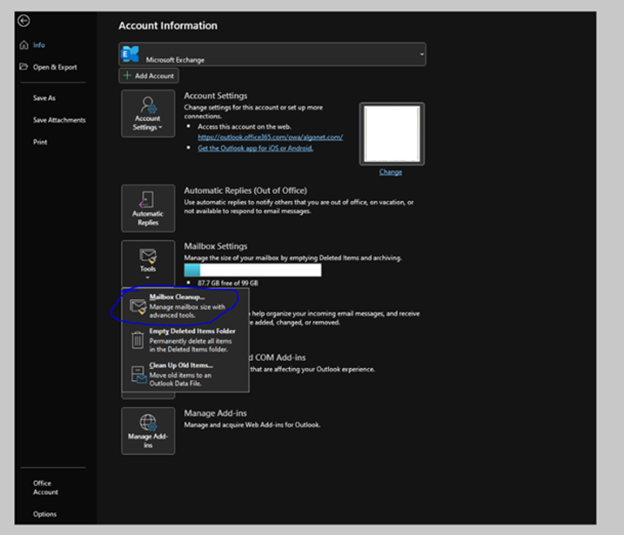
Mailbox Cleanup looks like this:

You can click “Mailbox Size”. It will show the folders in your email and give you a general idea of where items are stored.
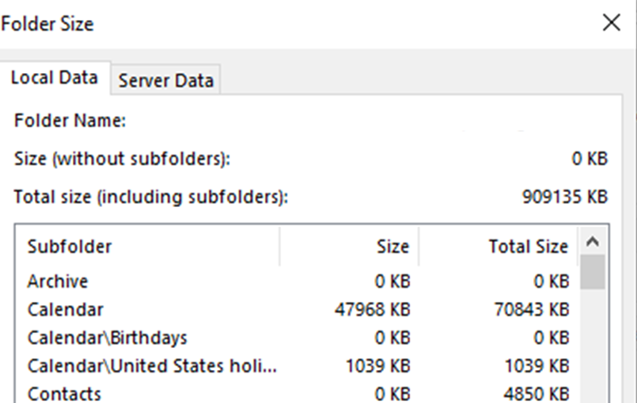
You can look for “items older than” or “items Larger than” you can determine which items you can delete:

Once you have found what you are looking for you can highlight all the items in the result, right click, and choose “delete”:

Once you are done searching and deleting older items by date and / or size, you can empty your deleted items folder:

Now that you are done this you have (known or not) prepared for the next step…Auto-Archiving.
Step Two – Clean Up Outlook Mail with Auto-Archive
- Click File / Options / Advanced / Auto Archive Settings:
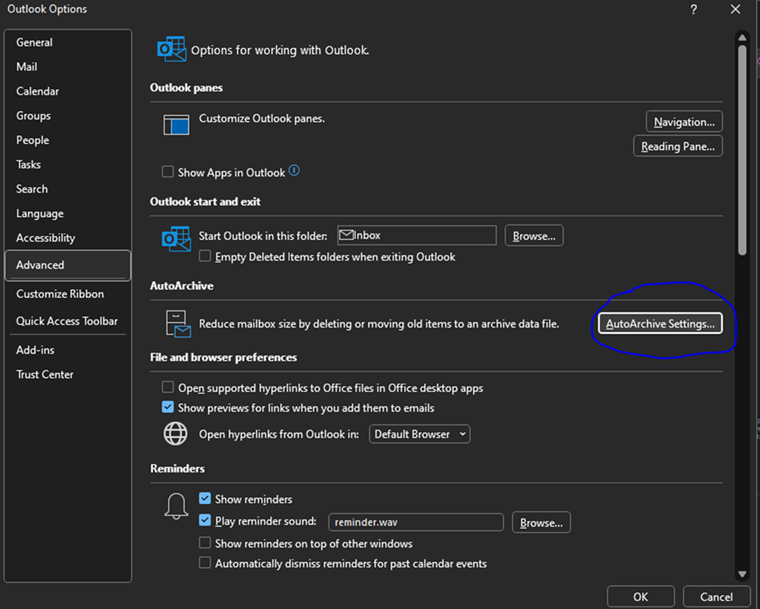
2. Once you have opened Auto-Archive Settings from options, you need to set them:
3. You will need to configure at least 4 settings. They are:
Enable Auto archive – You won’t be able to configure any other settings until you check this box.
Frequency – specify in Days how often you would like archive to run (in days).
Date to Start Auto Archive – When auto Archive runs it checks for items older than you specify and adds them to the archive. You can specify Months / Weeks / Days, or you can choose to permanently delete old items. I wouldn’t recommend this unless you are an advanced user and know how to work with .ost files.
Once Auto-Archive runs once you will see it in your Outlook underneath your inbox as a searchable mail store:
Depending on the plan you have with Exchange Online, you will have limits to how much data you can store. Online it is between 50GB and 100GB (depending on how you are licensed). The Size of your Auto-Archive file can only be up to 1.5 TB. I would figure if you have that much mail you might be using your email account for more than just email storage. Maybe time to move some of that to OneDrive!
Dan

I am an IT professional with over twenty five years experience in the field. I have supported thousands of users over the years. The organizations I have worked for range in size from one person to hundreds of people. I have performed support from Help Desk, Network / Cloud Administration, Network Support, Application Support, Implementation and Security.