
You may have decided to stick to SMS texts for MFA. Unfortunately, it is currently the weakest form of MFA. Microsoft has decided enough is enough! Time to get more secure. They have enforced a registration campaign. The new MFA using this app is a push with number matching. So should you Add Microsoft Authenticator to MFA? It isn’t an answer to a question….you have no choice. They started rolling this out on September 15th 2023.
Here is how you Add Microsoft Authenticator to MFA in a few simple steps.
Microsoft has made using the Microsoft Authenticator App Mandatory. It is just another way to bump up security with your tenant. You will get three passes and then the inevitable. When they want you to switch you will see this prompt after you logon on your computer screen:
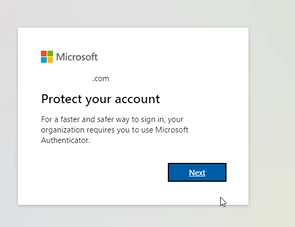
Note: Before you click next, check to see if you have the authenticator App
See if the Authenticator App is already installed.
- Please check your phone and see if you already have the Microsoft Authenticator App installed already. If you do go to the section Adding an Account to The Authenticator App.
- To check, do a search on the main screen of your phone and search for “Microsoft Authenticator”. If it is on the phone it will show up in your search.
Installing the Authenticator App
- Go to the Google Play Store (Android) or Apple Store (iPhone) on your Phone
- Search for “Microsoft Authenticator App:”.
- Install the App on your phone.
- Open the App and go to the next section.
Adding Account to Microsoft Authenticator to MFA
Click next to this prompt:
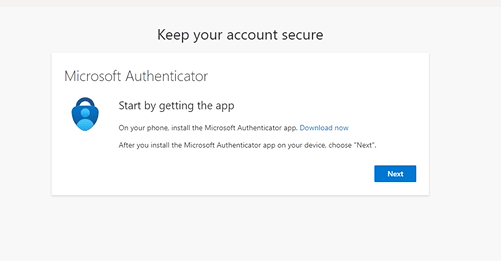
If You Have the QR Code on Your Computer Screen
You will more than likely see this:
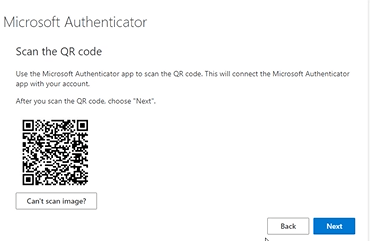
Go to the open Authenticator App and click the plus sign and choose “Work or school account”:
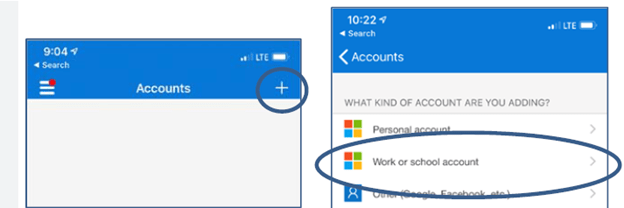
When given the choice to scan a QR Code tap it and then scan the code on your computer screen with your phone. It will add your account to the phone. Once the QR code is scanned, click next.
Microsoft Authenticator to MFA Manually
The steps are the same as adding your account with a QR code, but you choose “sign in” instead. You will be prompted for your windows username and password. Remember your windows username.
Testing Authenticator App
Before you can use the app, Microsoft would like to test it. It will show a number on your computer screen. You will need to enter it in the Authenticator app. It will show a successful test on your computer screen. Click Next.
You now have successfully set up the Microsoft Authenticator App on your Phone (Microsoft Authenticator to MFA). Going forward when you sign into a Microsoft App, when you are prompted for MFA, your login will give you a code:
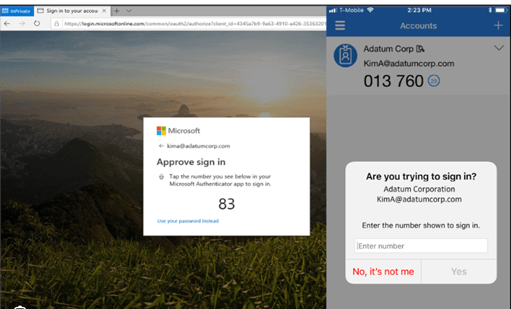
You will have to type that number into your authenticator App and the logon will proceed!
Dan

I am an Senior IT professional with several years experience in the field. I have supported thousands of users over the years. The organizations I have worked for range in size from one person to thousands of people. I have performed support from Help Desk, Network / Cloud Administration, Network Support, Application Support, Implementation and Security.