
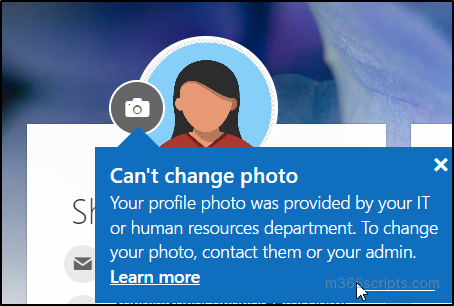
So you will want to Prevent users from changing photos in Microsoft 365. Users, out of the box, can update their profile pictures in M365. You would think this is a good idea. For small organizations, it probably is. However, if you are a larger organization trying to maintain a professional presence, it might be problematic.
Why prevent users from changing photos in Microsoft 365?
When a user changes photos in M365, it updates several places in the M365 eco-system (Exchange, Teams, My Profile, Entra, etc.).
As I mentioned before, the main reason for preventing users from changing photos in Microsoft 365 is to ensure a professional presence. If they are allowed to update the profile picture, you can get any number of possibilities for profile picture representation (some good, some, not so good….). It could give your company a bad name if a less then tasteful photo shows up in a user’s profile photo (i.e. said employee riding a chicken LOL). That’s why making sure you restrict profile photo management in Microsoft 365 is very important for your organization.
Where can a user change their photo?
There are two main places where a user changes photos in Microsoft 365 (their profile photo). First, on the My Account page. Secondly, a profile photo can be changed by going to the following web link (https://outlook.office.com/mail/changephoto). This option used to be a “back door” to updating a profile photo but the method I am about to show you circumvents this.
It will take awhile for M365 to update, however, going forward users will NOT be able to change their photo.
How to prevent users from changing their photos in Microsoft 365 (All Non-Admin)
Mind you, not all users will be prevented from updating profile photos. In this example it is limited to a role a user has. Basically, admins will be able to (as they should) and not regular users. This should be best in most cases. You need to modify photo update settings using Microsoft Graph.
Follow the steps below to modify these settings in your organization. In our example, the only user roles allowed to change user photos will be People Administrator, User Administrator, and Global Administrator.
- Go to Graph Explorer, select the Sign in button in the top-right corner, and sign in using an account with the People Administrator or Global Administrator role. If you’re signing in for the first time, you’ll also be asked to accept requested permission.
- Specify query parameters:
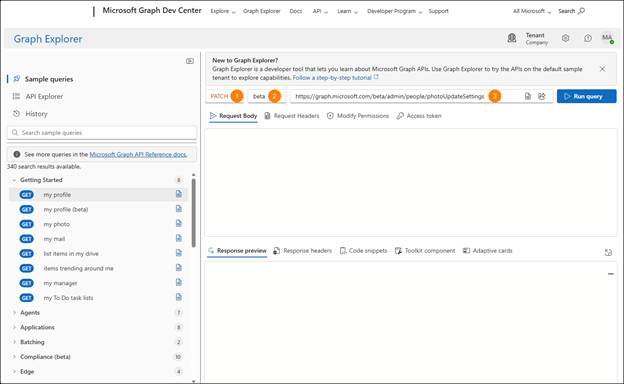
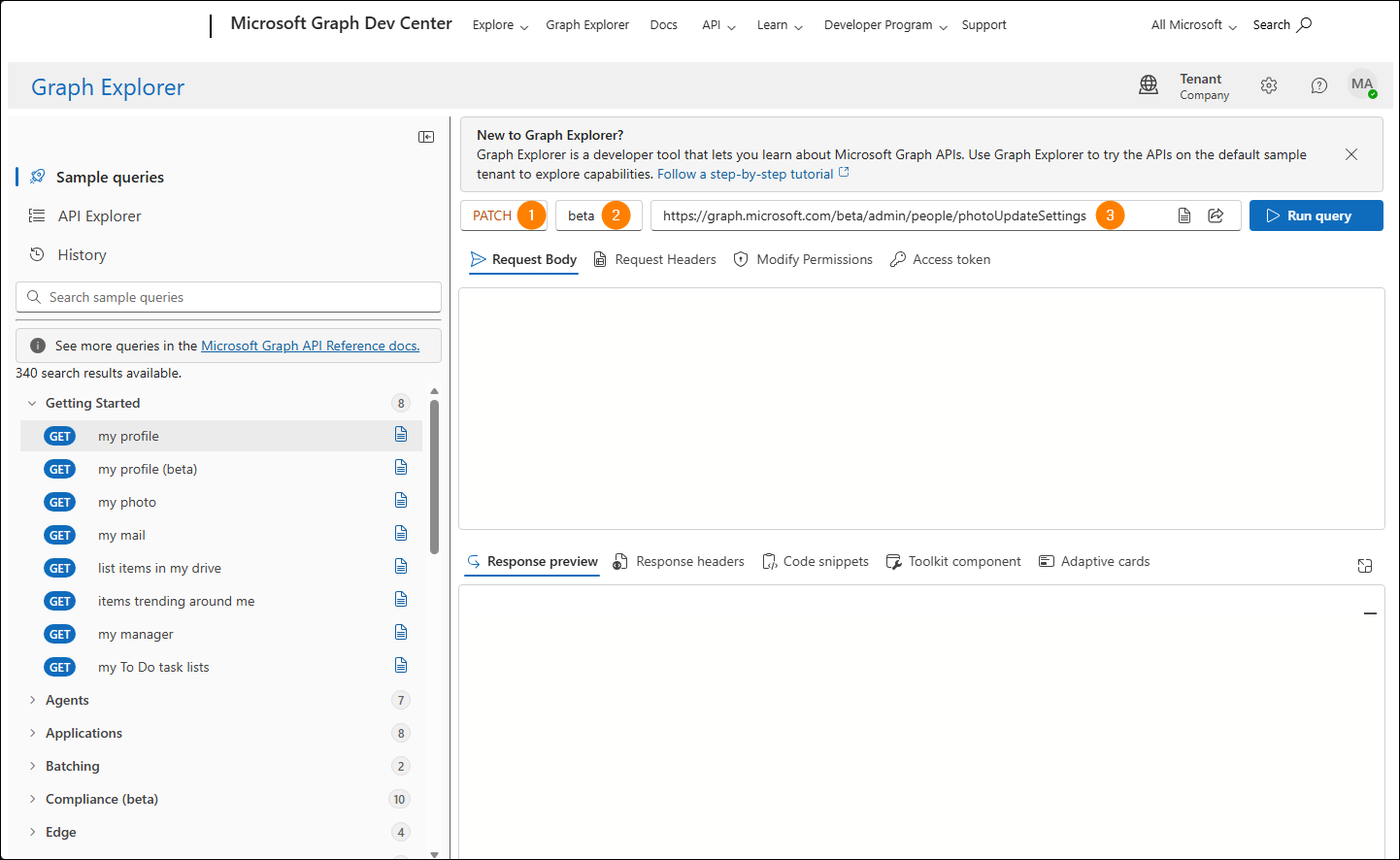
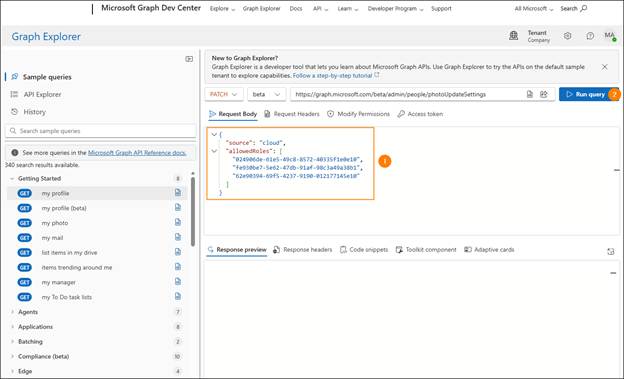
- In the HTTP request method drop-down, select PATCH.
- In the Microsoft Graph API Version drop-down, select beta.
- In the query URL bar, enter https://graph.microsoft.com/beta/admin/people/photoUpdateSettings.
- In the text field on the Request Body tab, paste the following code:
{
“source”: “cloud”,
“allowedRoles”: [
“024906de-61e5-49c8-8572-40335f1e0e10”,
“fe930be7-5e62-47db-91af-98c3a49a38b1”,
“62e90394-69f5-4237-9190-012177145e10”
]
}
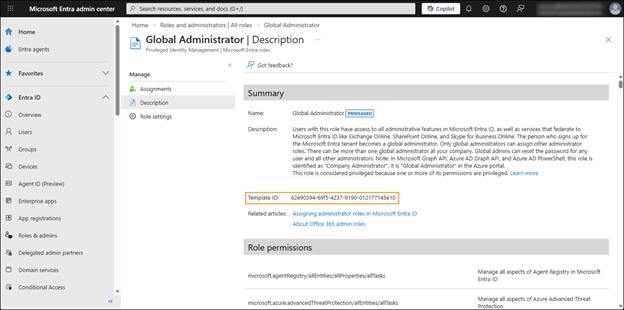
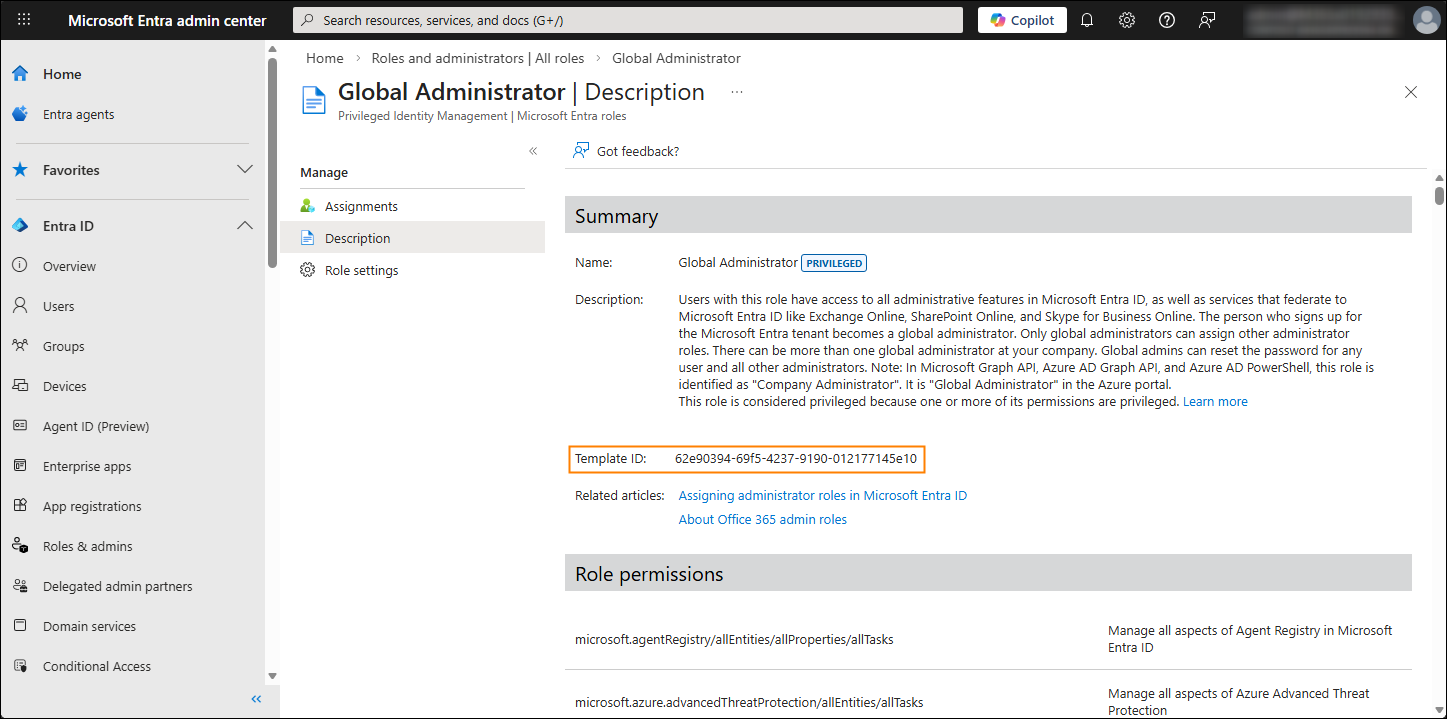
Note: In this example, the IDs in the allowedRoles array are predefined template IDs from Microsoft Entra ID that represent the People Administrator, User Administrator, and Global Administrator user roles, respectively. If you want, you can include other roles in this array by getting the template ID’s.
To do this, go to the Microsoft Entra admin center > Roles & admins. To get a role’s template ID, select it on the list and go to the Description tab (the ID will be displayed in the Template ID field included in the Summary section). I would stick to the three default roles in the example first to make sure it works. Besides, you really do need that many roles. These three should do.
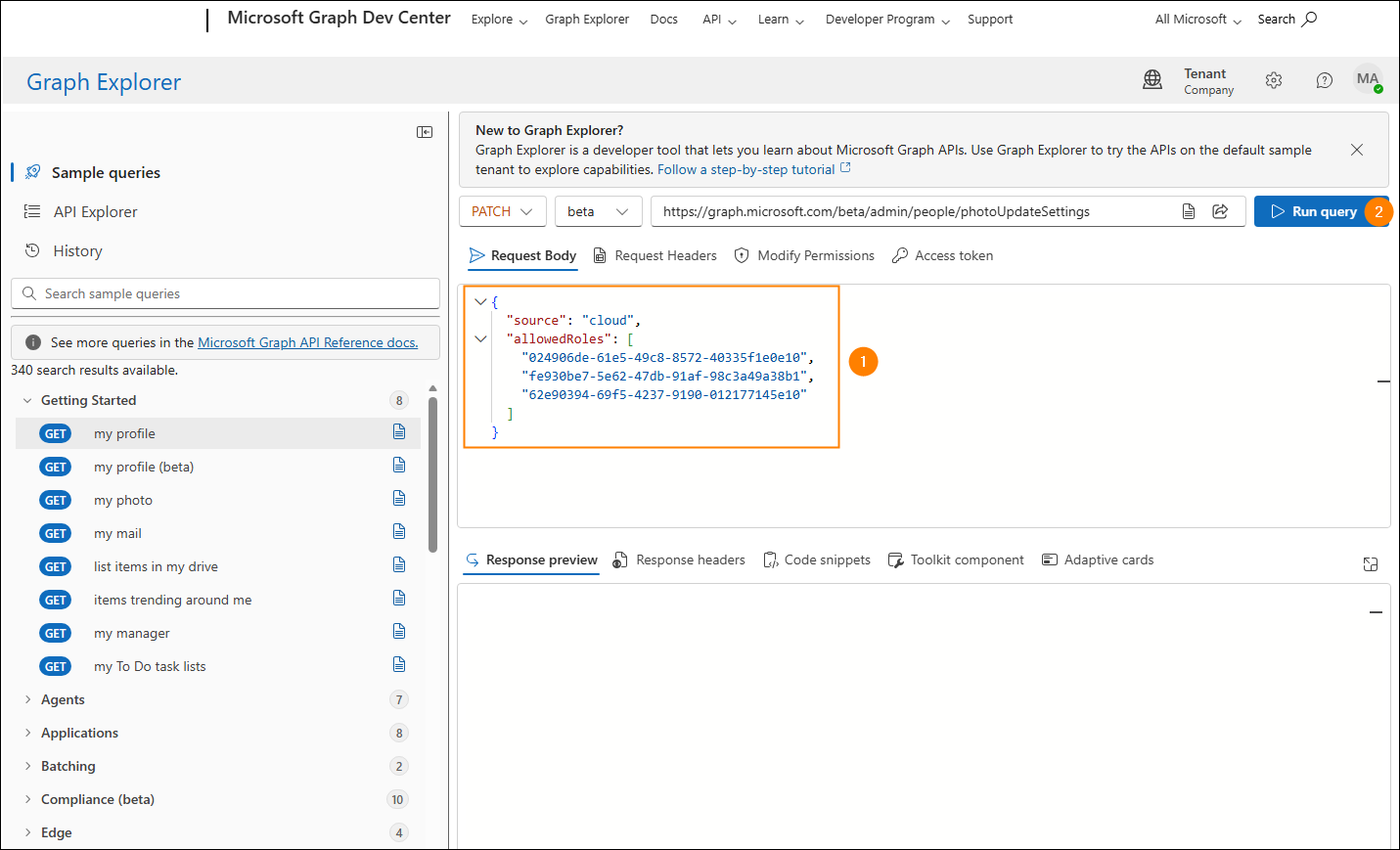
- Click Run query.
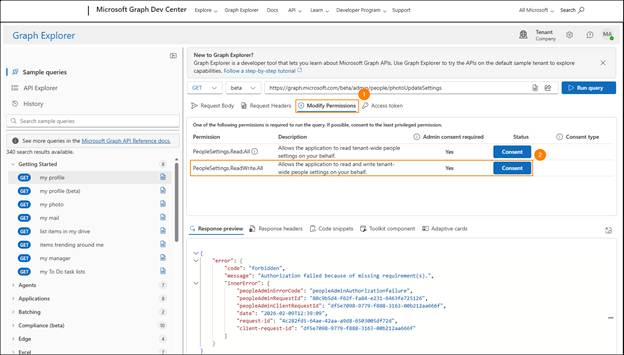
If you get a 403 error, it likely means you don’t have the required permissions. To remedy this, switch to the Modify “Permissions” tab, click “Consent”for the “PeopleSettings.ReadWrite.All”permission, and accept the requested permission. Next, run the query again.
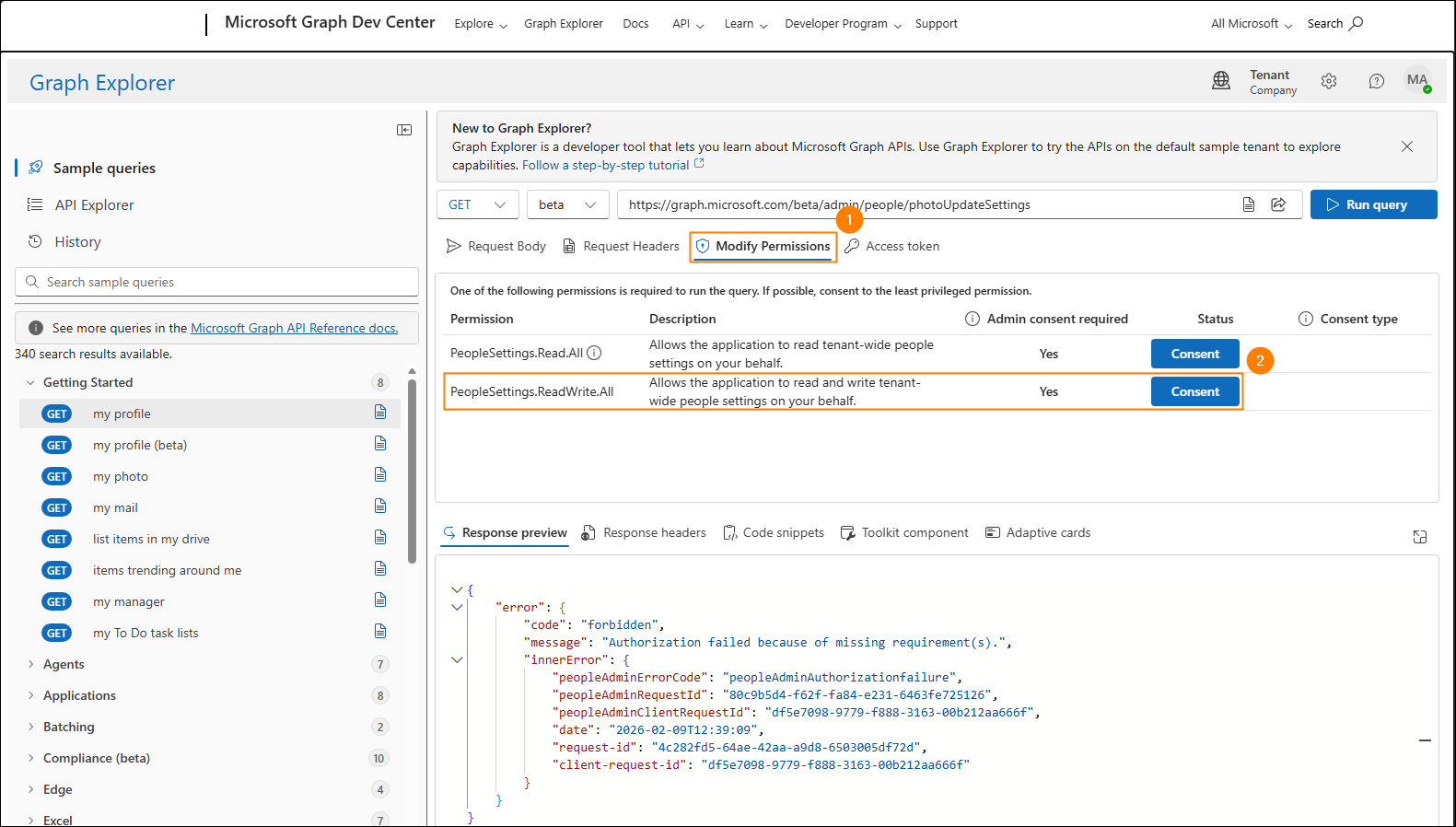
Once the changes update across your organization, only the users with the specified admin roles will be able to change their profile photos in Microsoft 365. When a user tries to change their profile photo, they will see a relevant message without being able to edit their photo in any way.

Since users can no longer edit their picture, you can manage user photos without worrying that someone will overwrite them.
You can do a lot more with Microsoft Graph and changing photos is one of them!
What if you Want to Revert Changing Photos in Microsoft 365
Maybe you had a change of heart, or maybe you don’t care anymore what users do to their profile picture (LOL)…. If you want to revert these settings and allow all users to change their photos, simply complete steps 1–4 again but remove the role IDs from the allowedRoles array in step 3. The code should then look like this:
{
“source”: “cloud”,
“allowedRoles”: []
}
When you run this query and the changes update, your users will again be able to modify their profile photos.
Dan

I am an Senior IT professional with several years experience in the field. I have supported thousands of users over the years. The organizations I have worked for range in size from one person to thousands of people. I have performed support from Help Desk, Network / Cloud Administration, Network Support, Application Support, Implementation and Security.