
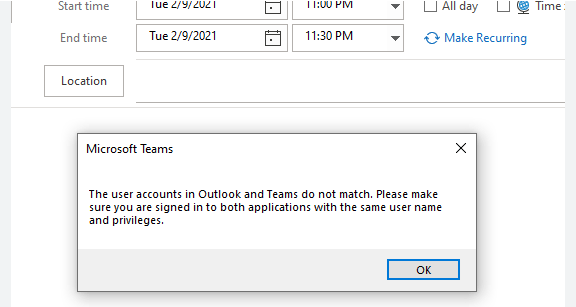
Teams Meeting Make Sure You’re Signed in (two ways to Fix)
You see the dreaded “To schedule a Teams meeting, make sure you’re signed in to Teams”, But you are you say!! If you are still using classic teams this is an issue. It shouldn’t be after July 2025 so you better upgrade.
There are a myriad of ways to fix it but ultimately it is an issue with the add-in needing to be re-loaded. If you must resort to the link above, there is a lot more going on with not just Teams but Outlook too.
The Good news is the new Outlook does not need the Teams Add-in so eventually it won’t be problem. There are two ways we can tackle this. One if you are a regular user or an admin with only a few users or two or an admin who has a lot of users!
Fix Teams Meeting Make Sure You’re Signed in for Only a Few Users
It is very simple, you need to:
- Close Outlook.
- Sign out of Teams
- Sign back into Teams.
- Open Outlook
If that doesn’t work, then:
- Close Outlook
- To resolve the add-in issue, you can uninstall the Teams add-in completely. Then reinstall it. Go to Add or remove programs in System settings.

- Uninstall Microsoft Teams Add-in for Outlook.
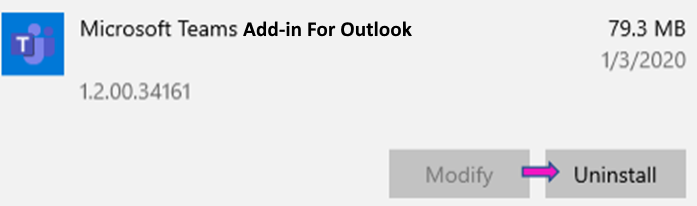
- When you start Outlook, it will reinstall the Add-in
Admin Fix Teams Meeting Make Sure You’re Signed in for A lot of Users
I hope you like batch files! If you have never used them before, here is a good tutorial. They are good for a lot of things, even Teams. You can create a batch file that performs the first sub step above and you can put it somewhere on your on-prem file server and get them to run it when they get the error message.
First create a folder to hold the batch files. Name it something like “ReinstallTeamsAddin” or something. The folder will hold three files. A main file that runs the commands necessary to execute the batch and two sub batch files that are called from the main batch file.
Main Batch File
REM ***BATCH FILE BEGINS...***

taskkill /im OUTLOOK.exe

start /min CallTeams.bat

timeout /t 35 /nobreak

taskkill /im TEAMS.exe

start /min CallOutlook.bat

Exit
Call Teams Batch File
cd "C:\Program Files (x86)\Microsoft\Teams\current\" – You need to make sure this is the right path

teams.exe

Exit
Call Outlook File
cd "C:\Program Files (x86)\Microsoft Office\root\Office16" – You need to make sure this is the right path

start OUTLOOK.EXE

Exit
What Teams Meeting Make Sure You’re Signed in Batch Does
If Outlook is Open, it closes it (since it needs to be closed to reload the add-in). Teams will open. One of three things will happen (one, it will load the main window, two, it will ask you to log in or three, it will tell you there was an error. Click “sign out and sign back in. Do not restart Teams, it does work).
The batch file gives you 35 seconds to do this. You can set whatever time you want but it must be enough for the user to reload teams.
Teams will close after the time expires and Outlook will reopen allowing the add-in to reload.
Easy Peasy….
Dan

I am an Senior IT professional with several years experience in the field. I have supported thousands of users over the years. The organizations I have worked for range in size from one person to thousands of people. I have performed support from Help Desk, Network / Cloud Administration, Network Support, Application Support, Implementation and Security.