
So, do you have users complain that when they dial for a name in your team’s main auto-attendant, they get more than Active Teams Users in Phone Directory? Maybe a user that hasn’t worked for years in the company and their name is still an option…. not really. I will explain why.
Why It Appears Like Active Teams Users in Phone Directory
I have written several articles on Teams Administration. This is just another stop on an otherwise long journey! You can do everything to rid the user of the system. You can block their sign-in, you can remove the team’s number, heck you can even take all their licenses away. But why are they still showing up in the Teams Phone Directory of your main Auto-Attendant? I will tell you why and how to remedy it in 2 steps.
Why is this happening?
Since M365 has several systems cobbled together over the years, not all aspects of information update automatically or are related to each other. MS Teams is a great example of this since it was really developed separate from the rest of M365 and shoe-horned in. I will show you later in the article how to use what is called a “dial – scope” in Teams Admin. Here are the Steps to fix this.
Create an Entra Group of Users You Want in the Directory
You can do this manually or through Dynamic Membership Rules to keep only Active Teams Users in Phone Directory. An example of a dynamic membership rule could be one based on licensing. Typically, when a user is offboarded by the organization the user is un-licensed from Teams. This would effectively remove them from the group and the directory:

But I am getting ahead of myself. On to the next step.
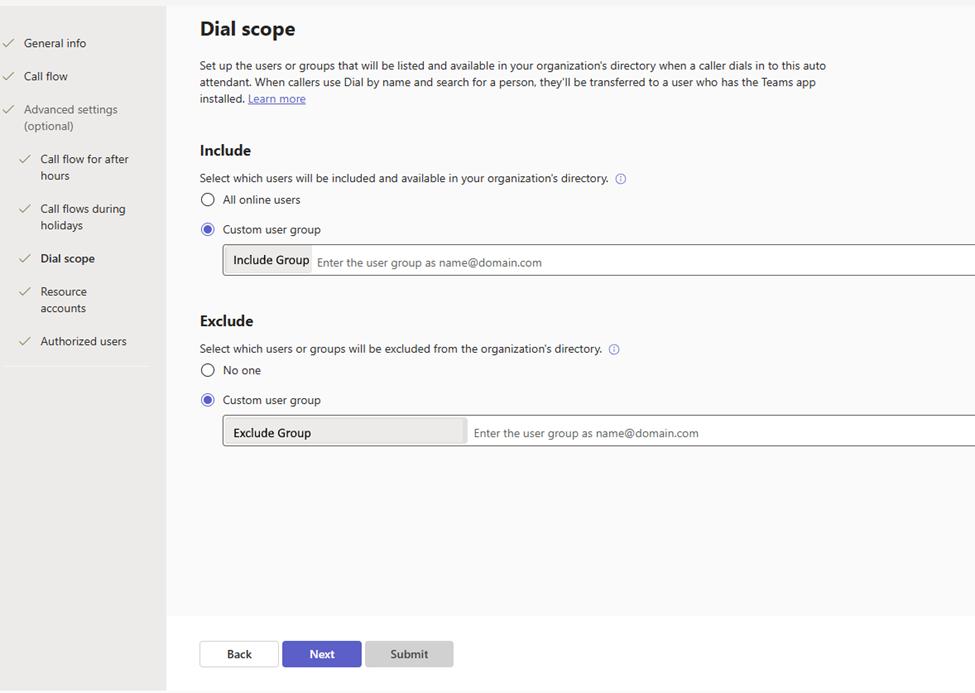
Create a Dial Scope for Active Teams Users in Phone Directory
I have a great article on how to set up an Auto-Attendant in Teams. This shows you how to set up an Auto-Attendant but there is a section called a Dial Scope. In this section it allows you to put a group into the dial scope. So, when the Auto-Attendant asks you to dial by name only those who are licensed for teams (and therefore active) can be searched. You can add a group to include in the search and if you want to fine tune a little bit, you can also have an “exclude” group:
Dan

I am an Senior IT professional with several years experience in the field. I have supported thousands of users over the years. The organizations I have worked for range in size from one person to thousands of people. I have performed support from Help Desk, Network / Cloud Administration, Network Support, Application Support, Implementation and Security.