

So, would you like to know the correct way to enrolling an Android Phone? If you read this article, you will save yourself a lot of time in the process. Apparently, my content as of late has low value (says Google) so I guess I better beef it up a bit (JSYK, Google is full of shit).
What you Need to Do First When Enrolling an Android Phone
I have Written other Articles On Enrolling Devices in InTune but things have changed a bit so here is an updated version.
If you are replacing a user’s phone with a new one, you will need the passcode of the phone as well as their windows credentials to enroll the device. I rarely ask for this information for a user but sometimes it cannot be helped (make sure you have your ID badge handy LOL). If it is a brand-new user, you already have their Windows credentials, and you can create the passcode. Other Items that are really important:
- Make sure the SIM card is installed.
- Access to Wi-Fi.
- Set up MFA. See steps below.
You Will Have to Temporarily Setup MFA for New Users
MFA is mandatory. If you are setting up a phone upgrade for a user, you can use the MFA that is already set up on their old phone. For new users, you will need to temporarily set up MFA on the authenticator app on your phone (I can show you how to remove it after). For new phones, open an Incognito Window in Chrome and go to https://aka.ms/mfasetup
(If a New User)- Sign in with the username and password:
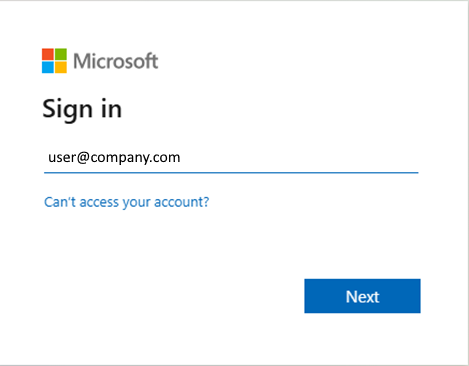
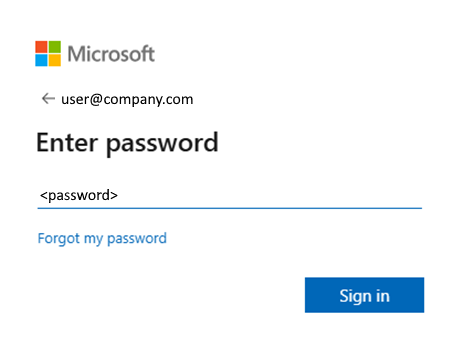
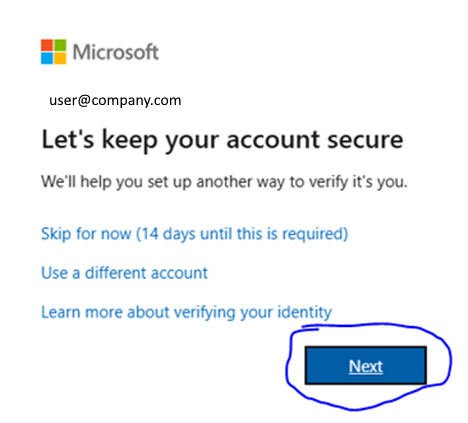
You will need to click next. You cannot enroll the phone without MFA.
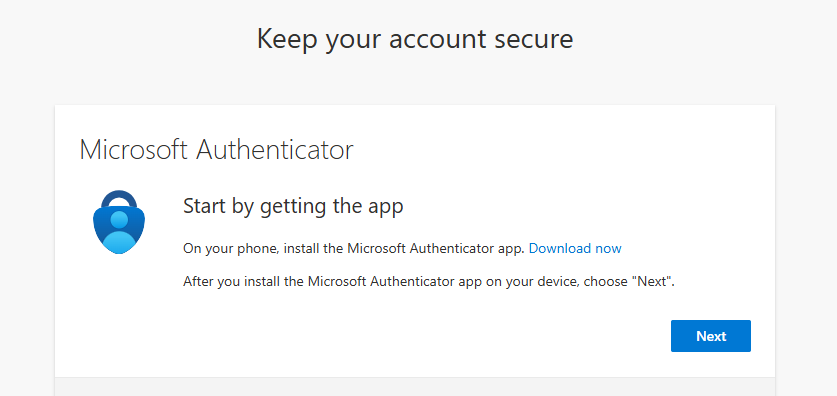
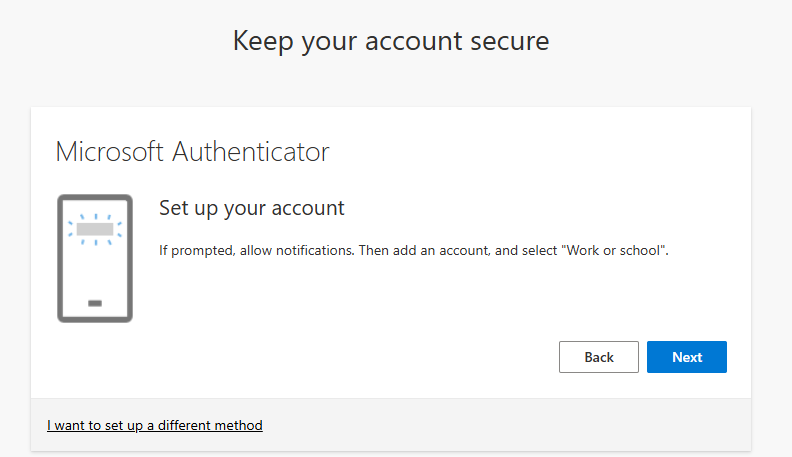
Click Next.
Leave the below screen up on your computer:
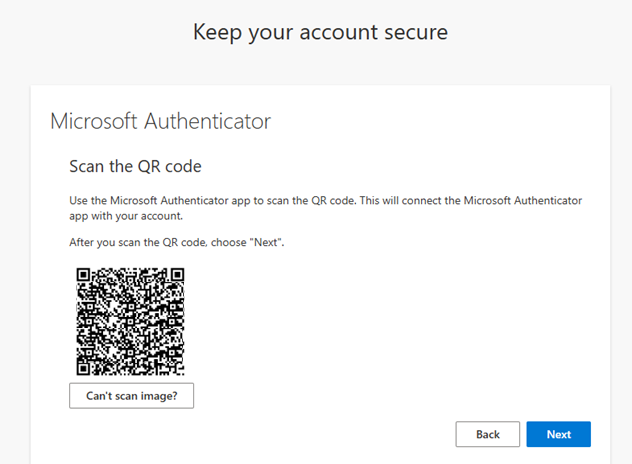
Go to your Authenticator App and click the “+” button to add the users account, then choose work or school. Then Scan the QR Code from your computer screen:
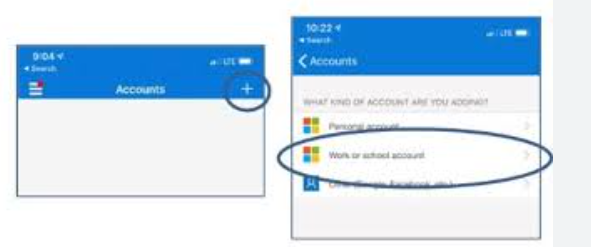
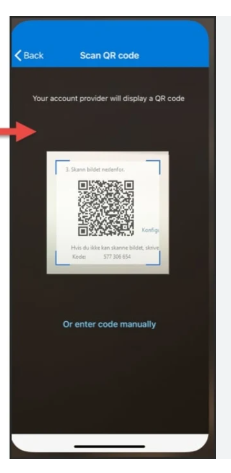
Click Next on your computer screen:
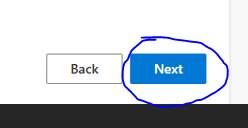
You will be given a test number on the screen:
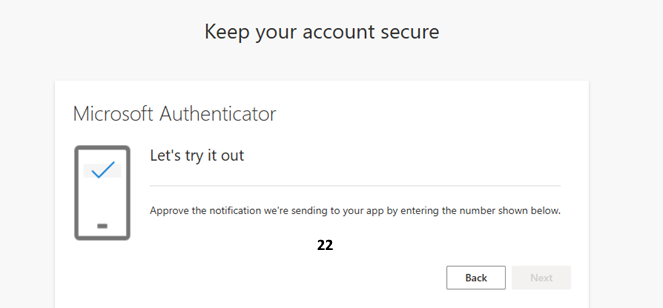
Enter the number into your phone:
Click Yes on the phone and then click Next on the computer screen:
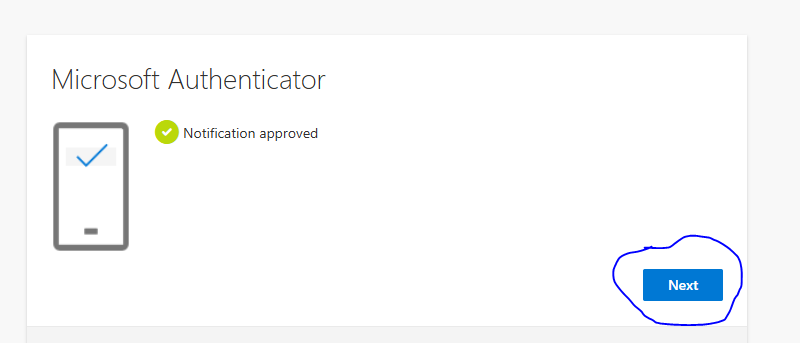
Click Next.
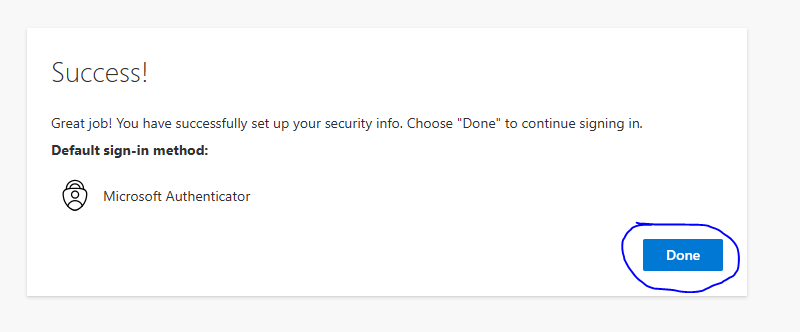
MFA is set up temporarily on your phone to help with the enrollment of the user’s phone, click done.
Get the QR code
If you have gotten this far you have already set up a profile in Intune. Go to Devices / Android / Enrollment and pick the profile that you create to enroll the Android Device(s).
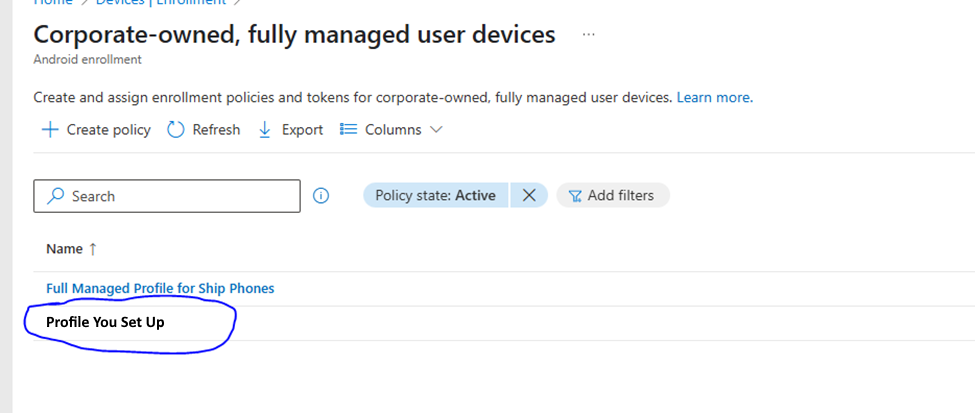
And then token. The QR Code will look something like this:
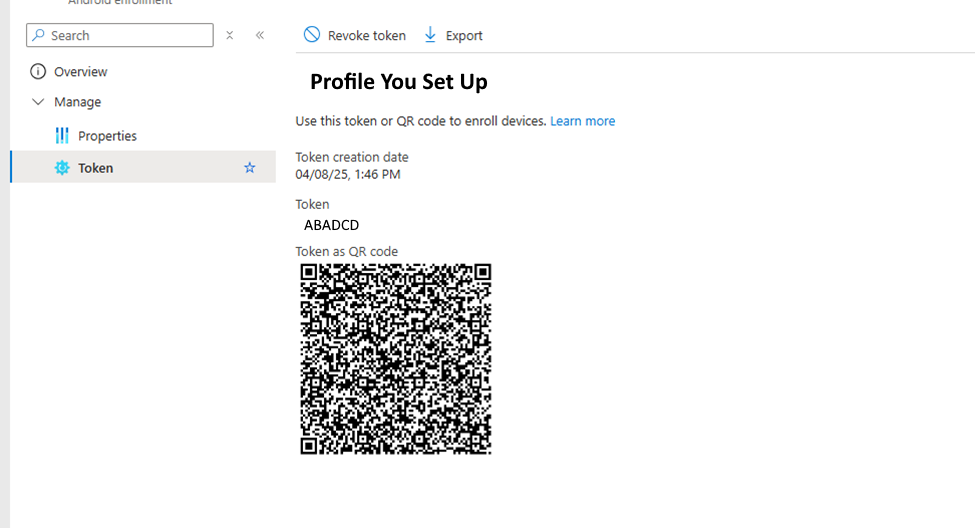
You can print this code out and have it ready when you need to enroll a mobile device.
Actually Enrolling a Mobile Device
The mobile device you are enrolling in must be set to factory defaults. If it is a brand-new phone this has been done already. If it is a phone that has never been enrolled in Endpoint Manager, it needs to be factory reset. If the phone is already enrolled in Endpoint Manager and you need to redeploy it to another user, you need to wipe the phone and re-enroll. You will have to look at the end of this article for information on how to do this. It is a multi-part series. You might want to check that article out too.
- To begin enrolling, at the first screen you see when the phone is turned on, tap continuously in the center of the screen until you see the QR code scanner (About 5 times). The process will begin.
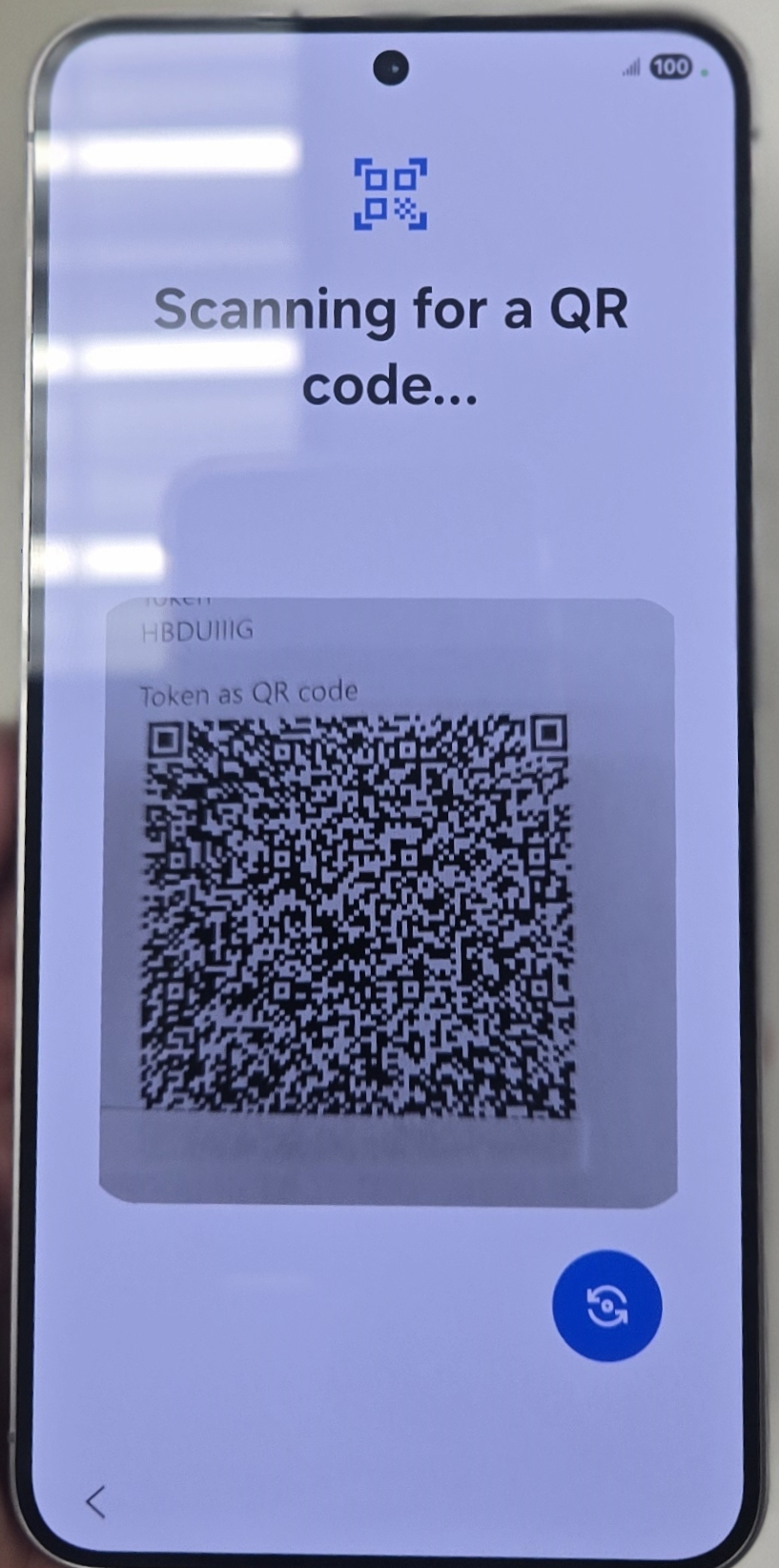
- Next you will be asked to connect to Wi-Fi. Connect the phone with its passphrase you are enrolling onto it.
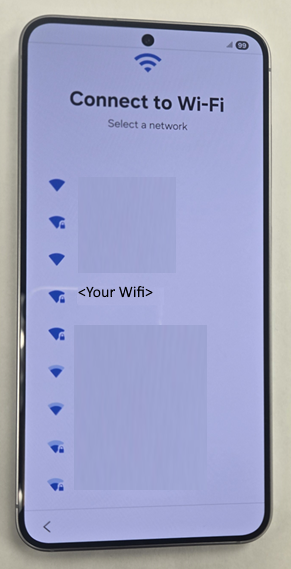
- Find Your Wifi and click connect.
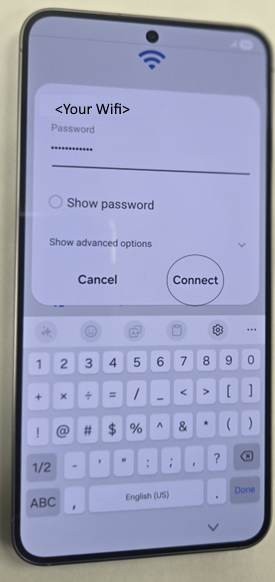
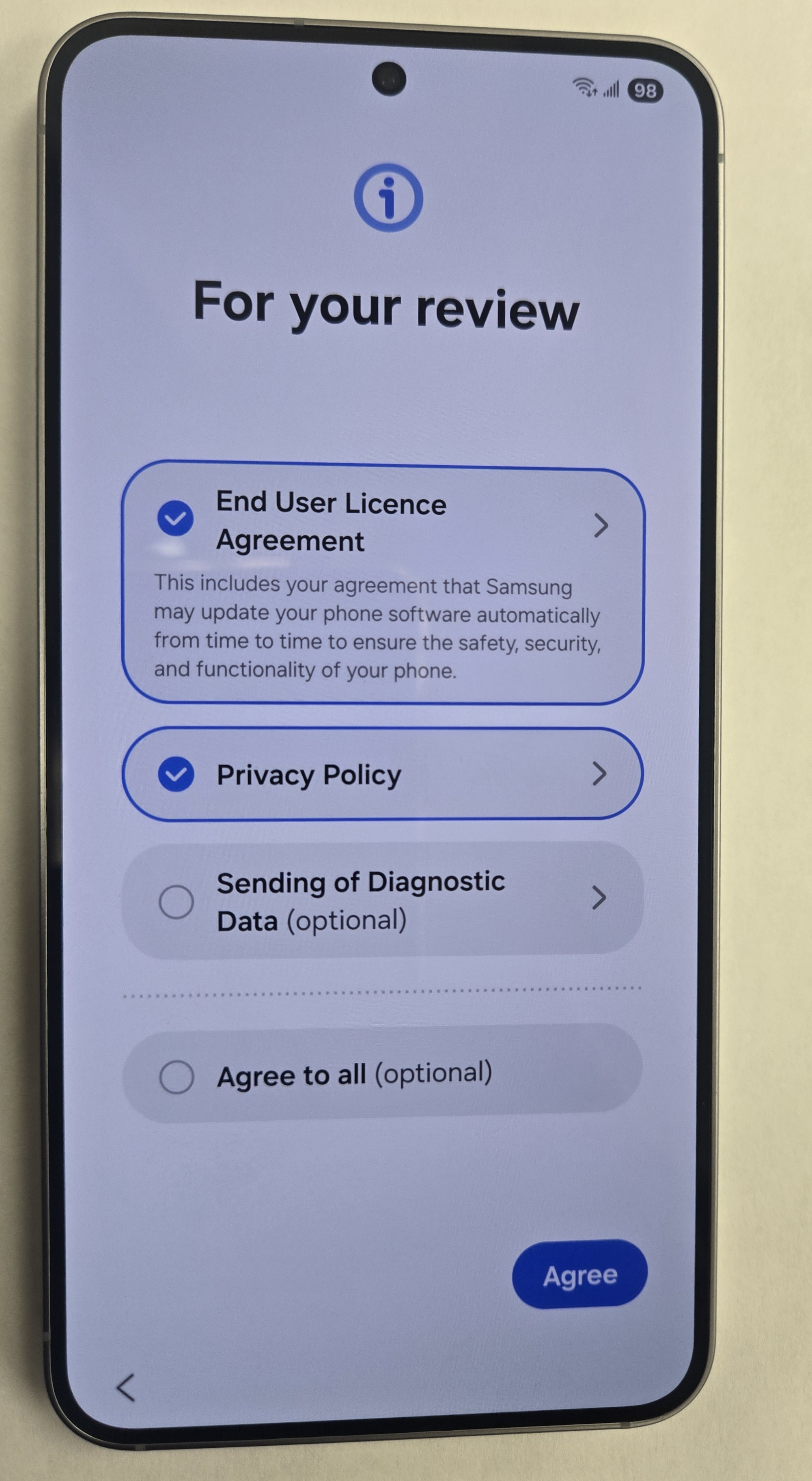
- Tap at least the first two check boxes and tap agree.
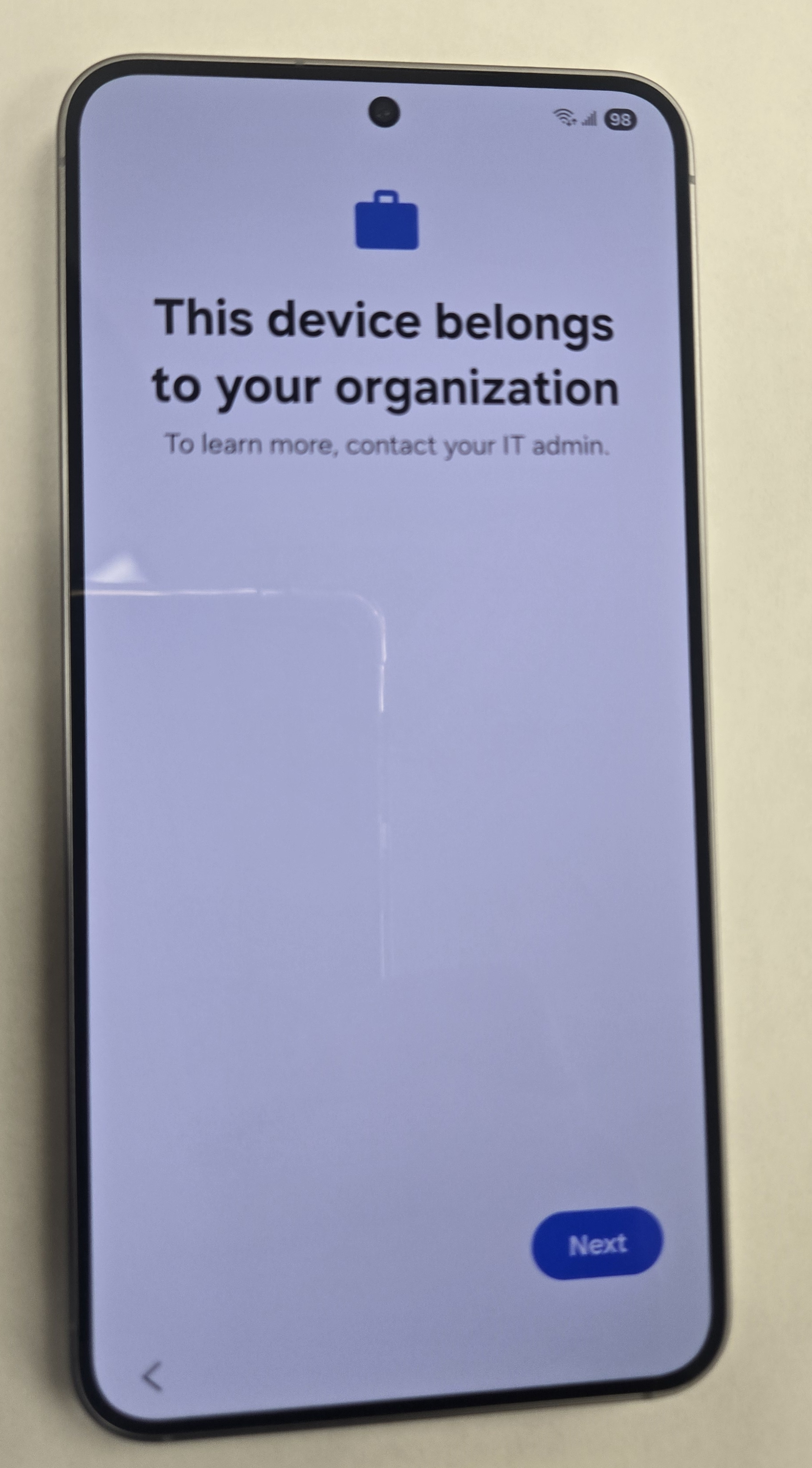
- Tap Next.
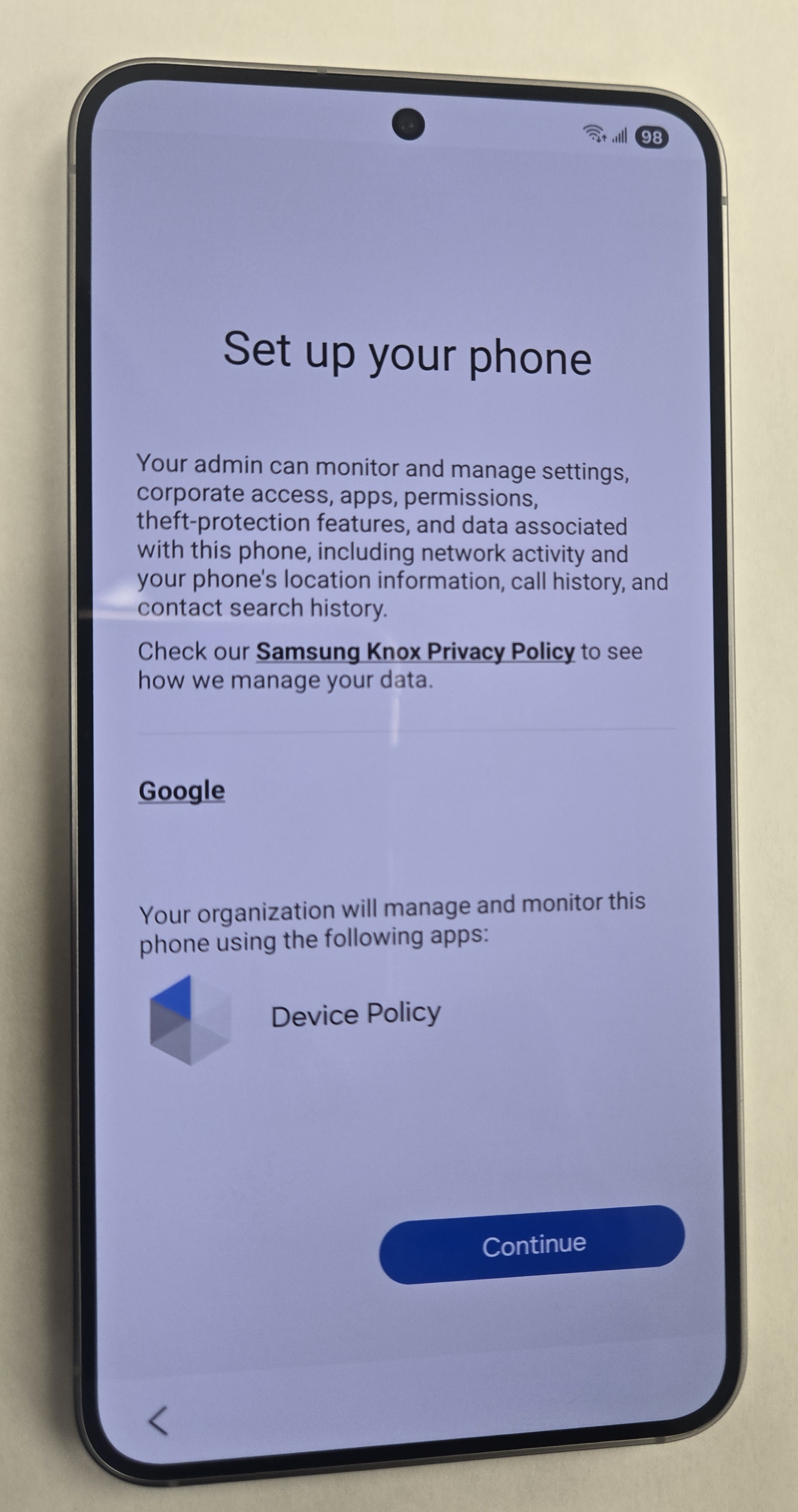
- Tap continue.
- Let this screen load.
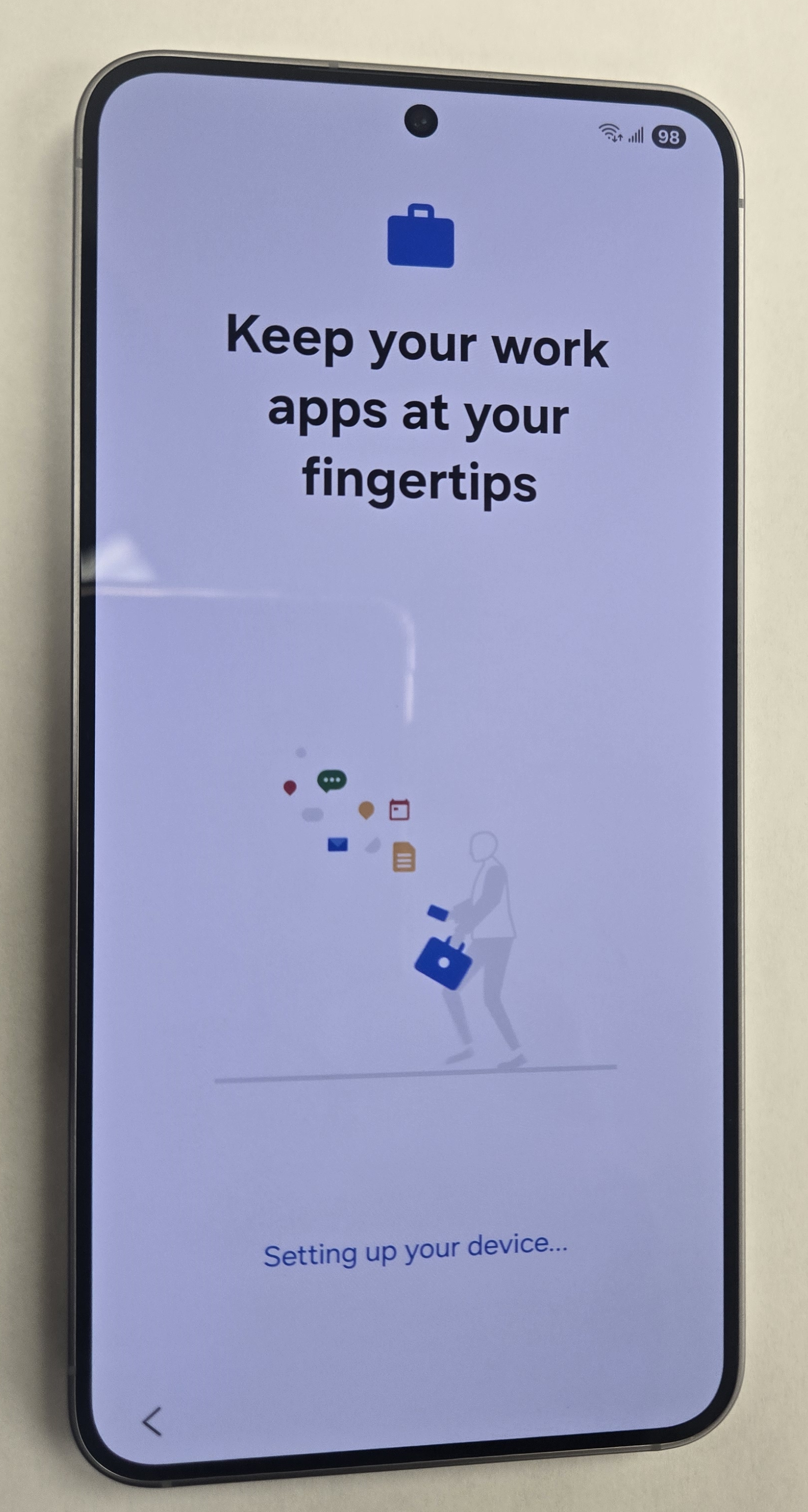
- Tap Next.
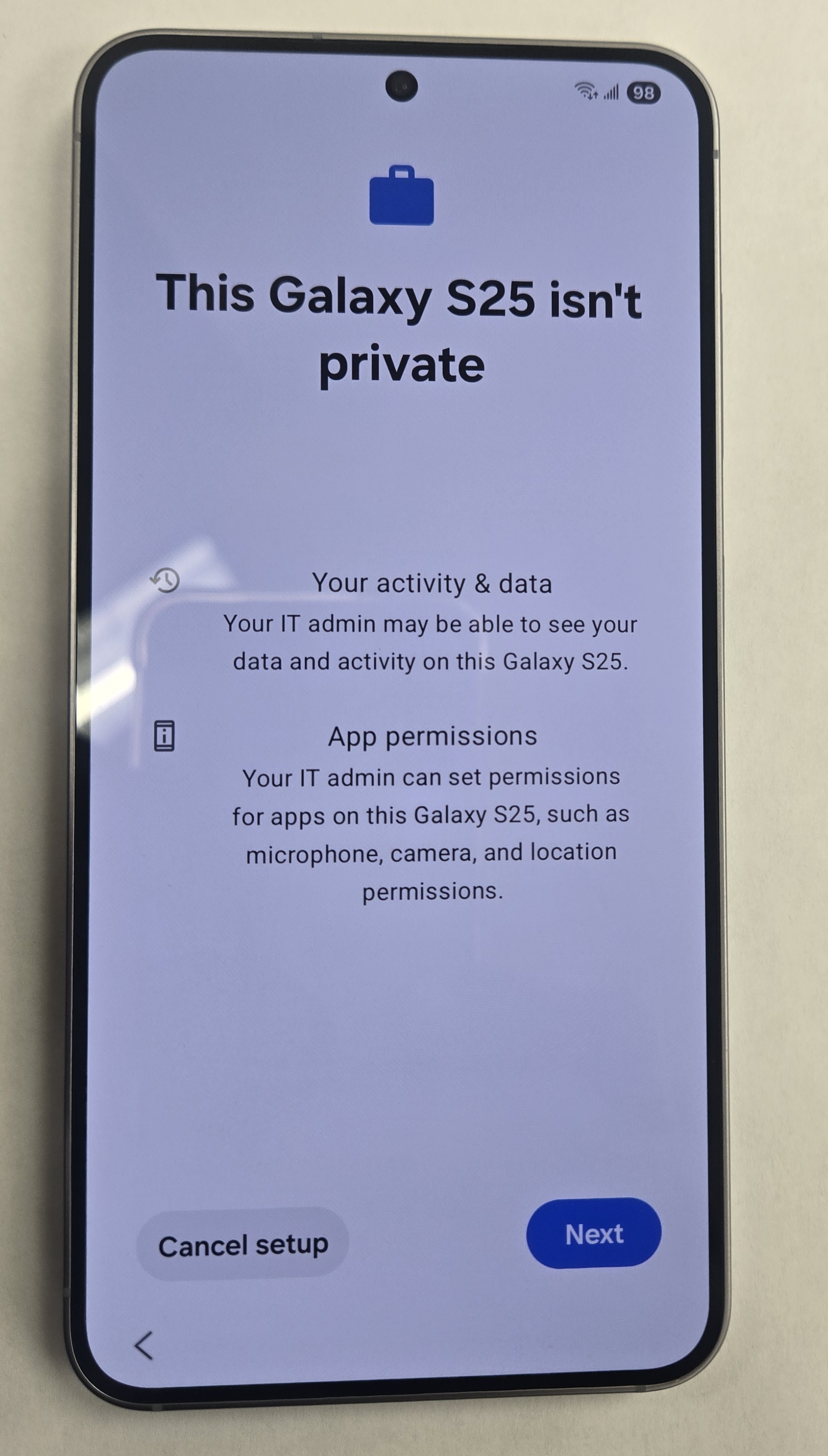
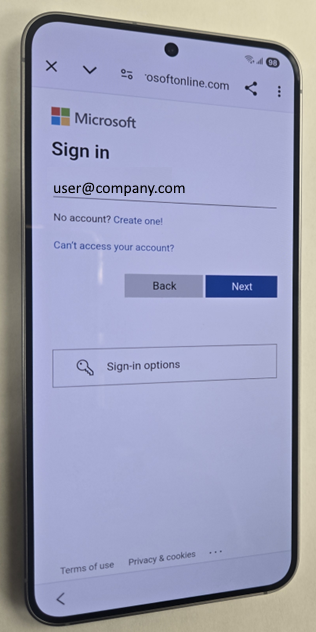
- Sign in with the user’s name and password.
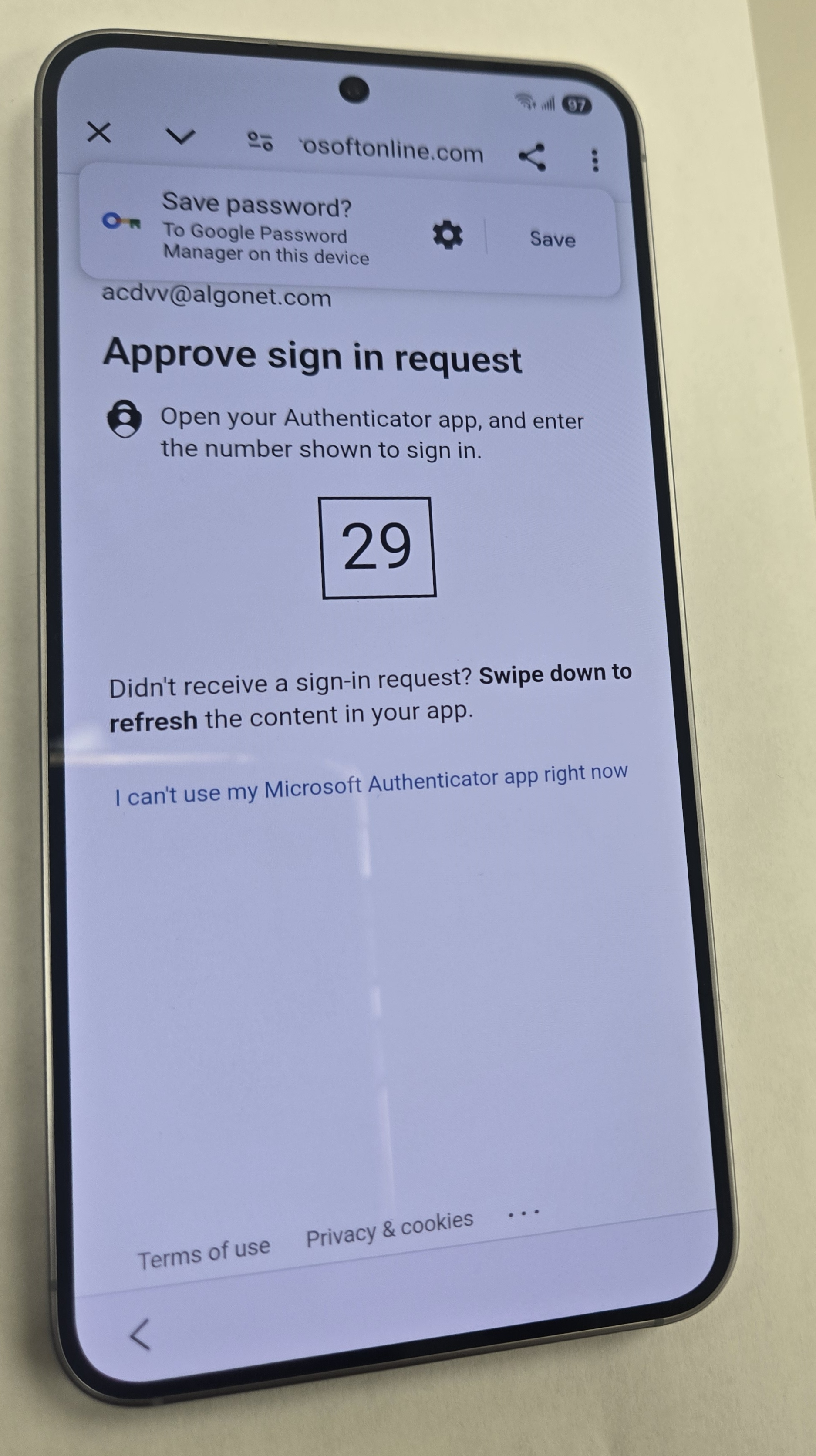
- You will be prompted for MFA. Enter the number into the App either on your phone (new User) or in the user’s old phone (User Upgrade).
- The enrollment process will start.
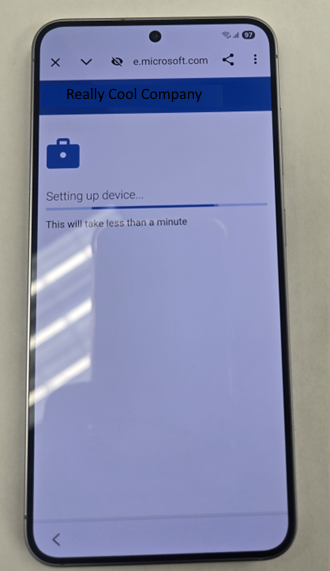
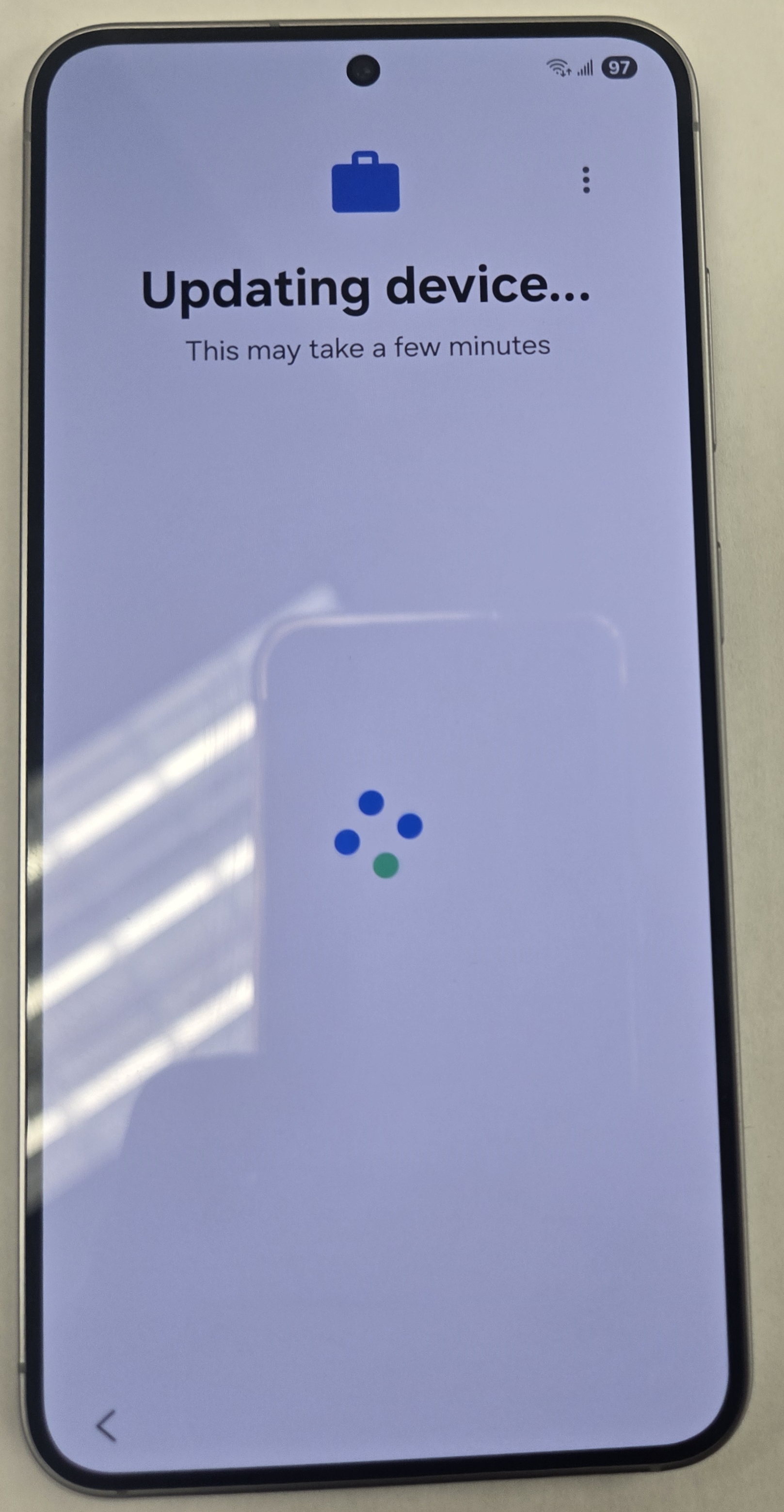
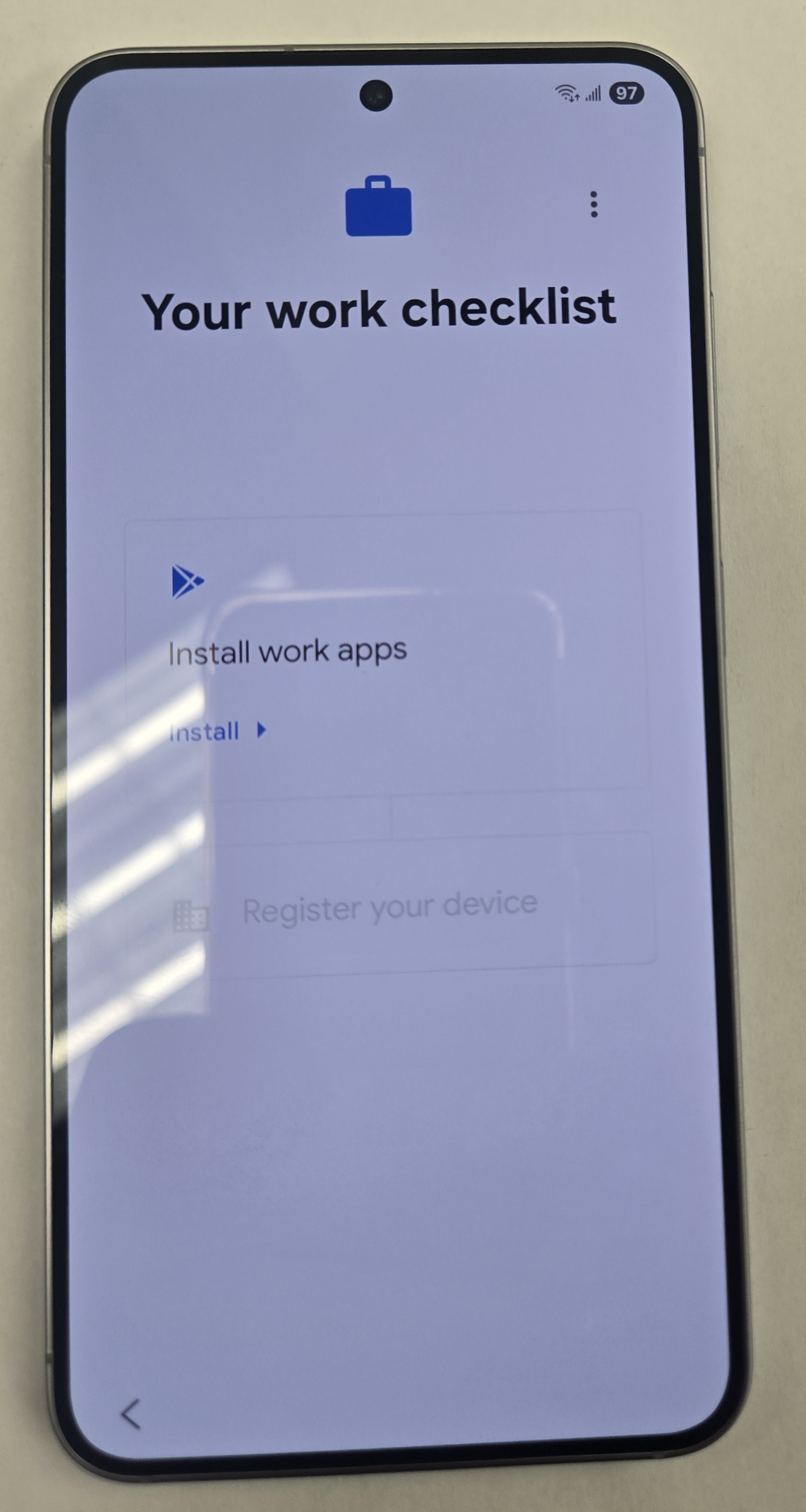
- Tap “Install”.
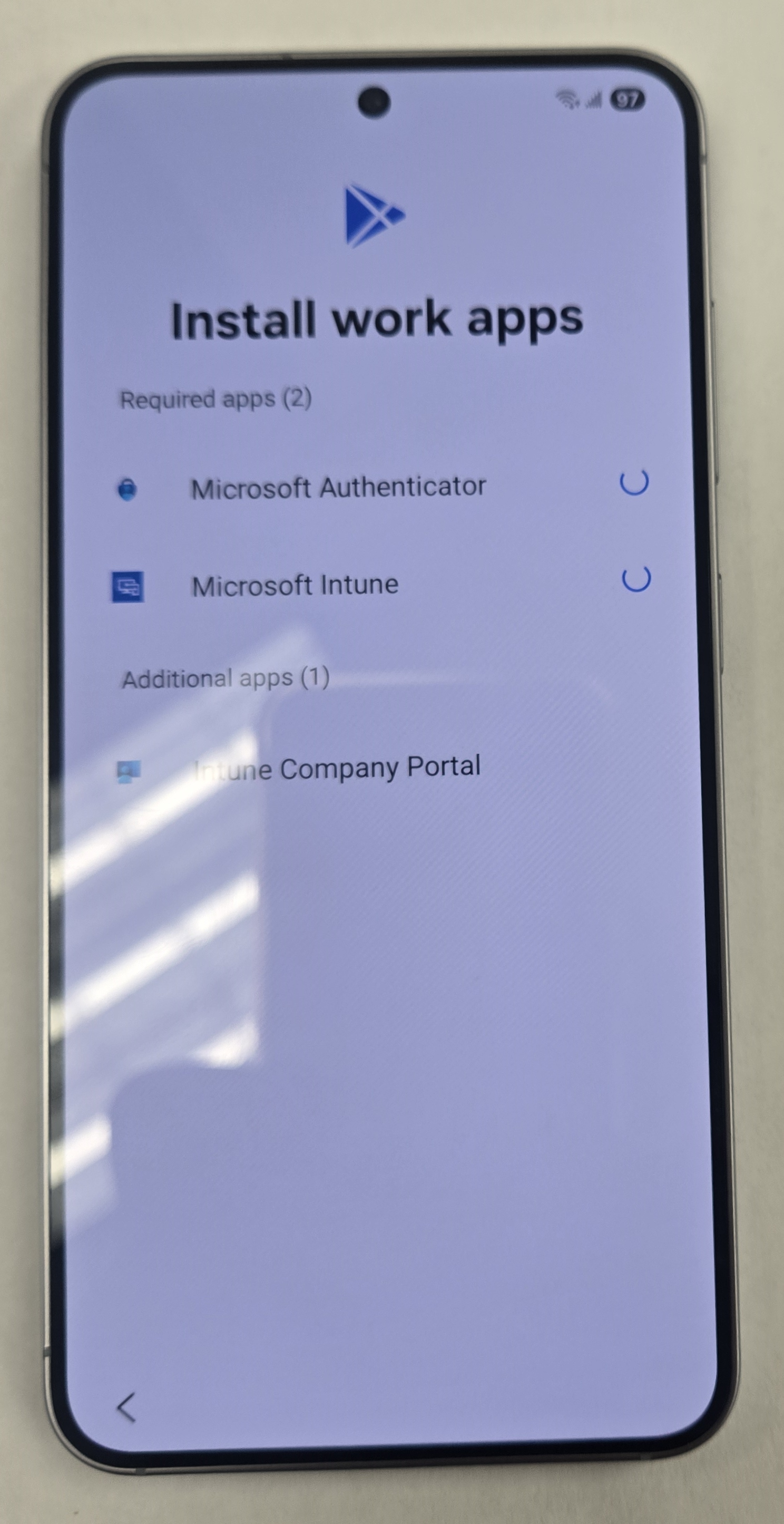
- The following Apps are installed. All the other LOB Apps will be installed after if you have set any up. Tap done.
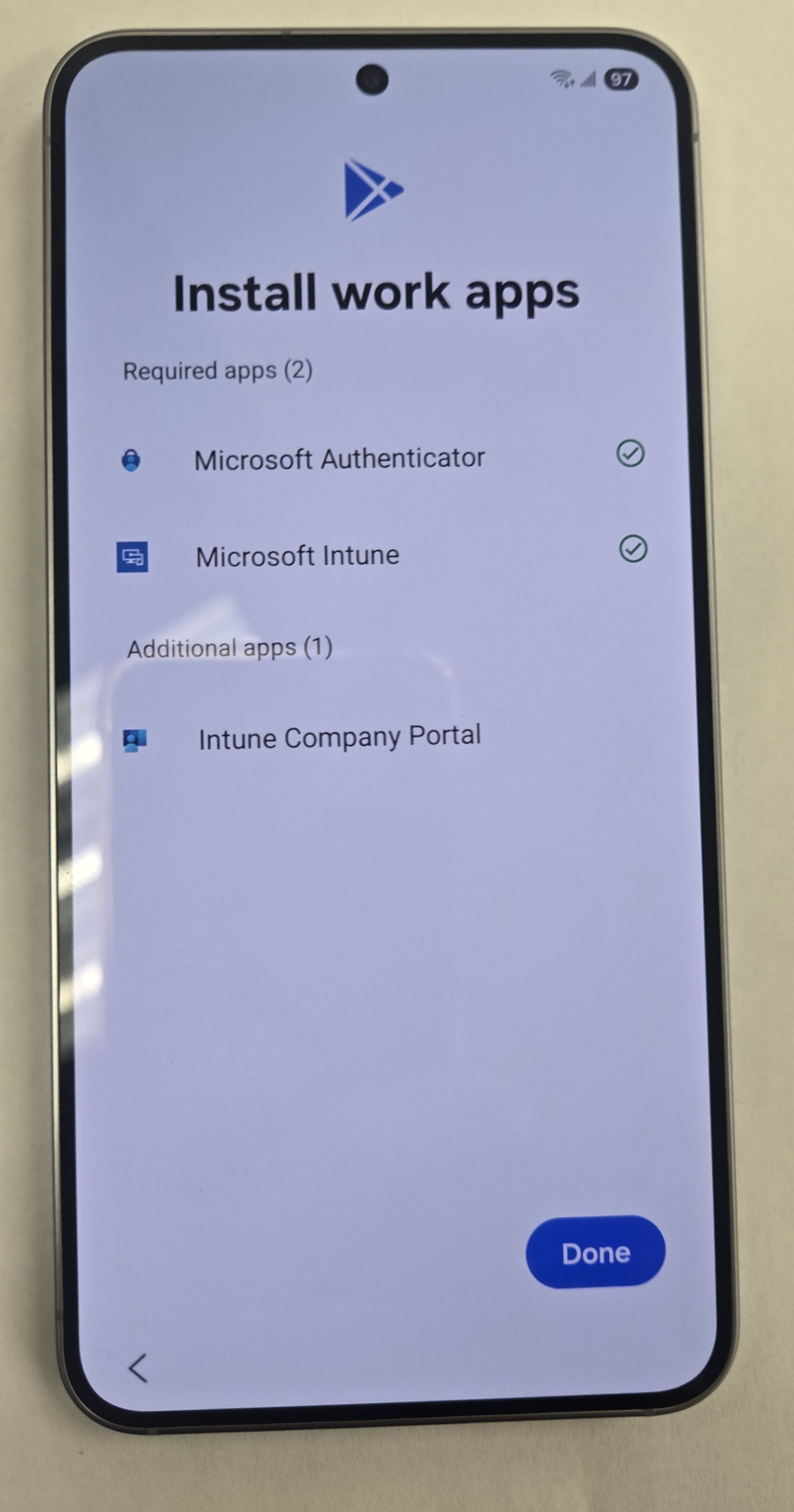
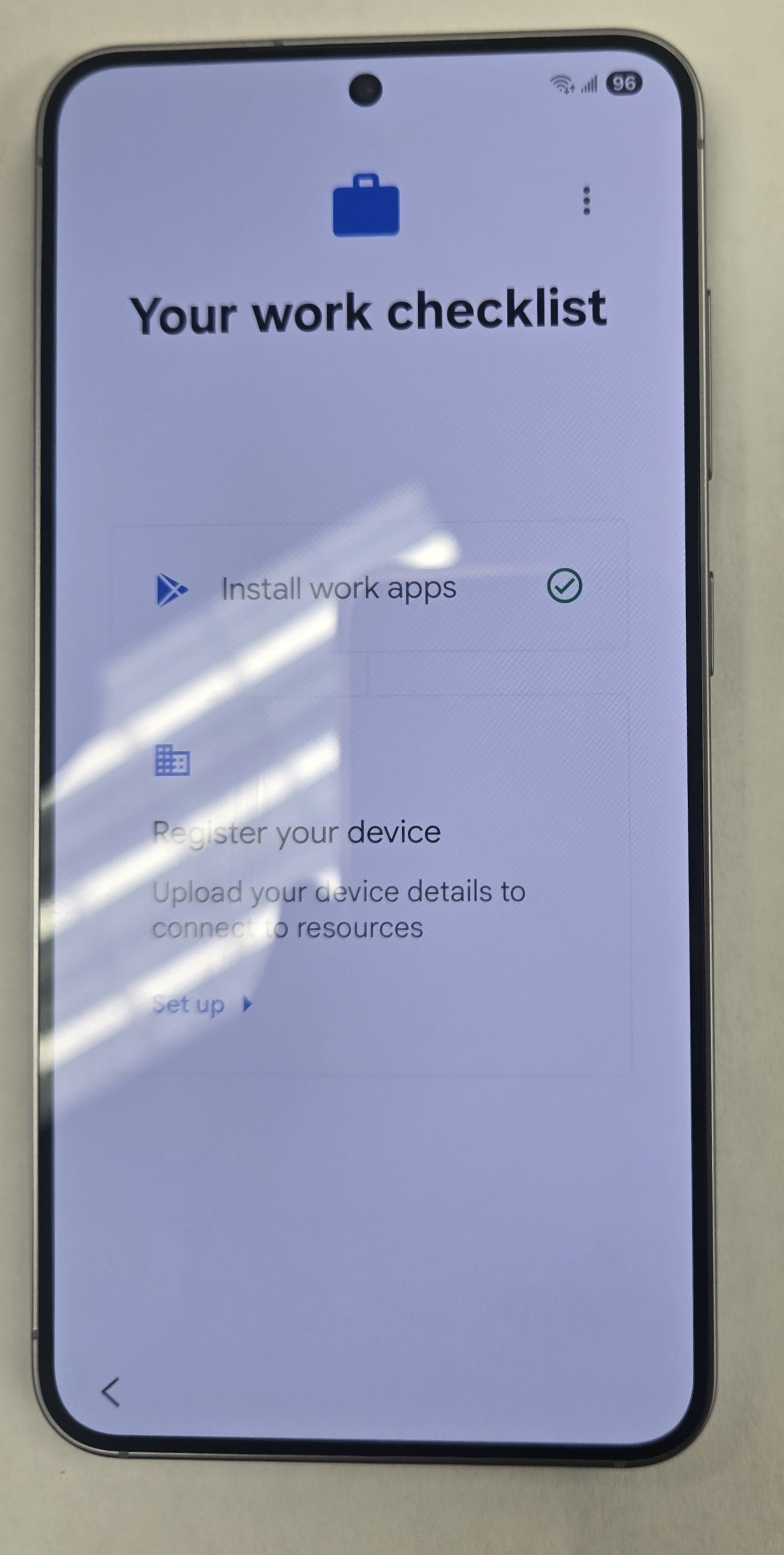
- Tap “setup” to register the device.
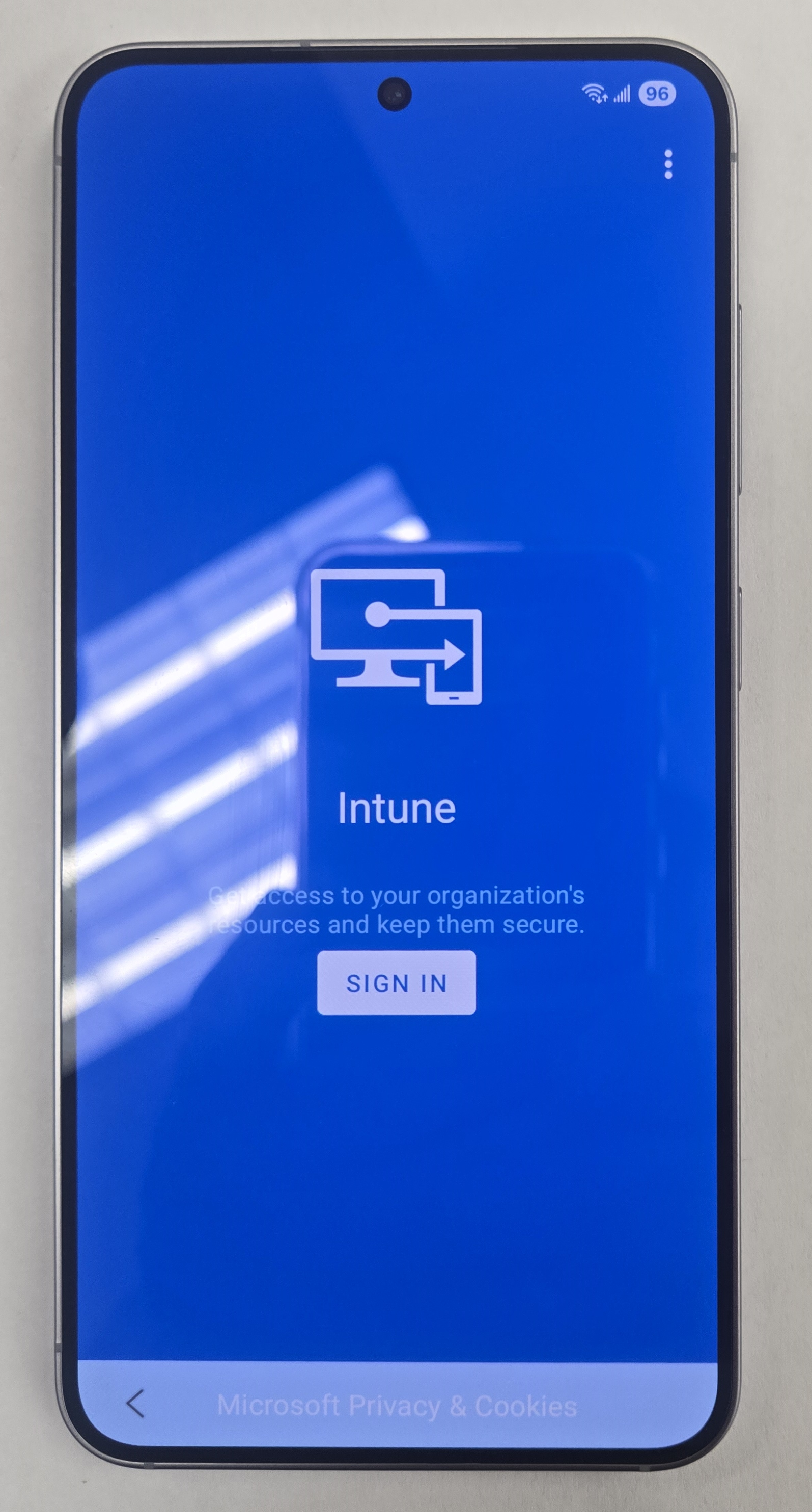
- Tap “sign in” to for Intune.
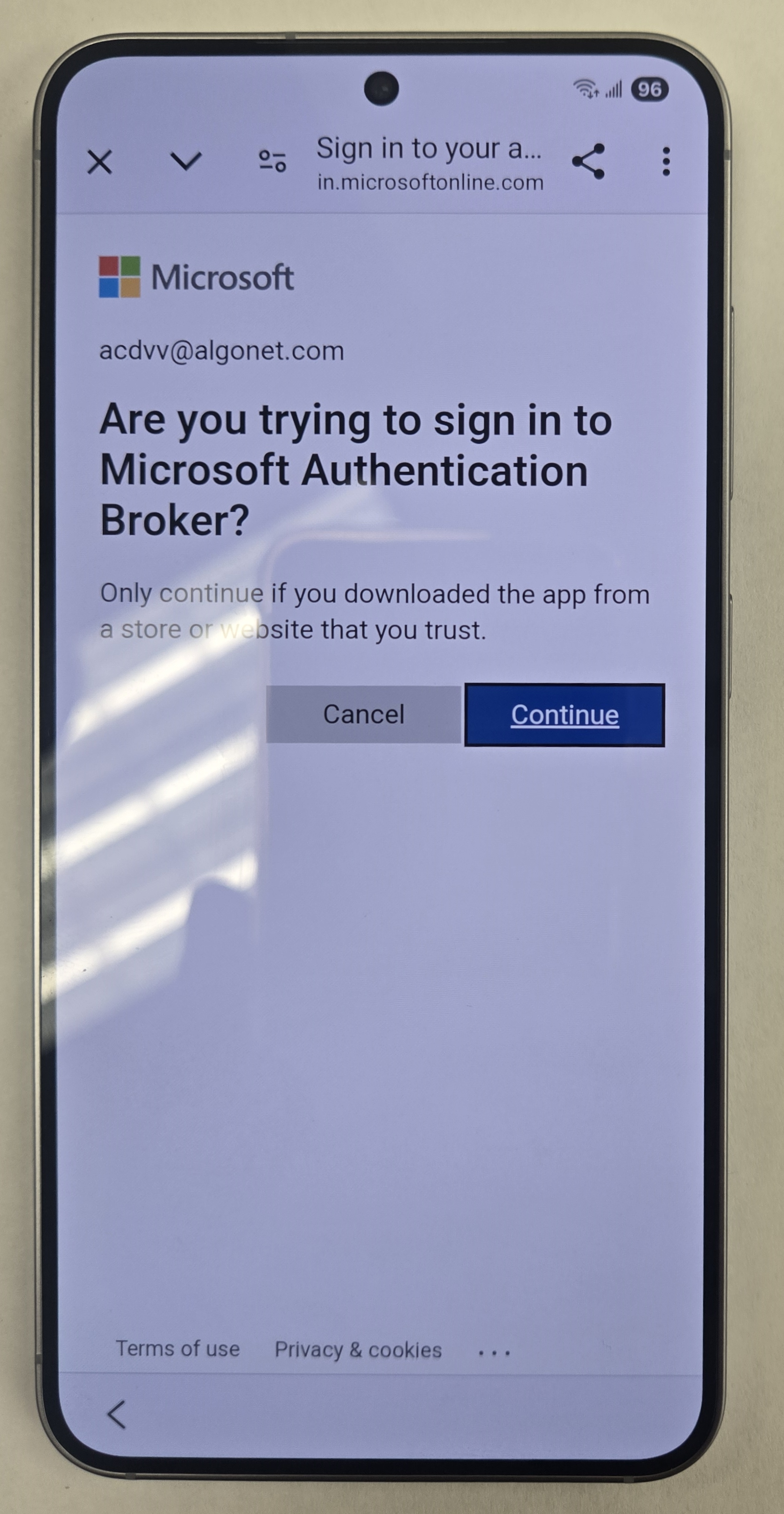
- Tap Continue.
- Tap “Register”.
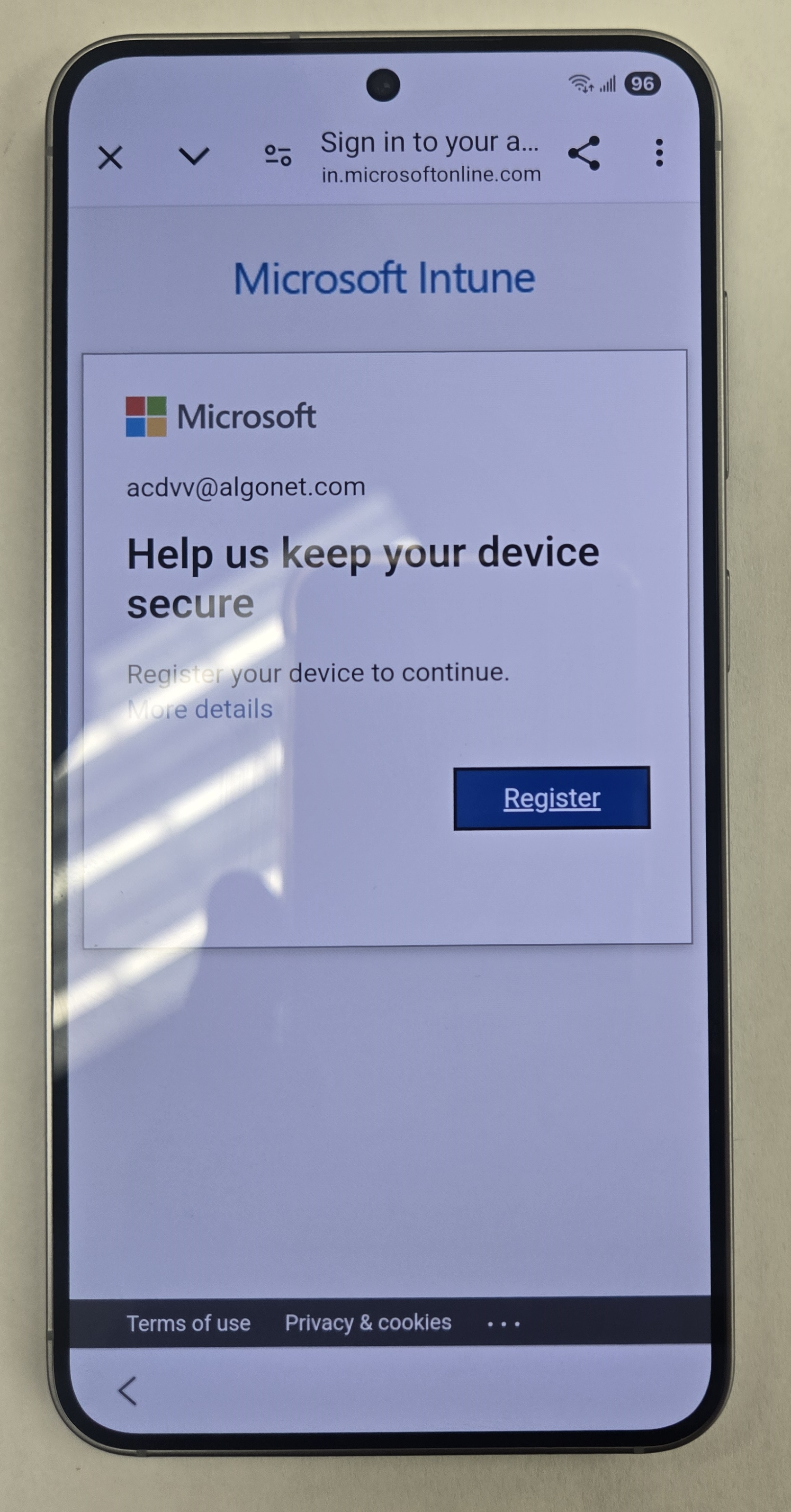
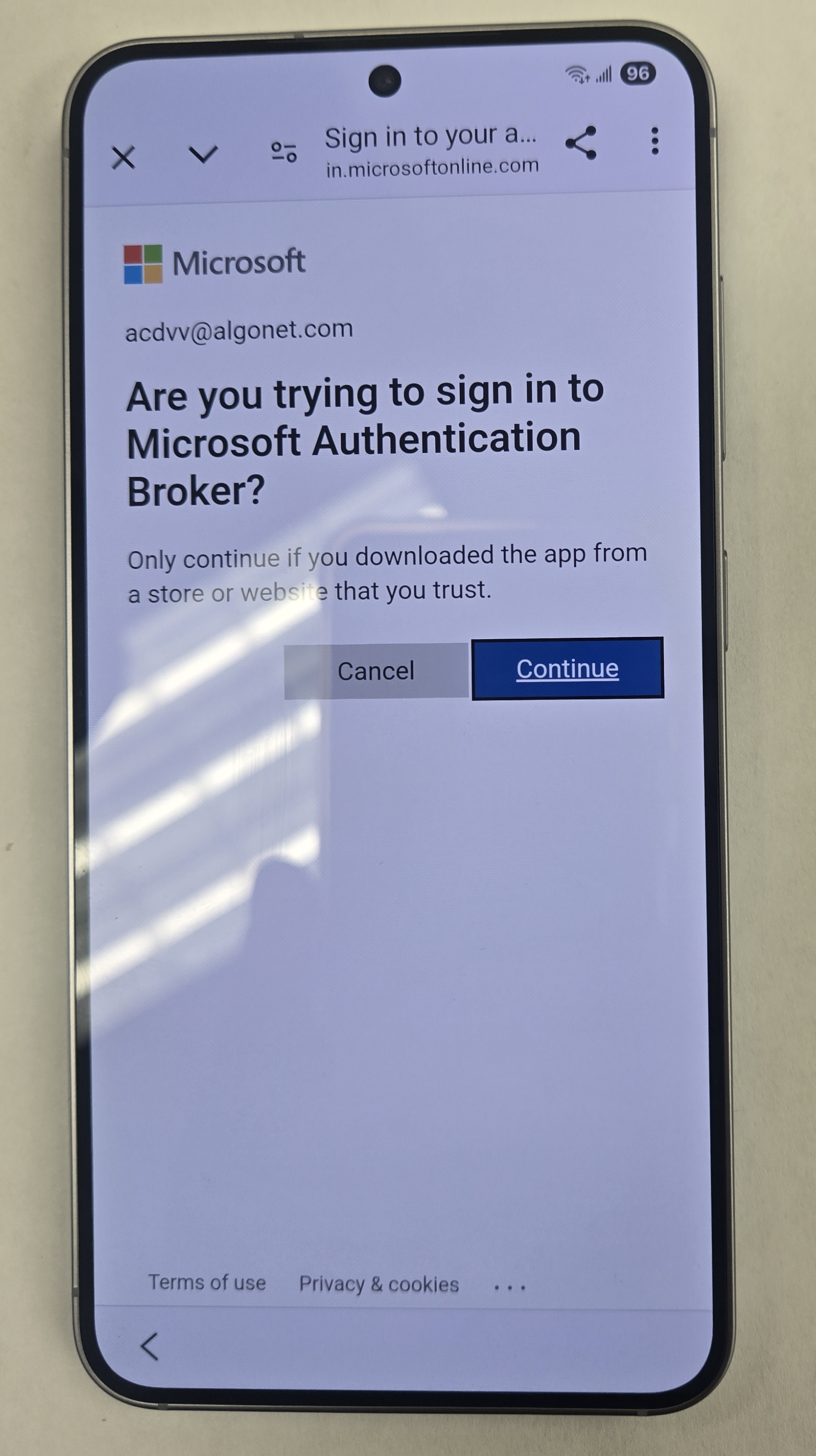
- You may get this screen again. Tap Continue.
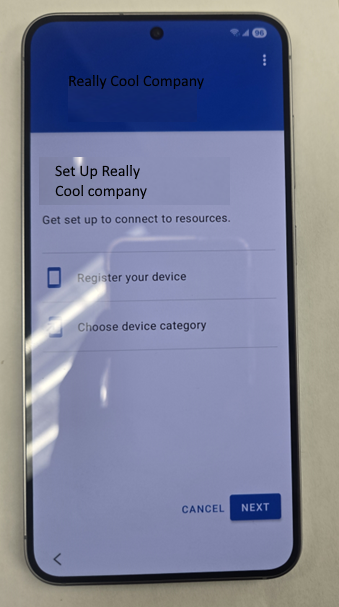
- Tap “Next”.
- Tap Next Again.
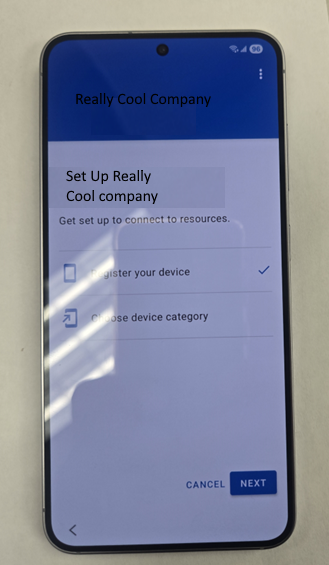
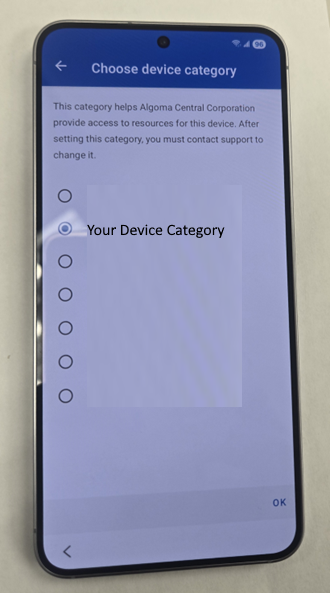
- You may have set a device category. Pick one and Tap OK.
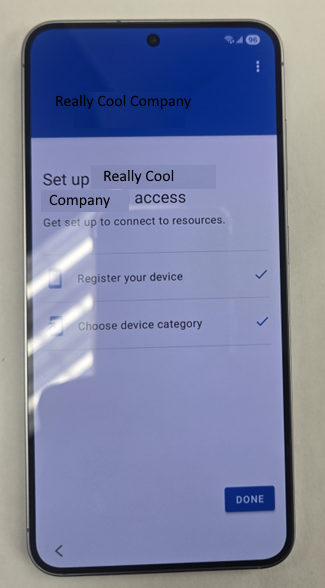
- Tap done.
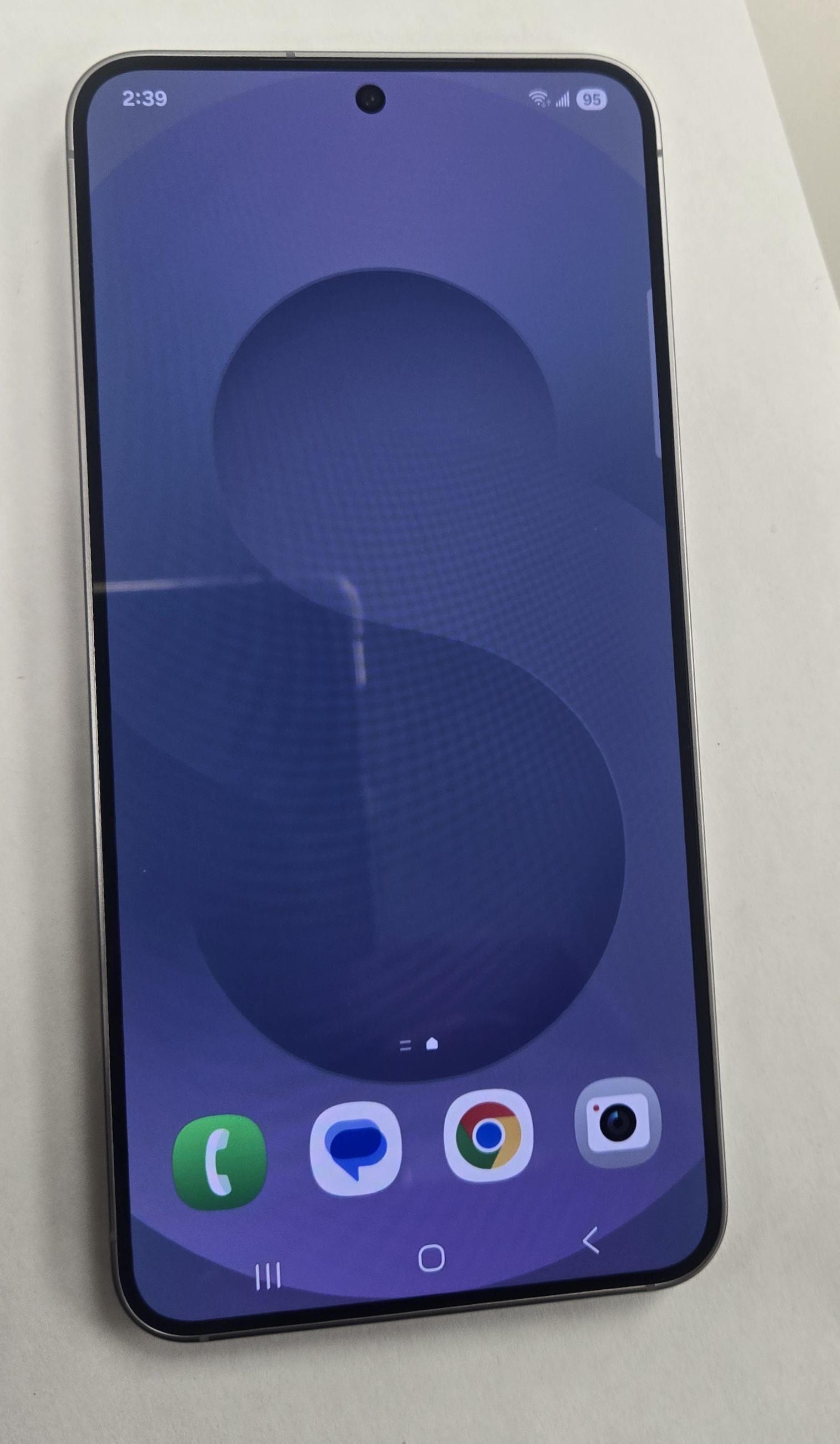
- You will be brought to the home screen of the phone.
- The phone is enrolled, and it is good practice to rename it in the InTune portal. Please go to https://intune.microsoft.com/ to do so. But it is not 100% necessary.
- At this point, if it is a phone upgrade for an existing user you can use Samsung Smart Switch to Bring over the users’ data from their old phone. If this is a new user, you can skip this step.
- All the LOB Apps (If you do that) should be downloaded to the phone. It takes a few minutes after the phone is enrolled. You will see notifications on the phone while they are downloading and installing. Please remove all unnecessary apps on the phone by long pressing them on the home screen and tapping “Remove”.
- Swipe up to see all app and long press and Tap “Add to Home Screen”.
- Go into each app essential app for the user and configure. Once again, only if you have set this up.
- Please set up their MFA. Use the same steps above that you used to temporarily set up MFA to enroll the phone. MFA is still set up on your phone in case of the new user or you can use the old phone of the upgrade user.
- Don’t forget to add a passcode to the phone. It is just good security.
Why Am I Giving you Info About Enrolling an Android Phone
There are several ways to be Enrolling an Android Phone but at the moment this is by far the fastest a most reliable way to go about Enrolling an Android Phone. Microsoft will inevitably change things. My site is dedicated to giving you useful up to date information so you can get on with administering your M365 tenant. whether you are a small business, MSP or fortune 500 company. This information will save you precious time!
Dan

I am an Senior IT professional with several years experience in the field. I have supported thousands of users over the years. The organizations I have worked for range in size from one person to thousands of people. I have performed support from Help Desk, Network / Cloud Administration, Network Support, Application Support, Implementation and Security.