
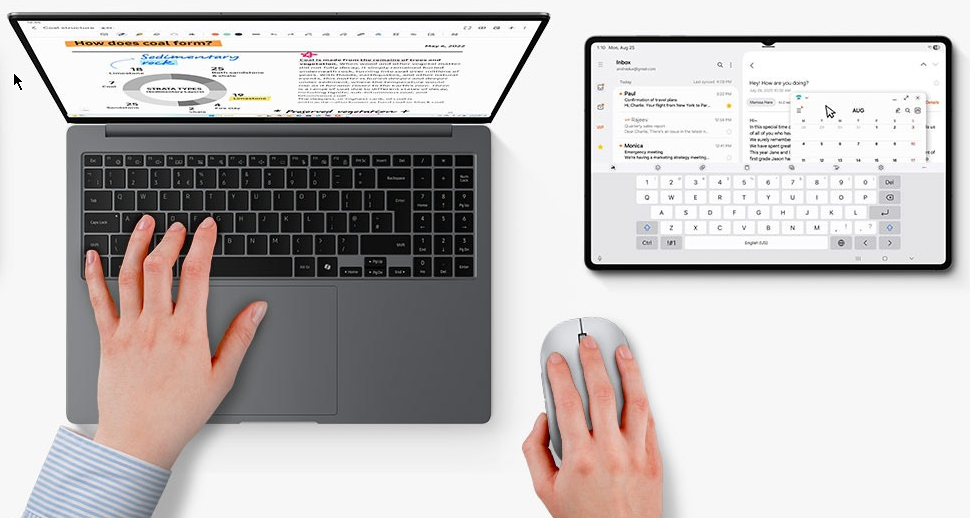
So you are travelling with your laptop but your are accustom to using two screens (you do work in an office occasionally LOL). Lucky for you you have an accompanying tablet. You want to use your Galaxy Tablet as a Second Screen. With a few easy steps you can!
I originally started looking at his this issue with a slightly different view using a third party software package that look pretty straight forward to use (https://youtu.be/JLNw2Xg8T40?si=dExRSGO2G_jC2Tiw) but after viewing the video and setting it up, it looked a bit cumbersome for an everyday user. So I sought a better way. Well this articles lays it out for you.
How to use your Galaxy Tablet as a Second Screen
There is one caveat…..Both the Laptop and Tablet must be on the same Wi-Fi network for this to work.
- On your laptop, go to https://apps.microsoft.com/ and search for “Second Screen”
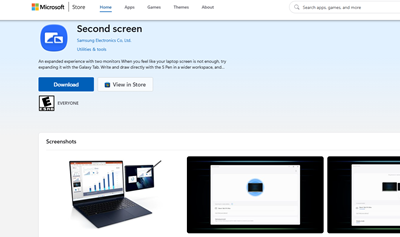
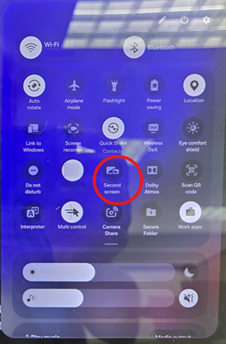
- Once the app is installed, go to your Samsung Galaxy tablet and swipe down from the top right of the tablet while in portrait mode and tap second screen mode. You may have to swipe down a second time from the middle right to expose the second screen icon:
- Go back to the laptop and launch the second screen app . You can type “second screen” from the search box and it will find it.
- With second screen mode already enabled on the tablet you should see it list in the app screen running on the laptop:
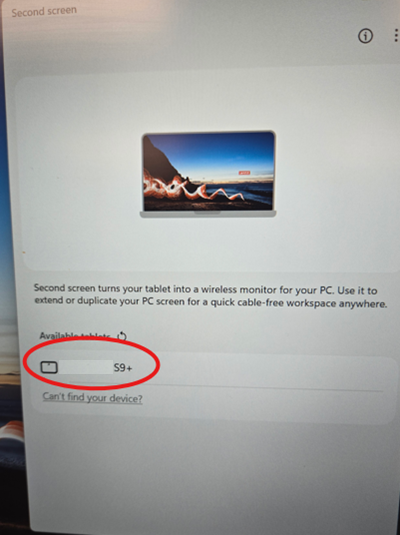
- Tap your listed tablet and it will connect as a second monitor to your laptop:
Display and use Tips for Galaxy Tablet as a Second Screen
To be able to use a second screen properly – your Galaxy Tablet as a Second Screen -(these are my suggestions):
Extend Display
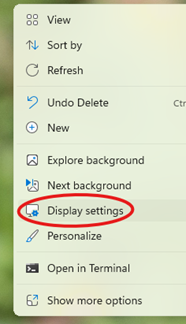
- Right click on the laptop desktop and choose “Display Settings”:
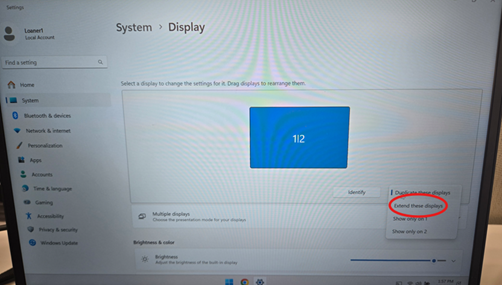
- In Display Settings, choose “Extend These Displays” from the dropdown menu:
- Select Keep Changes when it asks you.
Making Sure Each Monitor has the Same Scale
- With the monitors now separate, click on each one and scroll down to the scale and input section and make sure they are set to the identical scale (start with 150% for both). Whatever you choose, the scale MUST BE THE SAME for each monitor:
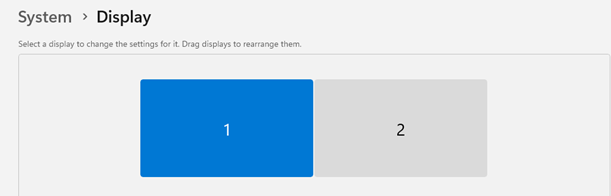

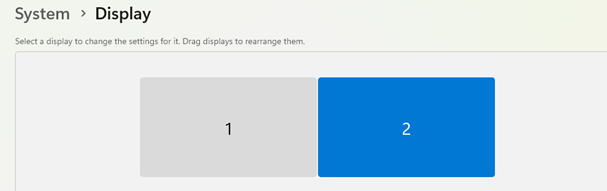

You are all set up for your Galaxy Tablet as a Second Screen! This is better than troubleshooting a laptop dock!
Dan

I am an Senior IT professional with several years experience in the field. I have supported thousands of users over the years. The organizations I have worked for range in size from one person to thousands of people. I have performed support from Help Desk, Network / Cloud Administration, Network Support, Application Support, Implementation and Security.