
Fix Citrix Display With This One Step
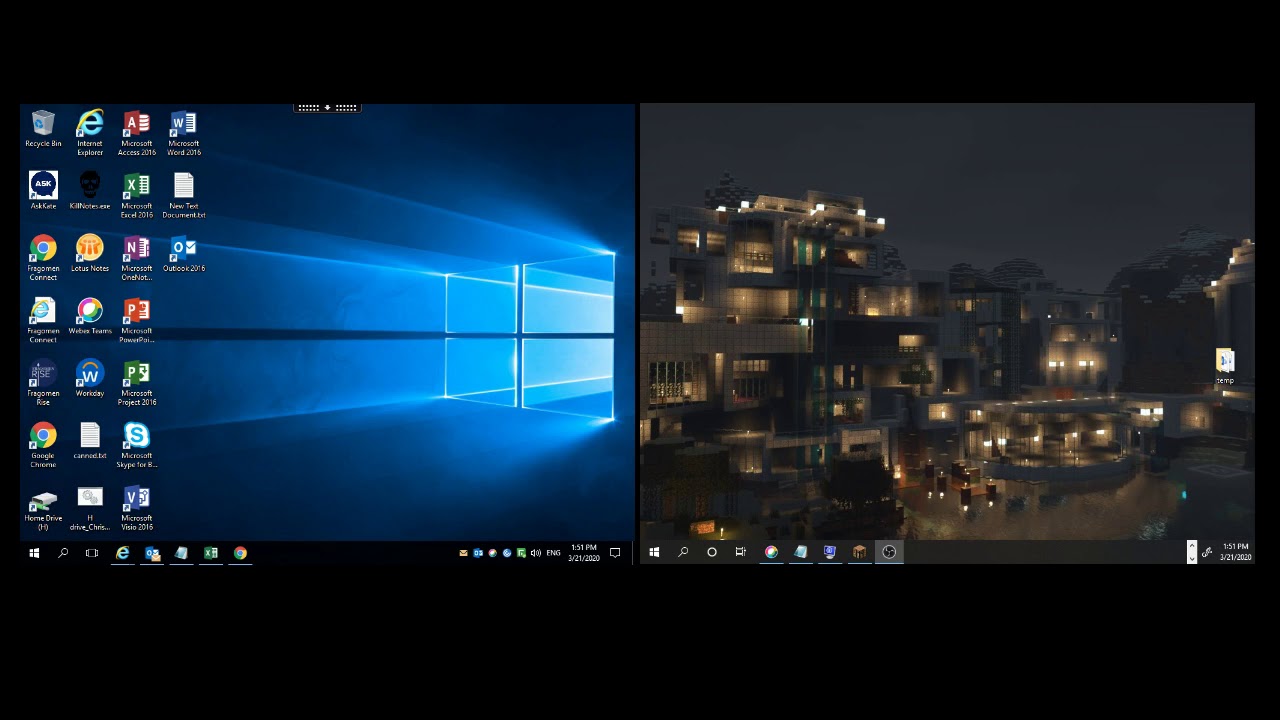
Are you using Workspace with more than one screen and your Citrix Display is not looking right? For example, all of a sudden you can’t drag a published app from one screen to another properly?
What Causes this?
There are several reasons. Whatever causes it changes the scale and layout properties of you monitor(s). When the scale and layout of the monitors you use in your Citrix session are not 100% identical, published apps will not render correctly across those screens.
This tends to happen when a user is on a mobile device like a laptop and they are moving between office setups. For example when moving between the office and home. With the hybrid office becoming more and more prevalent, this will happen a lot more often. Luckily the fix is quite easy.
How to Adjust Scale and Layout in Windows 10
Search for “Display Properties” in the Windows search bar. Click on each monitor listed in the Display section and make sure that the scale and layout are exactly the same.
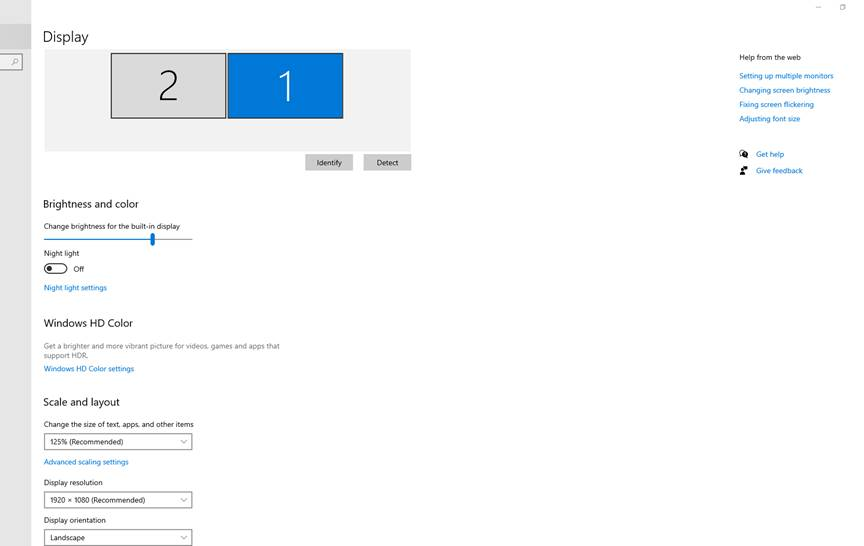
Now when you open your app in Citrix it will render correctly. If you use this with other Citrix Hacks, your Citrix Experience will be a better one.
Happy IT’ ing
Dan
3 Ways to Fix DNS issues
Have you heard the expression “it’s is always DNS”? Well it is true. I found myself in this situation a few days ago and it reminded me it was time to regale you with another blog post!
Are you having trouble connecting to a site or service over the internet? You have tried all the steps to troubleshoot your environment but you still can’t connect. For example, you have rebooted all your internet equipment, cleared app caches, reinstalled the app, updated the app or service or maybe even prayed to the Internet gods to rectify things (that last one was a joke).
Before I go through the 3 Ways to fix DNS issues, lets briefly discuss what DNS is in the first place.
DNS is a Directory / IP Address Translation Service
I like to use the analogy that DNS is like a phonebook but in reverse. You need to find out someone’s telephone number so you look up their name. With DNS you know the name but the app or service you are using needs to know the number to be able to connect. You see computers are great with numbers (like IP addresses) and humans are great at names (like cayville.ca). DNS, like a phone book ,is great at bridging the gap.
So when you type a website into your browser or open an app on your phone or tv box etc. , it resolves to an IP address that connects you to the service on the Internet. Sometimes the IP address changes for a particular site and DNS needs to update to reflect the change. This could be instantaneous or take a few hours or days. There are DNS servers all over the Internet and they have to update (a process known as propagation). Now here are the three ways you can fix this problem.
All deal with flushing the DNS cache which will force updates if certain DNS names have changed IP’s but where?
Clear Browser Cache
Your browser stores lots of info about the websites you visit. It could be as simple as clearing it and the website or service you are connecting will start to render properly. Here are instructions for the most popular web browsers:
Flush Your Devices DNS Cache
You device will have a DNS list cached locally on your device. It updates regularly but sometimes it doesn’t. You can flush it by dropping down to a command prompt (Windows) and typing “ipconfig /flushdns”. In Linux “$ sudo systemd-resolve –flush-caches” , then ” $ sudo resolvectl flush-caches”. You will have to consult your Linux flavor’s documentation for exact syntax. Same goes for MacOS.
Another quick way if you are connected to Wifi is forget the Wifi network and reconnect to it. DHCP will take care of the rest and refresh the DNS settings.
Flush Local DNS Server Cache
This is for the intermediate user. If you run a local DNS server on your network it is mainly used to resolve your local network’s domain names. If a device on your network needs to resolve an address outside your network (probably 99.99999% of the time) it has been set up with a forwarder. This will happen when the same site or site is not working on all of the devices on your network. Flushing your local DNS servers cache will fix this. Depending on what local DNS server software you use it will be a different procedure. However, it is quite simple; restart the the service.
So remember, no matter what the issue is when having Internet connectivity problems, if it isn’t something physical like a cut cable, dead modem / router / switch, it is always DNS!
Happy IT’ing
Dan
3 Considerations When Upgrading to Windows 11

Should you upgrade to Windows 11? It depends….
As with most Windows new releases, early adopters are usually faced with a lot of problems. I like to wait for the system to be out for awhile and I get a chance to upgrade my hardware before I upgrade. It minimizes problems.
If you feel you should upgrade there are 3 things to consider when upgrading to Windows 11.
Does Your System Meet the Minimum Requirements?
Old hardware hates new software. You should always remember that when considering upgrading. Microsoft has some pretty heavy system requirements for this version of Windows. They demand that your PC have a TPM (Trusted Platform Module) 2.0 installed.
You can read this guide What is a TPM? And here’s why you need it for Windows 11 for a rundown of what these modules do and how to find out if you have one. In a shell, TPM 2.0 support is required by Windows 11. If you are not sure, check with your laptop or motherboard manufacturer to see if your PC has TPM 2.0 support that can be enabled via the BIOS.
Other specifications include:
- CPU: 1 gigahertz (GHz) or faster with 2 or more cores on a compatible 64-bit processor or System on a Chip (SoC)
- RAM: 4GB
- Storage: 64GB of larger
- System firmware: UEFI, Secure Boot capable
- TPM: Trusted Platform Module (TPM) version 2.0
- Graphics card: Compatible with DirectX 12 or later with WDDM 2.0 driver
- Display: High definition (720p) display that is greater than 9” diagonally, 8 bits per color channel
- Internet: Windows 11 Home edition requires internet connectivity and a Microsoft account to complete device setup on first use, so no more “I don’t have Internet” option when installing.
Check if your PC is compatible with Windows 11
You can download the Windows PC Health Check app from the official Windows 11 page
Once the app is installed and open, you need to locate the Windows 11 banner at the top of the page and click Check Now. It will tell you right away if your PC is capable of running Windows 11 or not. Decision as to Why you should Upgrade
Weather or not to Upgrade to Windows 11
You should upgrade to Windows 11 if ….
If your PC meets the requirements, upgrading to Windows 11 from Windows 10 s pretty easy and free. Early adopters live for this but if you are a fan of technology or change (or both) you should hold off.
The biggest change you’ll notice when upgrading is the look. Windows 11 still has the traditional desktop and taskbar, but now there are some new buttons on the taskbar alongside the Start button and they’re all centered in the middle, rather than clustered in the left corner.
There is other options but I will let you play around.
Wait on upgrading to Windows 11 if…
Your PC doesn’t meet the requirements, or you like using older apps and peripherals / equipment. If your PC doesn’t meet the minimum system requirements for Windows 11, then definitely hold off until you can upgrade the components on your system or the entire system (depending on it’s age). If you don’t mind rebuilding your system after any trouble, then go ahead. Just remember to back up your system first. Unfortunately, Windows 11 is getting more aggressive about bugging users on unsupported PCs with warnings that their PCs aren’t up to snuff. I know Windows 10 has been around since 2015 but some user are still getting used to it!
Should I upgrade to Windows 11 Verdict
I suggest waiting if you have older equipment and / or can live with the feature of Window 10. If you love technology and experiencing the new features before the majority of user, go for it. But like I said before, if you requirements aren’t up to snuff you have the time to investigate any potent upgrade problems, prepare for a bumpy ride!! Oh yeah, did I mention backing up?
Special shout out to Tom’s Guide for the research on this!
Once again….a funny TikTok!
Happy IT’ing
Dan
5 Quick And Amazing Tips for Using O365 Web
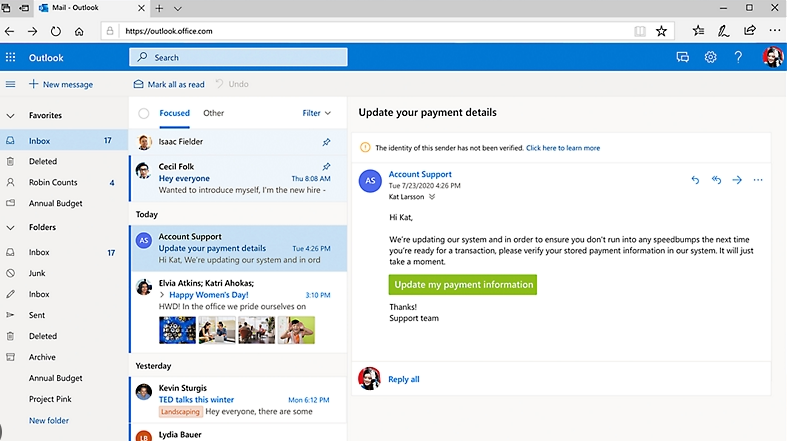
Use this post for 6 Quick Tips for Using O365 Web. IT will take care of the most common settings when initially setup up your email in Office 365 Web.
Adding your Signature
While in O365 Web, go into your sent items and find an email with your most recent signature. Highlight it and copy the text and logo. Then go into settings () in the top right of your O365 window and click Mail / Compose and reply. From here click the
button. Give your signature a name. In the textbox below the signature name, proceed to paste you signature that you copied. Click save and you have a signature for your O365 Web App.
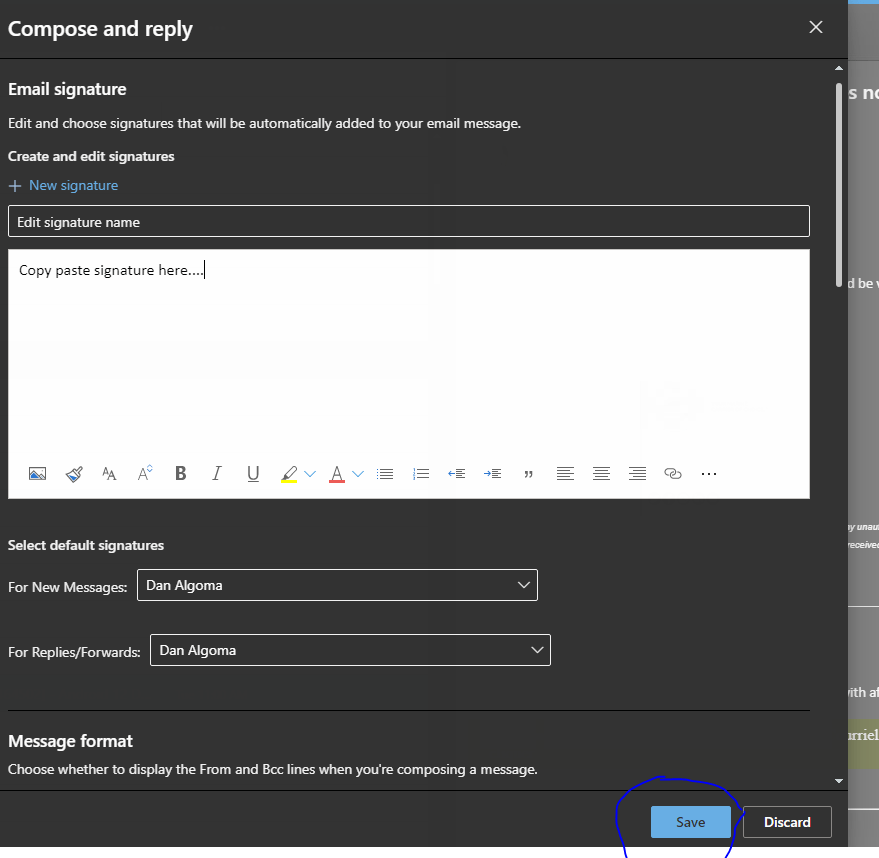
Once you have saved your signature, click on the down arrow “For New Messages” and select the new signature you just created.
Disabling Focus inbox
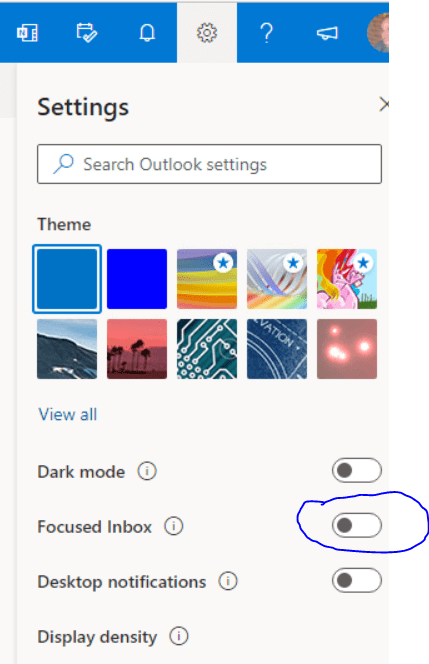
Focus inbox allows for messages to be sorted into your regular inbox and other emails considered to be newsletters, bulk email, etc. but not junk email. If you prefer to see all of your email in one inbox, just click the toggle to switch this feature off. Click the settings icon () in the top right of your O365 window and turn the focused inbox toggle off:
Accessing your to-do- bar
You may want to see your calendar and tasks on the same page as your email. To do this in O365 Web all you have to is click the “Your Day” button on the main page:
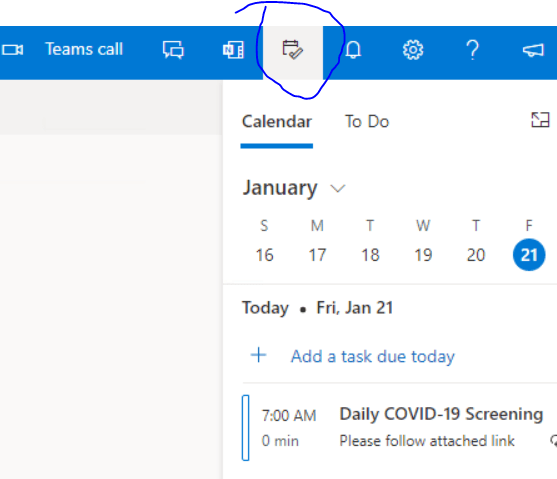
You will have to do this each time you start the O365 Web App to show this view.
Turning Conversation View Off
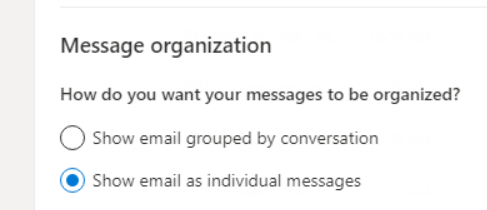
O365 has this set by default. Turn it off, click the settings gear () and click and then at the bottom right of the screen click “View All Outlook Settings”. Then click Mail / Layout / Message Organization. Choose “Show email as individual Messages”:
Page Break
Viewing Other Mailboxes
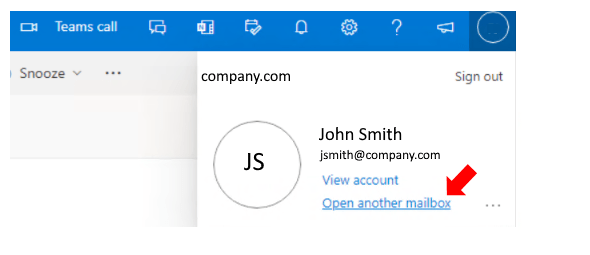
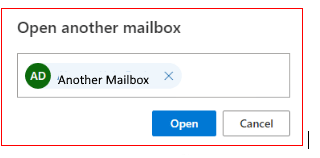
Start typing the name of the mailbox you would like to view and then click on the OPEN button
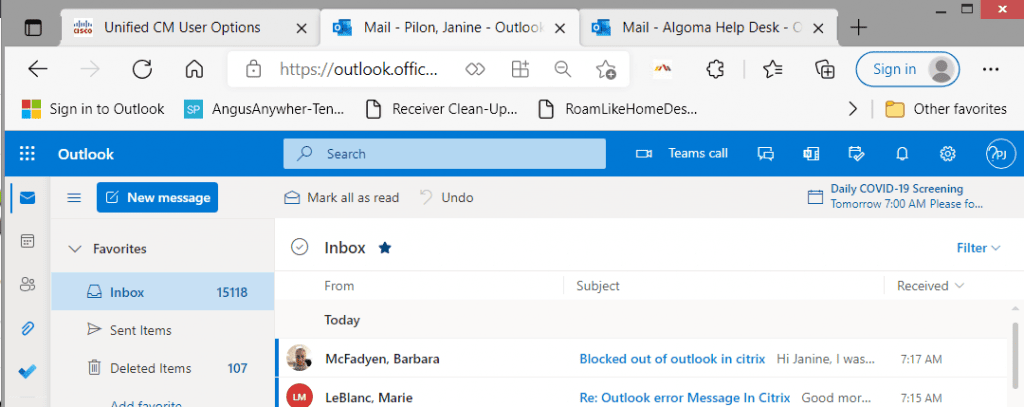
The new mailbox will open in another tab and you can switch back and forth between your mailbox and the other mailbox using the tabs.
Creating Out of Office Message
Click on Settings Icon and then “View All Outlook Settings”
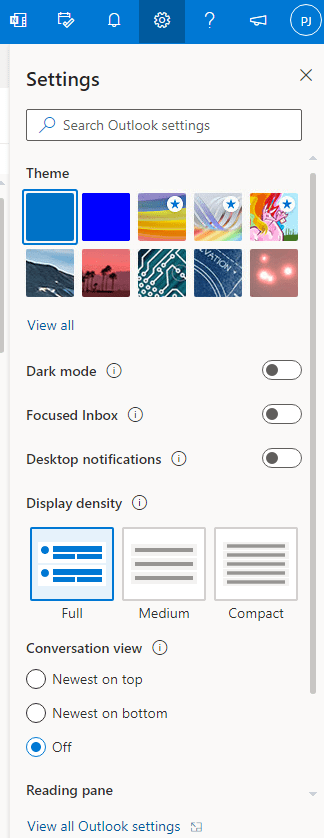
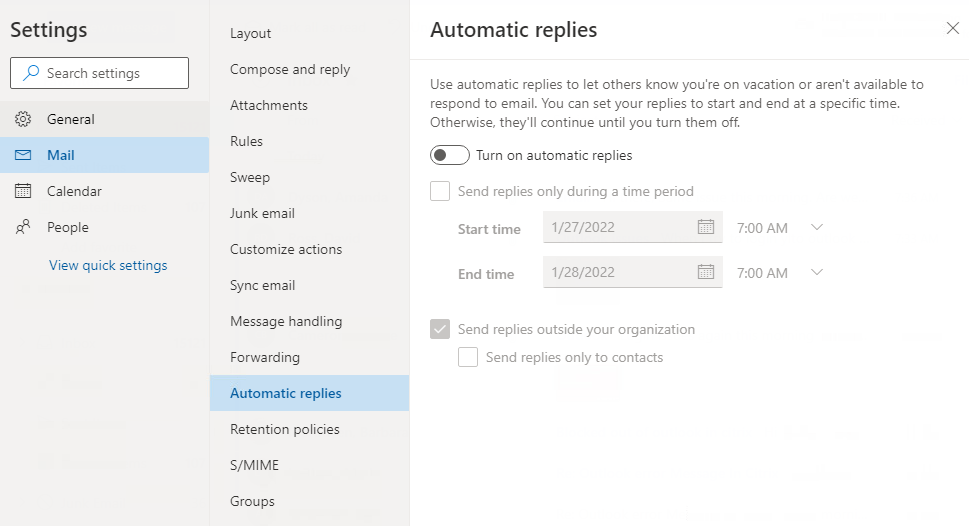
Click on “Automatic replies”
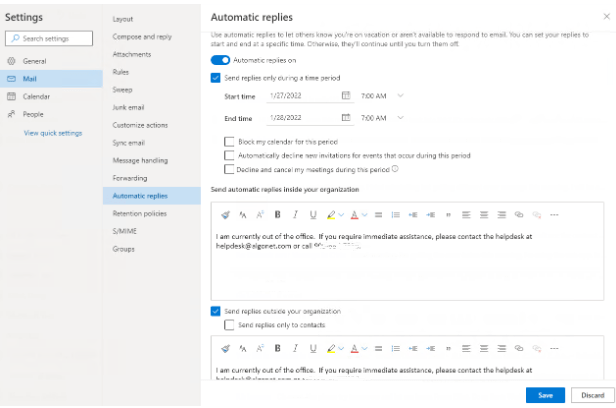
Turn on radio button “Automatic replies on”
Click on “Send replies only during a time period” and enter the dates you will be out of the office.
Add the automatic reply text for both inside and outside your organization and click on the SAVE button . If you use this with my post on setting up O365 in first place, you will have everything covered.
To be honest, not many read my posts. Blogging about IT is boring as fuck. If you email me at danv@cayville.ca and let me know you found this Easter egg of profanity, you will get a shout out in my next blog post.
Happy IT’ing
Dan
Laptop Docking Station – 4 Ways To Troubleshoot

I have troubleshooted laptop docking stations for years and I have to tell you, they have gotten worse. The devices used to be a simple port replication unit. Now, there almost like their own computer with firmware updates and the like. The construction IMO has gotten worse too. Ok, rant over……
So without further ado, I will show you how to troubleshoot the most common problems with a docking station and laptop.
Laptop Docking Station Will Not Connect
The laptop has been docked yet it won’t connect to what’s hanging off it (i.e. Monitor, Mouse , Keyboard, Speakers, WebCam, etc…). this can be traced to a single point of failure. The actual connection from the dock to the laptop. You will need to reseat the laptop. The best way to do this is to undock and then re-dock the laptop. Depending on the manufacturer of your dock you may need to unlock with a slide lock (Lenovo) or a push lock (HP). Both manufacturers also have a new cube type USB-C dock that uses a simple power button.
I am sure there are other types out there but you get the picture. With the construction of some models you will have to hold the laptop firmly in place as you lock it.
Laptop Docking Station Partially Connects
This one is my favorite and a real pain in the ass. Some of the peripherals connect properly and some do not. I had a support experience where the user’s Monitors were working but their mouse and keyboard were not. The cause was a partially connected dock. Yes, that is possible. The fix was to make sure the laptop was completely perpendicular to the station while docking. Why? We have enough to think about! Using geometry while docking your laptop should not be one of those things….
Some Ports do not Connect
These can be isolated to a faulty cable or a cable that is not inserted fully. Reinsert the cable. Failing that, try a new cable.
A New Laptop Docking Station Breaks Things
You give a user a brand new dock and all of a sudden things that used to work with the old dock no longer work with the new dock. For example, dual monitors do not work anymore or a sound bar stops working. This requires an upgrade to the laptop drivers, dock drivers or both. Go to the manufacturers website and perform the updates. All manufactures automate this process with an update connect tool. Examples include, Lenovo, HP and Dell.
To narrow these things down have another dock handy. Unfortunately, this is not always the case so the above information is a great guide.
Here is a quick TikTok Video about it. If TikTok is not your thing, go to YouTube , watch a video on it and subscribe!
For more tips, sign up to my email list.
Happy IT’ing
Dan
Office 365 and Outlook: Install and Configure in 2 Steps
:max_bytes(150000):strip_icc():format(webp)/016_out-of-office-vacation-auto-reply-1173771-5c27fdeb46e0fb0001f2bbe8.jpg)
Congratulations you have an O365 subscription (I know you are jumping up and down…. this is sarcasm). Since 99.99999 % of people get Office 365 for Outlook look, here is a quick and dirty guide to get Office 365 and Office installed and Outlook configured in 2 Steps.
Install Office 365
- Uninstall and other Office version on your computer.
- If a click-to-run or any other version of Office 365 is installed on the laptop also uninstall it.
- Go to your control panel (i.e. Search for Control Panel, launch it and then go to Programs and Feature and uninstall any other version of office if it is there.
- Reboot you computer when asked.
- Log back in, go to Portal.office.com (log in if you need to.).
- Click the down arrow beside Install Office and chose Premium Office Apps:
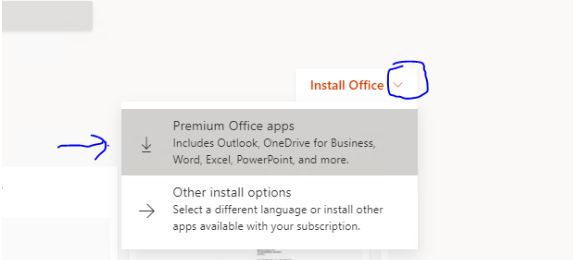
7. The download will show in your browser downloads:
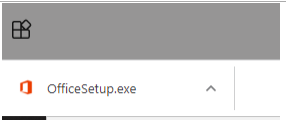
8. When it is done downloading, click on it and the install process will begin. You will see an Office splash screen like this:
9. It will notify you when it is done installing.
Configure Outlook
- When it has installed you can launch outlook by searching for it by in the Windows 10 Search bar “Outlook” and clicking on it.
- It will start the sign process by setting up your email account. All you need to do is enter you email address if it hasn’t found it already and your Windows password when it asks for it.
- You may need to sign in again to activate your copy of Office. To do that you just enter your email address and windows password again.
- Once your email sign up is complete you will see your Outlook inbox.
- To launch any of the other office app just search for them by name in the Windows 10 search bar (i.e. Excel, Word”
- If you would like the office apps located pinned to your task bar you just search for the office app and then right click on the search result and choose pin to task bar:
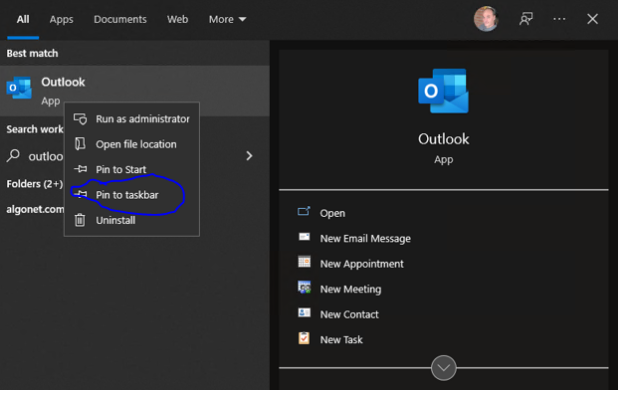
16. When starting Outlook for the first time it will ask you to log in. Please use your email address as the username and your password.
Voila you have Office installed and Outlook configured in 2 Steps! Add this knowledge to what you learned about using OneDrive a you will be an expert at office in no time!
For more tips, sign up to my email list.
Happy IT’ing
Dan
Two Really Cool Citrix Hacks

One of the biggest questions I get about Citrix is how to operate between the terminal server OS and the local OS. Usually there is the occasional need to work between the two. Here are two really cool Citrix Hacks. Once you learn them you will use the all the time!
Transfer Between Citrix and Windows and Vice Versa
This one is easy. Just take the file you want to transfer from file explorer, right click and choose copy from the source system:
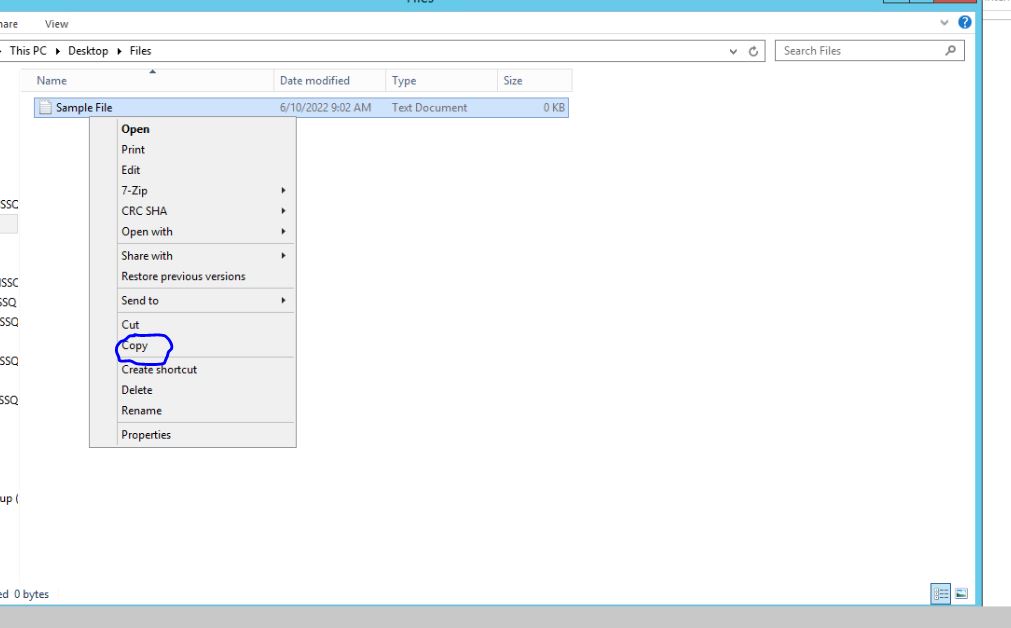
Then open file explorer in the target system, navigate to where you want the file to end up, right click and choose paste:
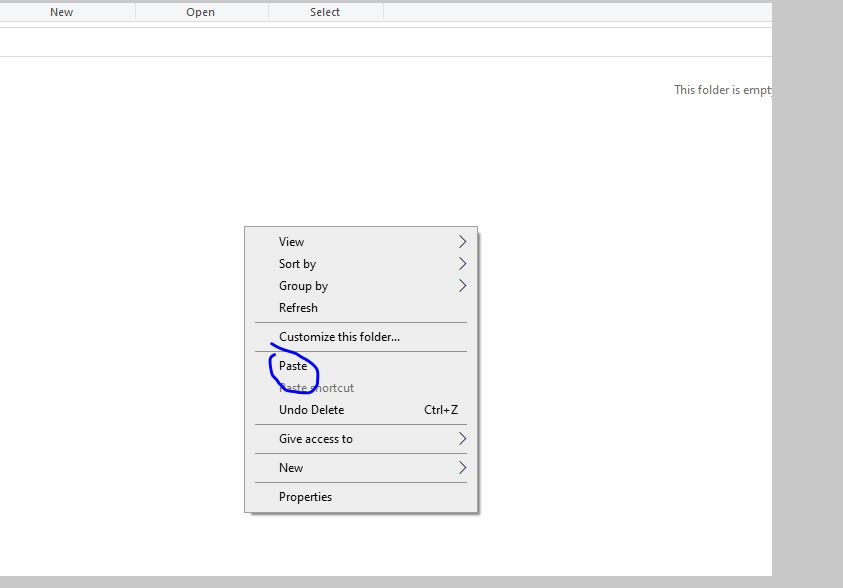
Pretty easy, right?
Adding a Printer in Citrix
This is little trickier but remember you are operating and system within an operating system (Windows within Windows). Things that you normally do locally can still be done in Citrix, just a bit differently.
For this example I will you use Microsoft Word as the “Hack App”. Open word in Citrix , create a blank document and then go to to print it:
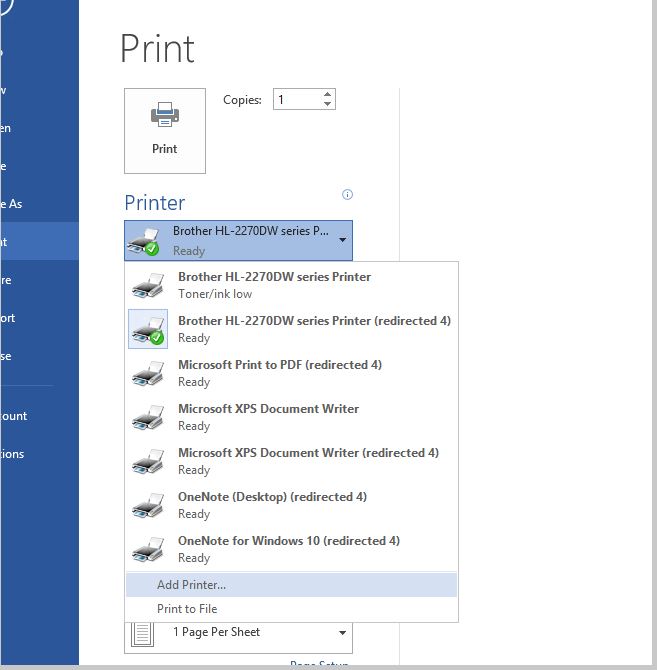
Choose “Add printer”. It will bring up the directory on your AD server:
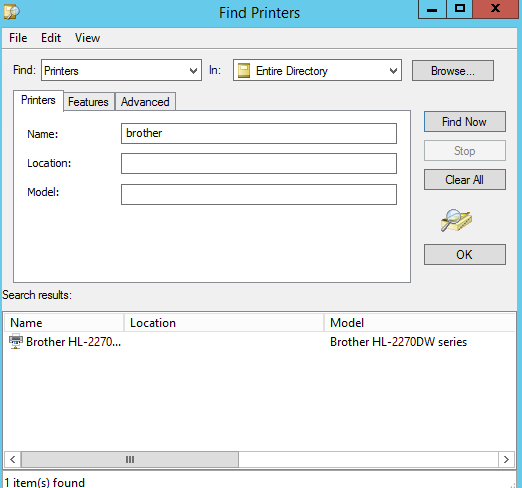
Type in the name of the printer you wish to use. This is where you can type roughly what the printer name is and it should find it. If you do not know what to search for you will need to get your IT support involved.
Double click the found printer and voila, you have it installed and available to all of you applications in Citrix. If you get an error chances are you do not have the necessary security permissions to access the resource. Once again contact your IT support in this situation.
If Citrix is new to you, read my article that gives the basics in a nutshell . Just so you know these hacks also work in Microsoft Remote Desktop Services
Happy It’ing
Back Up Your Whole System in Two Steps
This is a continuation from my previous article on how to make sure your files are backed up.
You either work from home or are a power user in an organization that might not give all the backup you need. Whatever the case, I will show you how to back up your entire machine using the built-in backup features in Windows.
Determine how much backup space you will need
You want to make sure you know your storage requirements before you start backing up your machine. It is quite easy to find out. On your Windows machine, open File Explorer and the find your system Drive. You may have more than one drive in the system but for the simplicity of this article we will work with a one drive system:
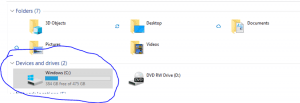
Looking at the Windows Drive it shows a total storage of 475GB. Not that you have determined your total storage space you need to get an external USB Hard Drive. I would recommend a WD USB Hard Drive. I would get one that is at least 512GB. The bigger the better.
Set up Windows Backup the Easy way
Backing up Files
Go to the Windows search:
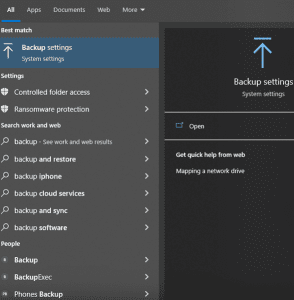
Search for Backup and Choose “Backup settings”. Have your USB Drive connected to your machine and click “Add Drive”:
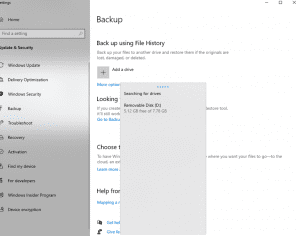
Choose it and now you have a drive where backups occur.
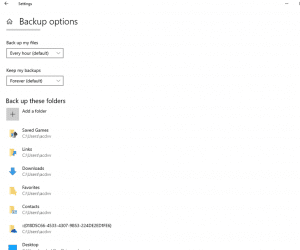
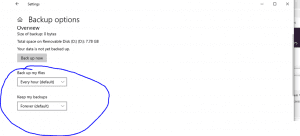
Accept the defaults if you want or choose different options. For example, you can change the frequency to once a day and the retention to one month.
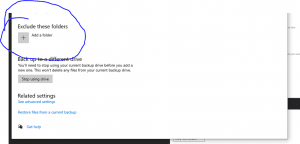
You can also exclude certain folders in your back up.
Click backup now or just wait for the schedule you picked to kick in.
Restoring
When you want to restore a file, you can either do it on of two ways.
You can go directly to the USB Drive and drill down into the File History folder until you find the backup of the file or…..
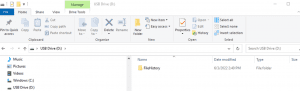
Go to the Folder where the file was located, right click, and choose properties. Then click on the previous versions tab and click the down arrow button and choose “restore to” if you want choose an alternate location.
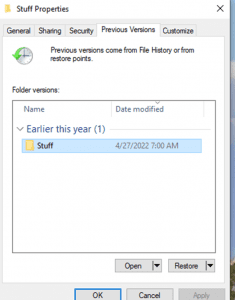
Once restored you can sort through the folder an get the file you lost. It will be as current as the last successful backup.
Backup System
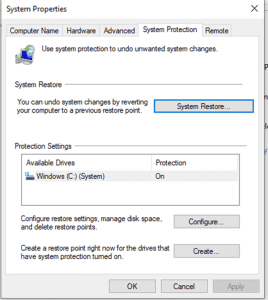
You will probably need to do this very infrequently if at all. See my tips on how to keep your system running clean (in a soon to be released post). All you must do is make sure system restore is turned on:
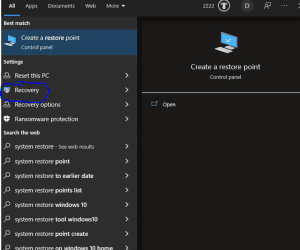
Search for system restore in the windows search bar in the lower left of your Desktop Screen.
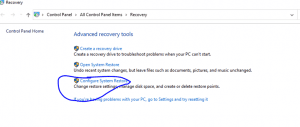
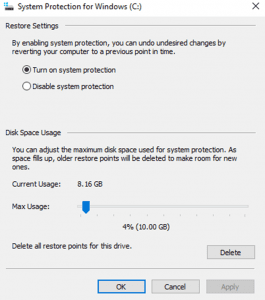
Click configure.
Turn system protection is on.
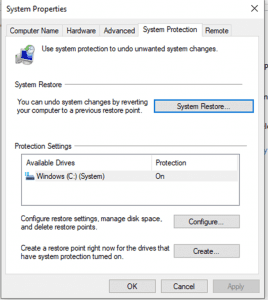
To run a system restore go to back to this screen and click system restore:
Click next to start the system restore.
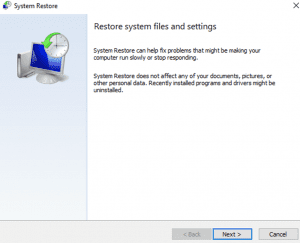
Choose the restore point.
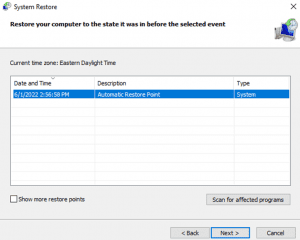
There is other options you can chose, like show more restore points if you want to restore your system further back. There is also scan for affected programs if you want to see what programs might not work after the restore. You will just have to reinstall them. I have found that the restore works well. In some case you might not get everything restored perfectly but no system at all is a lot worse. The restore will take some time and a reboot will need to be done. However, you will be working in no time! If you also follow my articles on keeping your other files and settings backed up you will have all the bases covered.
Here is a funny TikTok video I posted about it.