
Configure Hybrid Join in 2 Steps
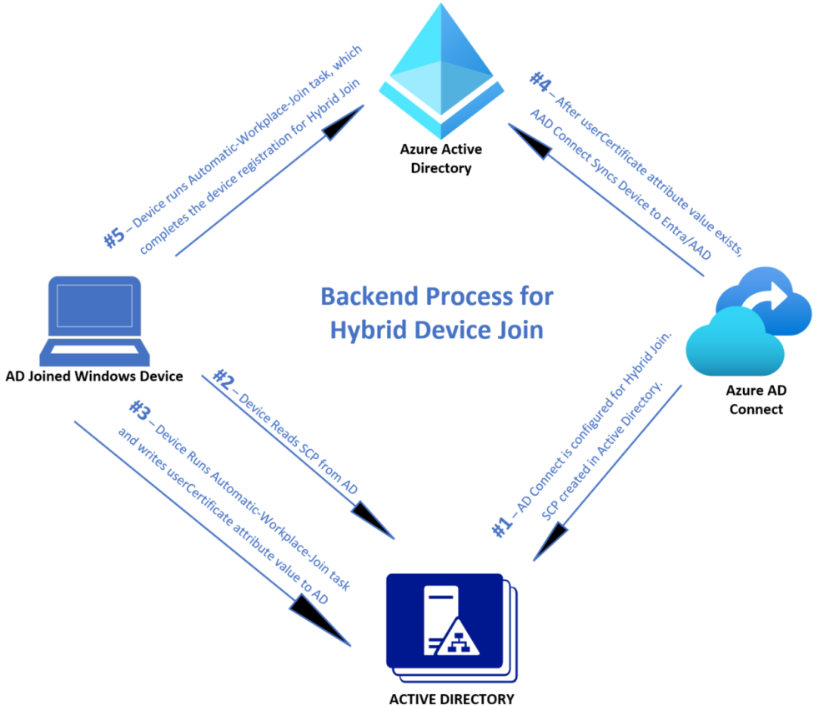
This is for you if you wish to Configure Hybrid Join in M365. You may be coming from a more traditional environment where all your devices (computers) are domain joined. You may have started with Azure AD Join by getting your mobile devices enrolled.
Now we have touched on the 3 types of enrollments in M365. Domain Joined (Entra Registered), Azure AD joined and now I am going to talk about Hybrid AD Joined. It is a neat little way to bring all your devices together eventually leading to a fully cloud implementation of your environment.
I will show two steps: One to get Hybrid Join set up on your network and two, how to manually join devices that won’t automatically join.
Configure Hybrid Join – Setup
Here are the prerequisites. It is a bit of a list but it will prevent a lot of headache in the long run:
Microsoft Entra Connect version 1.1.819.0 or later.
- Don’t exclude the default device attributes from your Microsoft Entra Connect Sync configuration. To learn more about default device attributes synced to Microsoft Entra ID, see Attributes synchronized by Microsoft Entra Connect.
- If the computer objects of the devices you want to be Microsoft Entra hybrid joined belong to specific organizational units (OUs), configure the correct OUs to sync in Microsoft Entra Connect. To learn more about how to sync computer objects by using Microsoft Entra Connect, see Organizational unit–based filtering.
Global Administrator credentials for your Microsoft Entra tenant.
Enterprise administrator credentials for each of the on-premises Active Directory Domain Services forests.
(For federated domains) At least Windows Server 2012 R2 with Active Directory Federation Services installed.
Users can register their devices with Microsoft Entra ID. More information about this setting can be found under the heading Configure device settings, in the article, Configure device settings.
Configure Hybrid Join Network connectivity Requirements
Microsoft Entra hybrid join requires devices to have access to the following Microsoft resources from inside your organization’s network:
https://enterpriseregistration.windows.nethttps://login.microsoftonline.comhttps://device.login.microsoftonline.comhttps://autologon.microsoftazuread-sso.com(If you use or plan to use seamless SSO)- Your organization’s Security Token Service (STS) (For federated domains)
You are Probably Running Managed Domains
Most company’s have a managed domain from previous Windows server installations so this is the most common scenario. Microsoft Entra hybrid join with managed domains. Managed domains use password hash sync (PHS) or pass-through authentication (PTA) with seamless single sign-on. Managed domain scenarios don’t require configuring a federation server.
Configure Microsoft Entra hybrid join by using Microsoft Entra Connect for a managed domain:
- Start Microsoft Entra Connect, and then select Configure.
- In Additional tasks, select Configure device options, and then select Next.
- In Overview, select Next.
- In Connect to Microsoft Entra ID, enter the credentials of a Global Administrator for your Microsoft Entra tenant.
- In Device options, select Configure Microsoft Entra hybrid join, and then select Next.
- In Device operating systems, select the operating systems that devices in your Active Directory environment use, and then select Next.
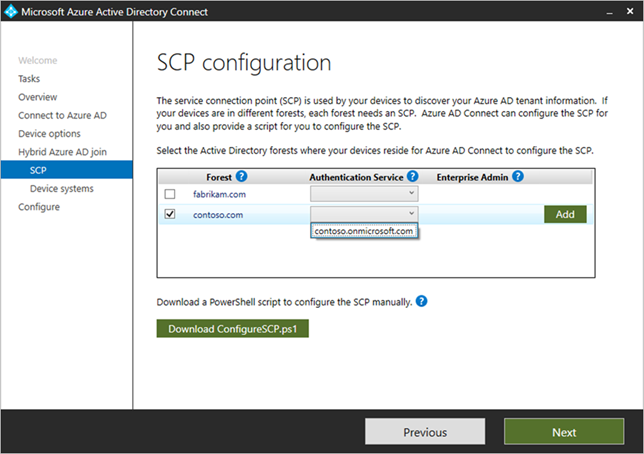
- In SCP configuration, for each forest where you want Microsoft Entra Connect to configure the SCP, complete the following steps, and then select Next.
- Select the Forest.
- Select an Authentication Service.
- Select Add to enter the enterprise administrator credentials.
- In Ready to configure, select Configure.
- In Configuration complete, select Exit.
Troubleshooting Configure Hybrid Join
Microsoft has some great articles on trouble shooting this setup. I will list them here:
- Troubleshooting devices using dsregcmd command
- Troubleshoot Microsoft Entra hybrid join for Windows current devices
- Troubleshoot Microsoft Entra hybrid join for Windows downlevel devices
- Troubleshoot pending device state
Start by running the dsregcmd /status command, looking for the status of Hybrid join:
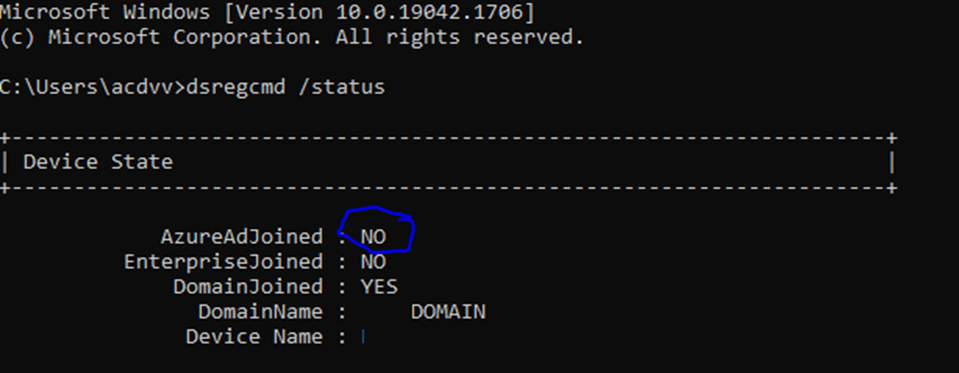
If see Azure AD joined as a “No” you will need to investigate further in the event view for errors. Namely, The user registration log:
Use Event Viewer logs to locate the phase and error code for the join failures.
- In Event Viewer, open the User Device Registration event logs. They’re stored under Applications and Services Log > Microsoft > Windows > User Device Registration.
- Look for events with the following event IDs: 304, 305, and 307.
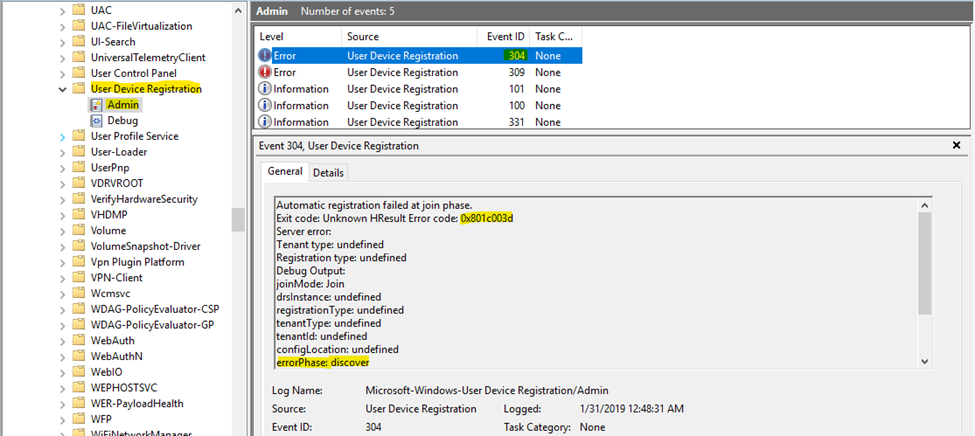
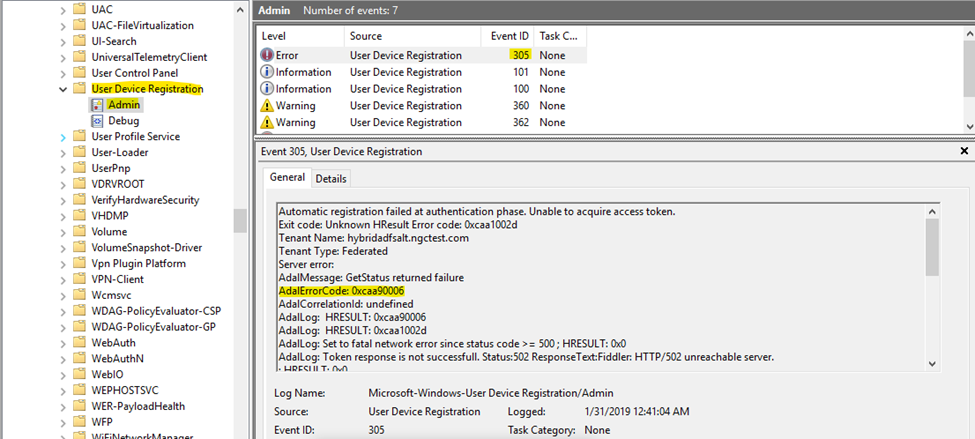
Please look at the links listed above for further troubleshooting.
Configure Hybrid Join a Windows Computer
You can manually configure working on the affected device. It is a few steps but your can Configure Hybrid Joinquickly.
Unregister the device from Azure AD
Follow this procedure:
- On the machine to unregister, launch a Command Prompt as an administrator and type the following command:
dsregcmd /leave
- Make sure the certificates issued by “MS-Organization-Access” and “MS-Organization-P2P-Access [xxxx]” have been deleted from the local machine Personal certificate store:

- Type the command dsregcmd /status in a Command Prompt, and make sure the following parameters have the appropriate values:
dsregcmd /status
+———————————————————————-+
| Device State |
+———————————————————————-+
AzureAdJoined : NO <—–
EnterpriseJoined : NO
DomainJoined : YES <—–
Re-register the device as a Hybrid Azure AD Join
Follow this procedure:
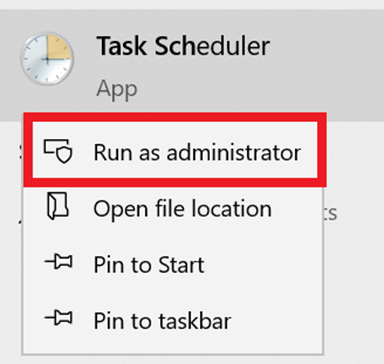
- On the machine to re-register, run the Task Scheduler as an administrator.
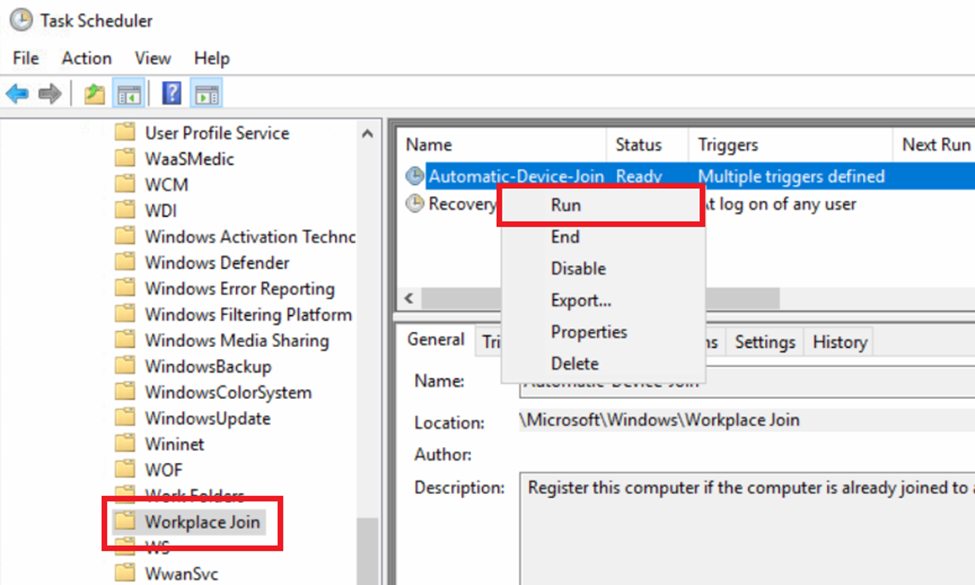
- Go to Task Scheduler Library > Microsoft > Windows > Workplace Join and manually start the task “Automatic-Device-Join“.
- Make sure the certificates issued by “MS-Organization-Access” and “MS-Organization-P2P-Access [xxxx]” have been created in the local machine Personal certificate store:

- Type the command dsregcmd /status in a Command Prompt, and make sure the following parameters have the appropriate values:
dsregcmd /status
+———————————————————————-+
| Device State |
+———————————————————————-+
AzureAdJoined : YES <—–
EnterpriseJoined : NO
DomainJoined : YES
- Reboot the PC.
- Start an Azure AD Connect delta synchronization.
If you follow these two steps you will configure Hybrid Join in no time!
MS Teams Does Not Update….3 Fixes

MS Teams Does Not Update
Teams is not very good at updating information from the cloud. Simply put, MS Teams Does Not Update. At least not very well. Frustrating as it might be there are 3 ways to fix this.
What Causes MS Teams Does Not Update
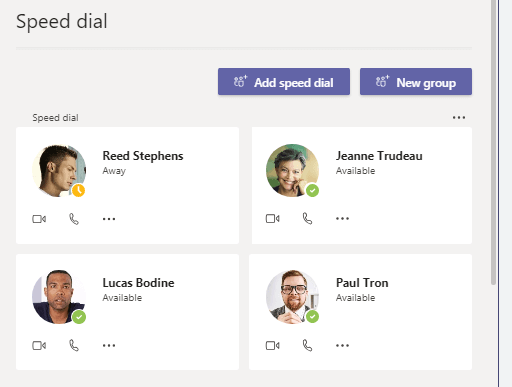
MS Teams acts very similar to a web browser in that it caches a lot of data locally to your computer. It can take anywhere from several hours to up to 28 days to update. It could become corrupt in that time and it might not up date at all. Items like profile pictures, which are updated in Exchange or SharePoint but not in MS Teams, is an indication of that. Other examples are chat threads that do not update or Speed Dials that do not show up. If it is had only been about a day or so I would wait. If it has been longer it is time to clean out the cache. Other fixes may be to just refresh your session. I will now go through the fixes…..
Clearing The MS Teams Cache When Teams Does Not Update
If you use the Desktop Version of MS Teams this will definitely help when MS Teams Does Not Update. Depending on whether or not you are using Teams Classic or the New Teams for Work and School the location of the cache will be different.
Teams Classic
- Quit MS Teams
- Type %AppData% into Windows Search. It will bring up your AppData Folder
- Navigate to the Microsoft / Teams Folder and delete everything in it
- Restart Teams, the cache will be rebuilt
New Teams for Work and School
- Quit MS Teams
- Change your Explorer view to show hidden files
- Navigate to C:\Users\<username>\AppData\Local\Packages\MSTeams_8wekyb3d8bbwe
- Delete everything in this folder (For files that are open while delete just check “do this for all items” and click skip
- Restart Teams, the cache will be rebuilt
Log out and Log back Into MS Teams
Sometimes all that is needed is a refresh of your session. All you need to do is log out of teams and log back in:
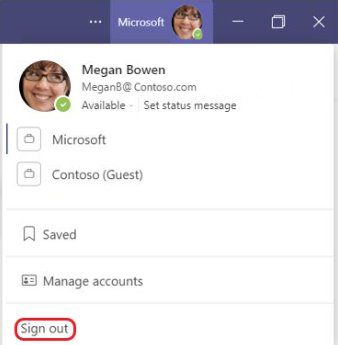
You will be immediately presented with a MS Teams login screen with your account listed. Just click your account name to log back in. All of your teams information should be refreshed. If not, try the steps above for clearing the cache out.
Use MS Teams Online
If MS Teams Does Not Update continuously and your are frustrated to no end, Just use the online version. Go to teams.microsoft.com and login. You will be using the online version which is in the cloud. It updates a bit faster. It is not perfect but it can be used as a last resort to get access to your newest information in teams.
Bottom Line…
MS Teams has come a long way from its humble beginnings but it still has a way to go. At least Contact Provisioning has been fixed.
MS Teams Contact Provisioning…A Better Way
I put a lot of effort to get these articles published so why not by me a coffee? donate a couple of bucks below!!
Have you ever thought that it might be great to use MS Teams Contact Provisioning in an automated way? It would help if you didn’t have to manually enter in all those pesky numbers. I don’t know about you, but I like to know who’s calling by name instead of trying to remember an multi-digit number on the display.
The problem is there is no official way (or centralized way) to administrate this through teams admin, PowerShell, or Graph API. Man, that is a lot of choices. why doesn’t MS just pull the trigger and give us a way already! I have shown how to administer Outlook contacts centrally so why not MS Teams Contacts! There is a behind the scenes way but it does take a little bit of forensic work!
I got a little help from this article, but I will also show you ways to do more than just add MS Teams contact records.
Use Teams Web Client In Dev Mode
First, log in to your Teams web client, and open dev mode (F12) of your browser. You are able to see what is happening in the background. You can see all actions as they happen in the web client if you look closely. These are the API calls.
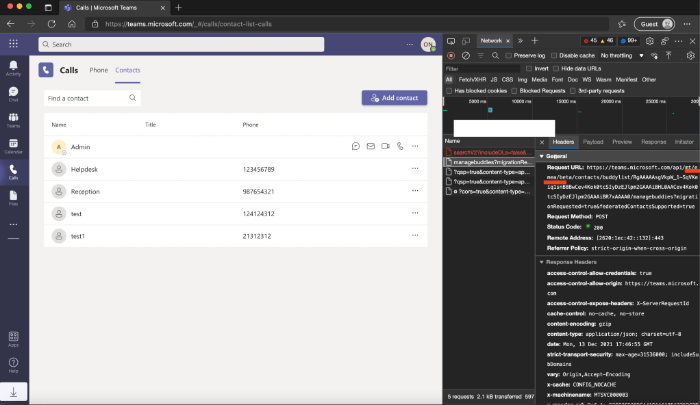
What I did was manually Add, Change and Delete a contact and looked for the API calls. You will see some interesting things:
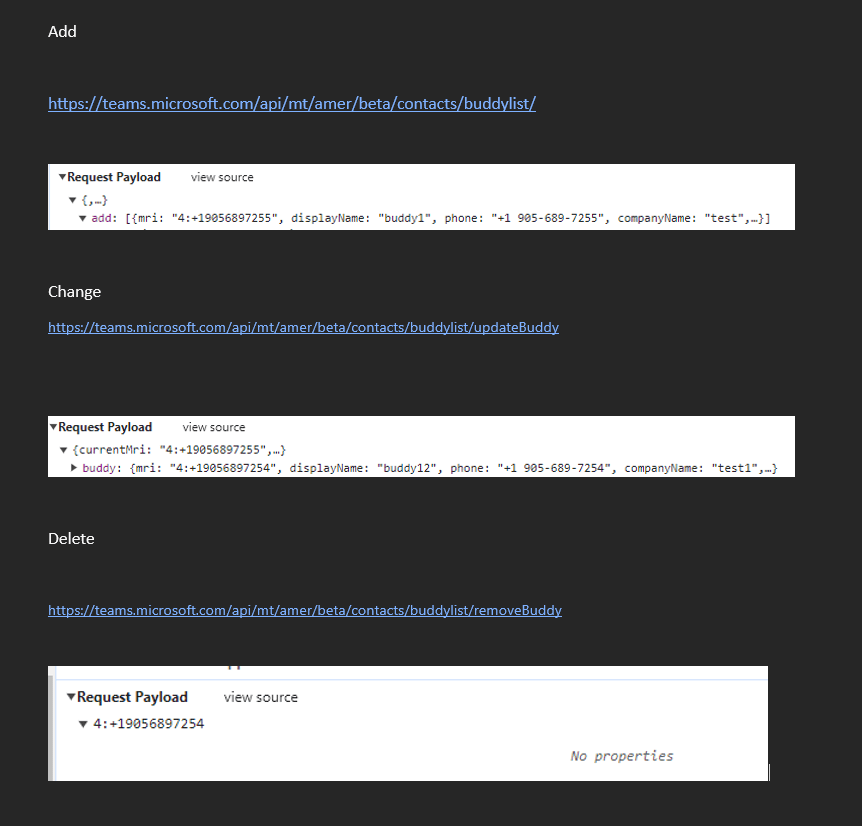
Here we can see the request URL, method, and body/payload. I have shown the URL method for an Add, Change and Delete. If you look closely at the request URL, it will show where your tenant is located. I am in North America so you will see AMER in the If you are in Europe it will be more than likely EMEA. We also see a token we can use to authenticate with. The issue though, this is only valid for this single user and expires in about an hour.
Is This Method Feasible?
This does not scale very well when doing a lot of provisioning and adding many contacts to the speed dial list. So how do we get the user’s token in a more automatic way? This where I was able to get some assistance from the article I cited above and use a PowerShell module developed by Dr. Nestori Syynimaa called AADInternals. You can install it by running “Install-Module AADInternals” in PowerShell. This module has a cmdlet called Get-AADIntAccessTokenForTeams, which contains a parameter called -Credentials. This parameter accepts a username/password.
I reiterate, this does not scale well. You can add the contacts to a new user when you know their password (initialing setting up their account). But after that, they are on their own dealing with moves adds and changes. I am sure you are good admin and when they get their initial password you make them change it. However, in small companies you should be able to do it for your users. Just have them come to your desk and when you run this script, have them put in their credentials. That is why I have shown you the API calls for that.
The PowerShell Script for MS Teams Contact Provisioning
Now it is just a matter of generating the script:
# X

#Import the Azure AD Internals module.

Import-Module AADInternals


#Get the Teams token for user curently beeing processed.

$token = Get-AADIntAccessTokenForTeams -Credentials $cred

#URL to buddylists.

$URL = "https://teams.microsoft.com/api/mt/amer/beta/contacts/buddylist/"

$header = @{Authorization = "Bearer $token"}

#Get id of the Speed Dial list.

$ListID = ((Invoke-RestMethod -Uri $URL  -Method GET -Headers $header -ContentType "application/json").value | Where-Object{$_.displayname -like "Favorites"}).id


#URL for the Speed Dial list.

$URL = "https://teams.microsoft.com/api/mt/amer/beta/contacts/buddylist/$ListID/managebuddies?migrationRequested=true&federatedContactsSupported=true"

#Now look add the above line buddylist is for ADD. Use updateBuddy for CHANGE and removeBuddy for DELETE

$payload1 = @'
{"add":[{"mri":"4:(123) 456-7890","displayName":"John Smith","phone":"(123) 456-7890","companyName":"Acme Corporation","jobTitle":"President"}]}
'@

#and don't forget to change this line above for change and delete to the lines in the white screen caps above
It Is Still A Lot of Manual Work for MS Teams Contact Provisioning But…
You see, constructing the Payload statement can be very time consuming, especially if you have a lot of contacts to add but it doesn’t have to be this way. If you use a VB.Net App I created, it will generate the statements you need quickly to a text file. All you have to do is copy and paste the generate payload statements into the script and viola! The app only does ADD and DELETE en masse. You have all the code you need to do MS Teams Contact Provisioning!
Allow Attachments With Safe Attachments Policy
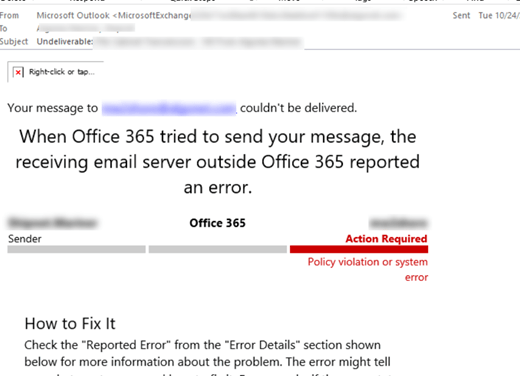
Ok, you have enabled the common attachment filter for your organization to NOT Allow Attachments of a certain type. Great. Here’s the rub….some of those attachment extensions, while most of the time should be blocked occasionally need to be allowed.
In most cases you don’t worry because you use Quarantine settings in MS Security and either you are an admin or the user (Depending on the policy you choose) can release the message. But what if it is an automated system and the blocked extension needs to get through?
Mitigating Blocked Attachments
You can minimize any of the delays a blocked attachment may cause by creating a policy that will let it though. Go to https://security.microsoft.com/safeattachmentv2 in the security portal and click on “+Create” to add a policy:

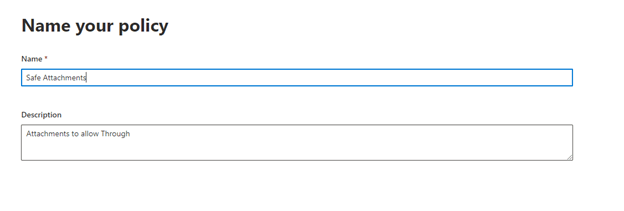
Give your policy a name and a description:
Pick who this policy applies to:
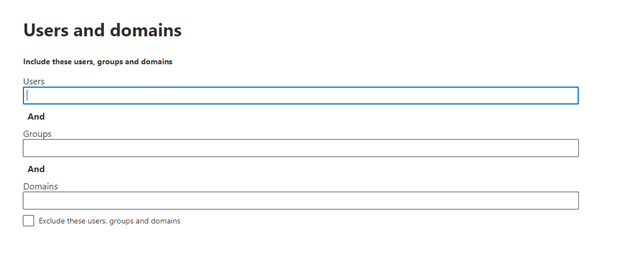
A note about the above screen. In most cases, it is only a sub-group of users who need to be exempt from attachment blocking. You wouldn’t want to enable this for everyone. Remember, we are mitigating not giving the organization a “carte blanche” with regard to attachments! You also can create this rule as an exclude rule instead.
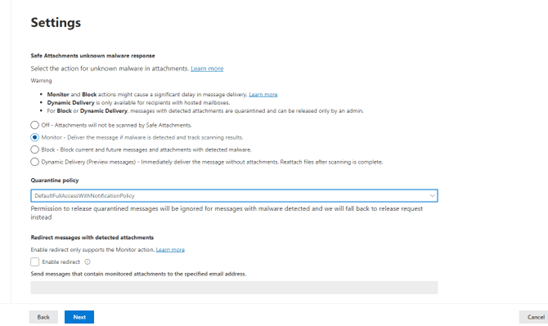
Once the policy is created, click “Submit”.
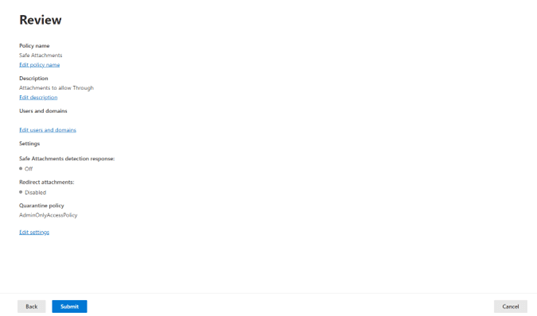
What Allow attachments Does in this Example?
The Account(s) that have this policy assigned to them will allow attachments through but if malware is detected, it will track the scanning results. As a failsafe, the policy DefaultFullAccessWithNotificationPolicy has also been assigned. The account that sent the blocked message will get a notification in their inbox that the message was blocked. It can quickly be released with a mouse click to not disrupt the email flow.
It is not a “silver bullet” solution but it can make sure the email keeps flowing. Especially with automated systems that have minimal intervention.
Now you have a way to Allow Attachments safely!
A Better Exchange Quarantine Notification Process
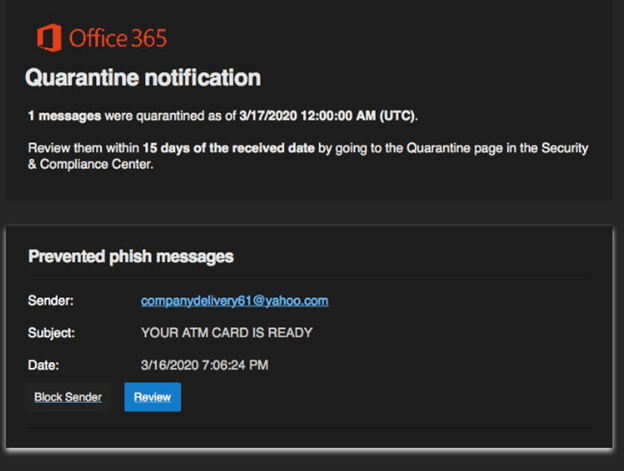
MS has told you that you cannot disable Exchange Quarantine Notification to users. Sorry, but that sucks. What you can do is disable the user’s ability to do anything with them. You can create a policy to do this. This is how it is configured:
Configuring an Exchange Quarantine Notification
First go to https://security.microsoft.com/quarantine and click “+ Add Custom Policy.
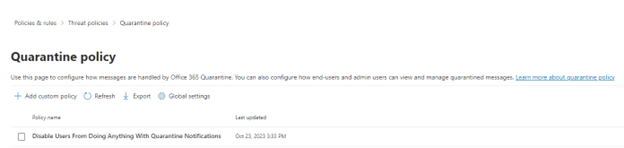
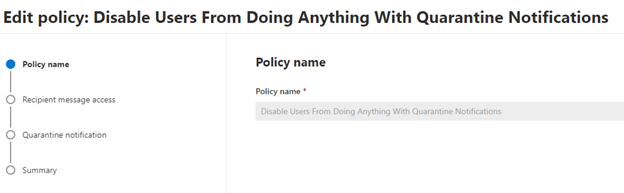
Give the Policy a name nd click “Next”.
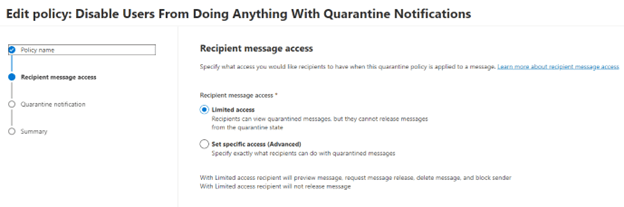
Choose “Limited Access”. This allows the user to receive the notifications but they are unable to act upon them. Click Next.

Leave “Enable” unchecked and click Next.
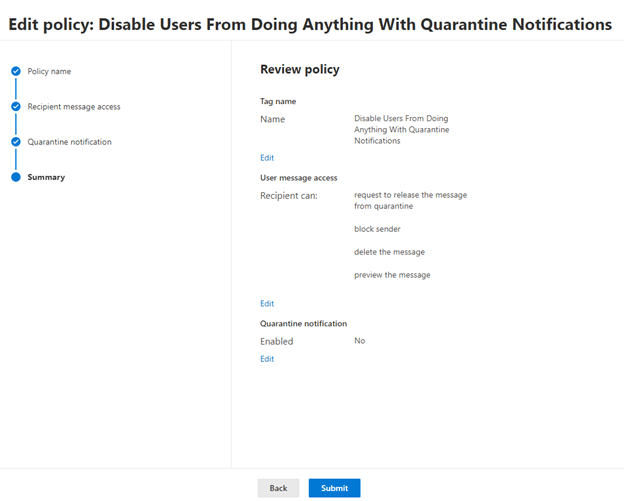
The policy is done. Click Submit!
In this scenario, users will receive a notification in their inbox that a message has been quarantined but they are not able to do anything with it. This is good for a larger organization. Users receive a lot of phishing emails that look very similar to this. They do it on purpose. We are inundated with email and all it takes is one click, and you could be on your way to getting your credentials compromised by some bad actors. It is a good practice to continually mitigate security breaches through email.
What a User Sees with an Exchange Quarantine Notification
It is better to have a process where you take the quarantine message you received and forward it to your helpdesk. They will know right away if the notification is legit or not and then vet the message for its legitimacy.
The user will receive an email like what you see below:
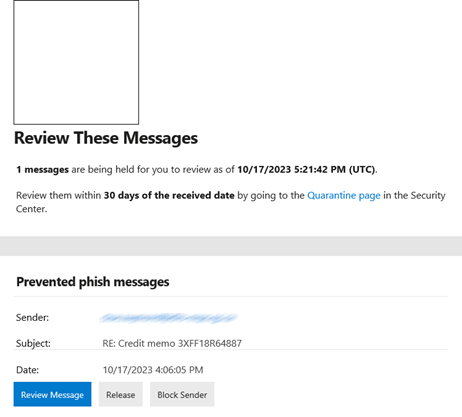
This is what your users should forward to your helpdesk. That brings us to what the admin sees…
What an Admin Sees with In Quarantine
This is an example from quarantine in the security portal (https://security.microsoft.com/quarantine):
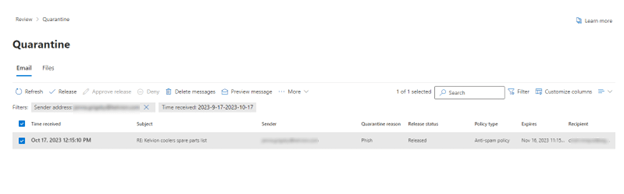
This is a suspected message that could be phishing or malware. Click on the message and a flyout appears:
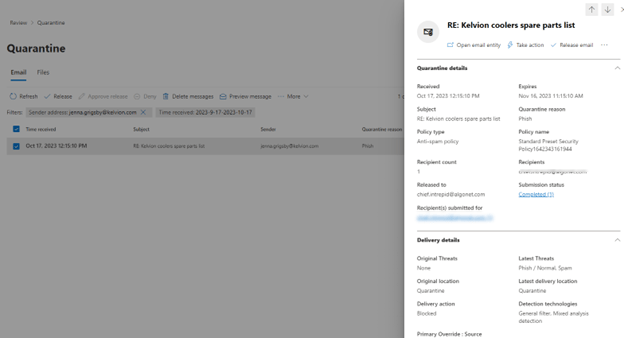
Clicking on “Take Action” on the top right gives you several choices:
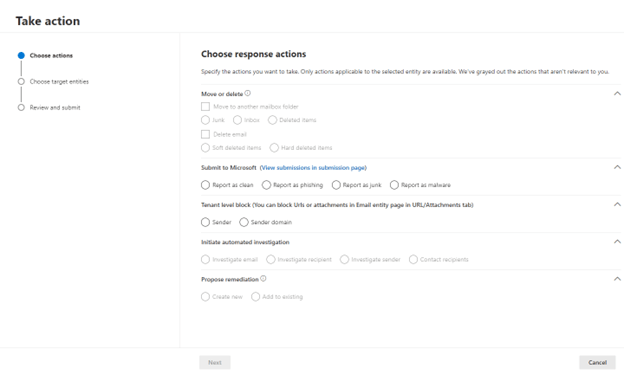
You can choose several options:
Move / Delete – You can move the email to Inbox, Junk or Deleted items. You can also do a hard of soft delete.
Submit to Microsoft – This one is most important. It sharpened the Quarantine filter resulting in fewer false positives which will hope to decrease the number of quarantine notification your users see.
Initiate Automated Investigation – it will launch an investigation with Microsoft.
Propose Remediation – This is the same as releasing the message from Quarantine.
Click Next a couple of more times and you will have submitted either a moved the email somewhere on the users’ profile, submitted the email to Microsoft or released it as safe.
There is one other screen. It asks if you would like to report similar email the same way. I would say yes since it streamlines this process going forward also help users to receive fewer Quarantine notifications.
Setting up an Exchange Quarantine Notification Policy this way will help you reduce any phishing attempts that would look very similar to the notifications that Microsoft sends out.
Bypass MFA With Conditional Access With One Step

You have probably researched tons of articles on how to Bypass MFA With Conditional Access for a single user, group of users or users coming from named or trusted location. All these articles, including Microsoft support, have completely forgotten about one thing that is incredibly important to consider….
What if security defaults are turned off in the tenant?
If they are, then it doesn’t matter how you configure your conditional access rules to bypass MFA for a user, group, named location, trusted location, etc. It is not going to work. You may have security defaults in your tenant turned off for a variety of reasons and believe me they are all valid! Microsoft likes to make things difficult and keep us guessing constantly. It is very frustrating.
In this article I will show you how to prepare your tenant to start using condition access to bypass MFA and set the Conditional Access Policy. Remember, a good MFA Strategy is key. Without further ado, here we go.
Leave Security Defaults Off For Now
As I mentioned before earlier in the post, your tenant may have security defaults turned off for a good reason. Turning it on without knowing the full extent of what it could do could be quite disastrous for the organization (not to mention your Help Desk might get overwhelmed). Turning it on disables using per-User MFA but turns MFA on for the entire organization. You may have a service account(s) or user accounts who for some reason cannot use MFA. Those users will no longer be able to login. Leave it off until you know for sure!!!
Why Would You Want to Bypass MFA
For example, you have an organization that has a corporate office network but lets people work outside of it wherever they want. This will apply to any company who has a work from home policy or employees who travel outside the office a lot.
Configure a Named Location
Being in the office you should always be logging in from the same group of Ip addresses. If not, you are getting your IP dynamically from your ISP. Pay a little extra and you can get a static one. Unfortunately, if you use the cloud only for M365 this is the only way you can Bypass MFA with conditional access.
If you want to use internal IP address of your company to do this, you will need an on prem MFA server and use trusted IP’s from multi-factor authentication service settings
You can create a named location by going to it in Microsoft Entra Admin.
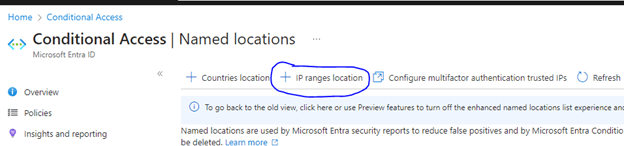
Click “+ New IP ranges”. A new section will pop up on the right. This is where you will add your IP Range. Click the “+” button:

This will pop up:
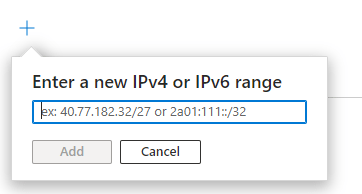
This is where you will get to add your IP range. You will have to know a little bit about CIDR notation. You cannot specify a single IP address. It has to be a block. If it is only one IP people will be logging in from the office then you can specify the IP address with /27 (i.e. 40.77.182.32/27) but if you are not sure, find out from your network admin or ISP what block to use.
Create The Policy to Bypass MFA with Conditional Access
You will need to go into The Microsoft Entra Admin center / Conditional Access / Policies to begin:
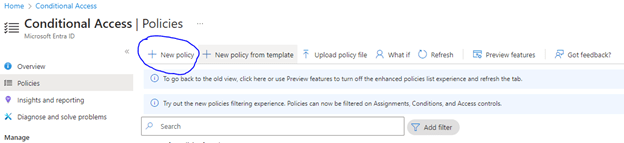
Click on “+ New Policy”.

Give your policy a name like the example above. Click on the user’s assignment and on the right, you will see which users to add or exclude from this policy. For this example, we are going to only use the include tab. You can select all users but if you want to test first, choose “select Users and Groups” and only add a few users or a test group you have previously created.
Next, go to the target resources assignment, go to the include tab and choose all cloud apps:
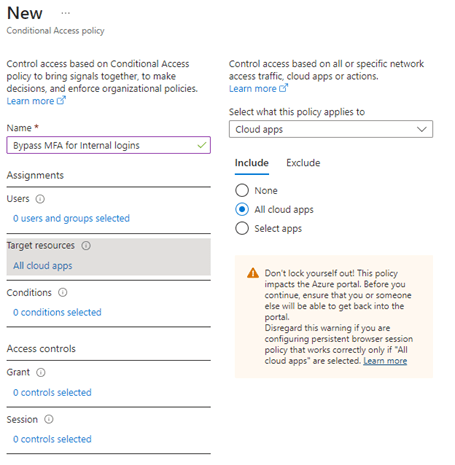
You might not be sure of exactly all the apps you use in your organization, but it is safe to include them all. Next, go to the Conditions Assignment:

Click on Locations (Not Configured). The right pane will open giving you options to add “include” and “exclude” locations. Toggle configure, to yes and include all locations:
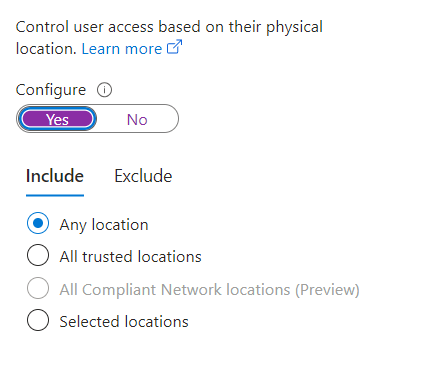
Click the Exclude Tab and click on Select locations:
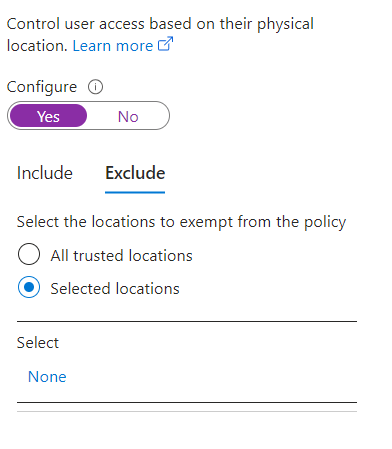
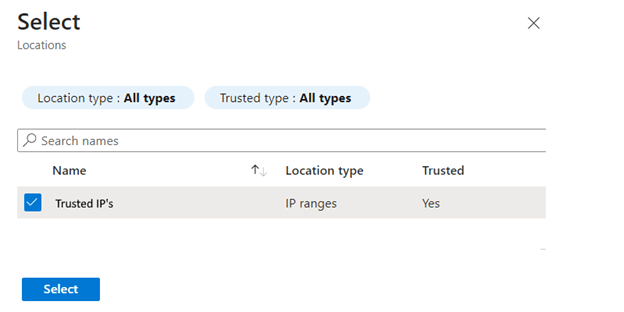
Click “None” and choose the named located you specified earlier in the post:
Click on “Not configured” in the Client Apps assignment:
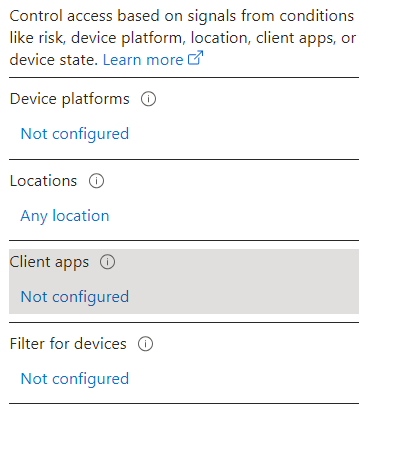
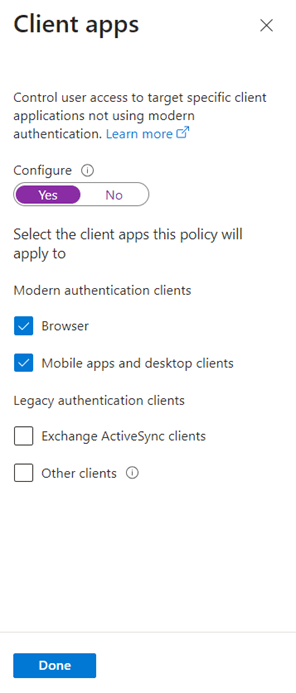
In the Flyout on the right, toggle configure to “Yes” and choose Browser and Mobile apps and Desktop Clients:
NOTE: You shouldn’t be using Legacy clients at this point.
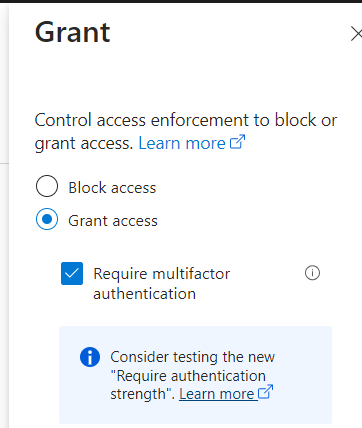
Click on the Grant Assignment and make sure “Grant Access” and require multifactor authentication is checked:
To test this policy, you would move the toggle under the Save button to “report only” to make sure it is functioning correctly. When you are satisfied, as with all conditional access policies, you would toggle it to “On.
The Result of Bypass MFA With Conditional Access
When a user signs in form an IP other than the trusted IP’s you specified in the conditional access policy, the user will be prompted for MFA. This is a good policy because it works for users who also travel locally and abroad. Just remember the one tip I mentioned at the beginning of the post! This is the best way to Bypass MFA With Conditional Access.
Sharing with OneDrive Online in 4 Steps

Sharing with OneDrive online is very easy and versatile. It is very similar to other file sharing services like Dropbox and Google Drive. Since you already use M365 it is only natural that you use OneDrive.
Accessing OneDrive Online
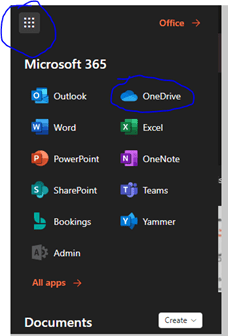
The easiest way to share with OneDrive is online. For access this way, go to Office.com with your favorite browser and login. Once you get to your portal screen, click the menu icon in the top left and choose OneDrive:
You will be brought to your “My Files” page:
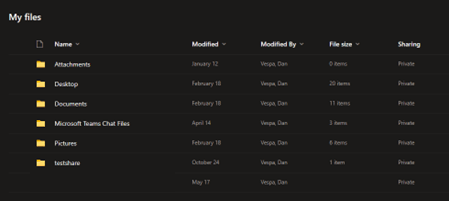
From here, you can create files and folders for use and sharing. Files will need to be uploaded from your local computer to a folder you share in OneDrive.
Uploading to OneDrive
Click “Add New”
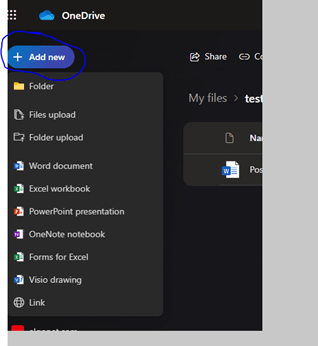
And choose which file or folder you wish to upload to OneDrive:
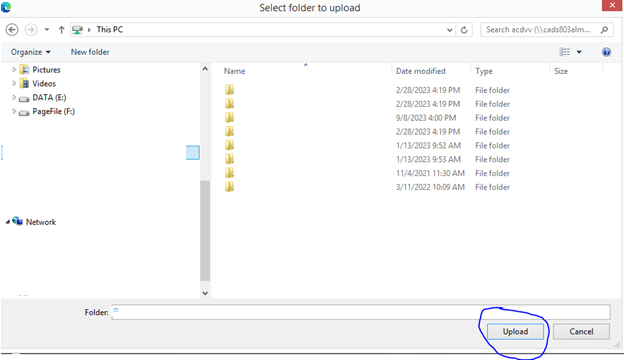
Setting File Access in OneDrive
If you are collaborating with others, Use “Can Edit” permissions on the share. Use “View-Only “permissions if you would like users to only view and not edit the contents of the documents are sharing. Alternatively, you can prohibit downloading and print of the document or folder content when in “View-Only” by blocking downloads.
Highlight the File / Folder you wish to share as read-only and click the dots (…) beside it. Chose “Share”:
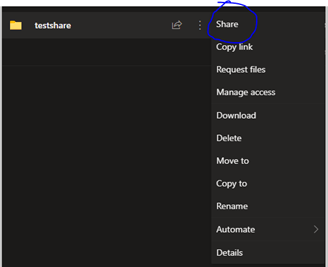
Next, we will set up who will have access, what kind of access (read-only in this case) and whether to block downloading or printing. Clicking on “Anyone with link can edit” will expand the sharing menu to show all options:
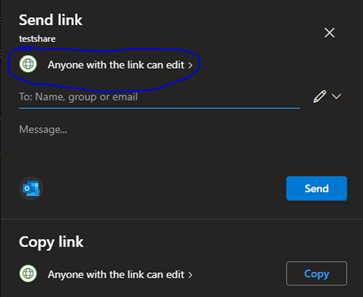
Becomes:
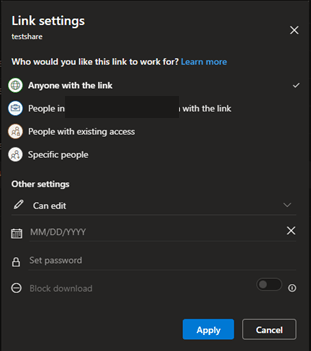
If you choose “Anyone with the link” as an option, the Other Settings you can pick are the following:
- Read-only or Edit
- The date the link expires
- Setting a password for the link
- Block Download – This prevents downloading or printing. It is ONLY available when access is set to READ-ONLY
Sharing with OneDrive Online
For sharing with People within Algoma or Specific People (Outside the organization), People with existing access or Specific people, it is almost identical except you will not be able to set an expiry date on the link or set a password. In Other Settings, you can do the following:
- Read-only or Edit
- Block Download – This prevents downloading or printing. It is ONLY available when access is set to READ-ONLY
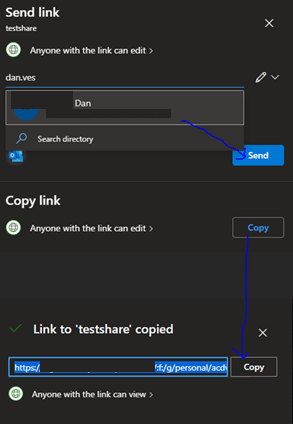
Click “Apply” and then you are presented with the next Window that allows you to send the link. You can do these one of two ways. You can provide email addresses in the address field and then click send. The email address is searched from the directory and your contacts. Email addresses that are not in those sources must be fully typed in (i.e. user@domain.com). Or you can copy the link by clicking copy and pasting it into an email that have already been created and send it that way.
i.e.
Migrate MFA and SSPR Methods to Authentication Policies
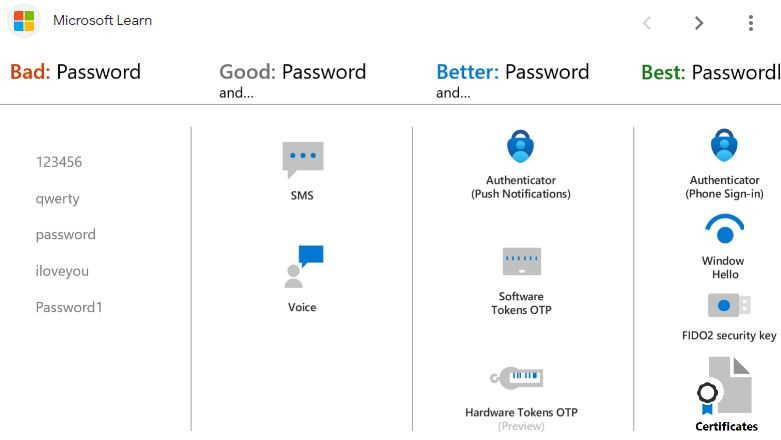
If you want to Migrate MFA and SSPR Methods to Authentication Policies, you have a pretty log runway. You have until September 2024 until they do it for you. I would migrate sooner than later. You can fix any problems that Arise.
As with any security MFA is a good step to ensuring that you M365 tenant will be secure as possible.
Migrate MFA and SSPR Methods to Authentication Policies in 3 Easy Steps
Review Current MFA Verifications Options
Got to https://account.activedirectory.windowsazure.com/UserManagement/MfaSettings.aspx and write down you MFA Settings, you will need this for the last step.
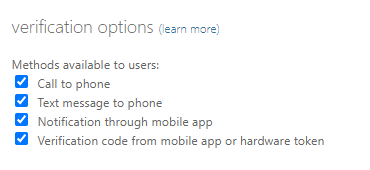
Review Current MFA Verifications Options
Go to https://entra.microsoft.com/#view/Microsoft_AAD_IAM/PasswordResetMenuBlade/~/AuthenticationMethods and write down you MFA Settings, you will need this for the last step.
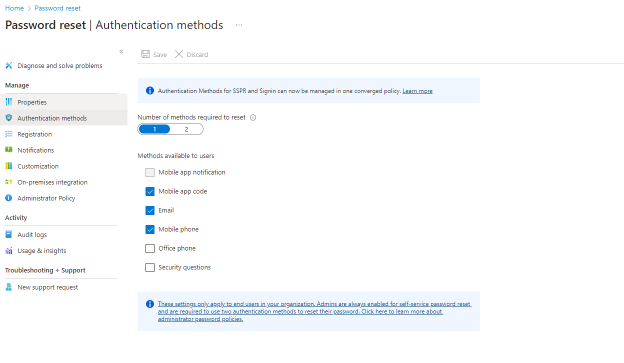
Go to Authentication Methods and start the Migration
Go to https://entra.microsoft.com/#view/Microsoft_AAD_IAM/AuthenticationMethodsMenuBlade/~/AdminAuthMethods/fromNav/Identity . Look through every Authentication method and match the old methods from the previous two steps with what is on this screen:
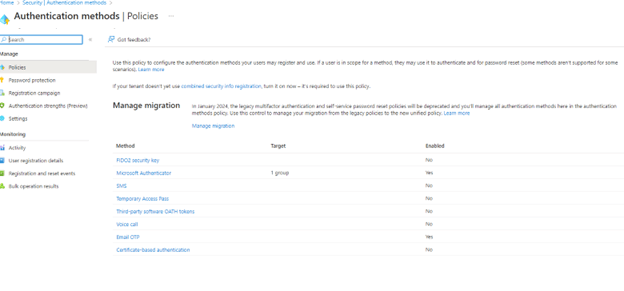
This table will help you with most settings:
MFA and SSPR Settings
| Old Method | New Method (MFA/SSPR) |
| Call To Phone | Voice Call |
| Text Message To Phone | SMS |
| Notification through Mobile App | Notification Through Mobile App / Mobile App Notification / Code |
| Verification code from mobile app or hardware token | Hardware OATH/Third Party OATH Tokens |
| Email (SSPR only) | Email OTP |
For Each method you wish to bring over click on it in the new screen choose the appropriate setting and toggle enable. Here is an example:
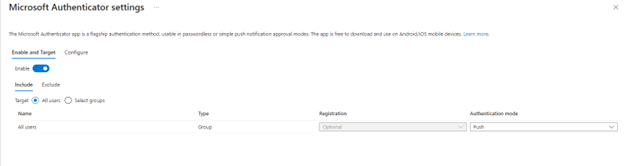
Once you are done bring over the settings, go to the old MFA and SSPR setting screens in the previous steps and uncheck all methods and save.
Finally go to the new Authentication Methods Policies Screen and click “Manage Migration”. You will see this screen:
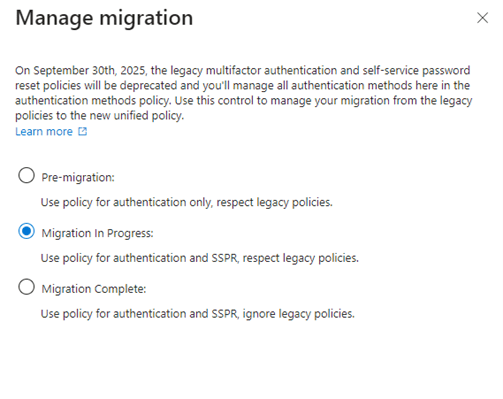
Choose “Manage Migration” and click Save. Let your tenant run like this for a while until you are confident that there are no issues with the migration. If there are no issues and you are confident that things are running smoothly, go back to this section and click “Manage Migration”.
Change the Setting to “Migration Complete” and click save. There you go. The old MFA and SSPR Authentication methods have been migrated to the new Authentication Methods Policies.