
Two Ways to Guard Against MFA Fatigue Attack
Let’s face it, Cyber-attacks are on the rise. It seems like that every time we read the news some organization somewhere in the world has had their system compromised in some way. A good example is what happened to Uber the other week. They were a victim of an MFA Fatigue attack that allowed the attacker to eventually access to several systems deemed important and confidential to the organization. You need to guard against an MFA fatigue attack. I will show you two ways. One as a user and the other as an administrator.
What is an MFA Fatigue Attack
It is quite simple really. Most users have MFA set up to gain access to their system (i.e., O365). If their credentials get compromised the bad actor will login into the system and realize MFA is enabled when the logon screen tells them a “push” has been sent to the authenticator app.
The suspecting user receives the push and ignores it. The attacker knows this and logs in again. The user receives another push. It will not stop. The user gets annoyed and either out frustration or by accident they approve the push. Bingo, the attacker is in. This exactly what happened to an Uber user.
Guard Against MFA Fatigue Attacks as a User
It is quite simple. Change your password. Constant pushes to your Authenticator App is NOT normal behavior. This is a hint that your account has been compromised. Once the password has been changed the attacker can no longer login and the MFA prompts will stop. For good measure, you should contact your helpdesk to let them know.
Guard Against MFA Fatigue Attacks as an Administrator
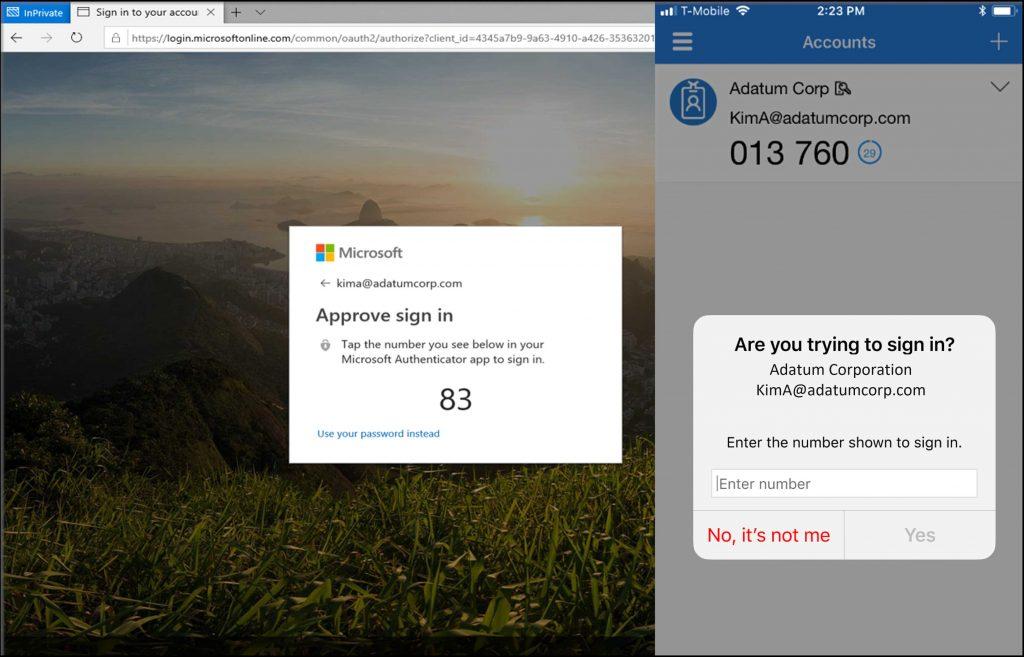
The best way as an admin is to set up Phishing Resistant MFA but the quickest way (especially if you are using O365) is to set up MFA with number matching. It adds an element to the process the attacker will not have access to even through they have compromised your user credentials.
As an Admin, you will need to go into set up a group of users (M365 Dynamic Group is good) and add the users who will use MFA with Number matching. Then you go into the Azure AD portal and under Security / Authentication Methods / Microsoft Authenticator Settings.
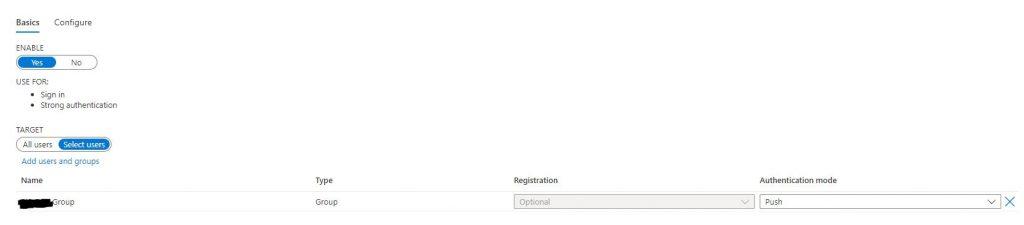
Toggle the switch to enable.
Go to the Target section and toggle selected user and choose the group you created in the previous step and set the Authentication Tab to “Push”.
Click the “Configure” Tab:
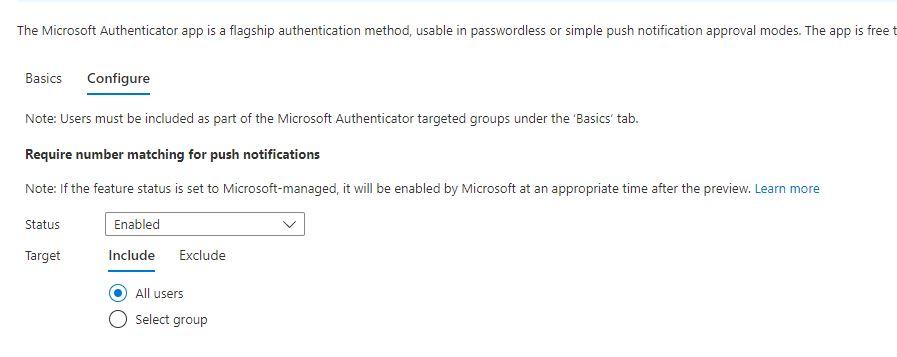
Change the status to “Enabled” and select the target to All “Users. All Users refer to all users in the target group. Click save. When the target users initiate a new logon that prompts an MFA it will include a number match:
Using these two steps to Guard Against MFA Fatigue Attacks will ensure you do not fall victim. It will enhance security and keep you and your environment safe1
Happy IT’ing
Dan
5 Things You Should Not Do With M365 Admin
As an O365/M365 Administrator you can occasionally make a mistake. It may not seem apparent but later down the line it can cause you problems. Or maybe there is a setting within the Microsoft environment that is enabled / disabled by default that should be changed, you just need to know about it. Whether it is either of these situations knowing the 5 Things you should not do with M365 Admin will help you out in the long run.
Do Not Use the Global Admin Account
Don’t make every user who performs some form of Admin in your tenant a Global Administrator. There are several types of Admins and using the principle of least privilege you only need to give enough access required for the user to perform their job.
Not Having a Backup Admin Account With no MFA
In the unfortunate incident of your Global Administrator account being compromised it is good to have a backup Administrator account. If you do not it will take Microsoft a long time to get your access to your Tenant again. This way you can get back in and disable the Global Admin account and mitigate any damaged that might have been caused. Do this by creating another Global Administrator Account. Do not call it Admin!! Call it something else. Make the password long and complicated and DO NOT enable MFA. Doing so would just complicate things. Store the information for this account offline (like in a safe). The technical term for this type of an account is a “break glass account”.
Having a Second Domain With no DNS TXT Record
So, you decide to add a second domain to your tenant. Great. To do so you need to add a DNS TXT record to your Domain registration records to prove you own this domain through the add domain wizard in the Admin portal. You are successful. You may be tempted to delete the domain TXT record afterwards but DON’T. If you do you have set your self up for a possible DNS Poisoning attack. Leave it.
Not Understanding Shared Mailbox Behavior
This falls under a mistake that is not apparent until later. Creating a shared mailbox is easy. You go under the shared mail tab in O365 Admin and create a shared mailbox. Then you add users to the mailbox. If you want to be more granular you can also administer it through the Exchange Admin Center in your portal. The problem exists when you take a standard mailbox (single user) and convert it to shared. This is usually done when a user leaves the organization and other users need to access their mail. You may be doing a user audit some months later and decide that this user can be deleted.
If you forget that this user is a shared mailbox, and the delegates still need access to it they will lose the mailbox!! A better way to do this is block the defunct user account sign in. You can also report on blocked users and see which ones have a shared mailbox. Find out who the delegates are and see if the still need access. If they don’t, you can at least delete the account safe in the knowledge you won’t be cutting of anyone’s mailbox access.
Not Understanding Guest User Access
Giving users guest access to your organization I fine but O365 has guest access setup by default:
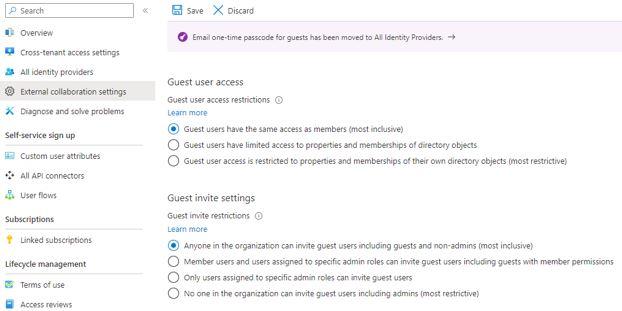
This is a most inclusive / least restrictive access for guest in your tenant. You may not want this type of access granted to your guests. Adjust to whatever makes yur organization compfortable.
Making sure the 5 Things you should not do with M365 Admin are addressed will ensure that your have not only security hardened your environment, you will have spared yourself some unexpected surprises along the way!
Happy IT’ing
Dan
Two Ways Why Your SPF Record is Broken and How to Fix it

You have made some changes to your SPF record in DNS (or not) and your SPF record is broken. One day resources that depend on it in your organization stop working? What happened? There are generally two ways this record can become problematic but first, What is an SPF record anyways…..
An SPF Record is a TXT DNS Entry
For those of you familiar with DNS it is just one of many types of DNS entries you put in your records for your domain. For example, an “A’ record is for hosts and “MX” is for mail exchangers, etc. SPF stands for “Sender Policy Framework”. It allows other domains to send on behalf of your domain without being marked as spam. You see, way back when the Internet was on the honor system (LOL), people wouldn’t dare spoof other domains when sending email. That would be wrong as it is spamming. That was sarcasm. If you have services that use other domains to send on behalf of your domain, a broken SPF record will likely cause an NDR of the email being sent by a non-trusted domain. Microsoft has a great explanation in the NDR on how to fix such errors.
Format of an SPF record
In its simplest form it is this:
v=spf1 include:spf.protection.outlook.com ~all
This would be in the case that you use M365 as you email provider but obviously it would vary depending on your email service. A great explanation on how to build your SPF record is located here.
Here are the 2 ways this error might occur.
The Statement in the SPF record was formatted wrong
This record is quite finicky. If you do so much as add an extra space or misplace a tilde your email service will throw errors. If you are unsure, use a service like MXTool Box to generate the SPF record for you. That way all you must do is copy and paste the info into a new or already existing TXT record in your company’s DNS. Save and test!
One of the Resources Specified in the SPF record no Longer Exists
This is more likely if one of the services that send on behalf of your domain no longer exists or stops functioning. One day it works and the next day it doesn’t. It is likely on of the IP Address for server that specifically send on your behalf or one of the domains you specified in your include statements no longer exist or is not functioning. Find out from the company that provides you with this service what the new information is so you can replace it in the SPF record or if you need to remove it from the record. Either way, until it is fixed the record will stop working and your email flow will be adversely affected. If you need to gather some information before you reach out user an online SPF analyzer. It will tell you where the breakdown in the record has occurred.
These two issues when resolved will get your mail flowing again for the service that depends on it. That is all we really want, right, to the mail keep flowing!
Happy IT’ing
Dan
Enrolling an Android Device in Endpoint MDM / Intune Part 1
You have finally got around to enrolling an Android Device in Endpoint Manager. If you have not done it before it is a bit of a process. These are the following steps to get an Android device enrolled with screenshots.
Prerequisites to Enrolling Android Device in Endpoint
For the ability to Wipe a device the “Corporate- Owned device with Work Profile” must be set up. If you want to check out how to enroll using a Fully Managed Profile, go to part two of the article.
Getting the QR code
A profile has been set up to enroll devices (Android only now) with a QR code. The code is located here:
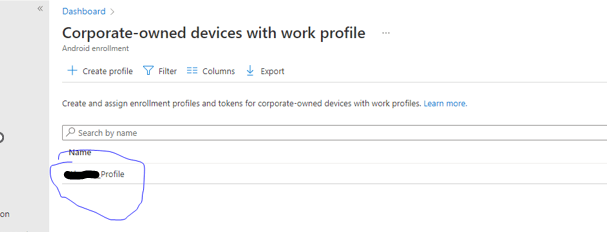
Click on the Work Profile You created.
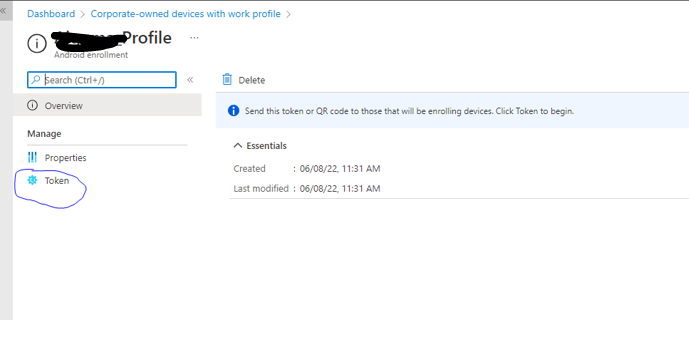
And then token:
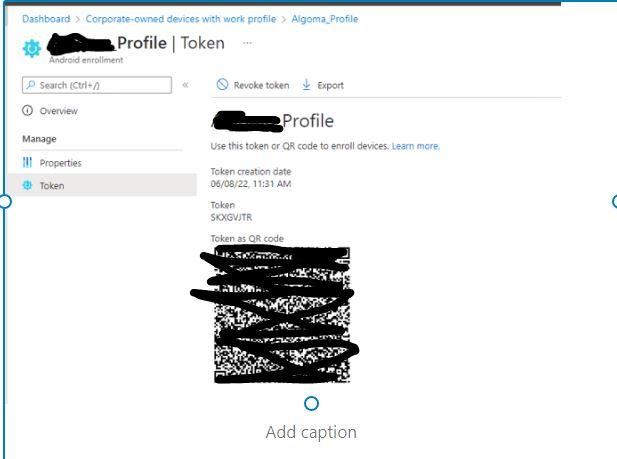
Here is the QR Code:

You can print this code out and have it ready when you need to enroll a mobile device.
Enrolling a Mobile Device
The mobile device you are enrolling must be set to factory defaults. If it is a brand-new phone this has been done already. If it is a phone that has never been enrolled in Endpoint Manager, it needs to be factory reset. If the phone is already enrolled in Endpoint Manager and you need to redeploy it to another user, also need to wipe the phone and re-enroll. The Device Name and Management Name field in the portal need to be changed to reflect the new user (See Renaming the Device and Description in Endpoint Manager)
- To begin enrolling, at the first screen you see when the phone is turned on, tap continuously in the center of the screen until you see the QR code scanner. Samsung S10 and above the QR code scanner is built in. If the phone is lower than an S10 you will have to install QR Code scanning software first. Scan the QR code mentioned above. The process will begin.

- Next you will be asked to connect to Wi-Fi. Connect
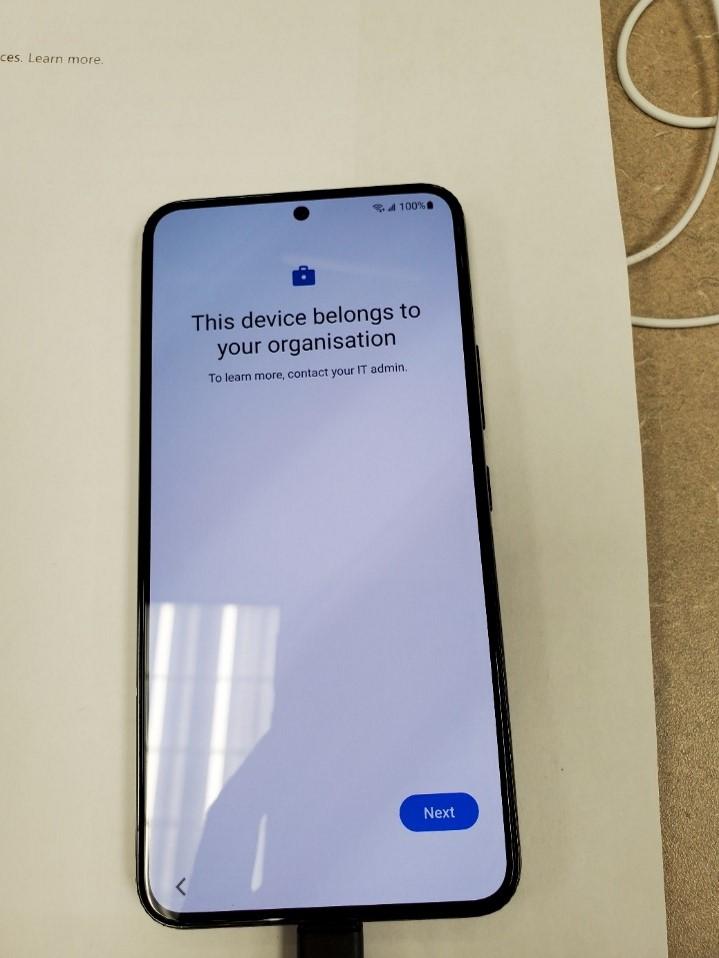
- Tap Next
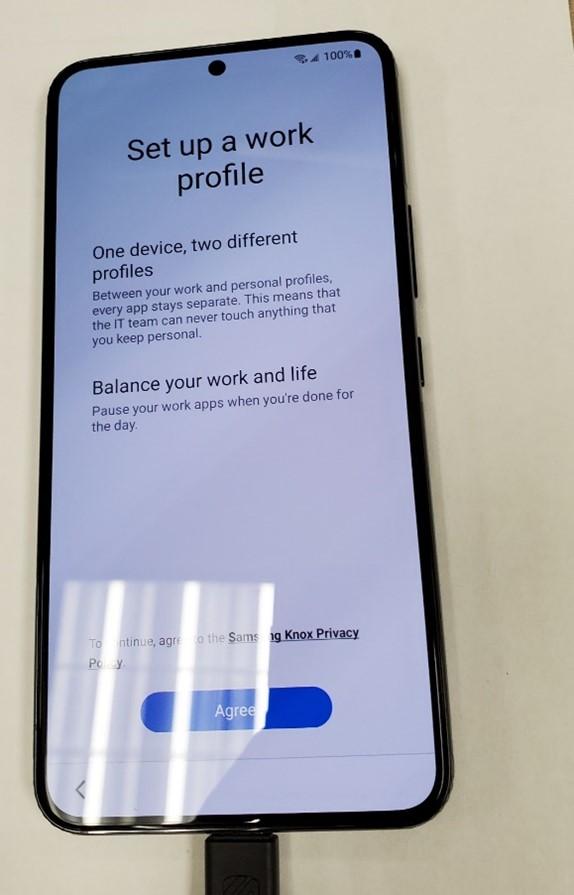
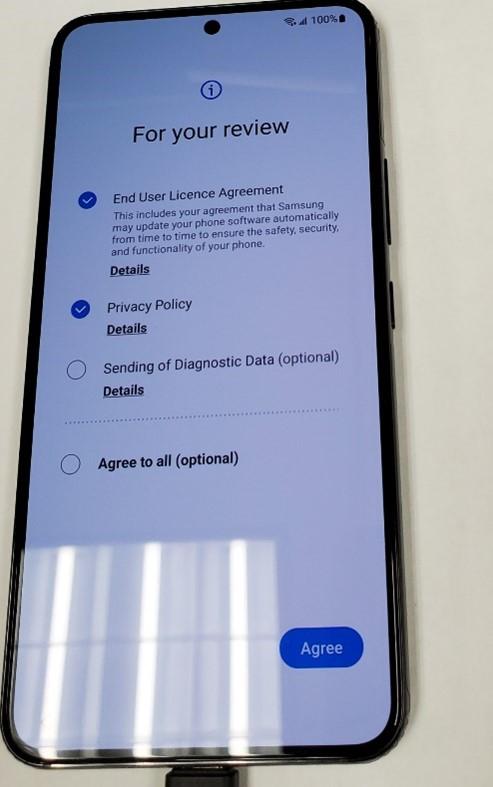
- Tap agree,
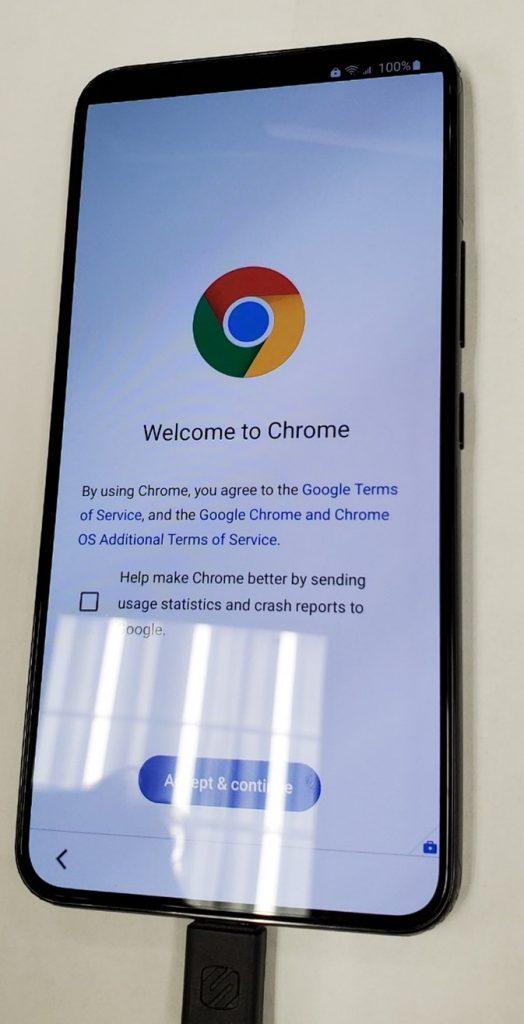
- Uncheck the check box and Tap “Agree and Continue”.
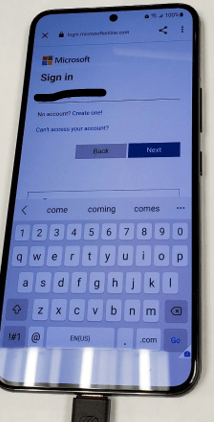
- Sign the user in.
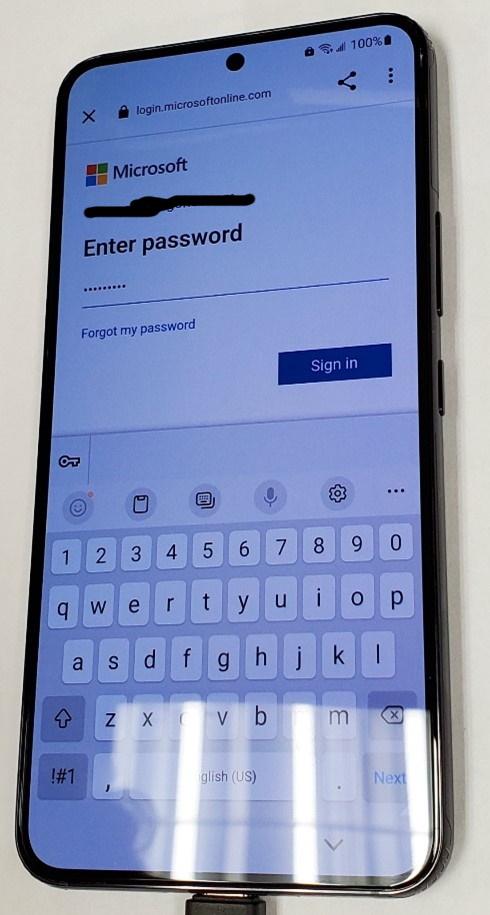
- Once you have signed in the user, tap “Install Apps”

- The following Apps are installed. Outlook for mobile and Teams will be installed after due to a configured and applied App Configuration Policy. Tap done.
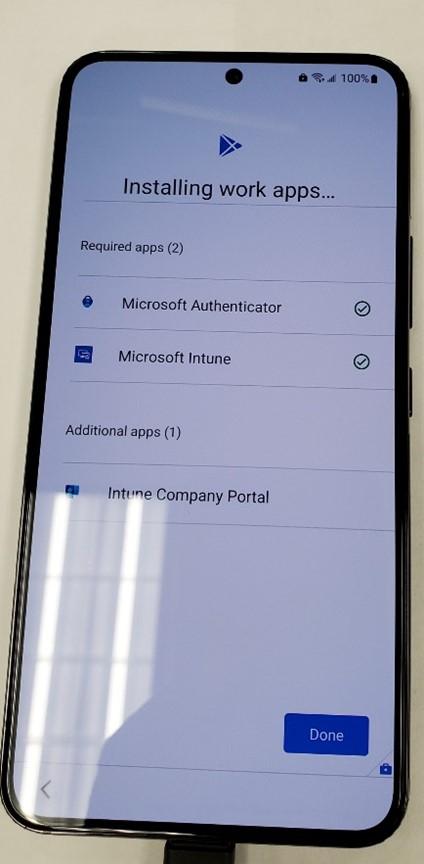
- Tap “setup” to register the device.
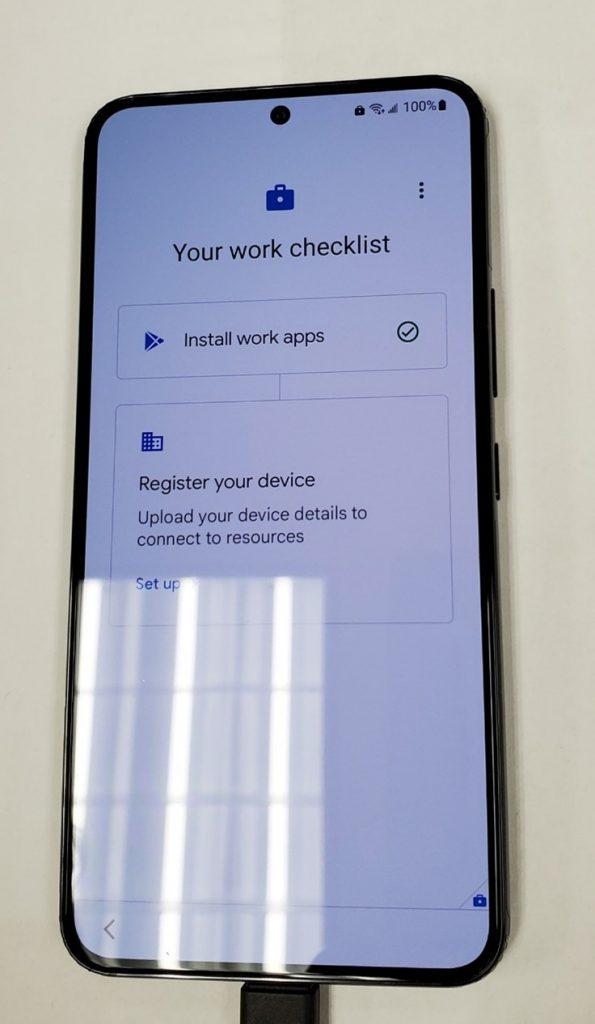
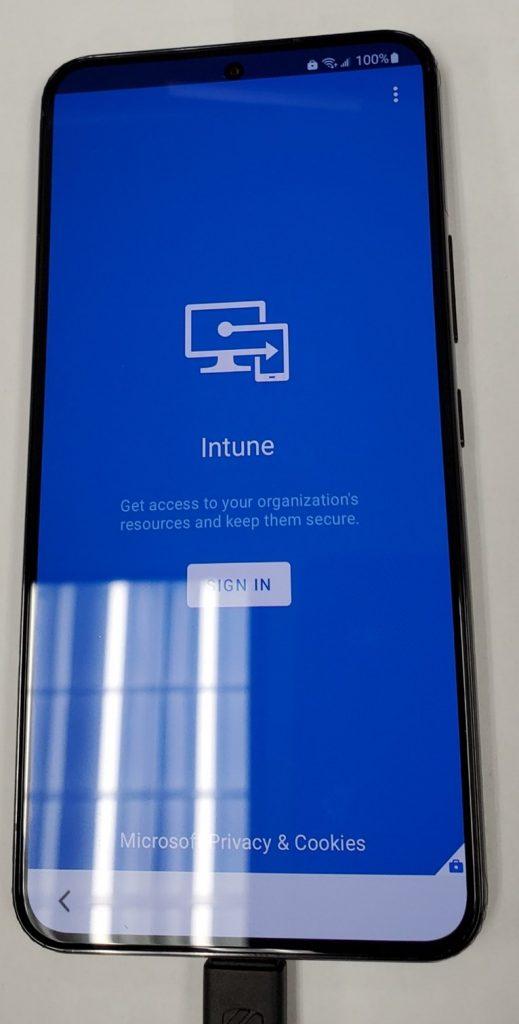
- Tap “sign in” to for Intune.
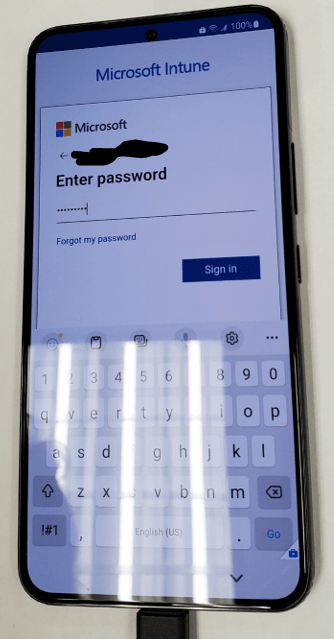
- Sign in with the users’ credentials again.
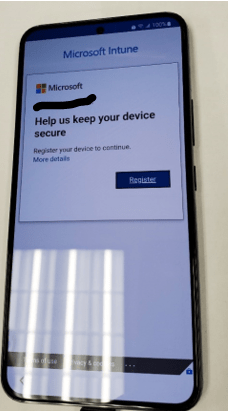
- Tap “Register”.
- Tap “Next”
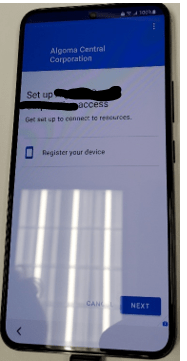
- Tap “Done”.
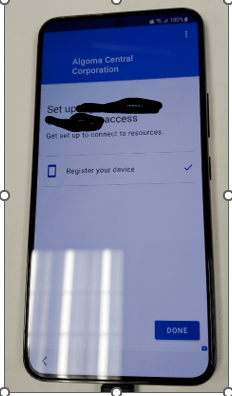
- Tap “Next”.
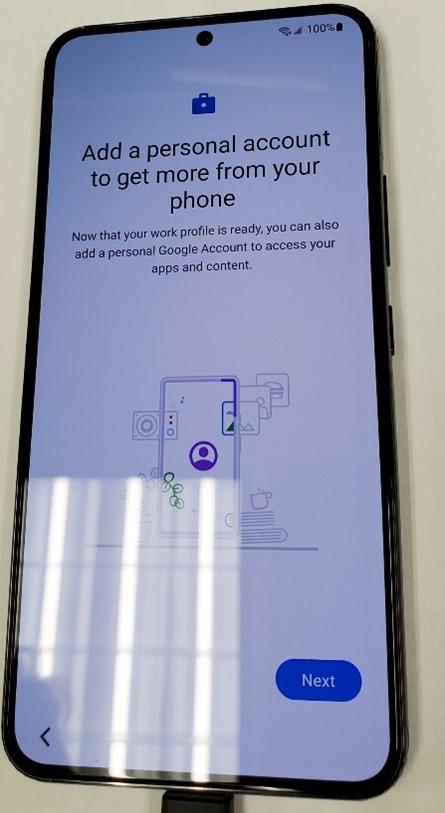
- If you want to add the users Google Account, you can do it here. If not, Tap “Skip”.
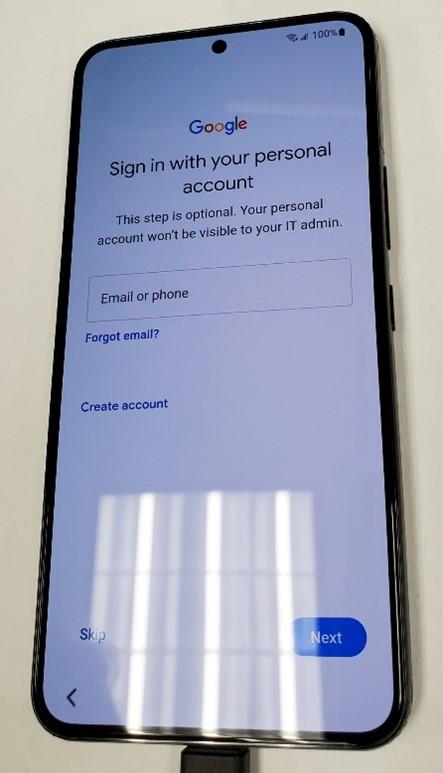
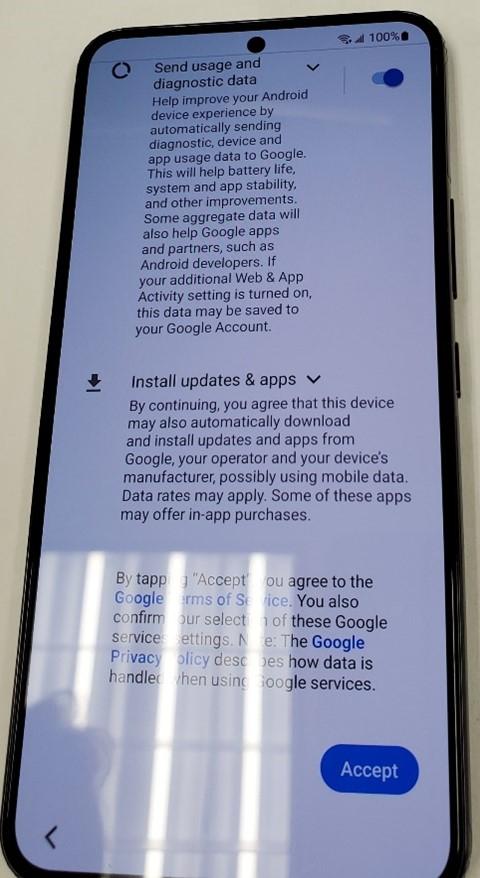
- Swipe up and tap “Accept”.
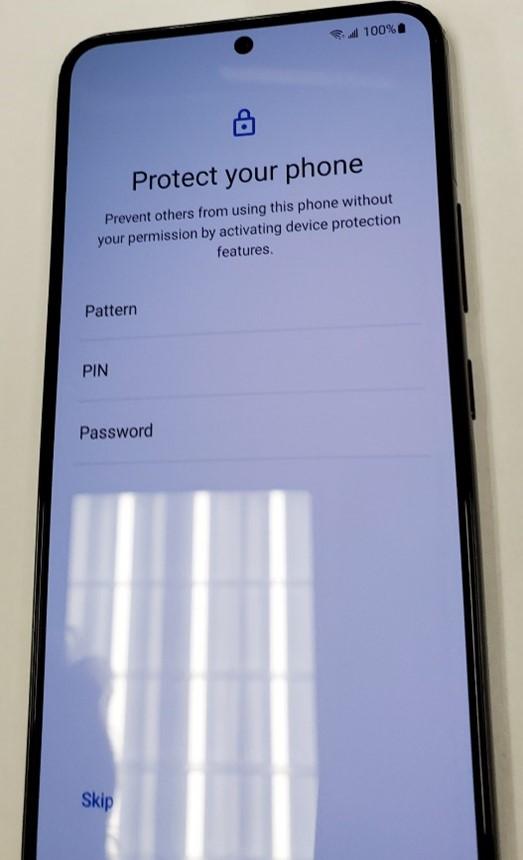
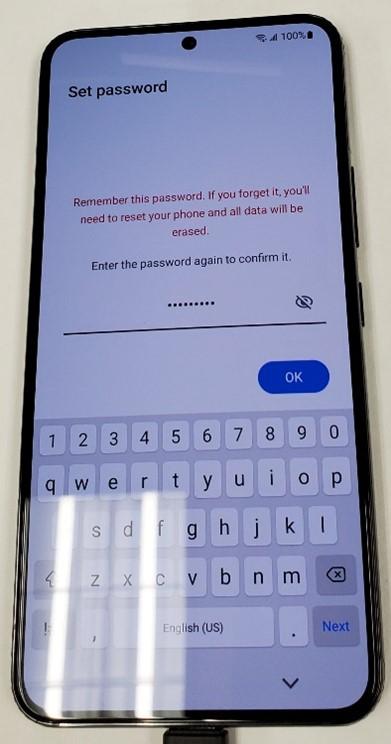
- Give the phone a passcode. I would use password as it is more secure.
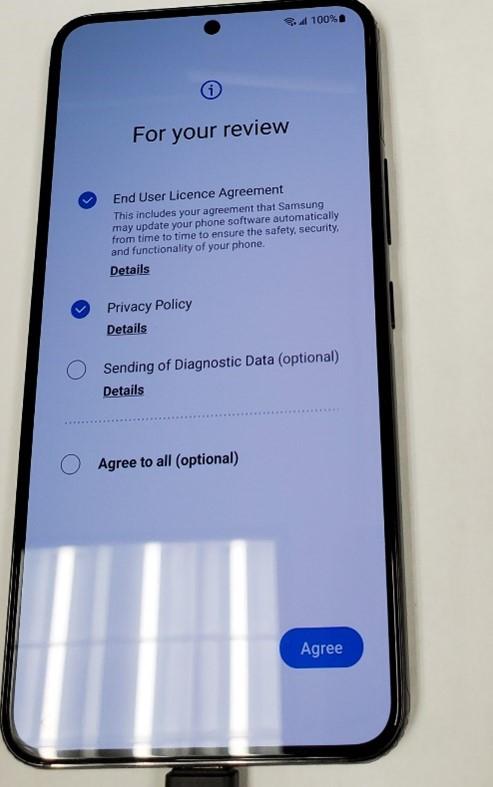
- Check the first two radio buttons and tap “Agree”.
The phone is now set up in endpoint manager.
Renaming the Device and Description in Endpoint Manager
The device is now in endpoint manager. To view the Android devices that are enrolled go here in Endpoint Manager:
It looks like this:
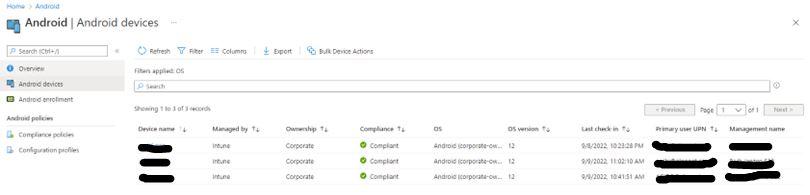
The two fields you need to change are the Device name and Management name. When the device is first registered the fields are auto generated. Change them so it is easier to read and distinguish who the device belongs to. I changed the Device Name to <userId>_model_number (i.e., abc123_S22). Change the Management Name to <User_Full_Name> <Model Number> (i.e., John Doe S22)
Common Tasks Performed in Endpoint Manager
With the Corporate Owner with Work profile enable you can perform the following tasks:

Retire – Good for when person leaves company but wants to take the phone. It removes all company data and email profiles assigned through Intune but leaves personal data.
Wipe – For Mobile devices it resets the phone back to factory defaults. Good for a lost or stolen devices
Delete – Removes the device from Endpoint but does not remove company data
Remote Lock – Locks the phone. Good for when phone is lost but the user may know where it is.
Reset Work Profile Passcode – Locks the Work Profile on the phone. A temp password is generated in Endpoint manager that allows for the workspace to be unlocked. DOES NOT reset the passcode of the device. You still need to let the user know to NOT change the assigned device passcode.
Play Lost Device Sound – Good for when user misplaces phone but is sure it is nearby. The lost alert sound can be played from one to 5 minutes on the phone while the user looks for it.
The steps for enrolling iPhone device are similar but I have only been involved with Android device. When I work with some Apple devices.
Happy IT’ing
Dan
Clean up any Download Folder With This One Tip

Download Folder Cleanup
Downloading files to your computer can quickly fill your hard drive. If you’re frequently downloading files, it may be necessary to delete them. Deleting unneeded files is generally good maintenance and will help with your systems performance, so you wont’s get angry about that!! More importantly, it is good for security and that will be a relief to most.
Since most most browsers in Windows (Chrome, Edge, Safari) default to this download folder you will be able to easily navigate to this place and clean it out.
The Steps to Clean Out Your Downloads Folder
Open Windows Explorer. The fastest way to do this is to use the Windows+E key. You can also use the search bar in the bottom left of the screen and search for “Windows Explorer”. Alternatively you can open the Windows Explorer icon on the taskbar if it is there.
Select the Downloads folder in the left pane. Press Ctrl+A to select all the files or choose them individually.
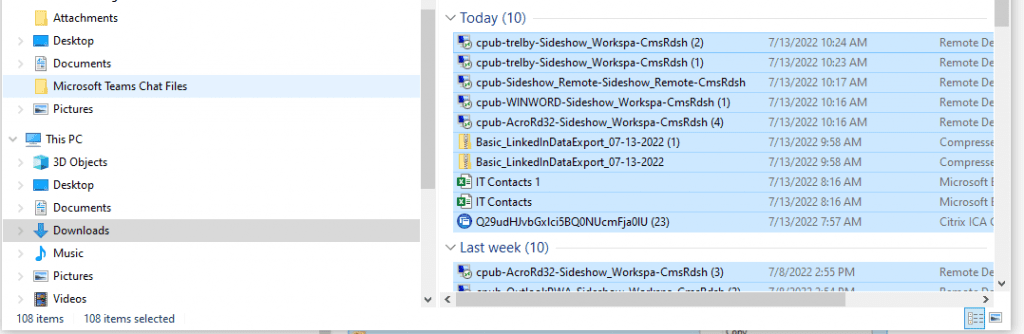
Right-click the selected files and choose Delete.
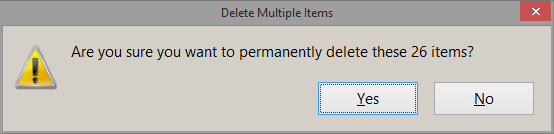
For good measure, hold the shift key while you select Yes to confirm. The items will bypass the recycle bin and be permanently deleted.
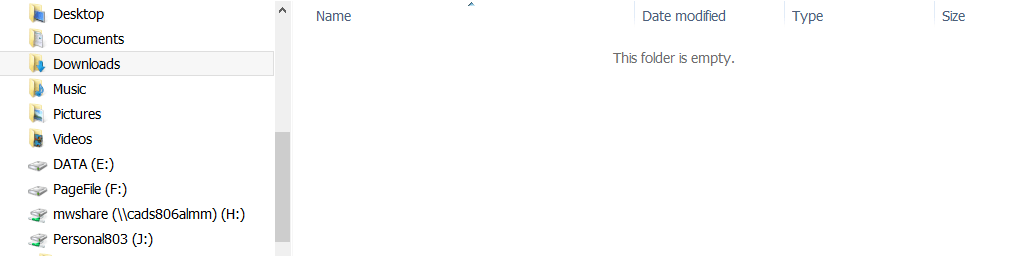
The Downloads folder will now be empty.
Why Should You Do this
If you download frequently, you should be emptying your downloads folder on a regular basis. It is better for overall performance of the system and it is could for security too. A lot of time you download personal or confidential documents from your web browser. The less that could get compromised the better and this is one way to do it.
This is also useful if you are in a Citrix environment. I published a funny TikTok about it!
Hapyy IT’ing
Dan
How to Set up an Entire WordPress in Under One Hour

Are you anxious to try WordPress but worried you don’t know enough to get it set up? This guide will show you how to get a basic WordPress site running in under an hour. To be clear, this is how to get a WordPress site running on your own domain and NOT a site through WordPress.com or WordPress.org. This is not by any means an exhaustive list on how to set up WordPress. It is a guide on how to set it up quickly.
Step One – Get a hosting provider with domain registration
The hosting provider that I use is cPanel. It has an administration tool to set up the webhost and domain. I find it intuitive to use but I have been using it for years. You can also use Go Daddy or Bluehost . They are all very similar.
Whichever one you choose, just remember to get the domain name with the hosting service. I am with Canadian Webhosting and I pay about 10 bucks a month for up to 5 hosts. My domain costs are 12 bucks a year for .com domains and 25 bucks a year for .ca.
I can’t show you step by step but when you are on the webhosts site, they will have video tutorials on how to do it. You can also contact their support ahead of time.
Step Two – Install WordPress for Your Domain
You can do this two ways. The first way is to go to WordPress.org and follow the 5 minute install procedure. In a nut shell:
- Download the install files via FTP to your webhosting providers site that is allocated to you.
- Extract the files.
- Set the correct file permissions.
- Create a Database and user in MySQL.
- Run the install Script
OR
If you have a webhosting provider with an install system (like cPanel and WordPress Install Manager by Softaculous), all of the above steps are taken care of for you.
Let’s hope you have the latter, especially since this is your first time.
Step Three – Pick a theme
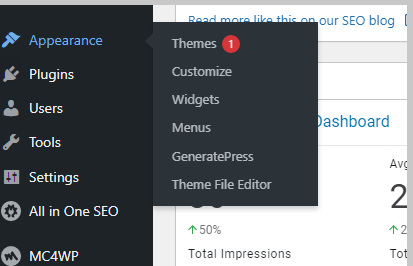
Your default install of WordPress will come with some themes. I recommend using those until you get more acquainted with the system. To install or switch themes you go to your dashboard and select Appearance / Theme. Hover your mouse over the theme you are interested in and then click the activate button. If you are not sure click the “Live Preview” button to preview the theme. It really doesn’t matter you can easily switch between themes.
Step Four – Install Some Basic Plugins
Now that you have WordPress Installed, some essential plugins that help your site run smooth and help with administration are in order. All you need to do is go to your dashboard and click plugins in the left middle of the screen and let the plugins screen load on the right. At the top left of the screen is the “Add New” button.
Click it and you will be brought to the plugin screen. Here you can search for any plugin your heart desires and it will be available to you. They are all free to download and install but if you need more functionality than the plugin has and the developer has it available, you will need to purchase the premium plugin.
Once you found the plugin you are looking for click install and the plugin will be installed:
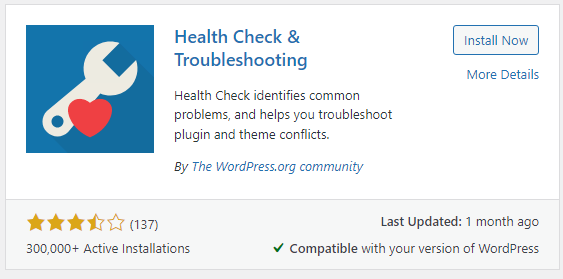
The above example shows you. Once it is installed the “Install Button” will change to an “Activate Button”. In order for the plugin to start functioning you will need to click it. I recommend you read the documentation on how to use the plugin you downloaded. They are all a bit different but the settings for each plugin will be along the left-hand side of the dashboard or in the plugins section.
Here are the essential plugins:
Really Simple SSL
All websites use SSL when users connect to them now. It used to be only for banking and ecommerce sites but all sites use them now. All the commercial web browsers even give a warning now if you connect to a non-SSL site. How do you know you are connected to an SSL site? There will be a padlock icon next to the address of the site in the address bar. You want people to feel safe when they browser you WordPress site even if it is just viewing picture of your pets! Really Simple SSL makes this very easy to do.
Maintenance Plugin
While you are getting you site up and running it might be a live site (meaning people can browse it). A good maintenance plugin will let them know that the site is going through “scheduled maintenance” or “coming soon”. They are all generally pretty good. The one I use is simply called Under Construction.
Caching Plugin
Caching is a process whereby any content deemed static on your site will not have to be fetched and rendered on your client’s screen. If it is already in your site memory it just has to be rendered. This is great for content or images that do not change very often. It speeds up your site and gives a more positive experience to the user. As your site becomes bigger and bigger this becomes more important. The plugin I use is WP-Optimize .
Social Sharing
You want you user to spread the word about your blog. A great way is to do it through social media. Make it easy for a user to click a button a share it to their favorite social media platform. I use the Easy Social Sharing.
Search Engine Optimization
You would like your articles to eventually start showing up on Google (I was going to say “search engines” but who are we kidding!). A good SEO plugin that can help you tweak your blog post after you create it is to make sure it is search engine friendly. Your content and format of the post have to be written in a certain way. It changes all the time so you need to check on this from time to time and make sure you are still following the right trends. I use the All In One SEO plugin. It does a great job of grading my content. In fact this article got 97 /100!
Subscriber List
Contrary to popular belief email is not dead. Another way to get more views on your blog is to get interested users to sign up for email updates to your content. A good email subscriber plugin will do this. You can customize the message they receive when they subscribe / unsubscribe / change mailing preferences and receive content. All plugins even have the ability for you to choose where you would like the sign-up screen to appear on your site. I use Mail Poet .
As an aside, I would always enable Auto-Update. It will keep your site as secure as possible.
There, you know have spent less than an hour getting your basic site set up and ready to go! This next step occurs after set up so this is after the hour, but you are on a roll so why not?
Step 5 – Write a blog post.
Now that you are a blogger you will be cycling through steps 2 – 5 indefinitely!! You will want to get other items on the go like Google Site Kit but let’s get the hang of blogging and we will go from there.
Now that I have given the article that SEO wants me to write I just wanted to add some of my personal experiences to the post. You see, I have been using WordPress on and off since 2014. I ran a life style blog for about two years and at one time managed about three different WordPress sites. Apart from my own site, I only manage my wife’s business site at the moment.
Now go start your blog and make your mark on the world!
Fix Citrix Display With This One Step
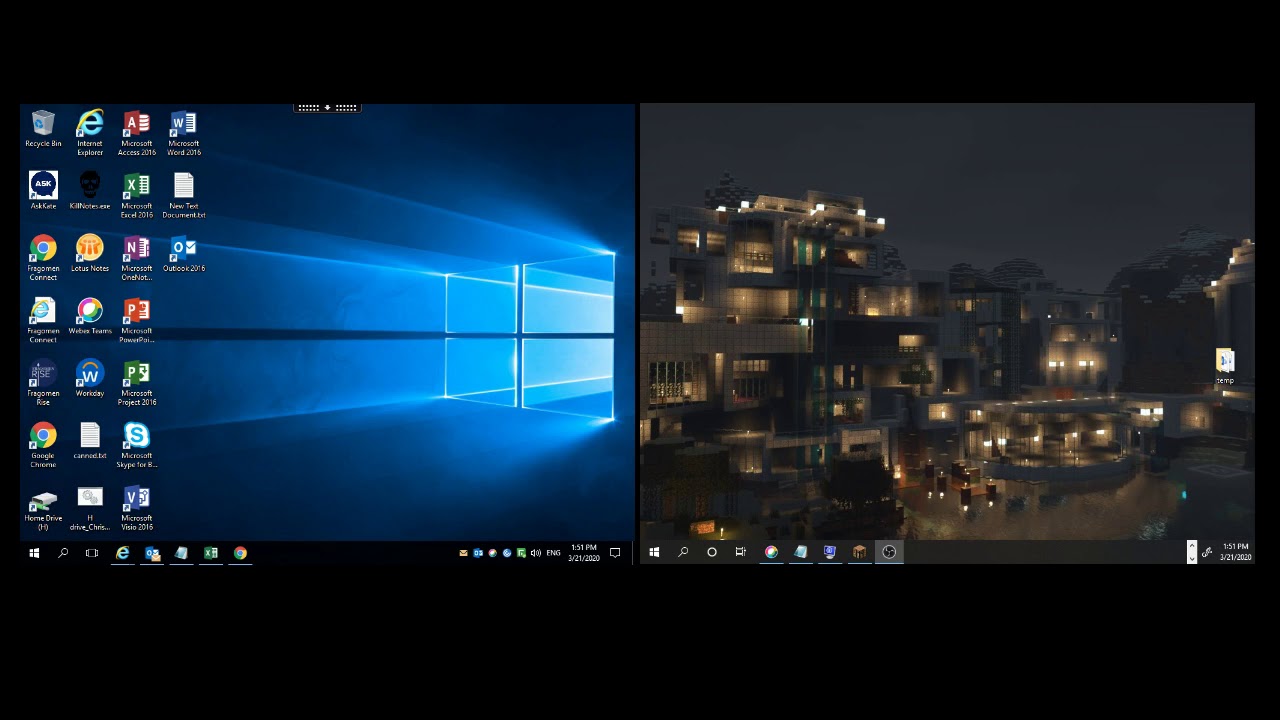
Are you using Workspace with more than one screen and your Citrix Display is not looking right? For example, all of a sudden you can’t drag a published app from one screen to another properly?
What Causes this?
There are several reasons. Whatever causes it changes the scale and layout properties of you monitor(s). When the scale and layout of the monitors you use in your Citrix session are not 100% identical, published apps will not render correctly across those screens.
This tends to happen when a user is on a mobile device like a laptop and they are moving between office setups. For example when moving between the office and home. With the hybrid office becoming more and more prevalent, this will happen a lot more often. Luckily the fix is quite easy.
How to Adjust Scale and Layout in Windows 10
Search for “Display Properties” in the Windows search bar. Click on each monitor listed in the Display section and make sure that the scale and layout are exactly the same.
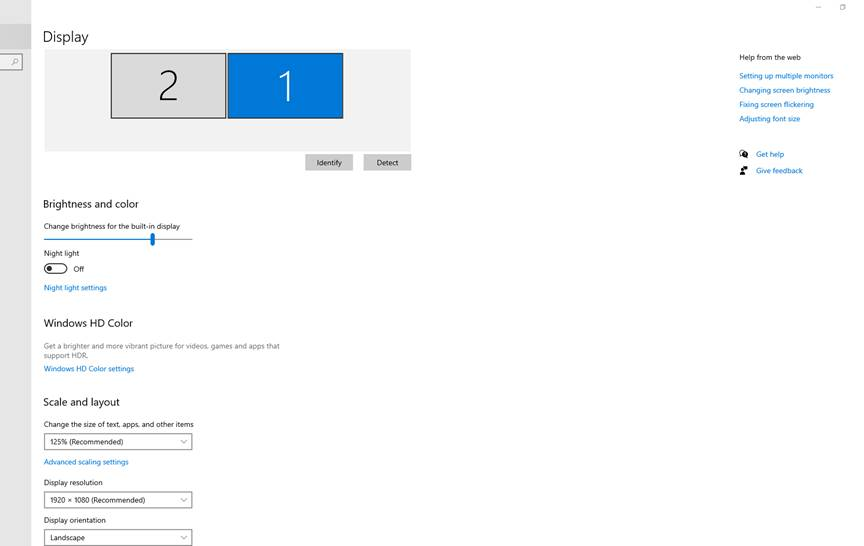
Now when you open your app in Citrix it will render correctly. If you use this with other Citrix Hacks, your Citrix Experience will be a better one.
Happy IT’ ing
Dan
3 Ways to Fix DNS issues
Have you heard the expression “it’s is always DNS”? Well it is true. I found myself in this situation a few days ago and it reminded me it was time to regale you with another blog post!
Are you having trouble connecting to a site or service over the internet? You have tried all the steps to troubleshoot your environment but you still can’t connect. For example, you have rebooted all your internet equipment, cleared app caches, reinstalled the app, updated the app or service or maybe even prayed to the Internet gods to rectify things (that last one was a joke).
Before I go through the 3 Ways to fix DNS issues, lets briefly discuss what DNS is in the first place.
DNS is a Directory / IP Address Translation Service
I like to use the analogy that DNS is like a phonebook but in reverse. You need to find out someone’s telephone number so you look up their name. With DNS you know the name but the app or service you are using needs to know the number to be able to connect. You see computers are great with numbers (like IP addresses) and humans are great at names (like cayville.ca). DNS, like a phone book ,is great at bridging the gap.
So when you type a website into your browser or open an app on your phone or tv box etc. , it resolves to an IP address that connects you to the service on the Internet. Sometimes the IP address changes for a particular site and DNS needs to update to reflect the change. This could be instantaneous or take a few hours or days. There are DNS servers all over the Internet and they have to update (a process known as propagation). Now here are the three ways you can fix this problem.
All deal with flushing the DNS cache which will force updates if certain DNS names have changed IP’s but where?
Clear Browser Cache
Your browser stores lots of info about the websites you visit. It could be as simple as clearing it and the website or service you are connecting will start to render properly. Here are instructions for the most popular web browsers:
Flush Your Devices DNS Cache
You device will have a DNS list cached locally on your device. It updates regularly but sometimes it doesn’t. You can flush it by dropping down to a command prompt (Windows) and typing “ipconfig /flushdns”. In Linux “$ sudo systemd-resolve –flush-caches” , then ” $ sudo resolvectl flush-caches”. You will have to consult your Linux flavor’s documentation for exact syntax. Same goes for MacOS.
Another quick way if you are connected to Wifi is forget the Wifi network and reconnect to it. DHCP will take care of the rest and refresh the DNS settings.
Flush Local DNS Server Cache
This is for the intermediate user. If you run a local DNS server on your network it is mainly used to resolve your local network’s domain names. If a device on your network needs to resolve an address outside your network (probably 99.99999% of the time) it has been set up with a forwarder. This will happen when the same site or site is not working on all of the devices on your network. Flushing your local DNS servers cache will fix this. Depending on what local DNS server software you use it will be a different procedure. However, it is quite simple; restart the the service.
So remember, no matter what the issue is when having Internet connectivity problems, if it isn’t something physical like a cut cable, dead modem / router / switch, it is always DNS!
Happy IT’ing
Dan