
Using MFA…Why should you care?
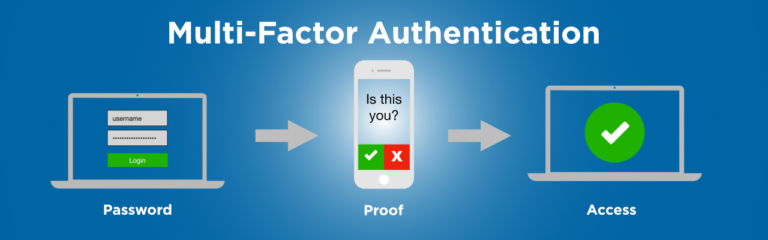
Multi Factor Authentication has been around for awhile. In fact all systems from a simple blogging service to a banking system have some form of MFA. In fact, a lot of systems do not even make it a choice anymore. This article is for the hold-outs that are trying NOT to use MFA on systems that allow them to opt out for as long as possible. It is a good compliment to a strong password.
A Quick Primer on MFA
MFA is a way to login to a computer system by using at least two sources of login information to gain access. In the security biz we call them security factors. For example, something you know (password), something you have (access token) and something you are (biometric scanner like a finger print scanner). In most cases, you will being using the first two factors. If you use the third one, you probably know MFA pretty well and this article is not for you.
Easy ways to setup MFA
Texting a code to your mobile phone
This is by far the easiest method to set up MFA. You just tell the service you are logging into that you would like a code texted to your mobile phone. It’s that easy. Every time you login a code will be texted to your phone and you will need to enter that code into the system you are logged into to complete authentication.
Using an Authenticator App
This is a little more detailed but it is my favorite way of authenticating. To me, it takes less time. You download and install of a authenticator app to your phone. A good example is is Microsoft Authenticator. There are other ones you can use and you might have to use more than one depending on the systems you login to but for for the sake of simplicity, we will use this one as an example.
You download the app from your mobiles online store (Apple iTunes Store or Google Play Store) and then set up your service account in the app. Once it is set up you will have an option to either enter in a code the app generates every 30 seconds or respond to a “push notification” after you log into to the online system. Either way you have the second factor to authenticate and that makes things very secure!
Since there are a lot of YouTube videos’ already created on how to set up MFA, I have looked at several and I will include the best ones here:
I have included one more here:
This should get you started on making your online accounts a lot more secure. Please share this quick IT tip (social sharing on page) with anyone who is reluctant to use MFA. It is so easy!!! As always, if you have any questions you can always drop me a line!
Secure Password in 5 Steps (Even if you are Lazy)

Let’s face it. You need a secure password.
You have to remember a lot of passwords in your online travels. There are many ways to create a secure password and manage it, but if you are like me you are LAZY! There is a way to create a very secure password that is very easy to remember and a breeze to change.
Why users create unsecure passwords
Users create unsecure passwords because it is easy to remember. That’s great until you get hacked and you need to deal with something as serious as identity theft. That is why most online services won’t let you create a password that is considered unsecure. They use the principle of password complexity and password history.
This system will help you with both. Now on to the steps!
1 – Make the Secure Password Long but not too Long
The longer your password is the harder it will be to crack. Don’t make this too long. I would make the password 8-12 characters
2 – Add a Capital Letter to Your Secure Password
Add a capital letter somewhere. Hey, your lazy right? How about right at the beginning!
3 – Put a Symbol Somewhere in the Secure Password
Symbols are great and can be used in place of letters. Symbols like @, $ and ! can be used. You get the gist.
4 – Put a Number Somewhere in the Secure Password
Numbers are great too. They can be used in place of similar looking letters or add it to the end to your password to make it longer and more complex.
5 – Make part of Your Secure Password a Nonsensical Word
Here is the Key to a secure but easy to remember password….a simple nonsensical word. Password crackers look for common words to perform attacks like brute force or dictionary attacks to try and gain access to your passwords. So why not make up a word that is easy to remember but is something that would never come up in these types of attacks?
Example
Here is an example of a simple but secure password:
Sh@bamm22!
Why? Let’s go through each of the five steps and see how easy it was to create it.
- Length – It is between 8-12 characters.
- Capital Letter – It has one.
- Symbol – It has one and it is in place of a letter and one at the end.
- It has Numbers in it.
- The password is based on a simple nonsensical word that the rest of the password elements were built around.
Conclusion
It took me literally 5 seconds to come up with that secure password. Since it is a combination of letters, numbers and symbols coupled with its length, it is virtually impossible to crack. The odds are in your favor. You can’t get much lazier than that.
The beauty is, when you are asked to change it (most systems will ask you to change it from time to time), all you have to do is change one or 2 characters and it is still impossible to crack. Yet you can remember it!
Make it even better by adding MFA.
Sometimes being smart gets misunderstood as being lazy…..