
Teams Meeting Settings in a Couple of Clicks
Here is a quick way to set your Microsoft Your Teams Meeting Settings in a couple of clicks. Keep these Teams settings handy so you will be able to set up meetings in the future quickly.
When you create a New Meeting in Teams you can choose options for the meeting. However, if the meeting is large (up to 300 attendees) you will want to customize the meeting even more. you need to go into “More Options”. From there, you will be able to set the following settings. Security, Audio and Video, Engagement, Roles, Recording and Transcript.
Security
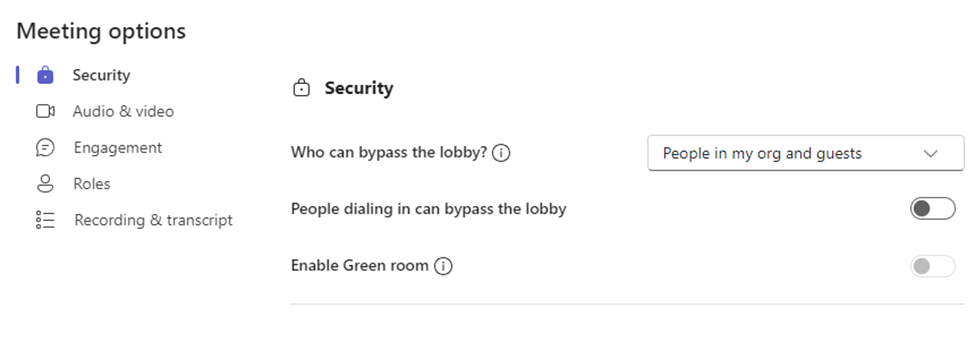
In this option you can specify who can directly enter the meeting. The lobby is sort of a waiting room and if you don’t set it, the organizer of the meeting (the one who created it or people they have specified as co-organizers) will have to manually admit everyone into the meeting.
The green room is like the lobby, but it lets the user test their audio and video before that are admitted.
Audio and Video
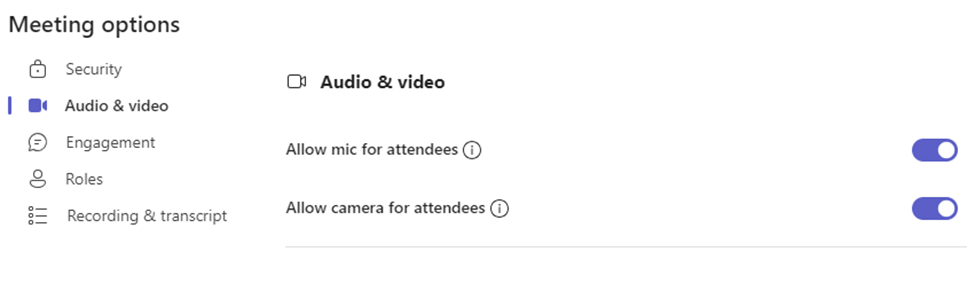
Thes settings can be switched on or off depending on your need. For large meetings it is better to have video and mic switched off to save bandwidth and prevent interruptions to the meeting.
Set Your Teams Meeting Settings Engagement
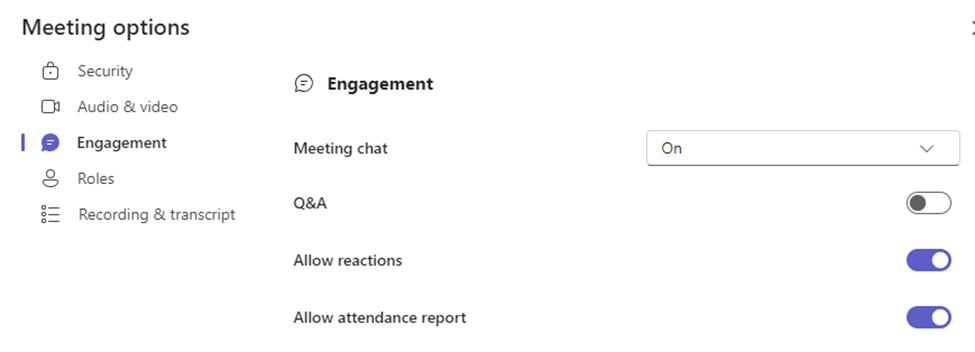
Thes settings have to do how the users interact with the meeting. You can turn the chat future on or off. Enable Q & A. This is a good feature because it allows you to moderate questions before they show in the meeting, and you can allow replies as well. Allow reactions is just if you want attendees to react to the meeting with emoji’s provided by Teams. The Attendance report toggle is used if you want users’ attendance to the meeting recorded. Something you might want to do in a large meeting.
Set Your Teams Meeting Settings Roles
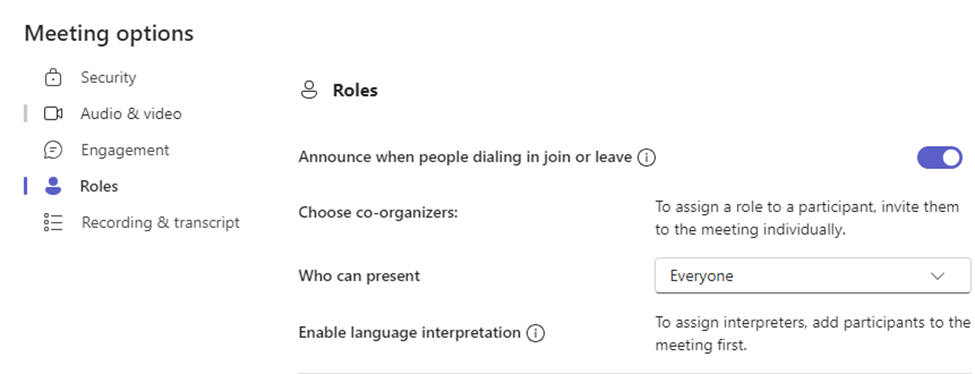
In larger meetings various users will have different roles in the meeting. The user who creates the meeting is the Organizer. They will be the one more than likely setting all the settings in the meet. Unless they choose some Co-Organizers. To do so all the organizers must do is change the role of one of the participants to Co-Organizer.
Enable language interpretation is a feature whereby you can assign a participant to translate the meeting in real time into another language.
Before you can assign anyone the role of Co-Organizer, Presenter or Language interpreter you must make them a participant first and assign one of the roles.
Like Organizers, participants can control their video and mic.
Recording and Transcript
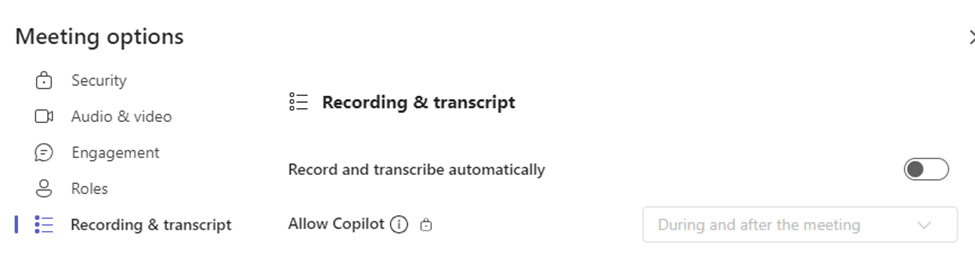
Here you can enable automatically recording the meeting, but I wouldn’t. It records everything. So, you have basic setup and a lot of noise before the meeting recorded which would need to be edited afterwards. It’s a pain. Have one of the Organizers manually record the meeting when it starts and stop recording when it ends so it is a nice clean recording. Allow Copilot in enable this feature into your meeting, It may help automate some of your tasks in the meeting.
This is how you Set Your Teams Meeting Settings in a couple of clicks. I would keep this info handy any time you need to set up a large team meeting. At least you won’t be running around setting things up when the meeting has already started. You will be prepared!
Export OneNote in One Step
I can show you how to Export OneNote in one step. You have a file in OneNote but not every user you need to share with has OneNote. You may have created this file or it was shared with you by another user in. In the case of it being a file being shared with you You Need Read / Write Access to the OneNote File
I also show you how to do this in another article.
How To Export OneNote in One Step
If the file is shared with you go here. Open it in the online version of One Drive By clicking on the link in your email:
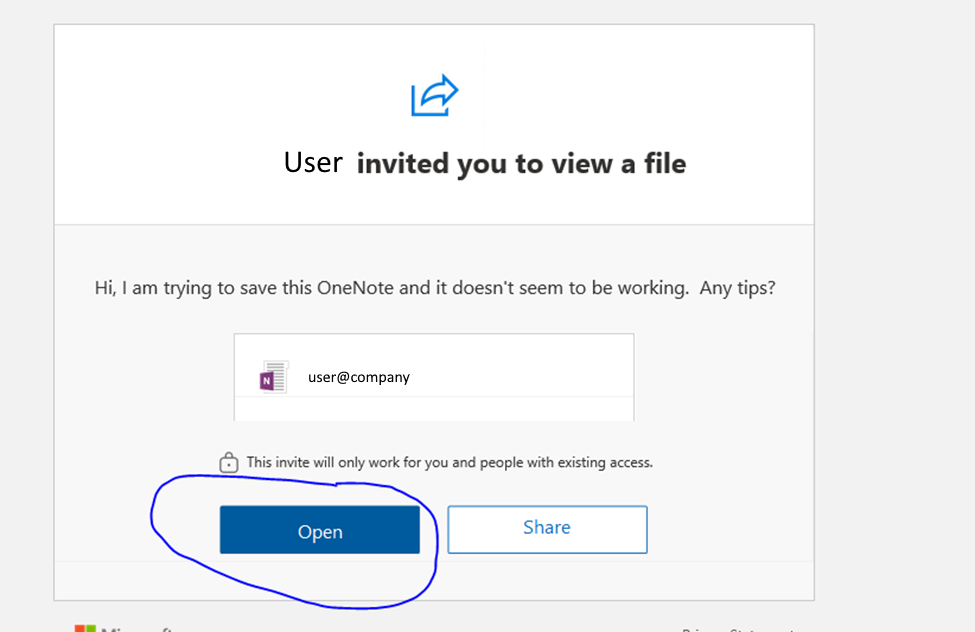
It will open:
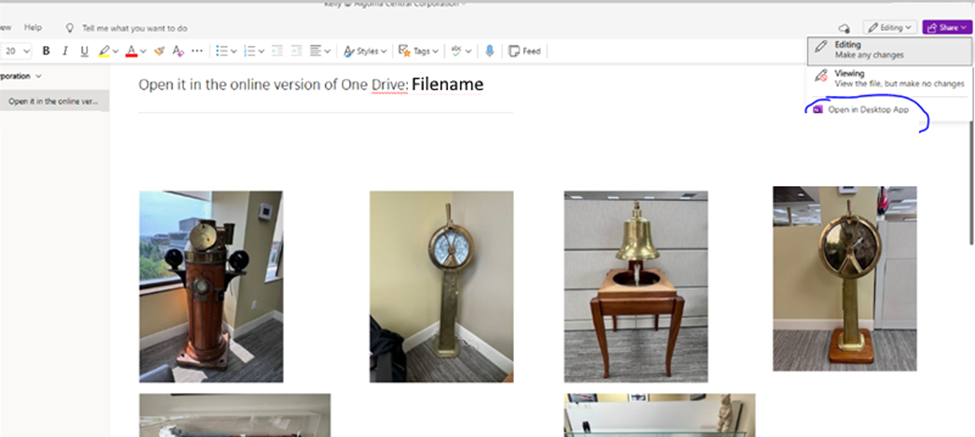
If you created the file , you can skip the first step. Click the Dropdown on the top right called “Edit” and choose “Open in Desktop App. It will open in the desktop version of OneNote:
Click File on the top left and choose export:
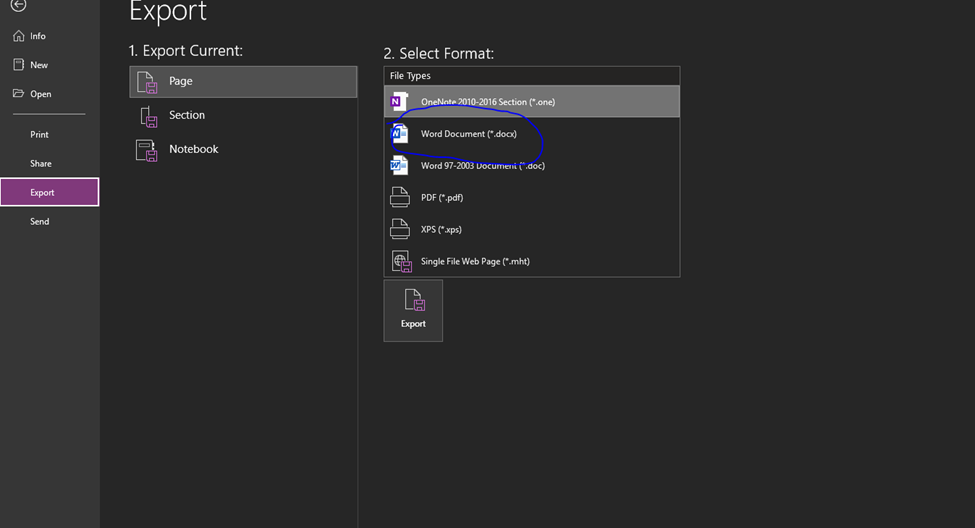
In this example the I Export OneNote in One Step to the computer locally as a word document. Now you are able to send the document to anyone who doesn’t have OneDrive as an application. They might have it but barely use it or are more comfortable with other formats other than OneNote.
Either way, it is an easy way to Export to OneNote in One Step.
By using this method you will be able to easily export OneNote content into various formats you desire either with a OneNote document you created or a OneNote document that was shared with you.
Forwarding in Microsoft Teams in 3 Steps

You may have a need where a group of users need for forwarding in Microsoft Teams using a shared account. You would like this group to quickly and efficiently configure this.
The problem is you do not want the users to login directly to Microsoft Teams and you don’t want them to have direct access to the Teams admin portal. I am here to show you how to accomplish this in two steps.
Enable Forwarding in Microsoft Teams by setting PIM
First, the shared account you want the group to set forwarding needs to be able to have access to configure call settings. The account needs to have the Team Communications Administrator Role assigned to them. This will allow the account to configure and disable forwarding as needed.
Create a PowerShell Script
You will need a PowerShell Script that makes use of Set-CsUserCallingSettings command. It will require you to login to Teams through PowerShell as the forwarding account, issue the call settings configuration and then disconnect from teams. Logging in will require you to have an encrypted password file.
Read/Write Access the Scripts Folder
To enable forwarding in Microsoft Teams you can have this stored on your files server if you still use AD or in SharePoint if you don’t. Regardless, the user account will need Read/Write (and in the case of AD Execute, too).
Enable Forwarding in Microsoft Teams – Putting it All Together
You can use the information listed above to enable forwarding in Microsoft Teams or I can send you the scripts to do it. Just buy me a coffee and I will send it to you. I also have other time savers that my readers have enjoyed, like a CSV to ICS converter and a Teams Contact Generator.
Public Folder Notifications Tweak
I showed you how to use Get-PublicFolderItemStatistics Here is a little Public Folder Notifications Tweak that makes it “set it and forget it”. It requires no intervention after it is set. If you are in charge with doing something like maintaining a separate set of contacts for your organization based on a master list of Public folder contacts. You have to constantly check the public folder for changes…
I guess you could ask the department that maintains the public folder to let you know when there have been changes made or you can set up an automated way using PowerShell and Tasks Scheduler.
Prerequisites On Public Folder Notifications Tweak
Please look at my last post on Prerequisistes.
Create a PowerShell Script To Check On the Public Folder
What this script does is allows you to Use Get-PublicFolderItemStatistics for Notifications that are sent by email to the email of your choosing. It looks for any changes that you set in the variable $baseline. If there is a change, the command Get-PublicFolderItemStatistics is piped into an html body that is formatted correctly for sending mail through the MS Graph API.
The contact listing in the public folder is sorted by modification date so you can tell which record was changed.
The Tweak
The Public Folder Notifications Tweak is the Get-PublicFolderItemStatistics command takes the first record’s modification date and compares it to a date that is written to a text file. If it is new than the date in the text file, it sends the report over email. You can look at the report and see the changes by modification date. It then takes the new date and replaces it in the text file for subsequent runs. If the date is not newer it does nothing.
##Declare Parameters##
$clientID = "Your_Client_ID"
$clientSecret = "Your_Client_Secret"
$tenantID = "Your_Tenant_ID"

##Run Script##
Connect-ExchangeOnline

$baseline = Get-Content -Path "<Path To>\baseline.txt"
$m = Get-PublicFolderItemStatistics -Identity "\Path\To\Public\Folder\Contacts" | Select Subject,LastModificationTime | Sort-Object -Property LastModificationTime -Descending

if ($m -ge $baseline) {

$k = Get-PublicFolderItemStatistics -Identity "\Path\To\Public\Folder\Contacts"  | Select Subject,LastModificationTime | Sort-Object -Property LastModificationTime -Descending
#Connect to GRAPH API

$MailSender = "sender_email"
#Connect to GRAPH API
$tokenBody = @{
    Grant_Type    = "client_credentials"
    Scope         = "https://graph.microsoft.com/.default"
    Client_Id     = $clientId
    Client_Secret = $clientSecret
}
$tokenResponse = Invoke-RestMethod -Uri "https://login.microsoftonline.com/$tenantID/oauth2/v2.0/token" -Method POST -Body $tokenBody
$headers = @{
    "Authorization" = "Bearer $($tokenResponse.access_token)"
    "Content-type"  = "application/json"
}

$h = $k | ConvertTo-Html | select -Skip 4

$HTMLBody = @"
$h
"@

$msg = $HTMLBody

#Send Mail
$URLsend = "https://graph.microsoft.com/v1.0/users/$MailSender/sendMail"
$BodyJsonsend = @"
                    {
                        "message": {
                          "subject": "Change in Public Folder Contacts.",
                          "body": {
                            "contentType": "HTML",
                            "content": "$msg"

                          },
                          "toRecipients": [
                            {
                              "emailAddress": {
                                "address": "email_you_specify"                              }
                            }
                          ]
                        },
                        "saveToSentItems": "false"
                      }
"@

Invoke-RestMethod -Method POST -Uri $URLsend -Headers $headers -Body $BodyJsonsend

		$T = Get-Date
		Set-Content -Path "<Path To>\baseline.txt" -Value $T

}else{
		Write-Host No Change!
Public Folder Notifications Tweak for Notifications Scheduled Task
Please look at my last post on how to create the scheduled task.
What a great Public Folder Notifications Tweak! Now that you have the scheduled task set up, when there is a change in the public folder, you will be notified via email, and you can make the necessary changes on your end. Beats having to remember!
Managing Teams Apps

Managing Teams Apps
Microsoft Teams lack of integration with M365 doesn’t stop at the client. It extends to Administration too. Let me explain the ways in Managing Teams Apps.
You can add to the functionality of Microsoft Teams by Managing Teams Apps and add them to users. It is a good system. The responsibility is on the user to request access to this app which then can add to their teams by themselves once you approve them.
Where to Configure Managing Teams Apps
I have found three places to do this. You would think Microsoft would make it easy Managing Teams Apps but that wouldn’t be Microsoft. I will start with the main place and then describe the other two.
Microsoft Teams Admin
Them place is Microsoft teams admin. Go to https://admin.teams.microsoft.com to get to the team’s admin ports and click the Manage Apps section. From there, go to the top right of the screen under actions, and choose org wide app settings. This is where go can set your base config on how you want your Managing Teams Apps to behave. Like allow, MS Apps, Custom Apps or Third-Party Apps. Allowing apps for external access.
The best setting that I have turned off is letting users install app on their own. As an Admin, you need to vet out the application. By, default, most apps are blocked (with the exception of MS Apps). You must request access.
Teams Admin App
There are some apps that you can allow but unless they are turned on from this app, they will not work, For example, Dropbox. So, request and allow the Microsoft Teams admin app for yourself (As a Teams Admin) and add it to your teams. Open the app an allow any file sharing (that’s not OneDrive or Share point) into you organization:
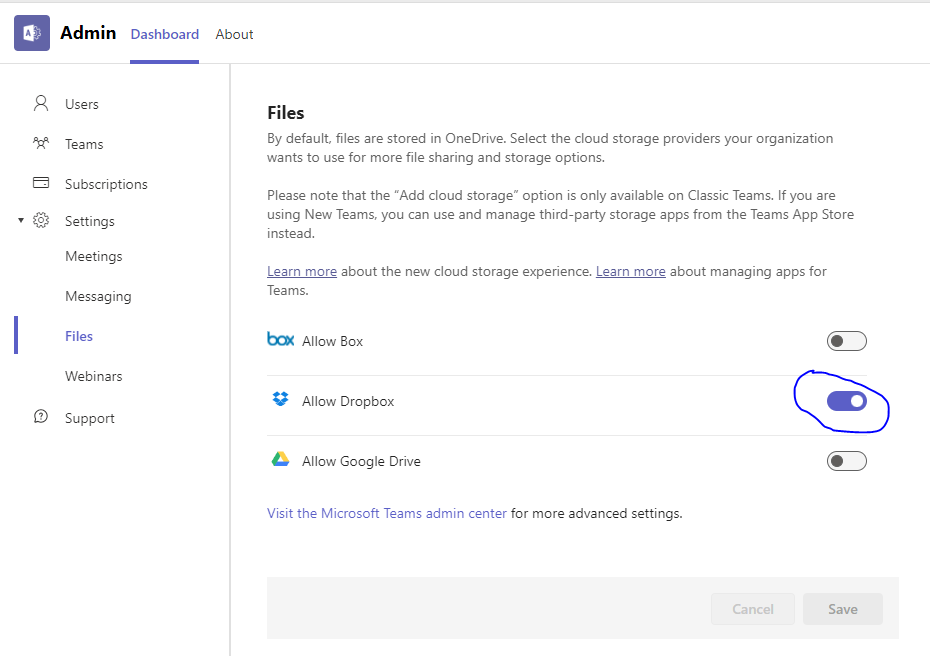
Microsoft hides this. You really must look for it. They want you to use OneDrive or SharePoint. Requests that were made before you toggled this setting might have to be made again.
Microsoft 365 Admin Center
If you go to https://admin.microsoft.com and then fins settings along the left pane, you will see settings. Click that and then go to integrated apps. You will see a lot of apps that can be used with teams and Outlook or both. There is a disclaimer on the page that states it is better to use Teams Admin for Managing Teams App. It more than likely overrides anything you configure here. For admins like us, it makes our job a little more confusing.
Voicemails Disappear from Teams History

How convenient is it to have your voicemails accessible from Microsoft Teams! But what if they Disappear from Teams History? I thought it was something simple. I was wrong. Here is a situation I came across:
Example of Voicemails Disappear from Teams History
A user receives a call from an internal number (person in the organization), they receive an email with voicemail. It shows in their Teams Activity that the caller left a voicemail, and the voicemail is also shown in their Teams call history. However, when a user receives a call from an external user (person outside the organization), they receive an email with the voicemail. It shows in their Teams Activity that the caller left a voicemail, BUT the voicemail is not shown in their Teams call history.
I guess some users do not get very much voicemail or the transcription they get in their Exchange mailboxes is not enough. If your user like getting voicemails through teams and they start disappearing, you will find out soon enough!! In my case it was only external voicemails, but it might be both internal and external. It all depends on where the underlying issue is.
Researching on Google didn’t turn up much information. I only found one article and it didn’t say much. The only hint I gleaned from it was maybe an exchange rule might be causing the issue. That put me on the right track….
How it was resolved
Looking at a few users I could roughly figure out when notices of external voicemail stopped showing up in their Teams. It was right about the time we employed a third-party service that scanned our emails for spam, phishing, and malware. It broke our voicemail behavior. It caused voicemails to Disappear from Teams History.
The tool is a combination of mail rules and connectors in Exchange that effectively send incoming emails out to be checked and if they are clean, it sends them back. Specifically, an Exchange rule. It must be tweaked to allow emails that contained external voicemails as an exception. By doing that the link in teams was restored and Voicemail started behaving normally again! See the screenshot below for an example.
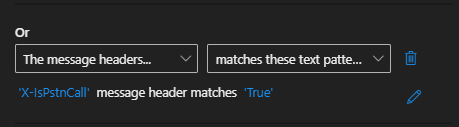
The Moral of the Story
M365 is an integrated ecosystem. If you deploy third-party tools, be prepared for things to break. I would like to tell you Microsoft will help, but they won’t. You will be left to your own devices or helpful bloggers :p
Create a Dynamic Teams Broadcast Group

Dynamic Teams Broadcast Group (Sort of)
You would think with the creation of AAD Dynamic Groups you would be able to create a Dynamic Teams Broadcast Group. Well, it is not the case. One thing Microsoft Teams does not do well is integrate into the rest of the M365 ecosystem. I do not know why that is but what I do know is that it is a huge pain point with M365 Administration.
What I can do in this article is show you a way to achieve something like a dynamic Teams Broadcast Group but not. It is very similar to a post I wrote about MS Teams contact Provisioning. Spoiler alert, it uses AAD Dynamic groups to help!
Creating a Dynamic Teams Broadcast Group
The first thing you will need to do is get a dynamic list of the users you would like to be in this group. A good example is a group with all licensed users in your organization. As users enter or leave, this group will grow or shrink accordingly. This article should get you started.
Here is an example of a rule you would put in your AAD Dynamic Group to get all active users:
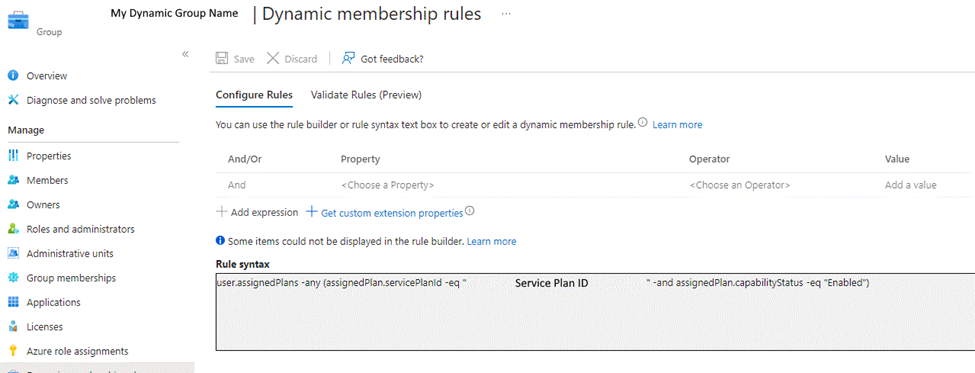
This is how you can get your dynamic list of users who will be part of the team’s broadcast group. Unfortunately, there isn’t a way to put them into the Microsoft team directly, but in the next step I can show you how to do it relatively quickly.
Adding Users to the Microsoft Team
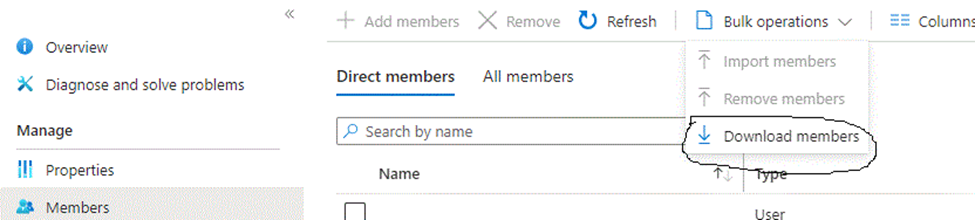
Now I will assume that this Team has just been created and has no members in it. We are going to create a list from the dynamic group we created from the last step in CSV format. You will need to go to the AAD Dynamic group you created and download the user list:
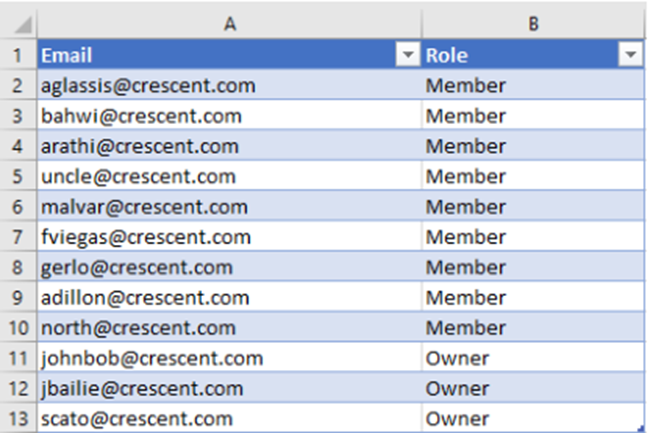
Create it like this using two Column’s (Email and Role):
You will need to get the MS Teams Group ID for the PowerShell script you will need in the next step. Login to Teams in PowerShell:
Connect-MicrosoftTeamsThen run this command:
Get-Team | Where {$_.DisplayName -eq "Enter you Team Name Here"} | Select -ExpandProperty GroupIDOnce you get this information you can put it into the following script:
$TeamID = "ID you got from last step"

#Get users from the CSV

$TeamUsers = Import-Csv -Path "<Path to CSV File> "

#Iterate through each user from the CSV and add to Teams

$TeamUsers | ForEach-Object {

       Add-TeamUser -GroupId $TeamID -User $_.Email -Role $_.Role

       Write-host "Added User:"$_.Email -f Green
Now that each user in the group has been added to the Team your list has been completed. What if the list changes? On to the next step.
Changing Users in the Teams Group
You can do these one of two ways. You can user the Add-TeamUser or Remove-Teamuser cmdlet if you plan on keeping close tabs on this group. Or if you let it get away a bit, you can do the following – reset the group. Do the following and run this script:
Connect-MicrosoftTeams

$TeamGUID = "<Your Team ID>" # this is the group team ID #

$users = Get-TeamUser -GroupId $TeamGUID | where-object {$_.role -eq "member"}

Foreach ($user in $users) {

    $UPN = $user.User

    Remove-TeamUser -groupid $TeamGUID -user $UPN

    Write-Host $UPN
Then run the script at the beginning of the article to add all the members back.
Final Thoughts on Dynamic Teams Broadcast Group
I know it seems a bit tedious to execute the steps to achieve a Dynamic Broadcast Group in Microsoft Teams but until they integrate Teams with the rest of M365, you will probably have to more administration this way. Here’s hoping.
Stop “Allow my organization to manage my Device”
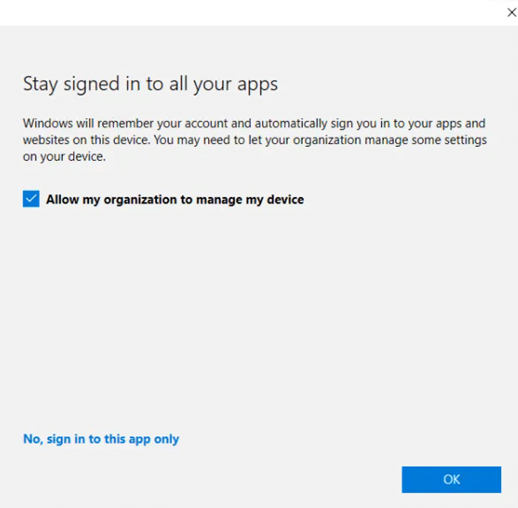
In this modern world, we often get invited to our customer’s tenants as a guest for better collaboration. For example, in Microsoft Teams we may be likely to log on to a shared computer and need to use Teams. Every time we do, we always get a popup asking the question “Allow my organization to manage my device”. This does not only apply to Teams, but most Microsoft 365 applications. So, what is the right choice here?
When it comes to this notification, we don’t like it very much to begin with, but there are 4 choices for the end user:
- Click OK. Since it’s a blue button, this is where most users will just click without thinking. This will register the user’s device to Azure AD (Azure AD registered device) and possibly enroll to MDM or MAM, depending on what is the current state of this device and the configuration of MDM and MAM. This setting also remembers this user’s credentials on this device for other apps.
- Uncheck the “Allow my organization to manage my device, then click OK. This will not register the user’s device to the external Azure AD, but it will remember the users credential on the device for other apps.
- Choose “No, sign in to this app only”. This will not register the user’s device to the external Azure AD, and it will only remember the user’s credential for this app.
- Close the window by clicking on X. This will just close the notification and does nothing.
We can always make detailed instructions for our users and let them know which option they should use. They won’t read it. Also do we really want to give the users options to register the device with other tenants. We can force the choice.
How can I Stop “Allow my organization to manage my Device”
As I mentioned before, if the user checks “Allow my organization to manage my device“, and chooses OK, this device will be Azure AD registered to the external tenant, this might not be our desired result. We really don’t want our devices to register to another company’s corporate tenant. And we also don’t want to see other companies’ devices in our tenant. Right?
You can find the answers from Microsoft documentation
Do it Through the Registry
Here’s the key:
HKLM\SOFTWARE\Policies\Microsoft\Windows\WorkplaceJoin, “BlockAADWorkplaceJoin”=dword:00000001
When using this registry, your users will no longer see this notification when they login to ex. Microsoft 365 apps or Microsoft Edge with another work or school account, device will not be registered to another Azure AD tenant (Azure AD register), but this also means there is no Single Sign-On feature for those additional accounts, and it might still have other unexpected impacts that we have not found yet..
There is extra information about this registry and Hybrid Azure AD join planning, details can be found in
Deploy as script from Intune
For Intune managed devices you would typically deploy this as a PowerShell script. This simple script looks like this:
#Setting registry key to block AAD Registration to 3rd party tenants.
$RegistryLocation = "HKLM:\SOFTWARE\Policies\Microsoft\Windows\WorkplaceJoin\"
$keyname = "BlockAADWorkplaceJoin"
#Test if path exists and create if missing
if (!(Test-Path -Path $RegistryLocation)){
Write-Output "Registry location missing. Creating"
New-Item $RegistryLocation | Out-Null
}
#Force create key with value 1
New-ItemProperty -Path $RegistryLocation -Name $keyname -PropertyType DWord -Value 1 -Force | Out-Null
Write-Output "Registry key set"I then deployed this as required to all my Windows 10 Corporate devices. This script must run as “system”.
That’s all you need to do if you want to stop this annoying prompt from bothering your users every single day they collaborate with external parties in Teams or other places.