
Add Microsoft Authenticator to MFA
You may have decided to stick to SMS texts for MFA. Unfortunately, it is currently the weakest form of MFA. Microsoft has decided enough is enough! Time to get more secure. They have enforced a registration campaign. The new MFA using this app is a push with number matching. So should you Add Microsoft Authenticator to MFA? It isn’t an answer to a question….you have no choice. They started rolling this out on September 15th 2023.
Here is how you Add Microsoft Authenticator to MFA in a few simple steps.
Microsoft has made using the Microsoft Authenticator App Mandatory. It is just another way to bump up security with your tenant. You will get three passes and then the inevitable. When they want you to switch you will see this prompt after you logon on your computer screen:
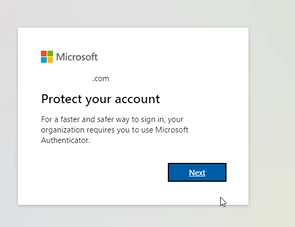
Note: Before you click next, check to see if you have the authenticator App
See if the Authenticator App is already installed.
- Please check your phone and see if you already have the Microsoft Authenticator App installed already. If you do go to the section Adding an Account to The Authenticator App.
- To check, do a search on the main screen of your phone and search for “Microsoft Authenticator”. If it is on the phone it will show up in your search.
Installing the Authenticator App
- Go to the Google Play Store (Android) or Apple Store (iPhone) on your Phone
- Search for “Microsoft Authenticator App:”.
- Install the App on your phone.
- Open the App and go to the next section.
Adding Account to Microsoft Authenticator to MFA
Click next to this prompt:
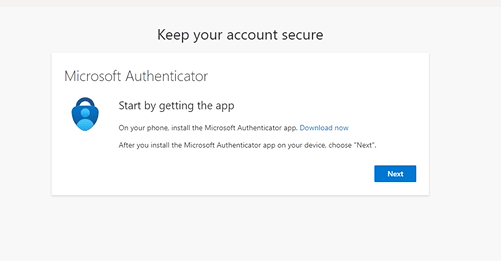
If You Have the QR Code on Your Computer Screen
You will more than likely see this:
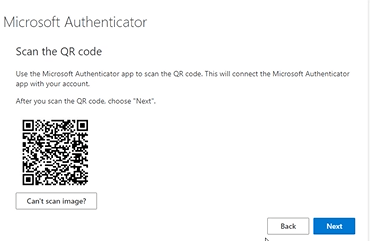
Go to the open Authenticator App and click the plus sign and choose “Work or school account”:
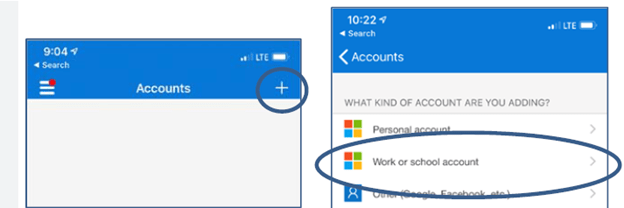
When given the choice to scan a QR Code tap it and then scan the code on your computer screen with your phone. It will add your account to the phone. Once the QR code is scanned, click next.
Microsoft Authenticator to MFA Manually
The steps are the same as adding your account with a QR code, but you choose “sign in” instead. You will be prompted for your windows username and password. Remember your windows username.
Testing Authenticator App
Before you can use the app, Microsoft would like to test it. It will show a number on your computer screen. You will need to enter it in the Authenticator app. It will show a successful test on your computer screen. Click Next.
You now have successfully set up the Microsoft Authenticator App on your Phone (Microsoft Authenticator to MFA). Going forward when you sign into a Microsoft App, when you are prompted for MFA, your login will give you a code:
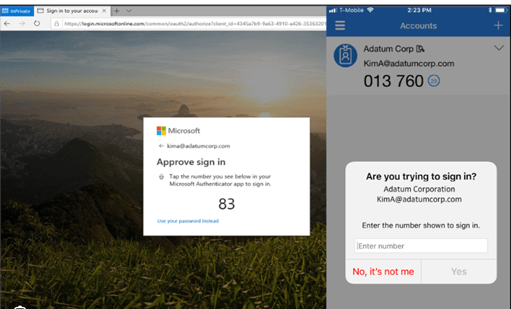
You will have to type that number into your authenticator App and the logon will proceed!
M365 Download Users Exchange Mail in PST Format
You need to be able to M365 Download Users Exchange Mail in PST format. There can be many reasons. You need to archive a user’s mail so you can remove the account and reuse the licensing or maybe you need a copy of the user’s mail for legal reasons.
Whatever the case, this guide will show that it is easy to M365 Download Users Exchange Mail in PST Format. Follow the steps below to get you started.
Setting Up eDiscovery Managers and Administrators
First, you need to determine who can do this. You will have eDiscovery Administrators and Managers. The only difference is that Managers can create cases and only see their cases while Administrators can create cases and see all cases.
NOTE: you can only use Microsoft Edge to do this. Other browsers will result in an error when you try to download the PST file. You must use Microsoft Edge to download exports.
- Go to https://compliance.microsoft.com/
- Go to Roles and Scopes / Permissions:
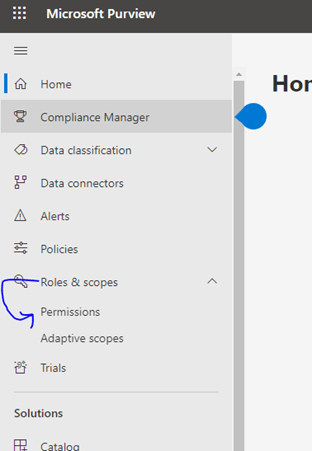
- Go to Roles:
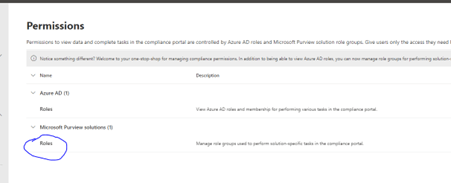
- Click “eDiscovery Manager” and then edit.”
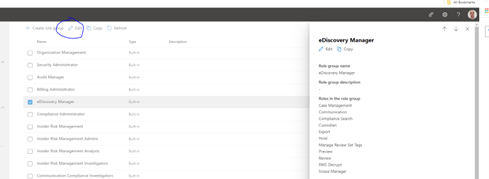

- A wizard will start, and you first pick the managers. They can create cases but only look at their own cases.

- Next you pick the eDiscovery Administrators. They can create cases as well, but they can also look at all managers’ cases as well.
- Then Click Save
M365 Download Users Exchange Mail to PST
- While still in the compliance portal, go to the content search.
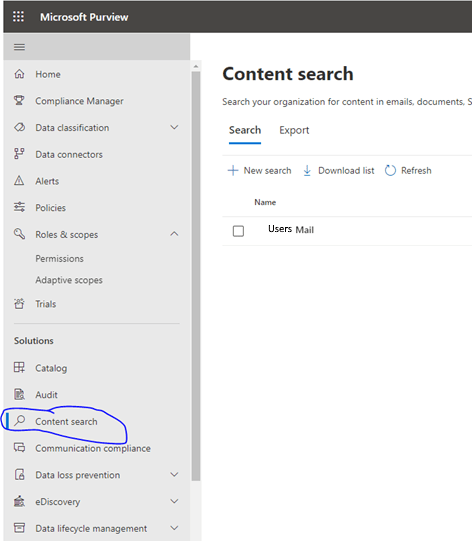
- In the right pane you can look at previously conducted searches (Your own if you are a manager, all if you are an administrator) or create a new search.
- Clicking new search or review an already created search will bring you through a wizard:
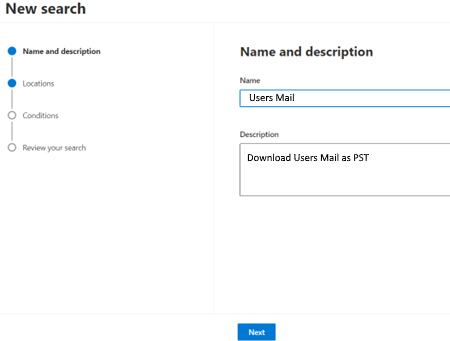
- Click Next.
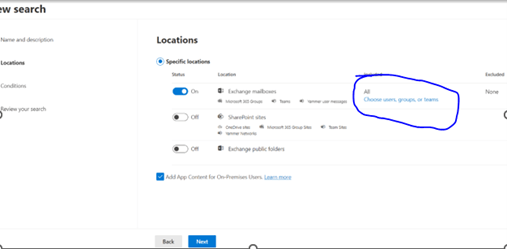
- Toggle the “Exchange Mailboxes” and “Choose Users Groups and teams”.
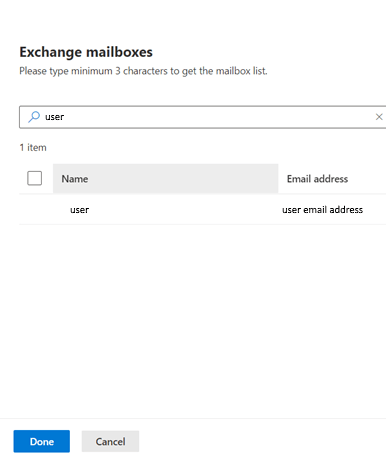
- Search for the user you want to get the PST from and click Done and then next.
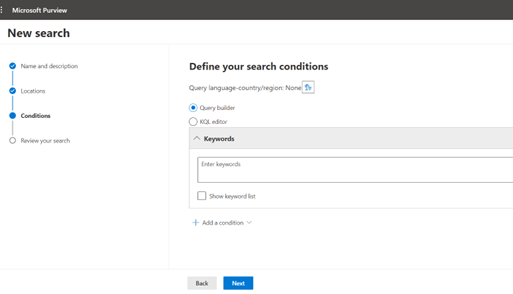
- Click next on the query builder screen:
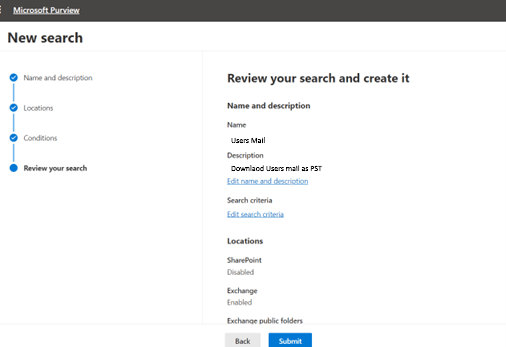
- Click Submit:
- Once it has been submitted you will be brought back to the main content search screen. Its status will be listed as “Submitted”. When it is ready for download, it will change to “Completed”. From there you can go back into the case:
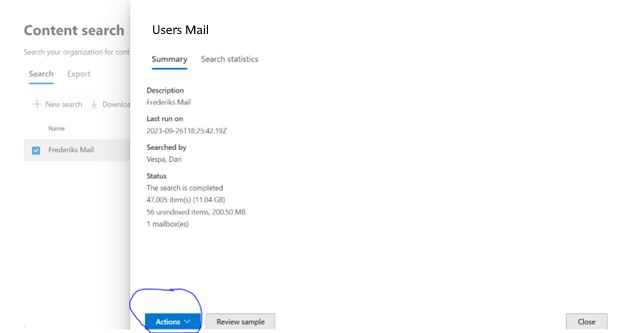
- Click the actions dropdown and choose “Export Results.”:
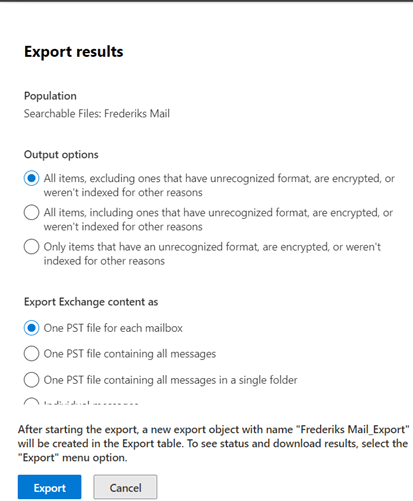
- Choose your options and click Export.
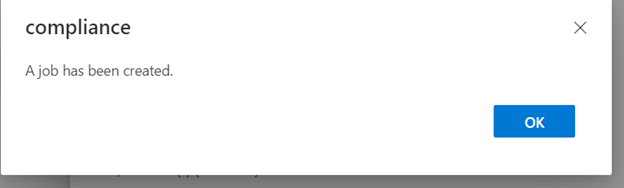
- A job will be created. Click Ok.
- The Export Job will be listed in the Export Tab of the Content Search Pane:
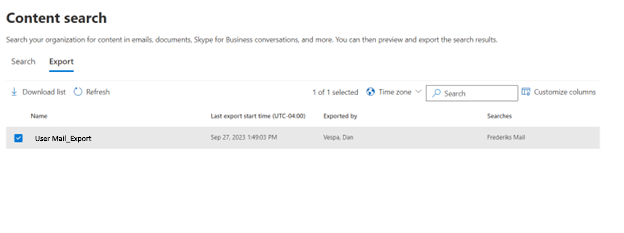
- Click the Export and a menu will pop up:
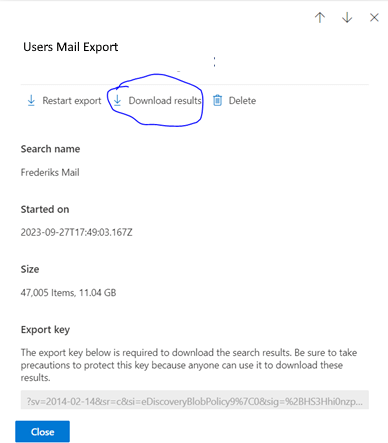
- When the export is ready for download the download result button will be displayed. Click on it. It will download an eDiscovery Export Tool to download. Once it is downloaded you will get this warning:
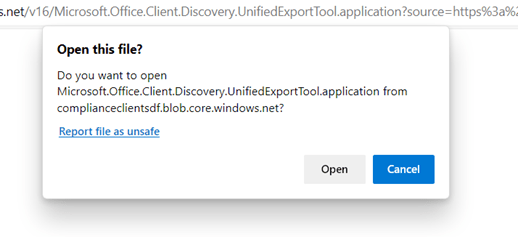
- Click Open
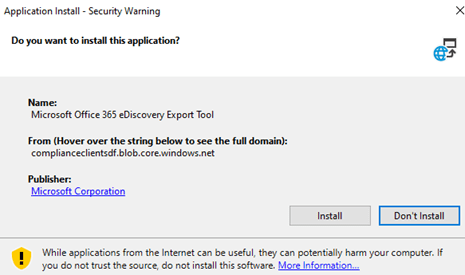
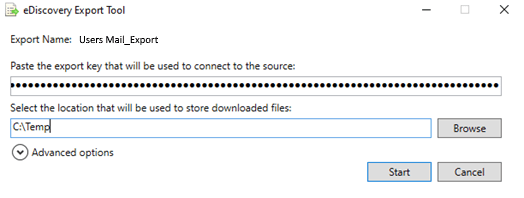
- Click install. The Export Tool will open, and you will be require to paste an export key and choose a file download location.
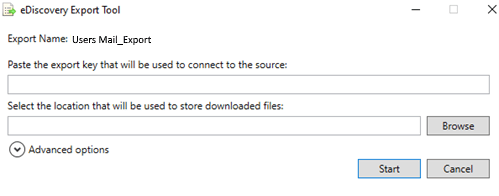
- Go back to the Content Search Export screen and copy the export key from your Search.
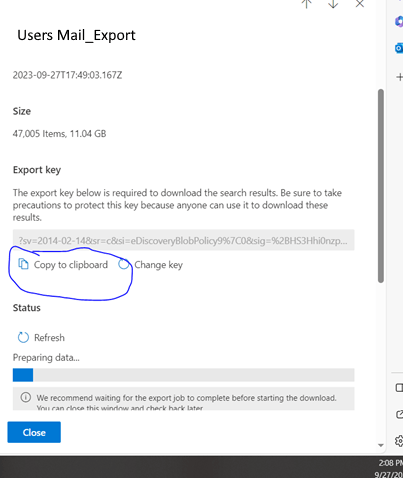
- Paste it into the appropriate text box. Also, choose a location for the download and click start.
- Once the download is complete you will have an Exported PST file from the user. You are done!
This is one of the many ways you can use Outlook. Now that you know how to M365 Download Users Exchange Mail in PST format you will be well on your way to efficient performing this process.
Setting Up Locate Device in Endpoint for Android
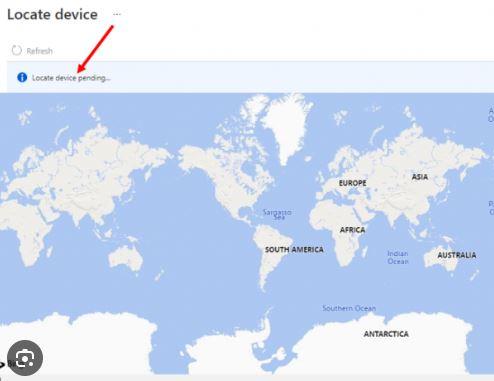
So, you want to set locate device in endpoint for your Android devices. Enrolling them in Endpoint is not enough!! There are several considerations and prerequisites that need to be set up first. I will show you how to do this.
Step 1 – Create a Group for Enrolled Devices
You have probably already done this. Creating a dynamic device or user group based on membership rules is the best way to set up Locate Device in Endpoint for success. Once the group is created, enroll a device based on the membership rules. Then you can go to step 2 create a configuration profile.
Step2 – Create a Configuration profile for Locate Device in Endpoint
Here we create a configuration profile that enables locate device for enrolled devices.
- In Endpoint, go to Home/Devices/Configuration Profiles and click “Create Profile”:
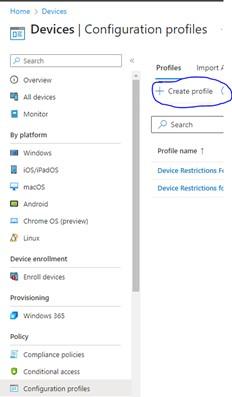
- On the create a profile choose “Android Enterprise” from the first dropdown and “Device Restrictions” from the profile type.

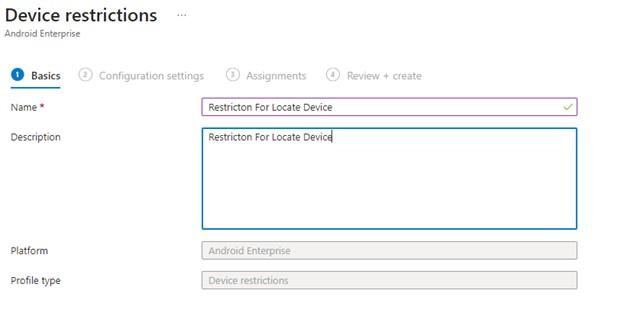
- Give the configuration a name and description and click next:
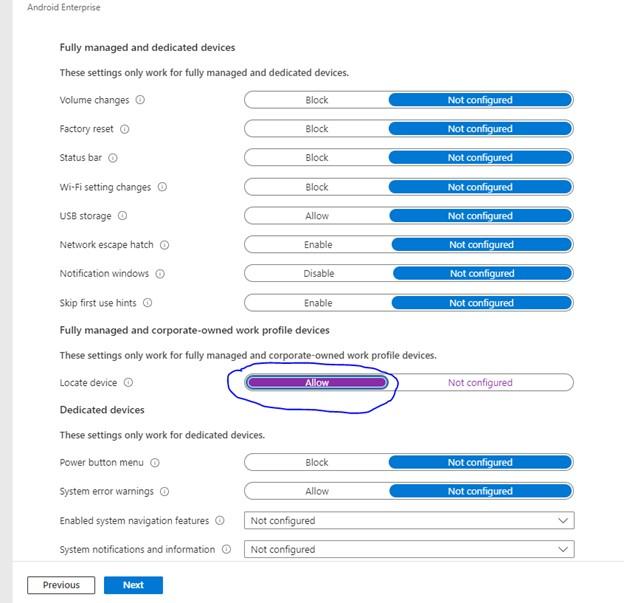
- On the screen, click the “General” Tilde and scroll down to “Fully Managed and Corporate owned Device Profiles” and find “Locate Device” and click the slider to allow:
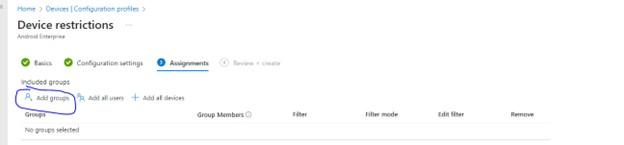
- Click next. On the next screen you will be asked to add group to the configuration. Add the group your created in step one to apply the configuration profile to:
- Click next and then create. You have your configuration policy.
Step3 – Ensure Location Services are Enabled on Enrolled Android Device
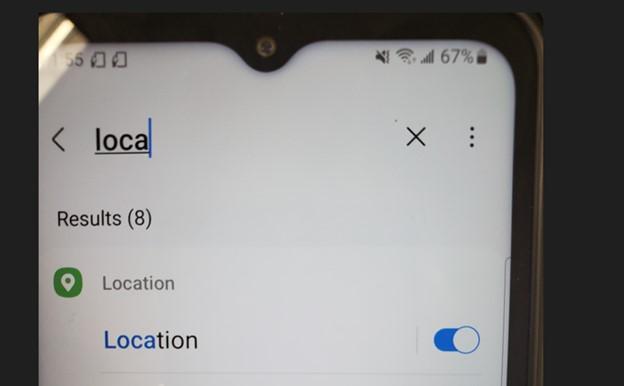
Location Services should be enabled by default on the enrolled android device, but it needs to be on for locate device in Endpoint to work properly, On the Android device go to Settings / Location and make sure the location settings are toggled on.
Step4 – Ensure App Permissions are Set for Intune
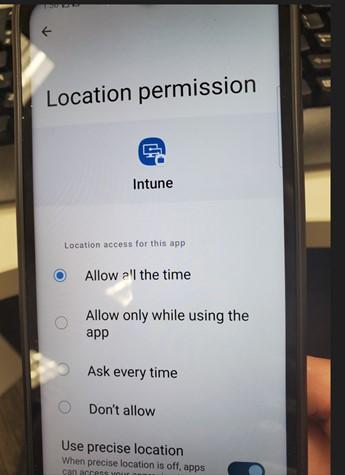
You need to make sure the Intune App is set to use location service every time.
- Do this while still in the location settings from the step above and tap app permissions.
- Scroll Down to the Intune app:

- And make sure the app is set to “Allow All the Time”. Also, make sure the “use Precise Location” is toggled on:
Step5 – Manually sync Policies in Android Intune App
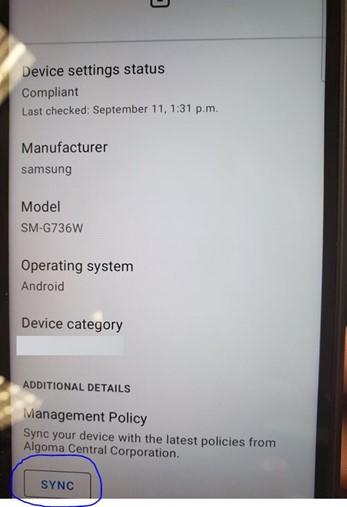
You can probably wait for the configuration policy to get pushed out to the device but if you want to see if Locate in Endpoint works properly, go to the Intune app and manually kick off a sync:
Putting Locate in Endpoint all Together
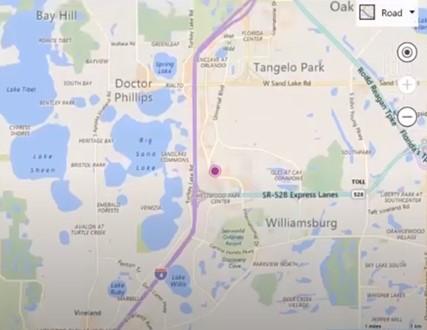
Now that you have properly configured your device to Locate in Endpoint, when you decide to do this:

You will get something like this:
Instead of this:

2 Ways to Change The Primary Email in Hybrid Environment
Thakns for visiting! It means a lot. Why not by me a coffee?
These are the best ways to Change The Primary Email in Hybrid Environment for a user. This may happen when you move from an on Premise AD environment to a Hybrid one.
You look in admin.microsoft.com and the use has the wrong primary SMTP address but you can’t change it in the portal….
It is simple to change the Primary Email Address of an M365 user when your tenant is not being synced to your on-premises active directory, but if you are syncing to M365 with any of the following tools:
- Windows Azure Active Directory Sync (DirSync)
- Azure AD Sync (AADSync)
- Azure Active Directory Connect
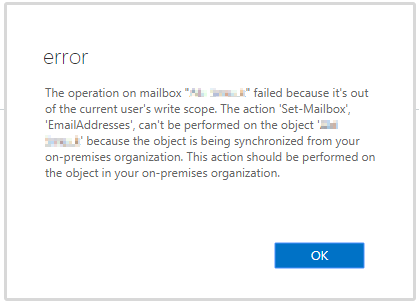
Then you will be unable to change any of email addresses associated with that account, and you will get the following error:
How to Change The Primary Email of an Active Directory – Microsoft 365 user using ADUC
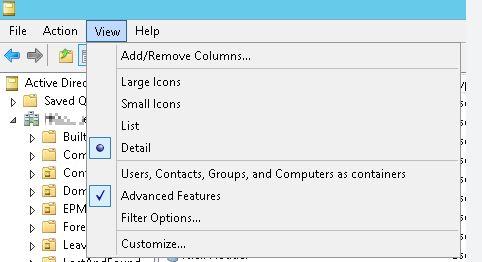
- Open Active Directory Users and Computers
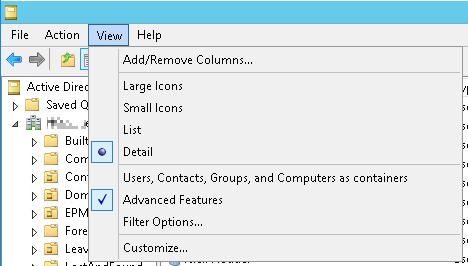
- Ensure you have “Advanced Features” enabled from the view menu:
- Double click on the user that you want to edit the email addresses for. (Note: You cannot search for the user. The attributes tab will not be available). You must manually search out the user.
- To do this, find the user and then look at this users “Object” Tab. It will show you exactly where the user is in AD.
- Go to the “Attribute Editor” tab.
- Go to the “proxyAddresses” attribute and click edit.
- Edit the email addresses as per your requirements. Note that the primary address (which is the address that the user will send emails from) is in uppercase “SMTP”.
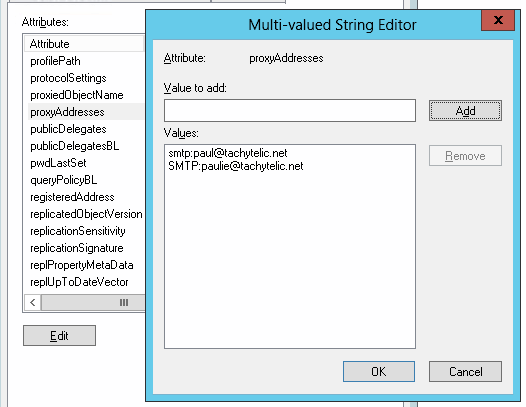
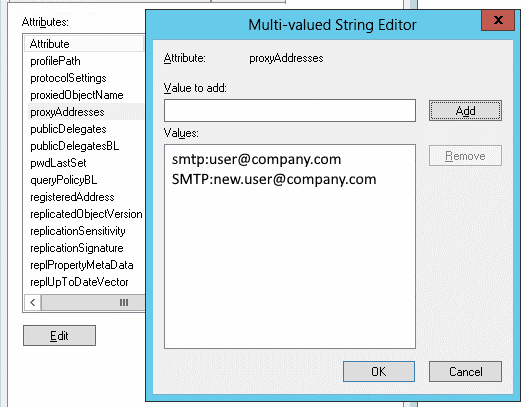
How to change Change The Primary Email in Hybrid Environment using PowerShell
You can perform the same operation to Change The Primary Email in Hybrid Environmentusing Windows PowerShell, the basic syntax is like this:
Set-ADUser user -Add @{ProxyAddresses=”SMTP:new.user@company.com”}
The problem with running this command is that you may already have a primary SMTP address set and this will not stop you from adding another one. So first of all run:
get-aduser user -properties proxyaddresses | Select-Object Name,ProxyAddresses |fl
This will show you all the current proxy addresses for this user. If you want to remove an existing proxy address, you can use:
Set-ADUser user -Remove @{ProxyAddresses=”smtp:user@company.com”}
Items like Distribution Lists will work better. Now your user will have its primary SMTP Address set correctly in a hybrid environment!
Check M365 Health Status Using 3 Ways
Why would you want to check M365 Health status? A good example of when your users are experiencing issues with the M365 ecosystem, and you want to check to see if it is a system wide issue before you engage in a bunch of troubleshooting your specific tenant. This is one of the many ways to enhance your M365 tenant.
In the article I will show you three different ways to check M365 Health status. The good news is it can be automated or done manually. It is your choice. So, let’s get to it!
Check M365 Health Status Dashboard
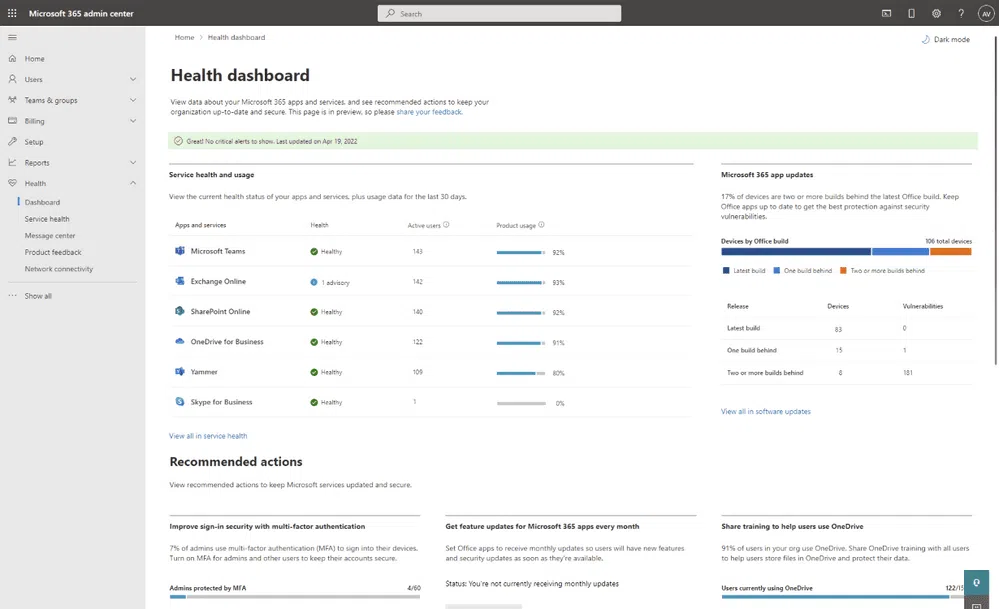
The Microsoft 365 Health dashboard lets customers view insights about the service status, software update status, as well as security compliance. It also shows critical alerts about general service incidents and billing issues.
It is designed to show the health status of the M365 services you use including the health of your environment, software and device updates, security as well potential billing issues.
Sign Up for Health Status Alerts
This is a great automated way to receive updates when you Check M365 Health Status of your environment, Do the following to sign up for alerts:
- Login to admin.microsoft.com.
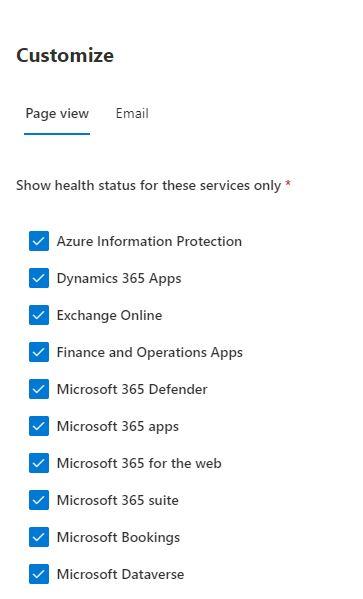
- Click on Health/Services Health and then customize in the top middle pane.
- Choose which services you want to view:
4. Choose what service you want health status emails on:
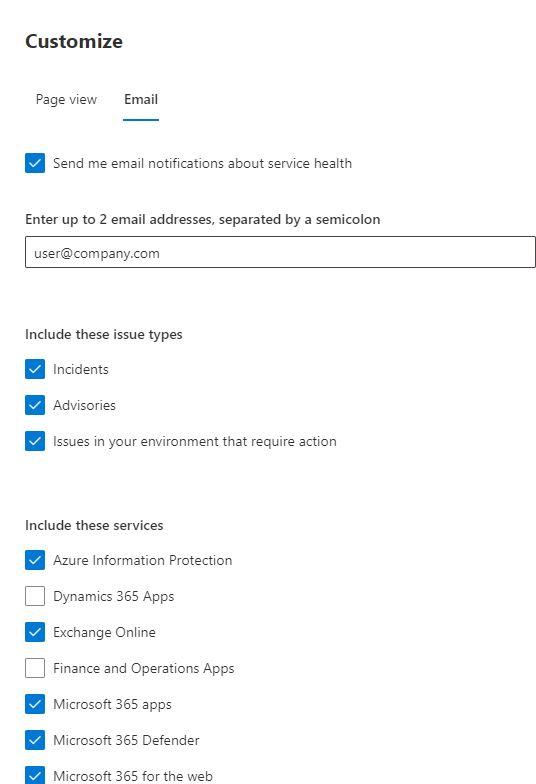
Whenever there is an issue with one of those services that affect your tenant or region, you will get notified via email.
Check Tenant Release Status
The is a great way to check M365 Health Status too. Sometimes is not a question of a service failing or degrading performance. It could be that your region hasn’t had a service update that takes care of the issue you are having. Consider it like a firmware upgrade for your tenant.
Before checking the service version of your Intune tenant, it is important to know that Microsoft releases monthly service updates to Intune. These updates are rolled out to tenants in an order.
• Day 1: Asia Pacific (APAC) gets the Intune updates.
• Day 2: Europe, Middle East, Africa (EMEA) gets the Intune updates.
• Day 3: North America gets the Intune updates.
• Day 4+: Intune for Government gets the updates.
It might not have got to your region yet. To check for your release version:
- Sign into the Microsoft Intune Portal.
- Navigate to Tenant Administration and now select Tenant Status.
- Select the Tenant Details tab, and here you can find the Service release version of your Intune tenant.
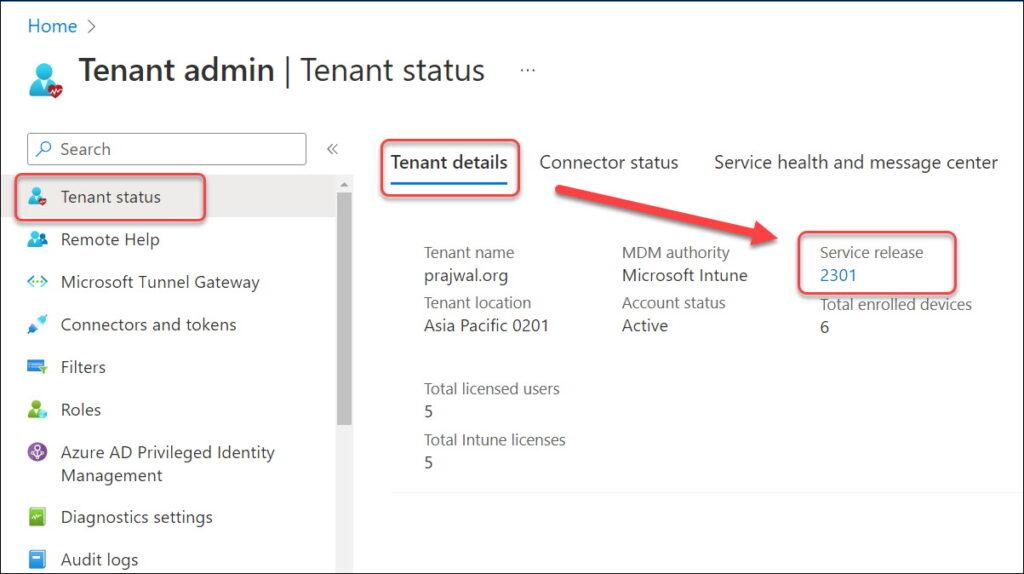
Using these 3 ways to check M365 Health Status, you will be able to differentiate between any potential issue being caused by your specific tenant or if it is an issue that affects the M365 eco-system in your region!
Create Teams Chat Autoreply with Power Automate
Create Teams Chat Autoreply with Power Automate
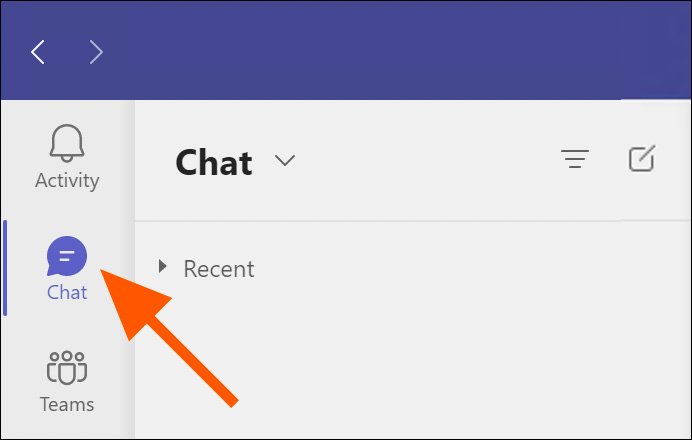
Here is a great example of why you would want to Create Teams Chat Autoreply with PowerAutomate. Your organization has an email address that forwards to several people. If you work in any form of a support group, this is common. The only thing is that it renders MS Teams on that account useless. You need Teams though because you are probably using the phone functionality on that account.
Nobody logins directly into the forwarded account so if anyone sends a chat message withing the organization you will only hear about it later in an email. By that time the person is probably wondering why they haven’t received support yet. If you use Power Automate (Microsoft Flow) it is more secure.
Why You Can’t set an Out of Office Message
It is an account that is not directly accessed so why not just send an out of office reply to incoming message. It works for Teams, right. Well, the problem here is that Outlook and Teams go hand in hand. With an OOO set up whatever goes to Outlook will also go to Teams and vice versa.
It would be hilarious if your support email sent out a reply that this this channel is not monitored! Here’s how you set up an autoreply in MS Teams.
Steps To Use Power Automate (Microsoft Flow) to Create Teams Chat Autoreply
- Go to https://make.powerautomate.com/ and sign in as the email account that is forwarded to your group if you are not already.
- On the left-hand side click “+Create”
- Choose Automated Cloud flow.
- Give your flow a name and search and choose the trigger “When a new chat message is added”.
- Click Create.
- You will be presented with a screen like this:
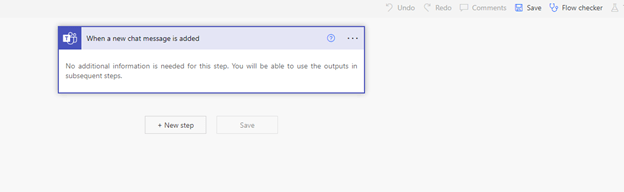
From Here you will add a step at a time by clicking on New Step. I will explain the flow in the next screenshots.
How the Flow Works
Power Automate can take almost anything you can do manually in M365 and automates it. A good example is when you Create Teams Chat Autoreply. The problem is that there is so much information you can automate is it hard to find documentation. Essentially the Output of a flow is an input to the next flow.
If the output from a flow has several values (like a search), it applies a “apply to each” step and will perform an iteration for you. My example only has one value. Creating the initial is ok, if you must go back and edit it, the “apply to each” becomes nested and it is a real pain. The flow I created is short, so I just recreate it every time in need to edit it. There is a way to remedy this but can show you in a future blog post.
Remember Each Output of one step is the input of the next.
Parse The Users Email Address (ObjectID)
The step in the screenshot below takes its input from the initial step of the flow (When a chat message is added). There are several possible items (Dynamic Content) you can pick from the message. The item you need to pick for this step is “Message Link”.
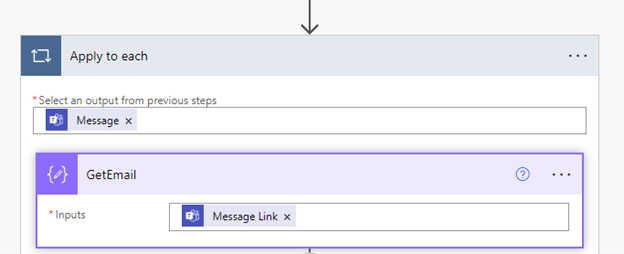
The next screenshots show how to parse the ObjectID’s from the Message Link Dynamic Content:
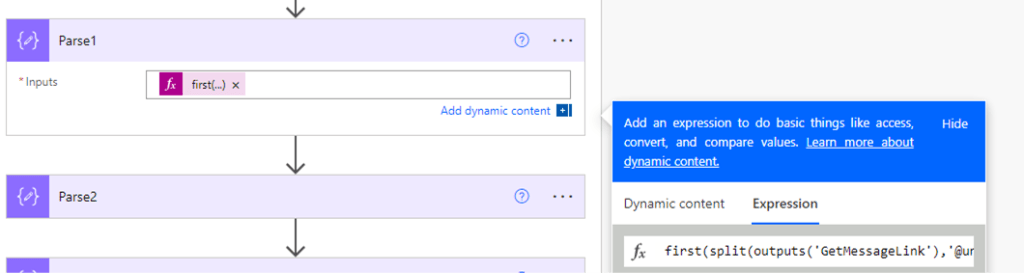
first(split(outputs(‘GetMessageLink’),’@unq’))
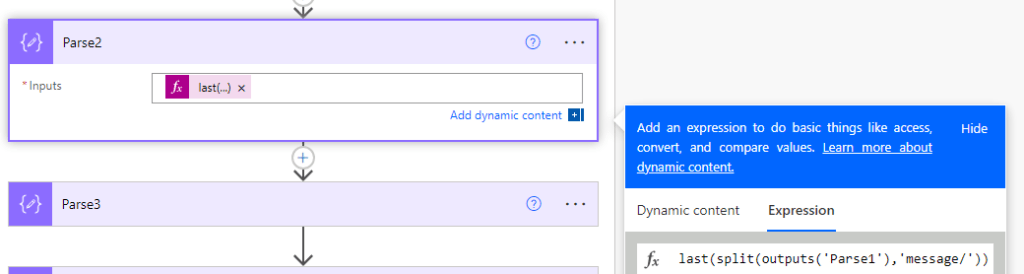
first(split(outputs(‘Parse2′),’_’))
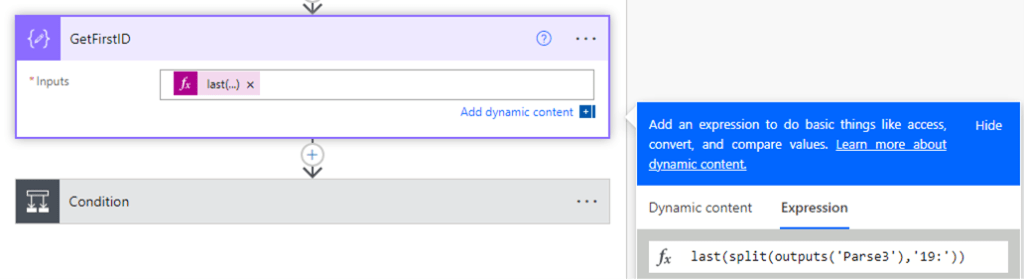
last(split(outputs(‘Parse3′),’19:’))
Now we have the 2 possible Object ID’s to parse out of the message link content:
Here is an example of data is trying to get at:

It is grabbing the info between “19:” and “_”. That is the ObjectID you will need in the following steps.
The thing is depending on how teams register the chat in the message link it will either be what you parsed or not. The good news is the chat is only between two users (The MS Teams account set up as and autoreply through flow and the user). So, you will have to set up a condition but first we need to determine what the account set up for autoreply’s Object ID is….
Getting Object ID to Create Teams Chat Autoreply Account
This can be easily accomplished by going to admin.microsoft.com and search for the user you want to use for the autoreply and then export the information to a CSV file:
Using Condition in Teams Chat Autoreply Account

Then look at the ObjectID field. You need to use that in your condition:
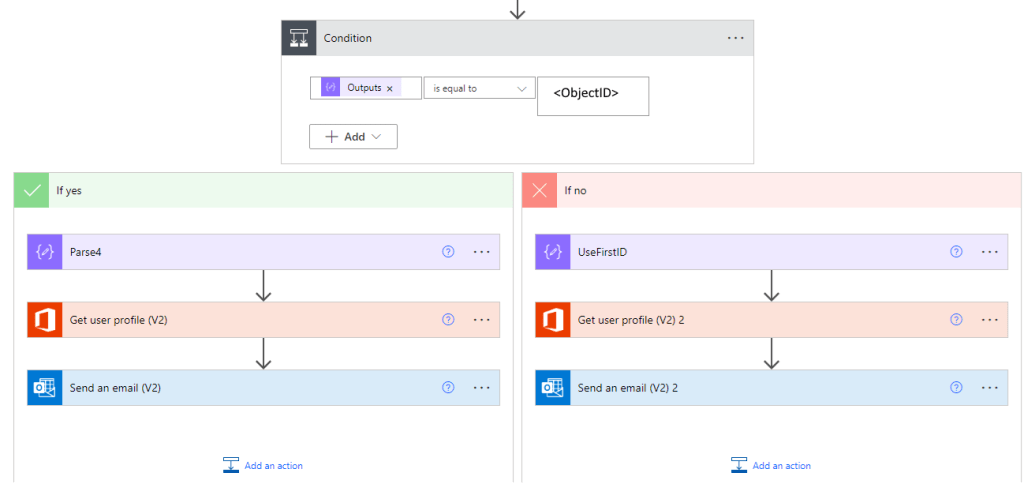
If the ObjectID you parsed is the Autoreply account ID you will need to go back a reparse to get the other ID:
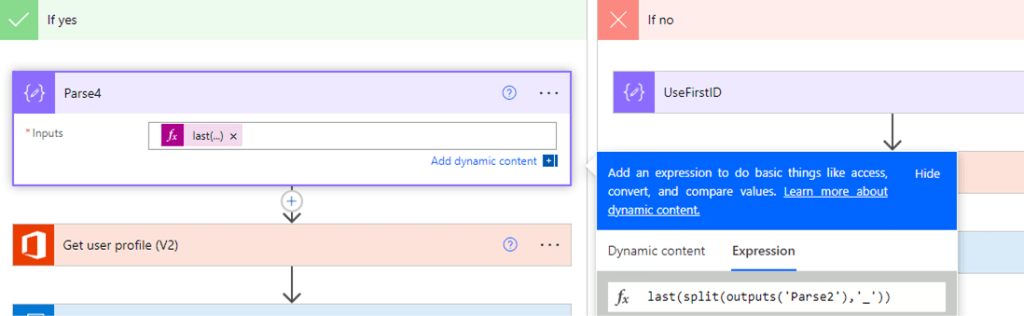
last(split(outputs(‘Parse2′),’_’))
Then you can get the user profile. “Get User Profile” takes it input from the results of all the Parse4.
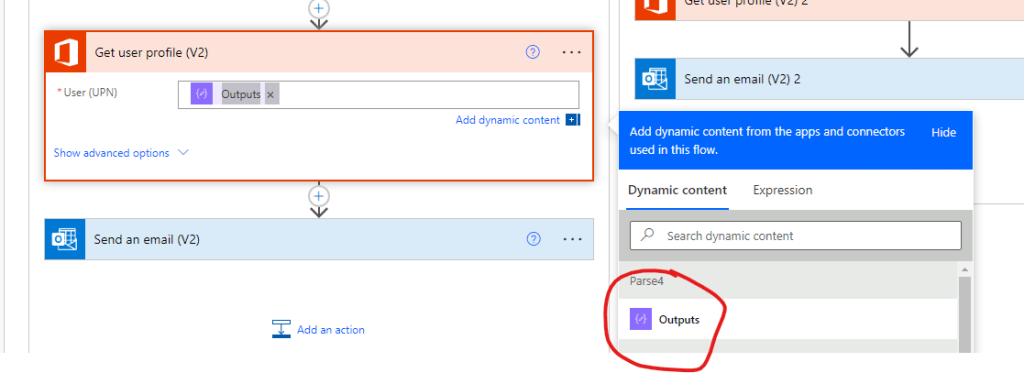
Now that you have this information, you can send an email to the user who tried to chat the Autoreply’s Teams Account. It grabs all the information based on the lookup from the Object ID and all you must do is select the Mail field dynamic content from the lookup, add your subject and autoreply message you would like to send. You can use the WYSIWYG editor or if you know HTML code you can add the message formatted that way.

If the Object ID does not match what you parsed from GetFirstID, then you have the correct Object ID and the flow will follow the “No” branch of the condition:
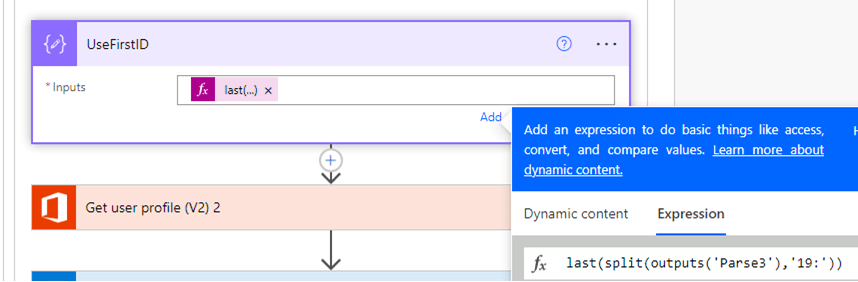
last(split(outputs(‘Parse3′),’19:’))
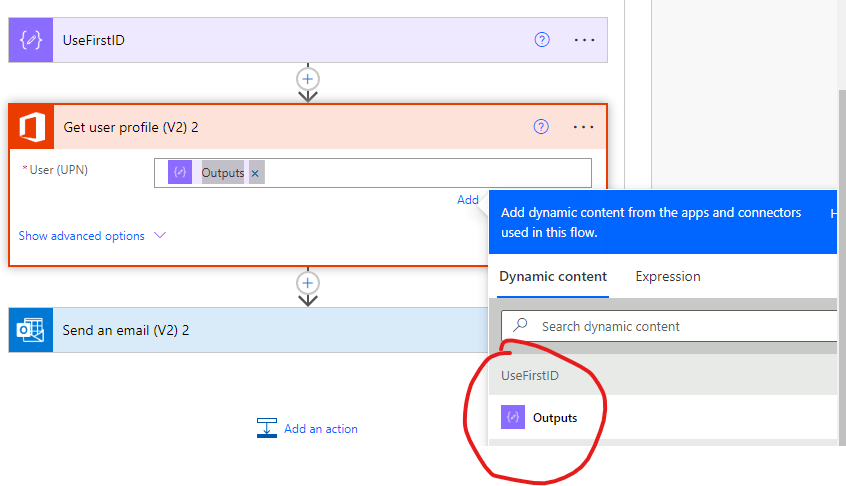
Now that you have this information, you can send an email to the user who tried to chat the Autoreply’s Teams Account. It grabs all the information based on the lookup from the Object ID and all you must do is select the Mail field dynamic content from the lookup, add your subject and autoreply message you would like to send. You can use the WYSIWYG editor or if you know HTML code you can add the message formatted that way.

Test The Flow
Once the flow is created, save it. Then, use the flow checker to make sure there are no errors:

Lastly you can test it by clicking the test button. You have the choice to manually test or automatic. The flow is triggered by a chat event in production so just choose “manual” and it will then sit and wait for an event that you will send immediately!
Use another Teams account to send a chat to the account where you set up the flow and the test account will get an email with the subject and the message you specified in the previous steps.
Result of Create Team’s chat autoreply.
- You have an email address that is not directly accessed but sent to several other email addresses.
- MS Teams chat is not monitored but needed for another reason (phone functionality).
- You can’t set an OOO on the outlook account because it defeats the purpose of having the email address in the first place!
- Someone sends a chat to this account.
- Using Power Automate, a flow has been set up that replies to the message in an email that the account is not in use and probably suggests other ways to get in contact with the group.
Easy peesie, right? With a little help from Power Automate you can Create Teams Chat Autoreply!
Scanning With Microsoft Lens The Right Way

Scanning With Microsoft Lens
Scanning With Microsoft Lens is a great way to get documents that are not on your phone scanned and sent to various outlets. Good examples are PDF, OneNote, PowerPoint, Word or Saved to OneDrive. You can later take the scans and share there using your normal methods on your phone (Email, Text, Teams, etc…). It definately can be used as part of the apps you deploy when you enroll devices like smartphones.
How To Scan With Microsoft Lens
This assumes you have already downloaded and installed the app from your normal app stores (Google Play, Apple. Samsung Galaxy, etc.).
Once installed do the follow:
- Tap the Lens Icon on Your Phone:

- It will open to a scan window with the Setting Document:

- Tap the shutter button and then tap confirm on the focused document:
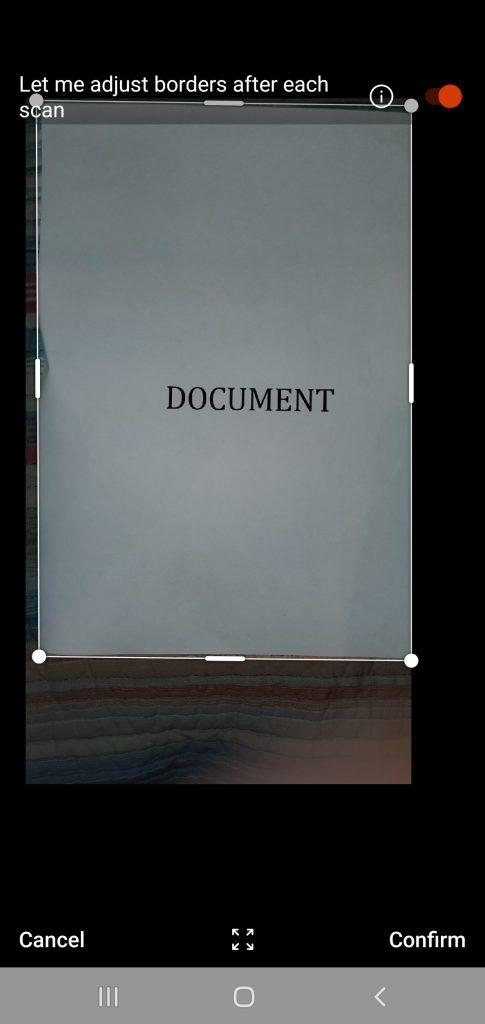
- Then click Done:

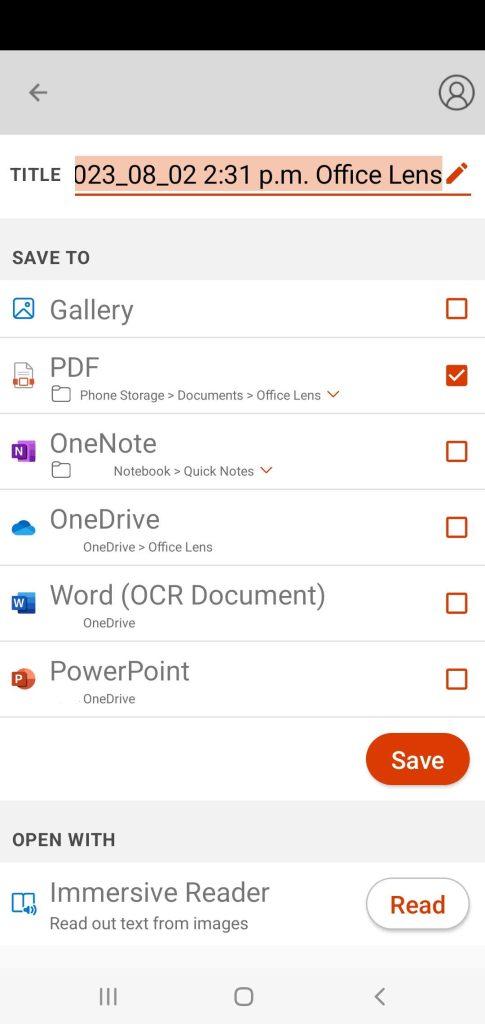
- Here you will have the options to save as. Once you choose your method, tap Save:
- The scan is saved to My Scans:
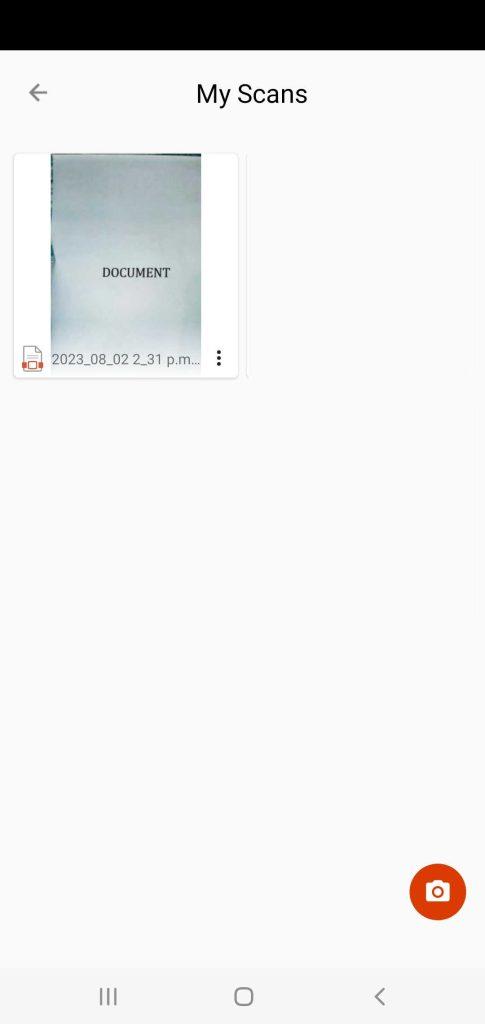
- Tap on the scan you just created and tap the share button :

- Your default PDF reader will open the document. In this example I am using Adobe. I do not have a cloud account to Adobe, so I tap “SEND A COPY”:
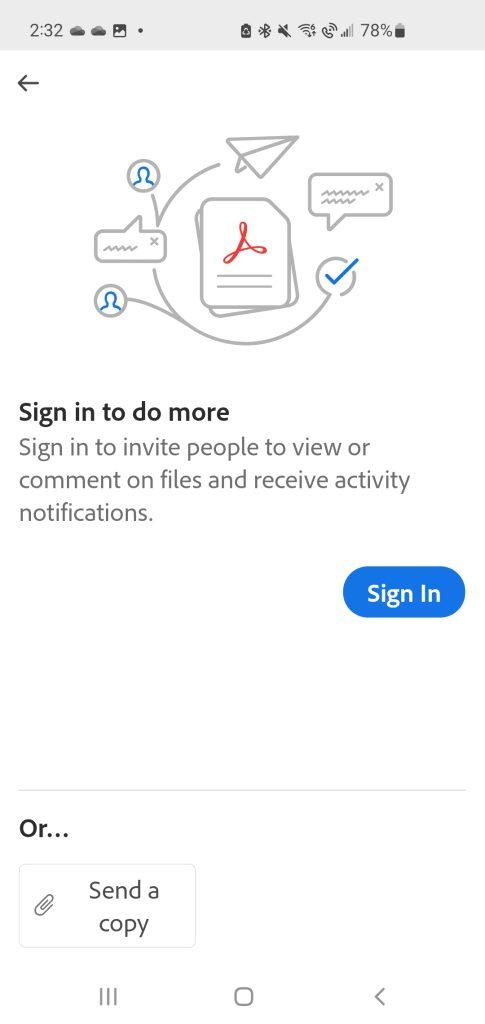
- Your default email app will open you will be able to send the document as an attachment.
As an aside, above I mentioned that there are several options you can choose to put your scan (PDF, Word, PowerPoint, OneDrive). If the device you are using is for personal reasons it really does matter what you choose. However, if it a business device, your O365 Administrator may disable some of those options even though they show as available.
I will give you an example. You have Microsoft Lens on a company enrolled device but the device is a general purpose used by many users. I explained in an earlier post how to deal with devices when MFA s not possible. You will want to disable option like OneDrive if you do not want items saved in the cloud.
This is just the start of what Microsoft Lens can do. If you want more info, go here.
One Way to Enhance Conditional Access
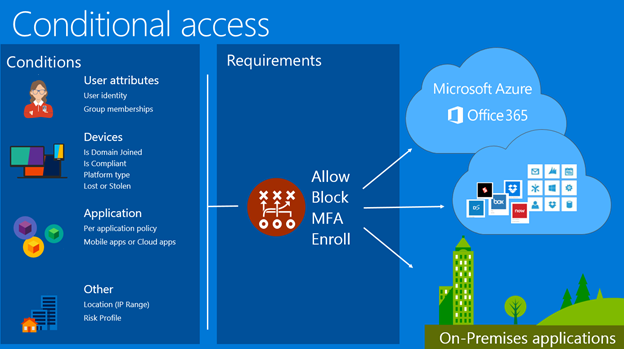
Enhance Conditional Access
I wrote an article awhile ago about how to use conditional access when MFA is not possible. In some cases you need need to enhance conditional access.
What is Conditional Access?
As a refresher, Conditional Access is a part of Azure AD that helps organizations improve security and compliance. By creating Conditional Access policies, you can tweak your authentication process.
Think about the old way of authentication: You require user to supply a username and password. Most of the time, it’s the legitimate account owner typing them in, the user can go on to access all the data, applications and other resources they’ve been granted permissions for. But consider this, an attacker has stolen or guessed a user’s credentials. Now they are accessing your network, and could have a breach on your hands.
You can use Azure AD Conditional to strengthen the authentication process. For example, you can create a policy to require users in a certain group to only login on devices that are recognized by the organization (At least Azure AD registered) and block all others. This will also help you pinpoint a breach a lot quicker. I will show you how in the next section.
Limit A Users Login With Conditional Access
Login to your Azure Active Directory (AD) portal and go to Conditional Access and add a new policy:
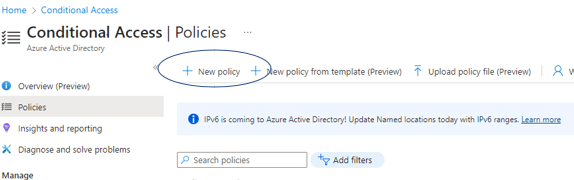
Give your Policy a name and then add users or groups that you want to include in this policy ( In my example I added a group):
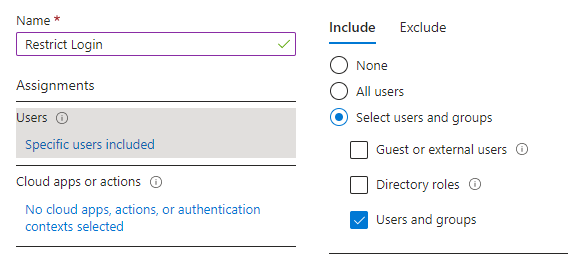
Next, you can move to the next step, which is what applications you want to restrict login to. In this example, I have chosen Office 365:

Enhancing Conditional Access
The next part enhance the access by making sure all types of apps are block. This means no browser access and no desktop or mobile app access. Click on conditions and then client apps:
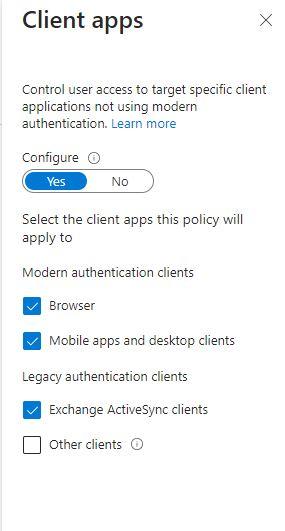
Check other clients if you still use POP, IMAP and SMTP but I hope you don’t. Those are legacy protocols.
This is the most important part the Conditional Access Policy:

In the Filter for Devices Section, you exclude devices from the policy by “Trust type”. If a user account from the group specified above is NOT one or more of the trust types you specify, they ARE included. I kept it simple and chose Azure AD registered. I am in a Hybrid environment and our devices are not joined to the cloud, only registered.
The last section is to block all access to the aforementioned apps:
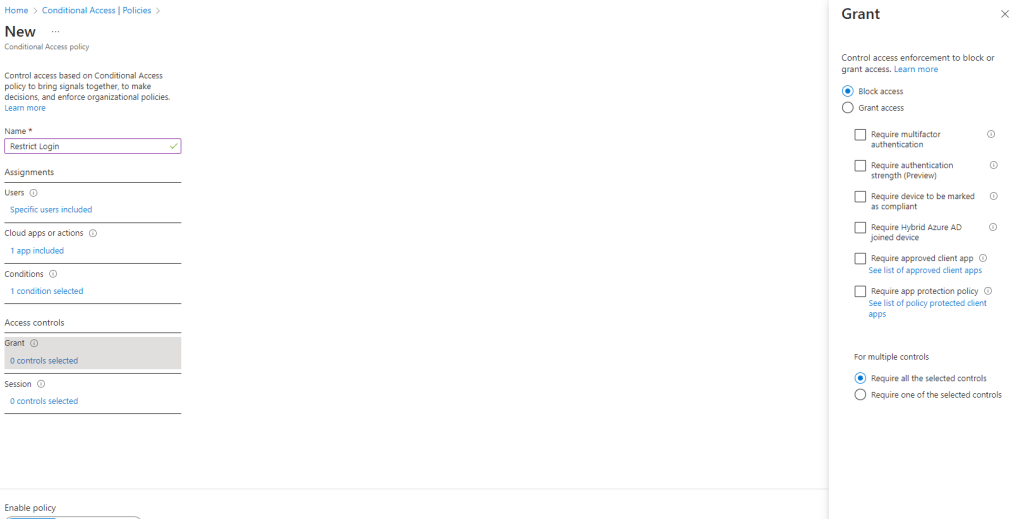
You could save the policy and start using it right away but that would not be a good idea. Save it as “Report-Only” and then check you Azure AD sign in logs to make sure it it working. Look at the logs by going to Azure AD / Users / Sign-in Logs. You will see a list of your users sign-ins. Filter for a time period where you have the Report-Only Conditional Access Policy in place.
Pick a user account that you know in included in the policy, if you see this then the policy would not block them if it were on:
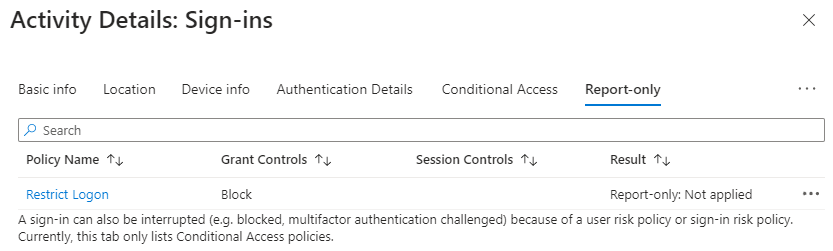
If you see the following you the device would be blocked from signing in if it were on:
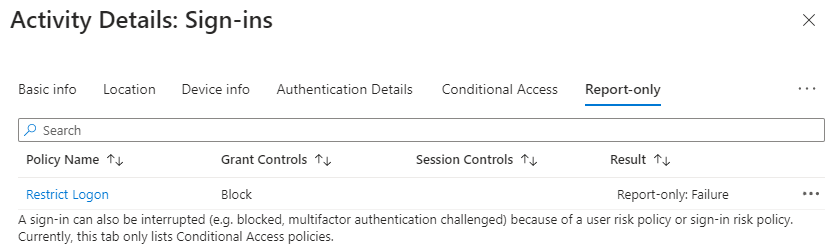
Users would expect to get this screen when they try to login:
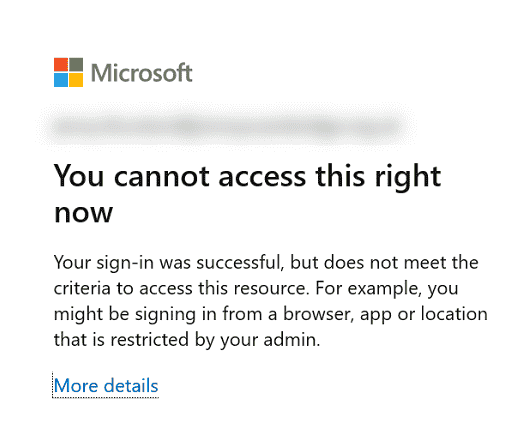
You can investigate the sign-in to make sure it is not a false positive. Let the policy run in “Report-Only” Mode for awhile until you are sure it is running as it should and then turn it on. You have now enhance your conditional access policy.
Happy IT’ing
Dan